Guest Merge
The Guest Merge tool in Retreat Portal finds guests who were entered more than once and combines their duplicate records into one. This is handy when someone registered twice, or an online sign-up created a second record for a guest you already had, leaving their history split across two entries.
Open Guest Merge
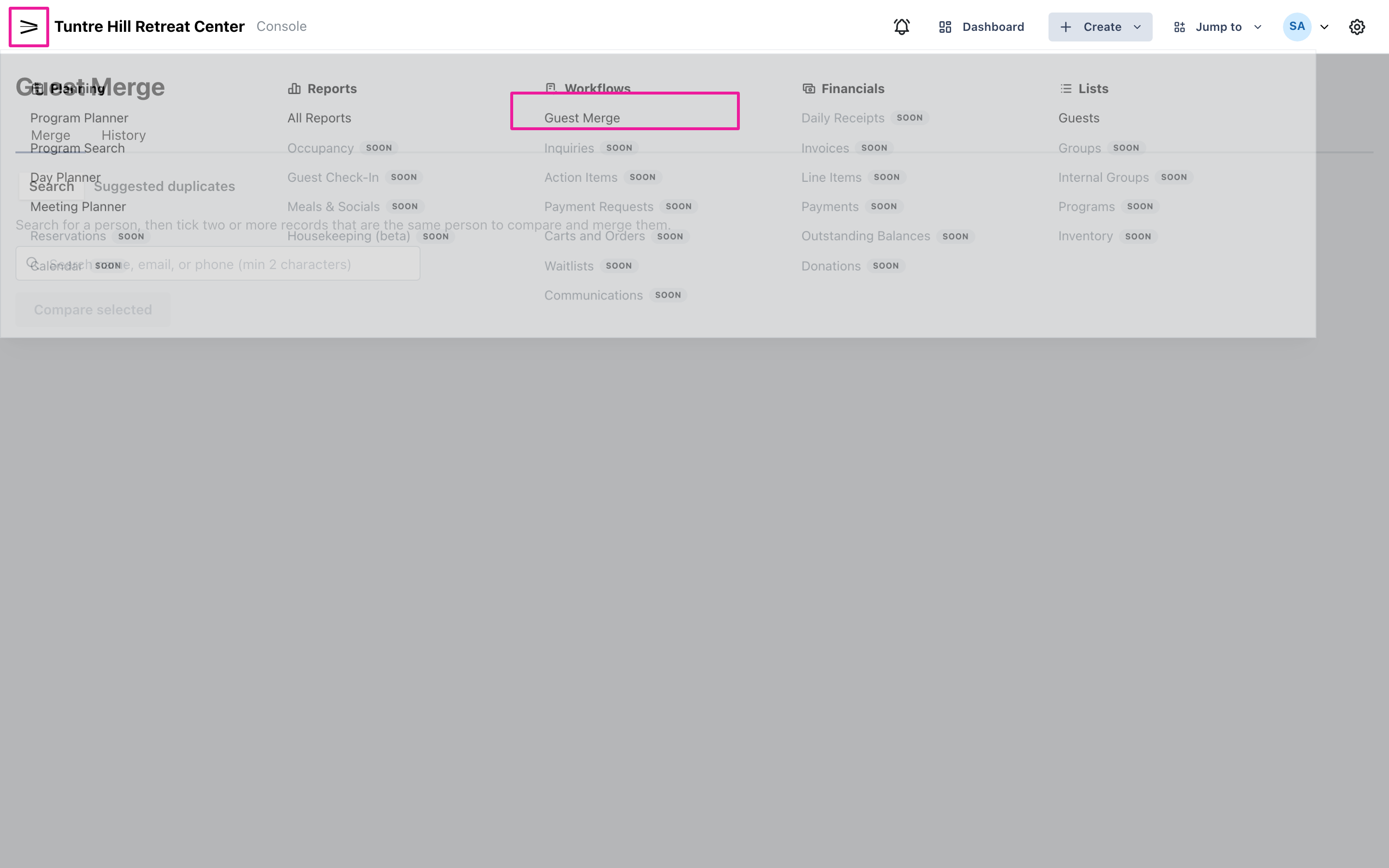
Section titled “Open Guest Merge”To open it, click the menu icon on the top-left and select ‘Workflows’ > ‘Guest Merge’.
Search for a guest
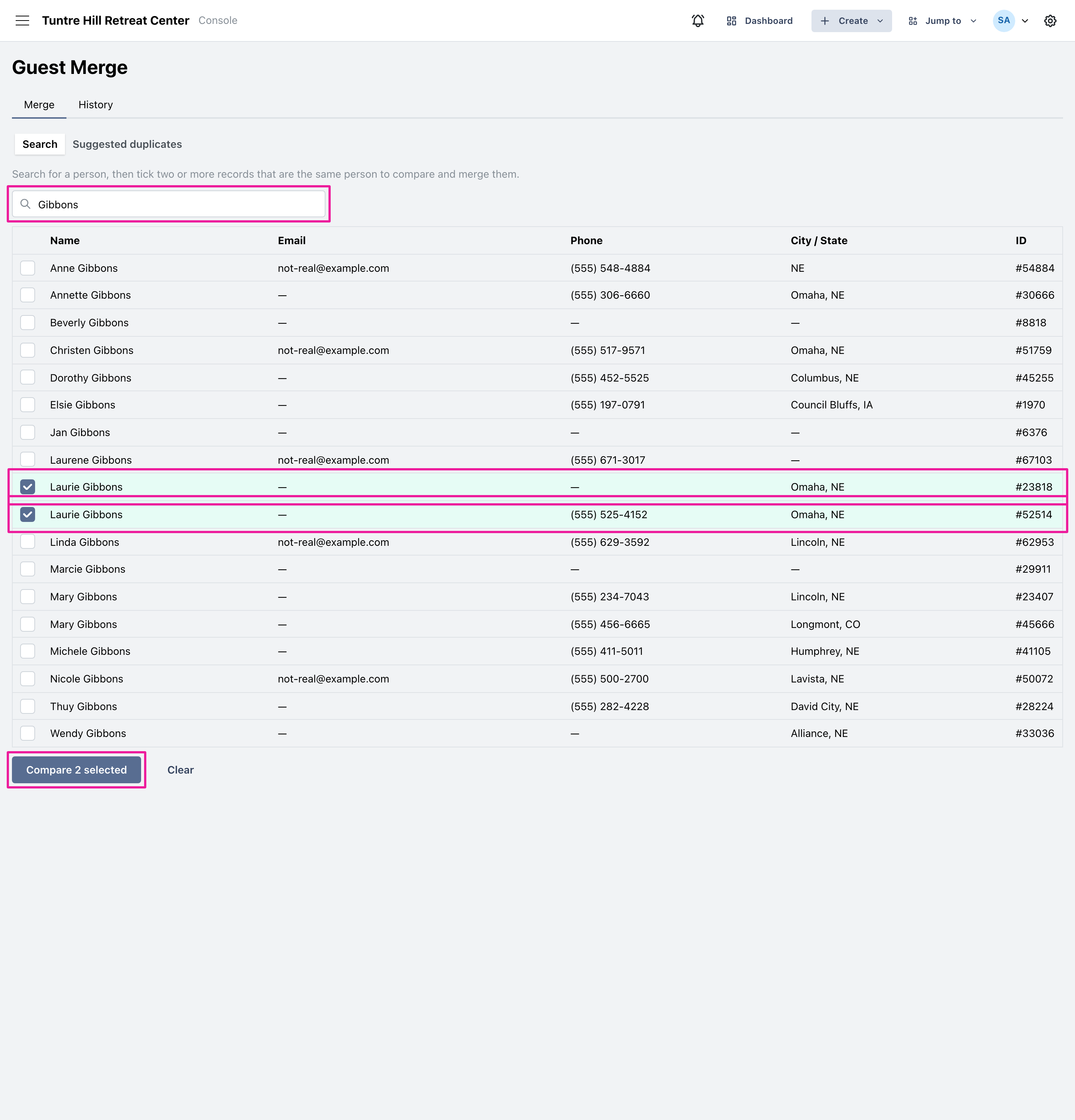
Section titled “Search for a guest”When you already know who’s doubled up, the ‘Search’ tab is the quickest way there. Type a name, email, or phone number into the search box, and Retreat Portal lists everyone who matches. Tick the records that are the same person, then click ‘Compare selected’ to line them up side by side.
Or let Retreat Portal suggest duplicates
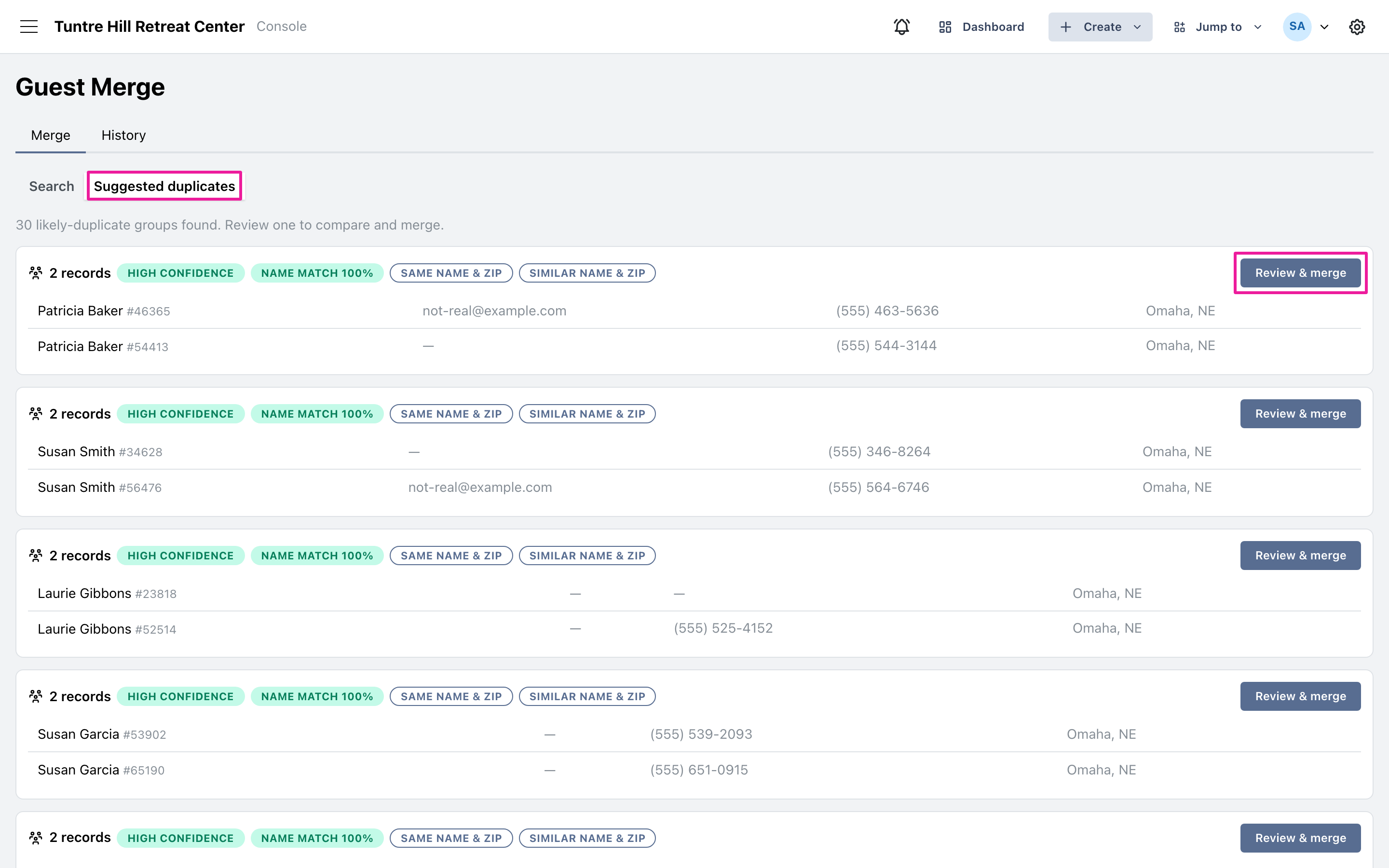
Section titled “Or let Retreat Portal suggest duplicates”Not sure where the duplicates are? Click ‘Suggested duplicates’ and Retreat Portal scans your guest list and proposes records that look like the same person, ranked by confidence. Every group is people whose names actually match, so two people who merely share a household phone or email address aren’t lumped together. Each group shows a ‘name match’ score and what the records share, such as a matching email or a similar-sounding name. When you spot a group to combine, click ‘Review & merge’.
Choose what to keep and merge
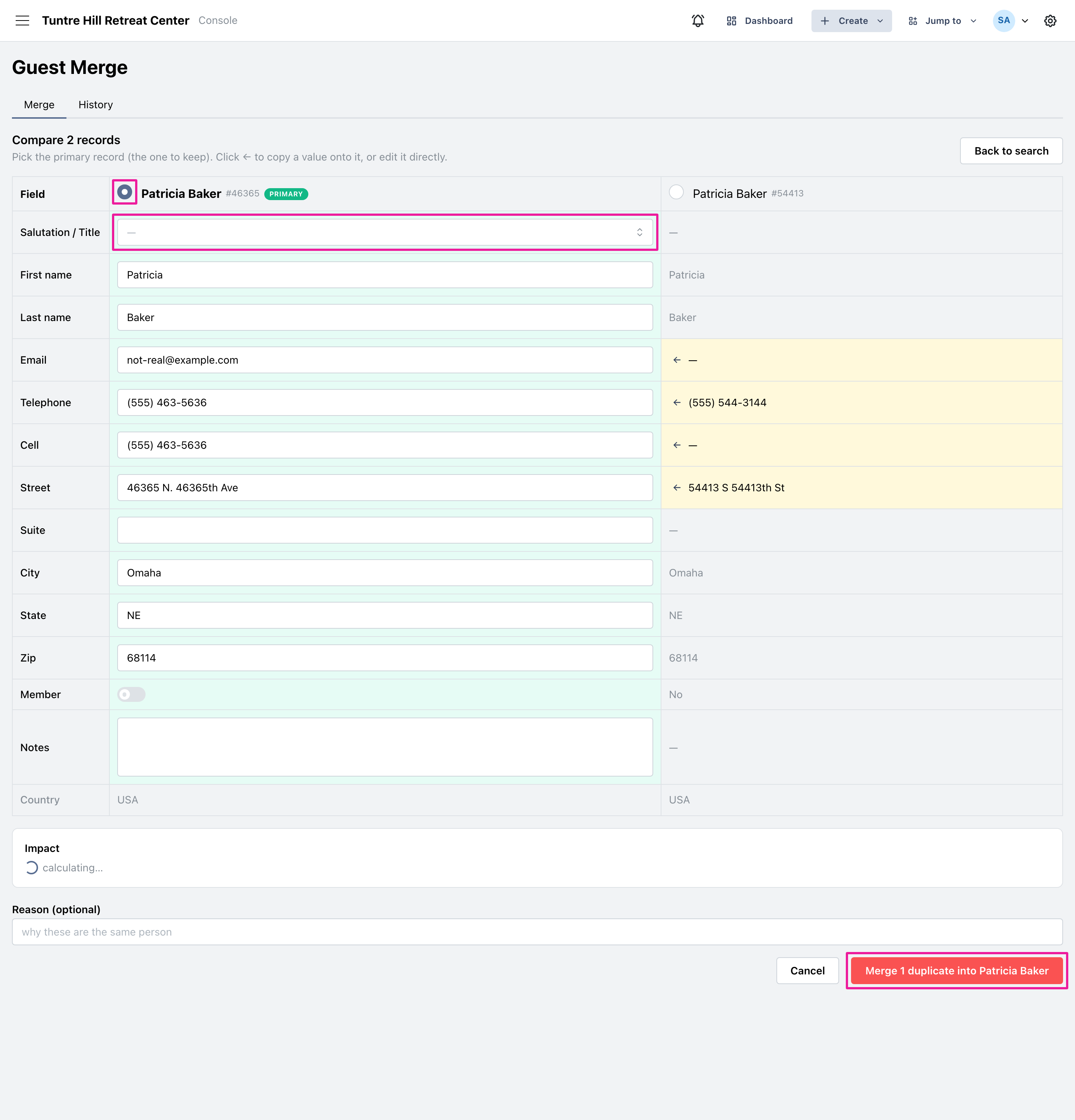
Section titled “Choose what to keep and merge”Choose the record to keep by clicking the circle at the top of its column; it’s marked ‘PRIMARY’. Where the other record has a better value, the field is highlighted, so click the ’←’ arrow to copy it onto the primary, or edit any field directly. ‘Salutation / Title’ is a dropdown of your configured titles. Check the ‘Impact’ panel for how many linked records will move, then click the ‘Merge … into …’ button.
Undo or delete a merge
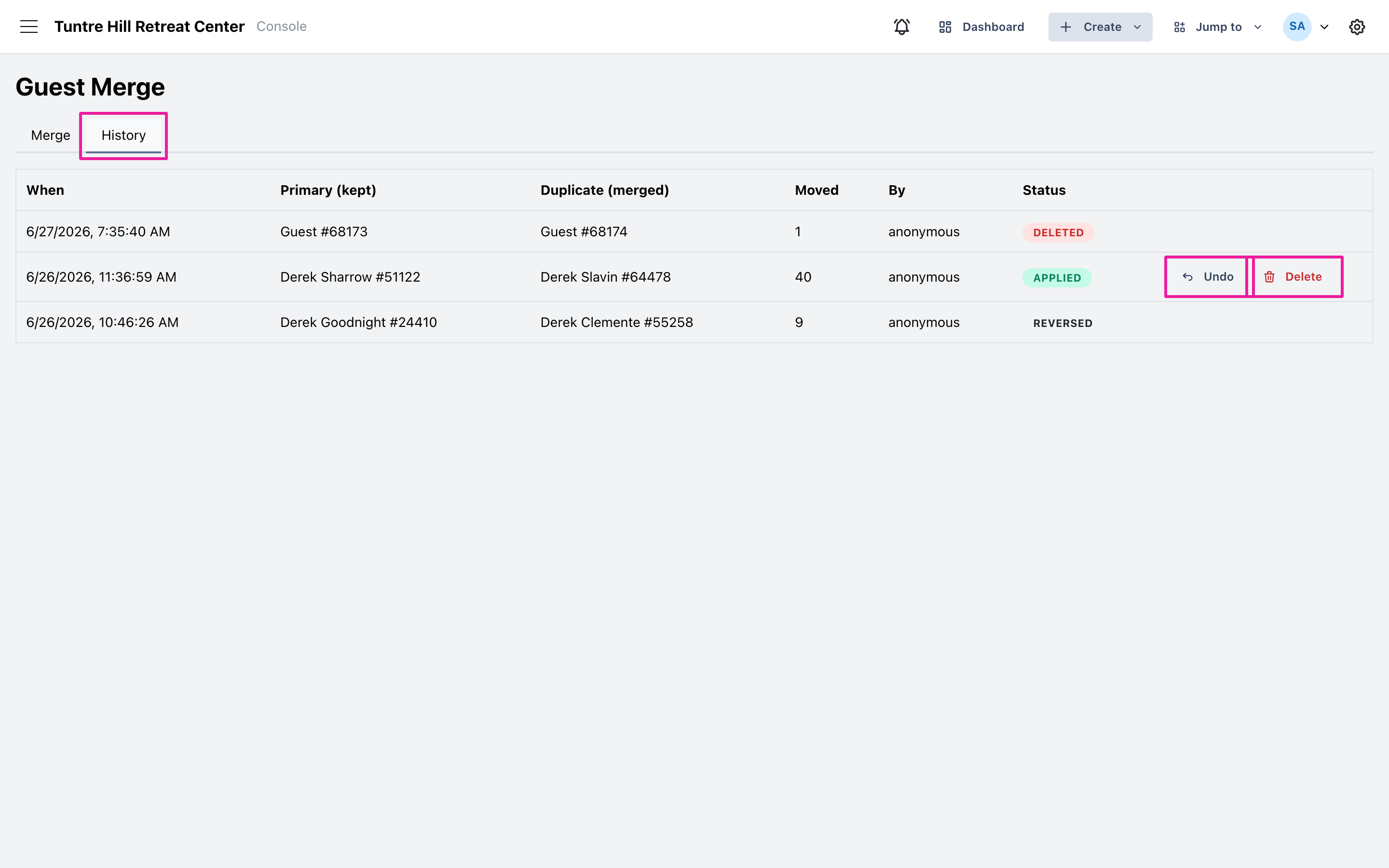
Section titled “Undo or delete a merge”Every merge is listed under the ‘History’ tab. To reverse one, click ‘Undo’ and confirm, and the records split back apart. Once the duplicate’s records have all moved across, click ‘Delete’ to permanently remove the leftover duplicate, which can’t be undone.