
Request a Balance
When a guest or group owes money on an invoice, you can email them a request to pay it by card. This page asks for one invoice’s balance. To ask on several invoices in one step, see Request Several Balances at Once.
Find the invoice
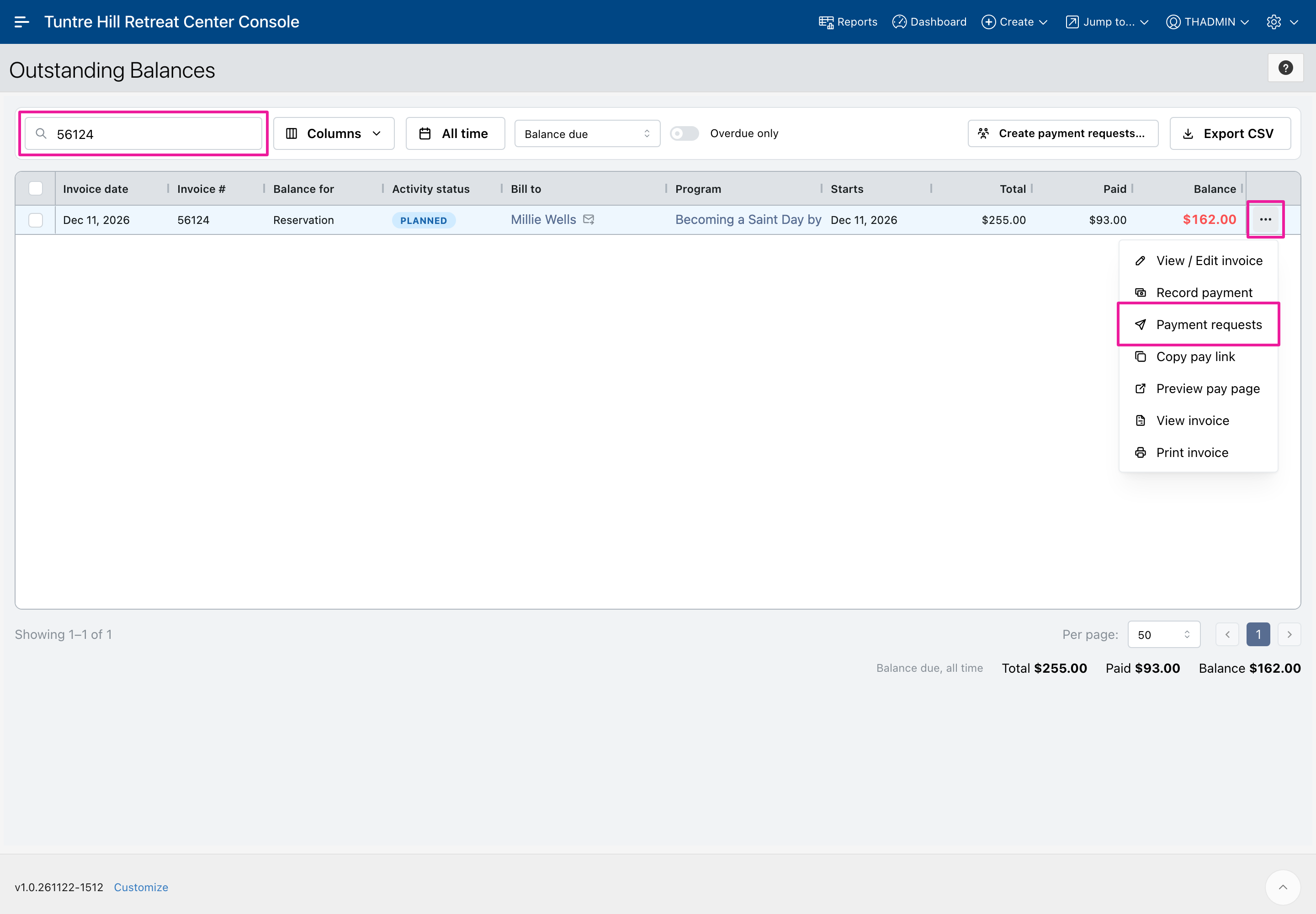
Section titled “Find the invoice”Click the menu icon on the top-left and select ‘Financials’ > ‘Outstanding Balances’. Type the invoice number, or the guest’s or group’s name, in the search box. Click the three dots on the far right of the invoice and select ‘Payment requests’.
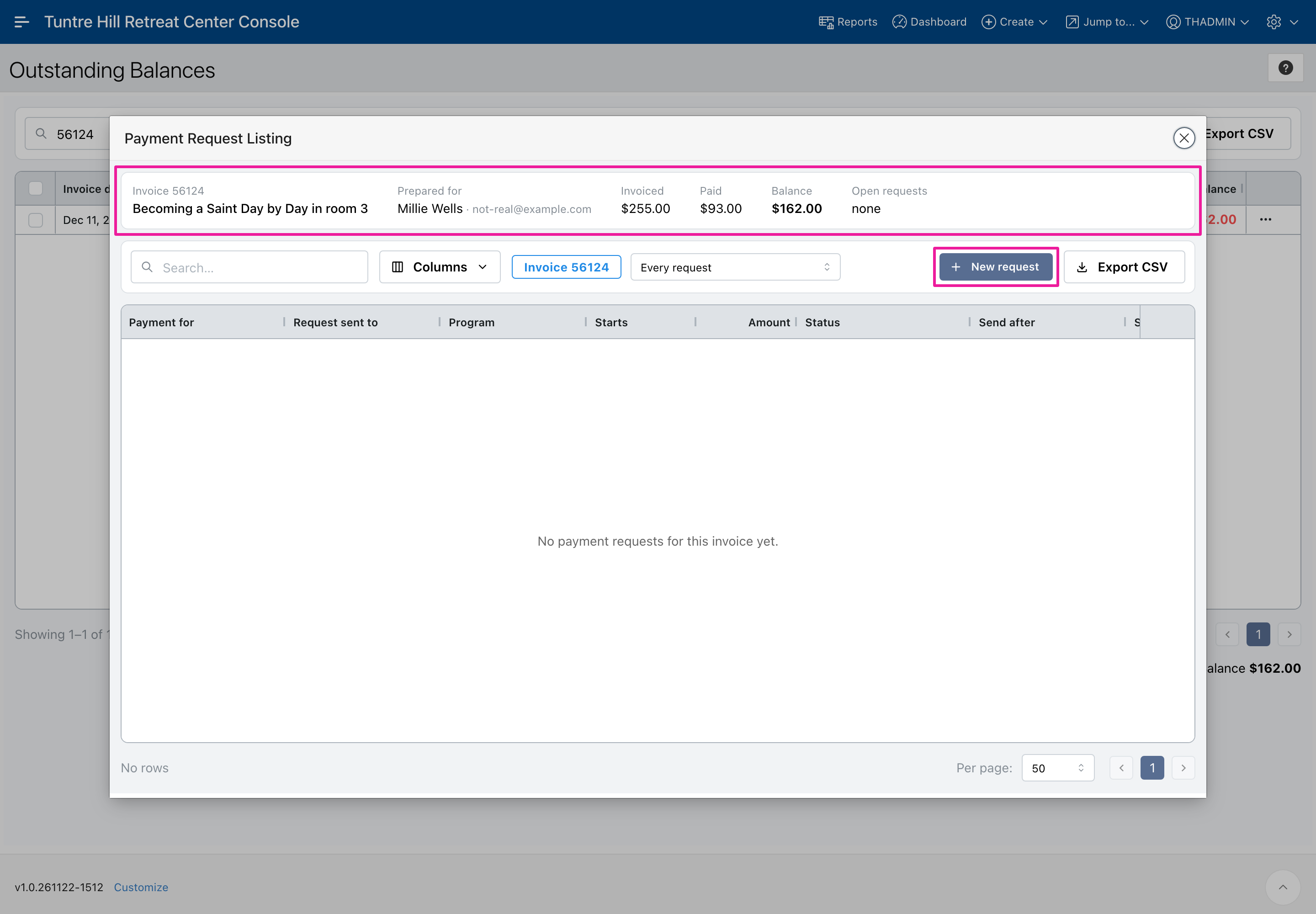
The ‘Payment Request Listing’ window opens. The top line shows what the invoice is for, who it is prepared for, and what has been invoiced, paid, and is still owed. Any requests already made on this invoice are listed below it. Click ‘New request’.
Choose who, how much, and when
Section titled “Choose who, how much, and when”The ‘New payment request’ window starts with the choices most requests need: the person the invoice is prepared for, the whole balance, sent now.
- Ask: the guest or group who receives the email, with the address it goes to. Click ‘Change’ to ask someone else, such as the group’s contact in place of the guest. If no email address is on file the window says so; add one on the guest’s or group’s page first.
- Amount: ‘Balance due’ asks for everything still owed. ‘Fixed amount’ asks for the amount you type, for example a $100 deposit. ‘Percent of balance’ asks for a share of the balance and shows what that comes to.
- Send the email: ‘Now’ sends it within five minutes. ‘On…’ lets you pick a date and time for it to go out.
- Due on: the date you want payment by. It appears in the email and on the pay page, and the request shows as ‘Overdue’ once it passes.
- Note: for your own records. The payer does not see it.
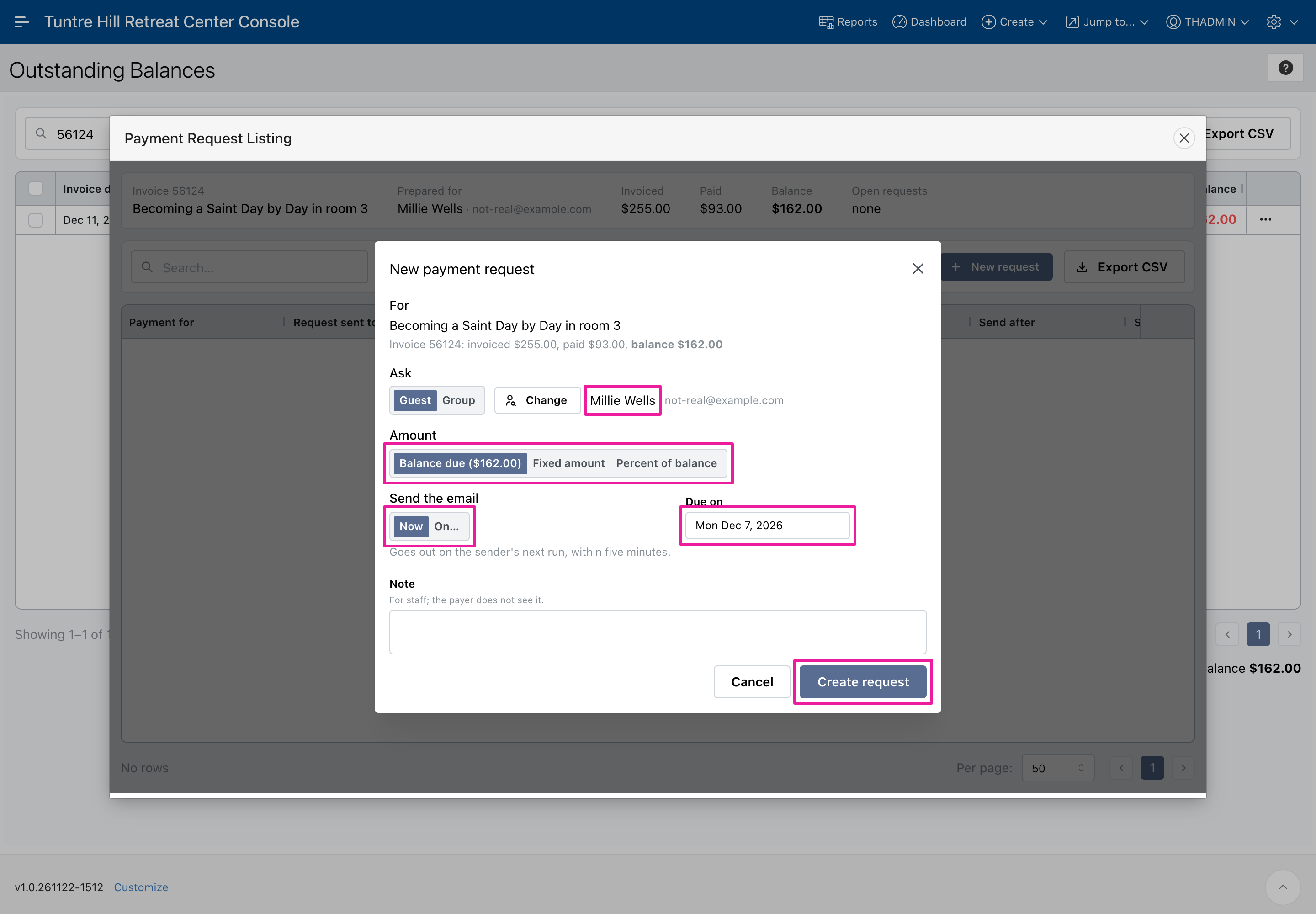
Click ‘Create request’.
Check the request
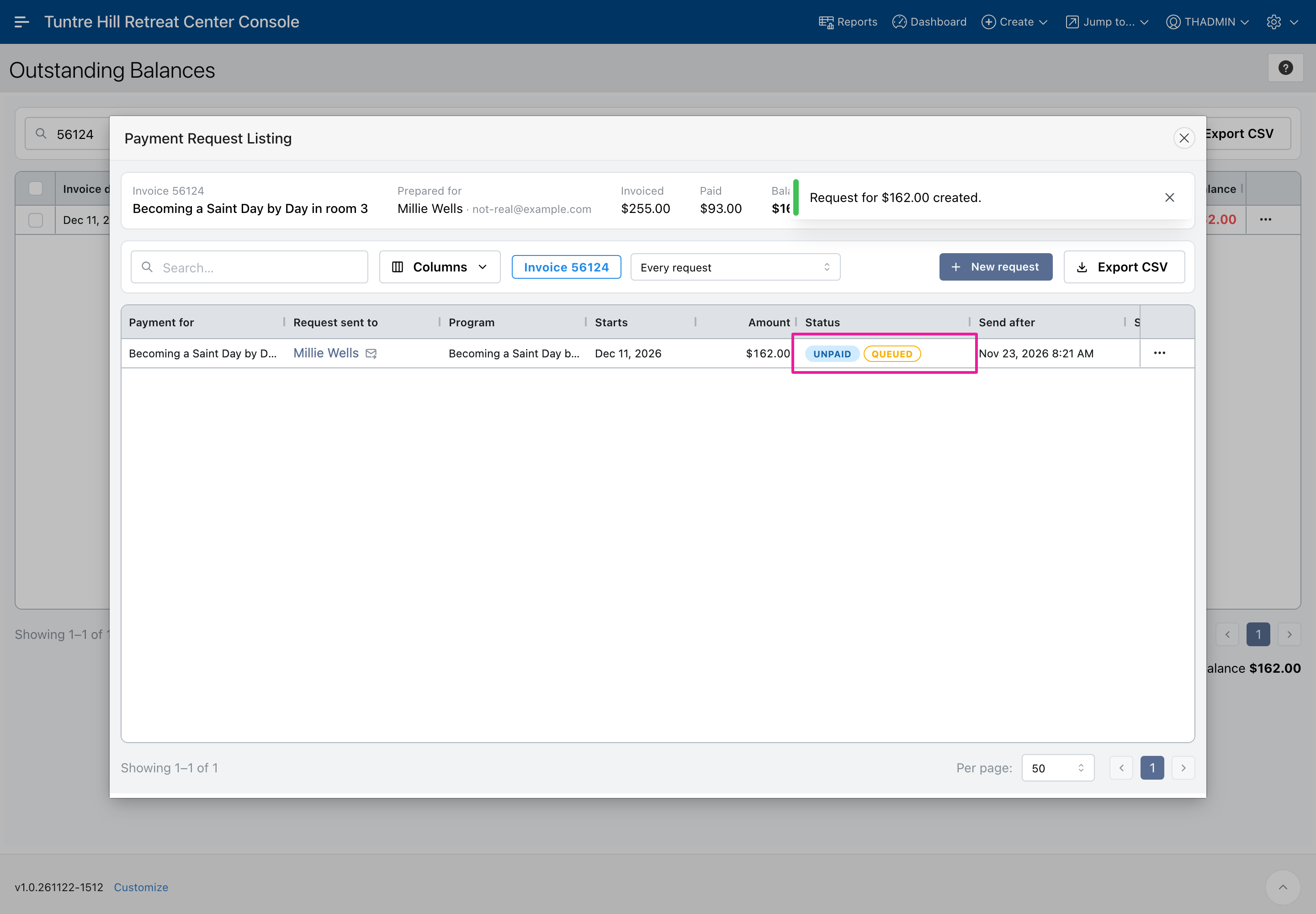
Section titled “Check the request”The request appears in the window as ‘Unpaid’ · ‘Queued’. Within five minutes the email goes out and the status changes to ‘Sent’.
To split an invoice, for example a deposit now and the rest closer to the stay, click ‘New request’ again and create a second request with its own amount and send date.
What the payer sees is in What the Payer Receives. To follow the request, send it again, or cancel it, see Track, Resend, and Void a Request.