Group Merge
The Group Merge tool in Retreat Portal finds organizations that were entered more than once and combines their duplicate records into one. This is handy when a parish, school, or company was added by two different staff members, or an online booking created a second record for a group you already had, leaving its programs and invoices split across two entries.
Open Group Merge
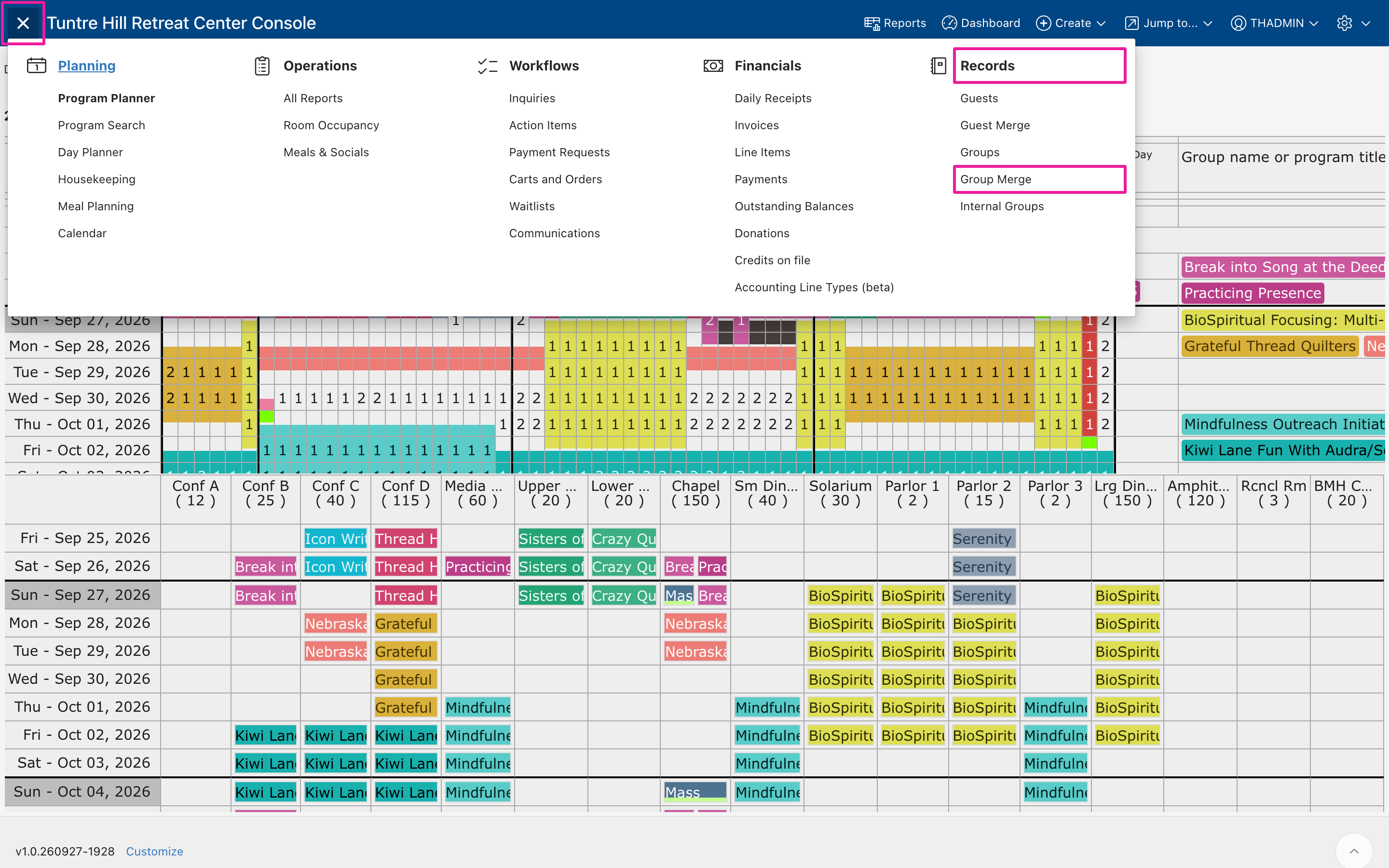
Section titled “Open Group Merge”To open it, click the menu icon on the top-left and select ‘Records’ > ‘Group Merge’.
Search for an organization
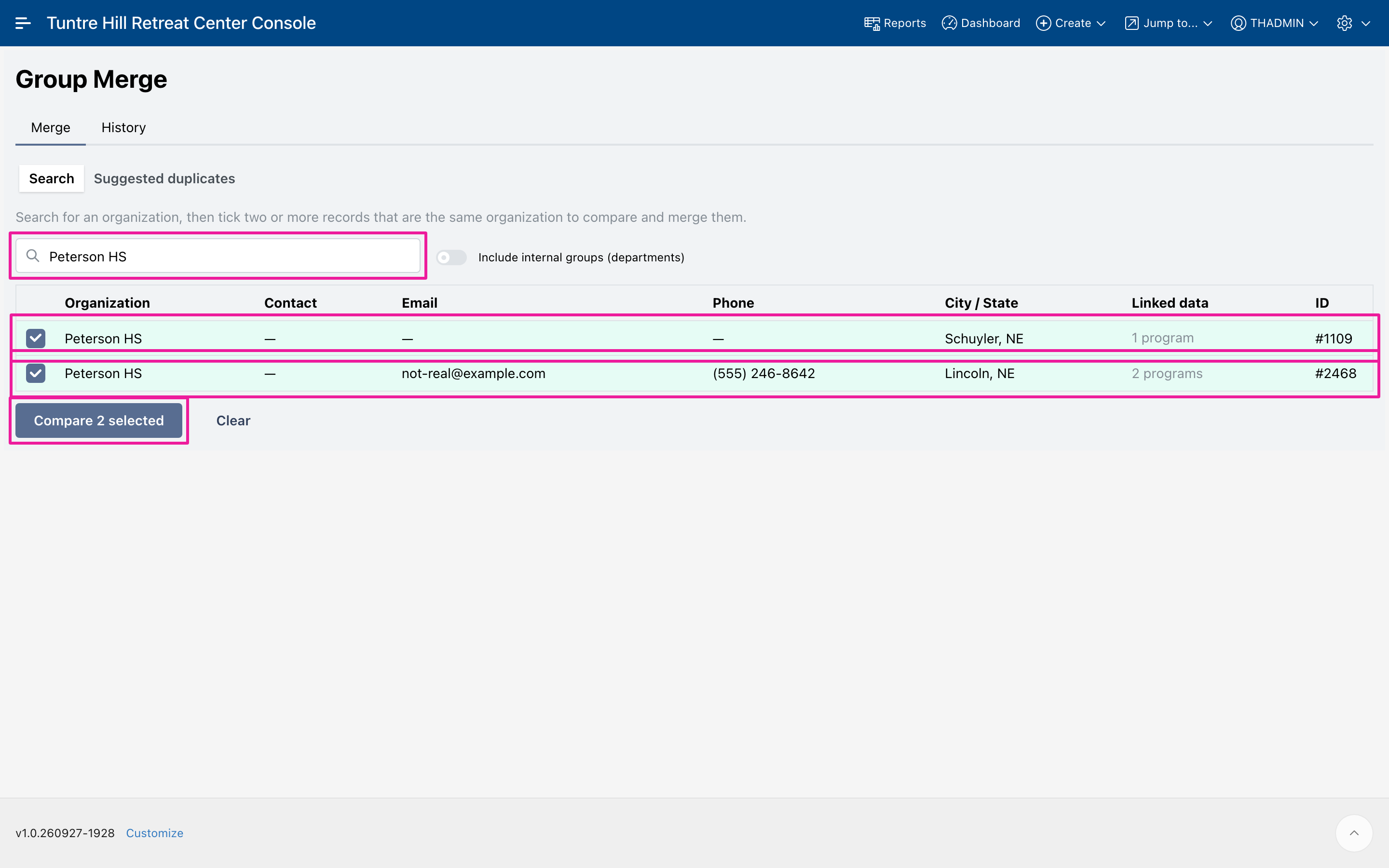
Section titled “Search for an organization”When you already know which group is doubled up, the ‘Search’ tab is the quickest way there. Type the organization’s name, email, or phone number into the search box, and Retreat Portal lists every group that matches. The ‘Linked data’ column shows how many programs, guests, and contacts each record carries, which is usually the fastest way to tell the real record from the stray one. Tick the records that are the same organization, then click ‘Compare selected’ to line them up side by side.
Or let Retreat Portal suggest duplicates
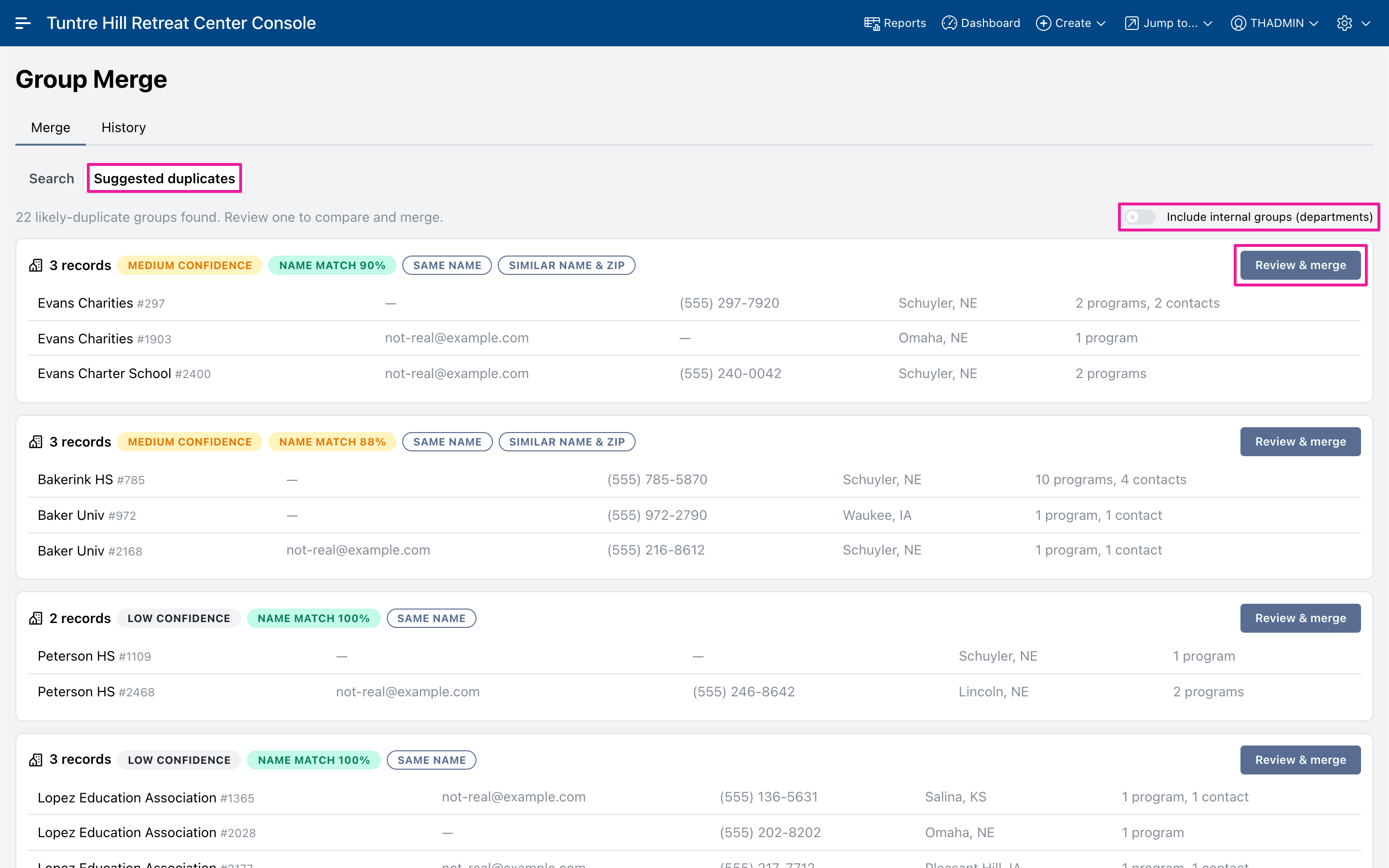
Section titled “Or let Retreat Portal suggest duplicates”Not sure where the duplicates are? Click ‘Suggested duplicates’ and Retreat Portal scans your groups and proposes records that look like the same organization, ranked by confidence. Each group shows a ‘name match’ score and what the records share, such as a matching email, a shared phone number, or a similar-sounding name. Internal groups, the departments you use to file your own programs, stay out of the list unless you tick ‘Include internal groups’. When you spot a group to combine, click ‘Review & merge’.
Choose what to keep and merge
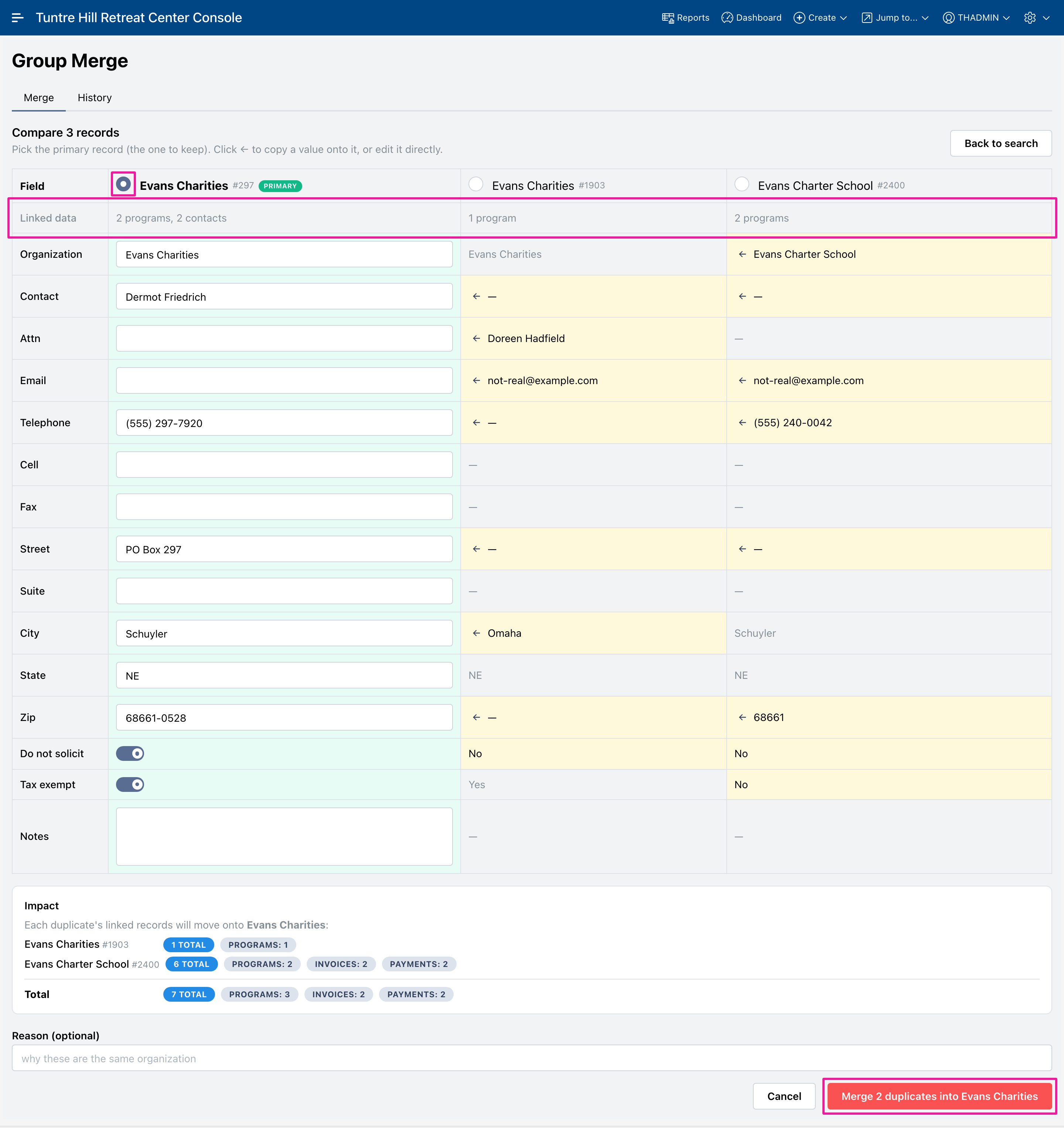
Section titled “Choose what to keep and merge”Choose the record to keep by clicking the circle at the top of its column; it’s marked ‘PRIMARY’, and Retreat Portal starts you on the one with the most linked data. Where the other record has a better value, the field is highlighted, so click the ‘←’ arrow to copy it onto the primary, or edit any field directly. Check the ‘Impact’ panel for how many programs, invoices, payments, and contacts will move, then click the ‘Merge … into …’ button. If a portal user already has access to both records, that access is simply kept on the primary and noted as ‘left in place’.
Undo a merge
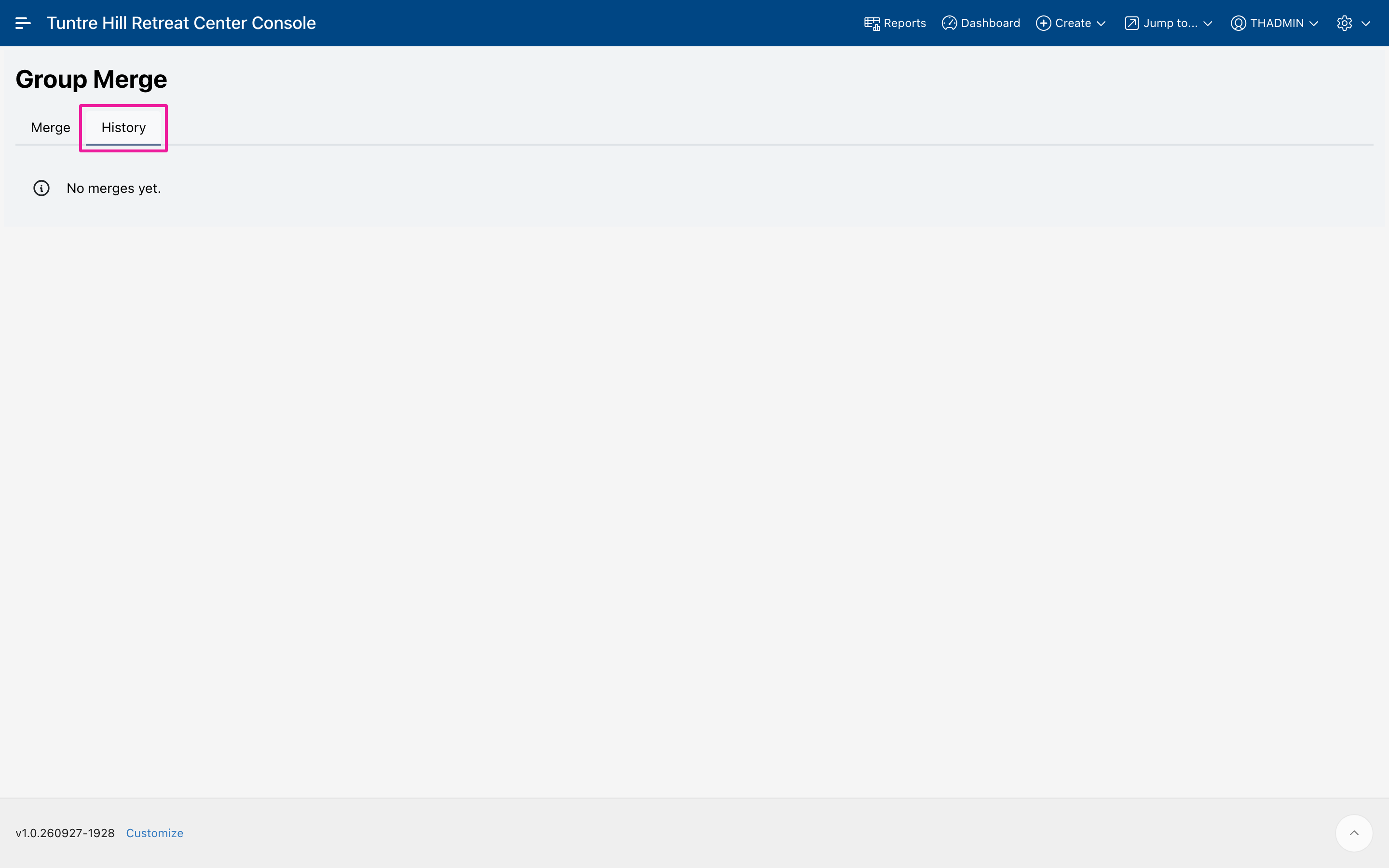
Section titled “Undo a merge”Every merge is listed under the ‘History’ tab with who did it and when. To reverse one, click ‘Undo’ and confirm, and the records split back apart with everything returned to the duplicate.