
Group Contacts and Guest Records
A group’s contacts are the people you deal with there: the organizer, the office manager, the person who pays. Contacts and guests are separate records in Retreat Portal, so the organizer who also comes on retreat has been typed in twice. You can now add a contact as a guest in the same step, link a contact to the guest record they already have, and see when the two have drifted apart.
Open a group’s contacts
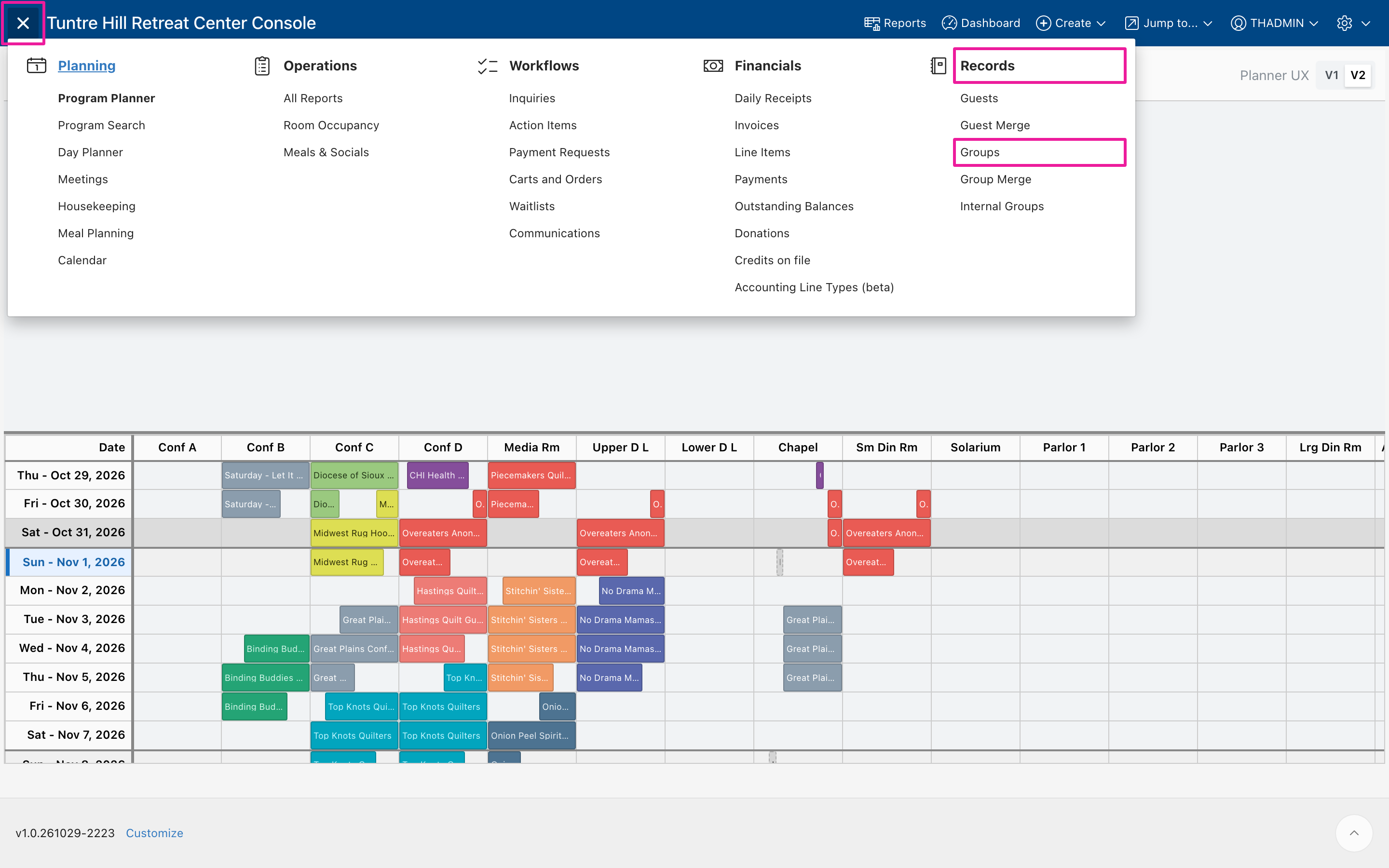
Section titled “Open a group’s contacts”Click the menu icon on the top-left and select ‘Records’ > ‘Groups’.
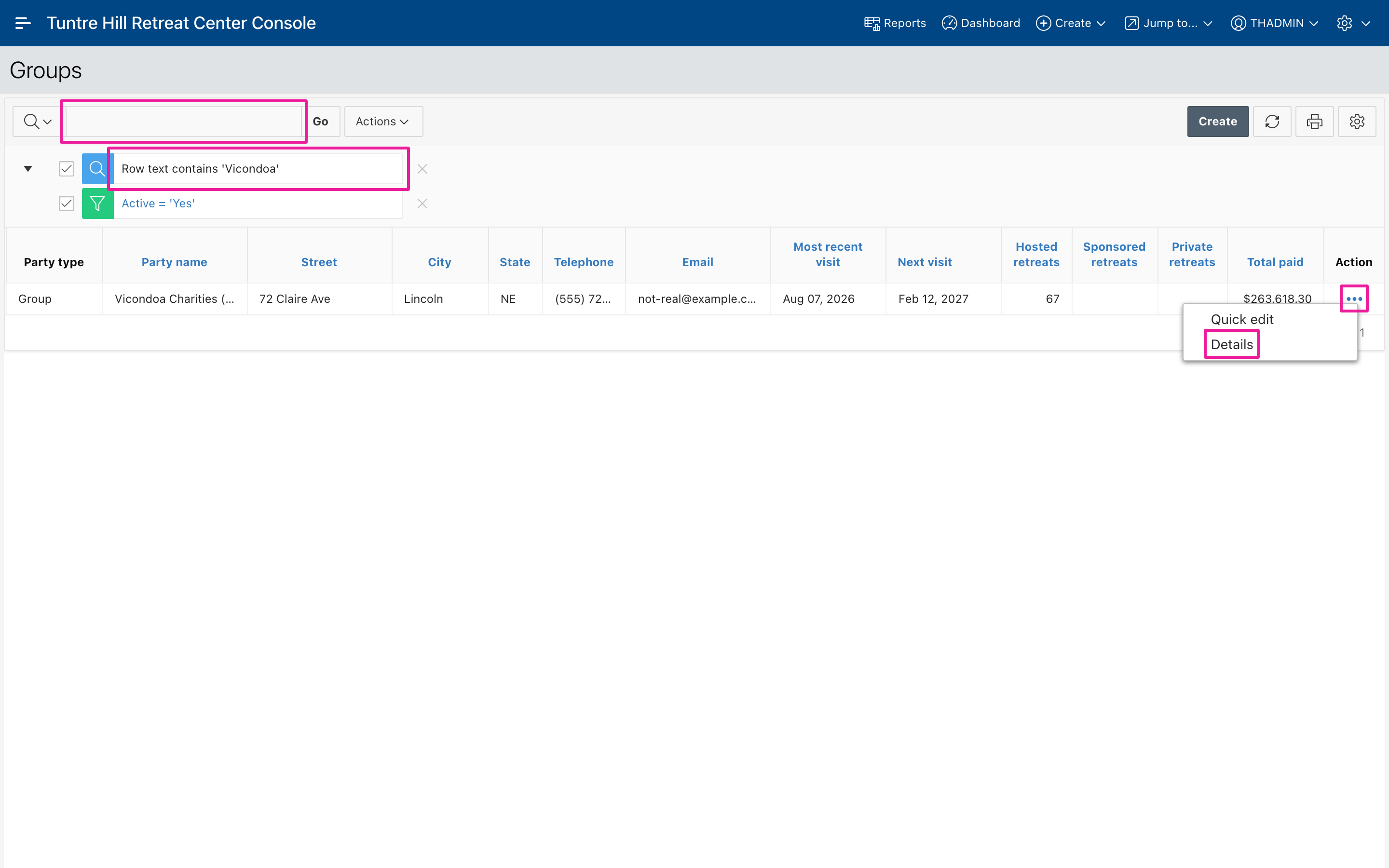
Type the group’s name into the search box and click ‘Go’. Click the three dots on the far right of the group’s row and select ‘Details’. The group’s page opens in a new tab.
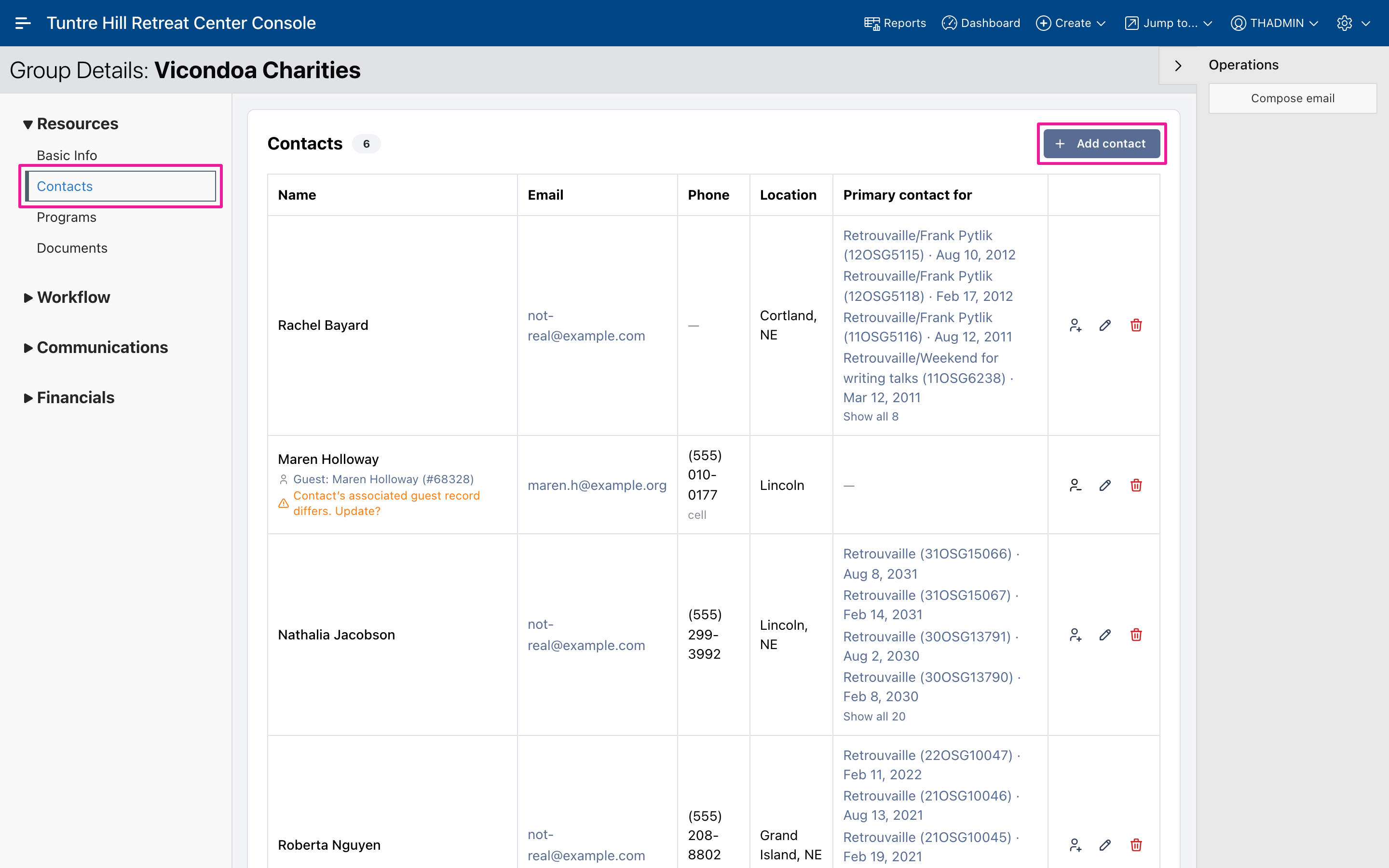
Click ‘Contacts’ on the left.
Add a contact as a guest
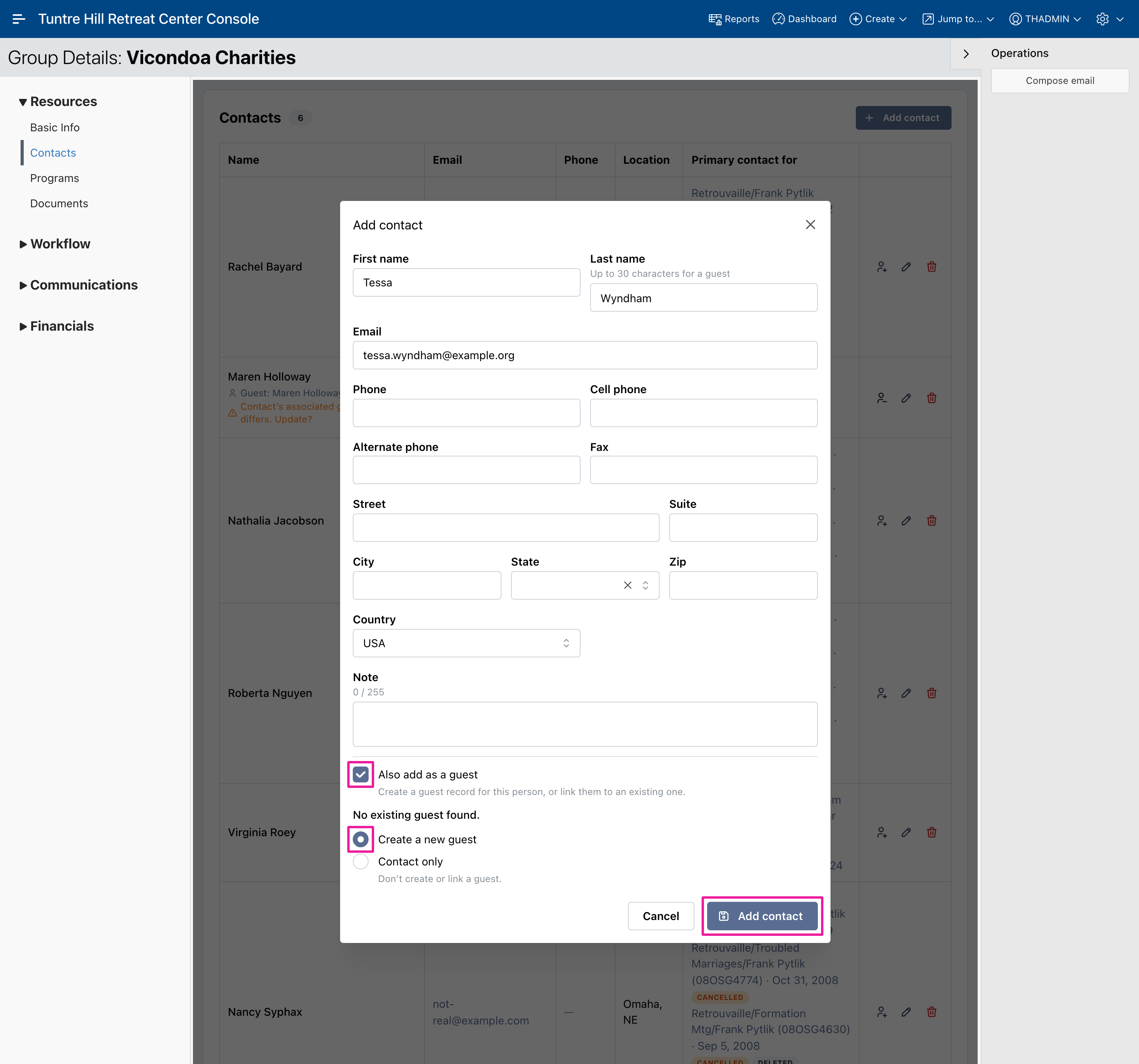
Section titled “Add a contact as a guest”Click ‘Add contact’ and fill in the person’s details. Tick ‘Also add as a guest’ at the bottom. Retreat Portal checks right away whether this person is already a guest.
If nobody matches, ‘Create a new guest’ is picked for you. Click ‘Add contact’ and you get both records at once. The guest gets the contact’s name, email, phone numbers and address, and joins this group. The contact’s note stays on the contact.
If the person is already a guest, the window says ‘This looks like an existing guest.’ and picks ‘Link to’ that guest, with the reason underneath, such as ‘name and email match’. Keep it, and the new contact is linked to the guest you already have instead of making a second one. A guest who had no group joins this one; a guest who belongs to another group stays there.
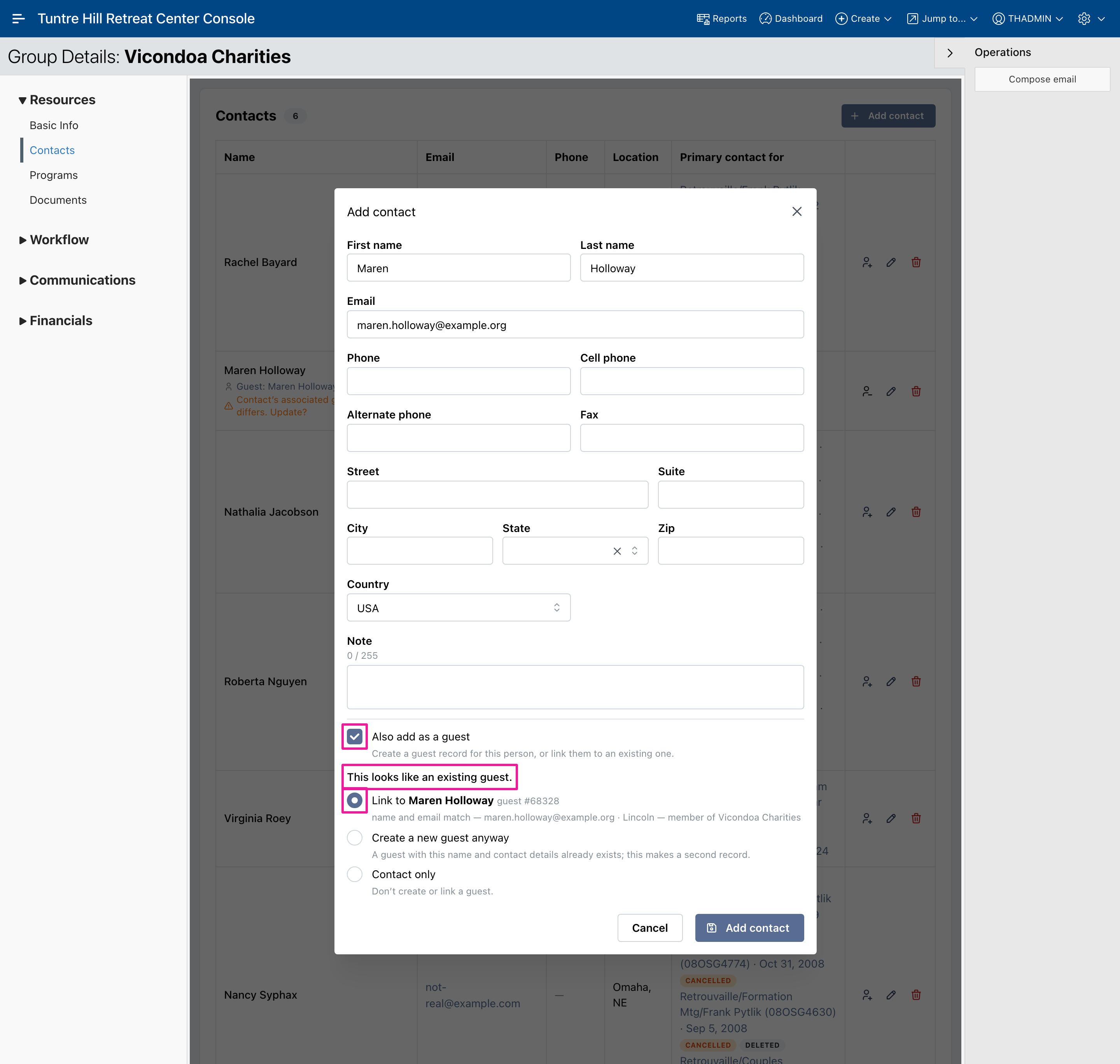
A close call, such as the same name with nothing else in common, or a shared email under a different name, is listed too so you can link it if you know it’s the same person. ‘Create a new guest’ stays picked unless you choose otherwise. When a strong match is found, ‘Create a new guest anyway’ makes a second record. ‘Contact only’ adds the contact without a guest.
A guest’s last name holds 30 characters. A longer one has to be shortened before the contact can become a guest.
Link a contact you already have
Section titled “Link a contact you already have”A contact added without a guest, including every contact added in the desktop app, can get one later. Click the person-with-a-plus icon on the contact’s row. The window that opens runs the same check and offers the same choices.
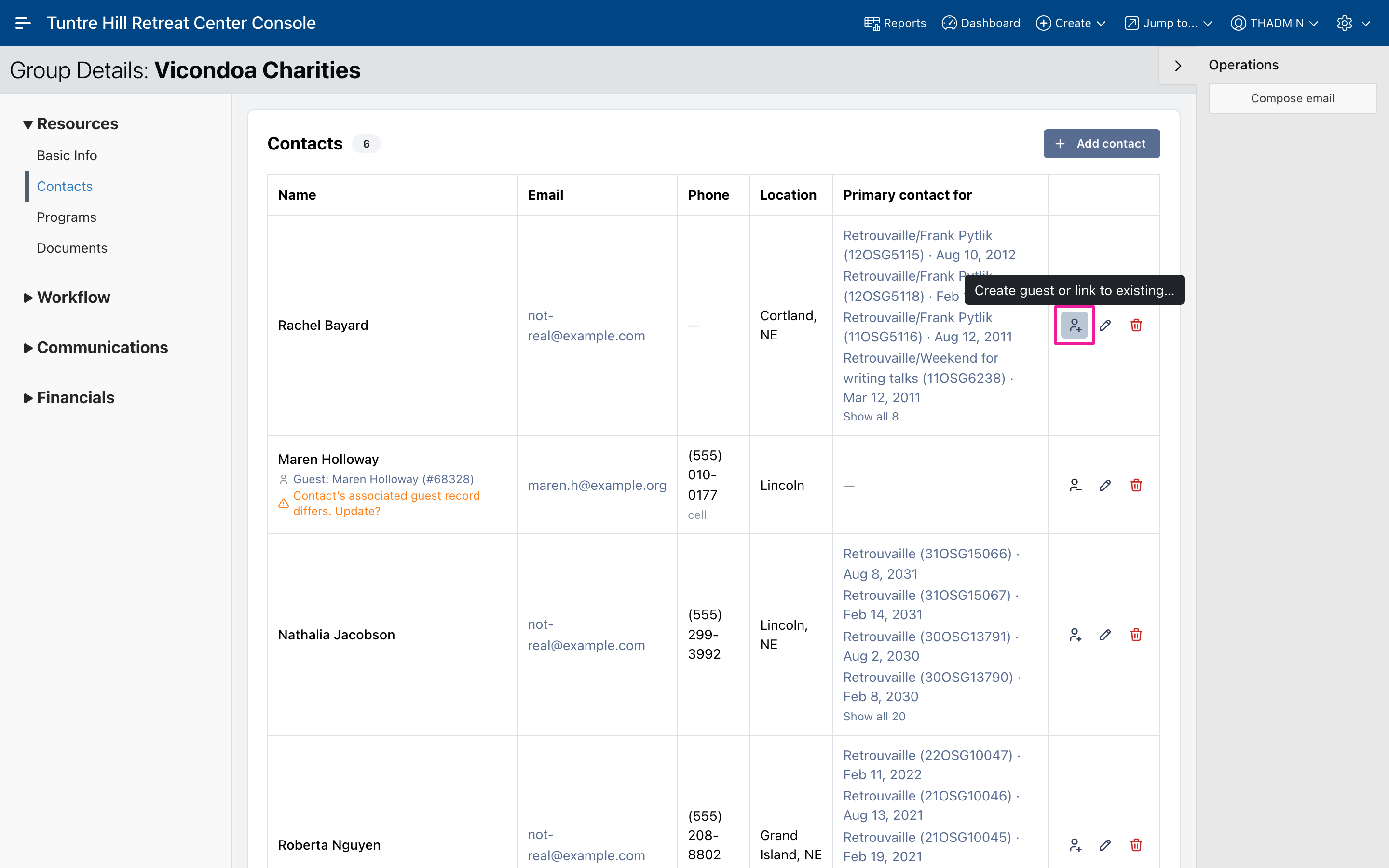
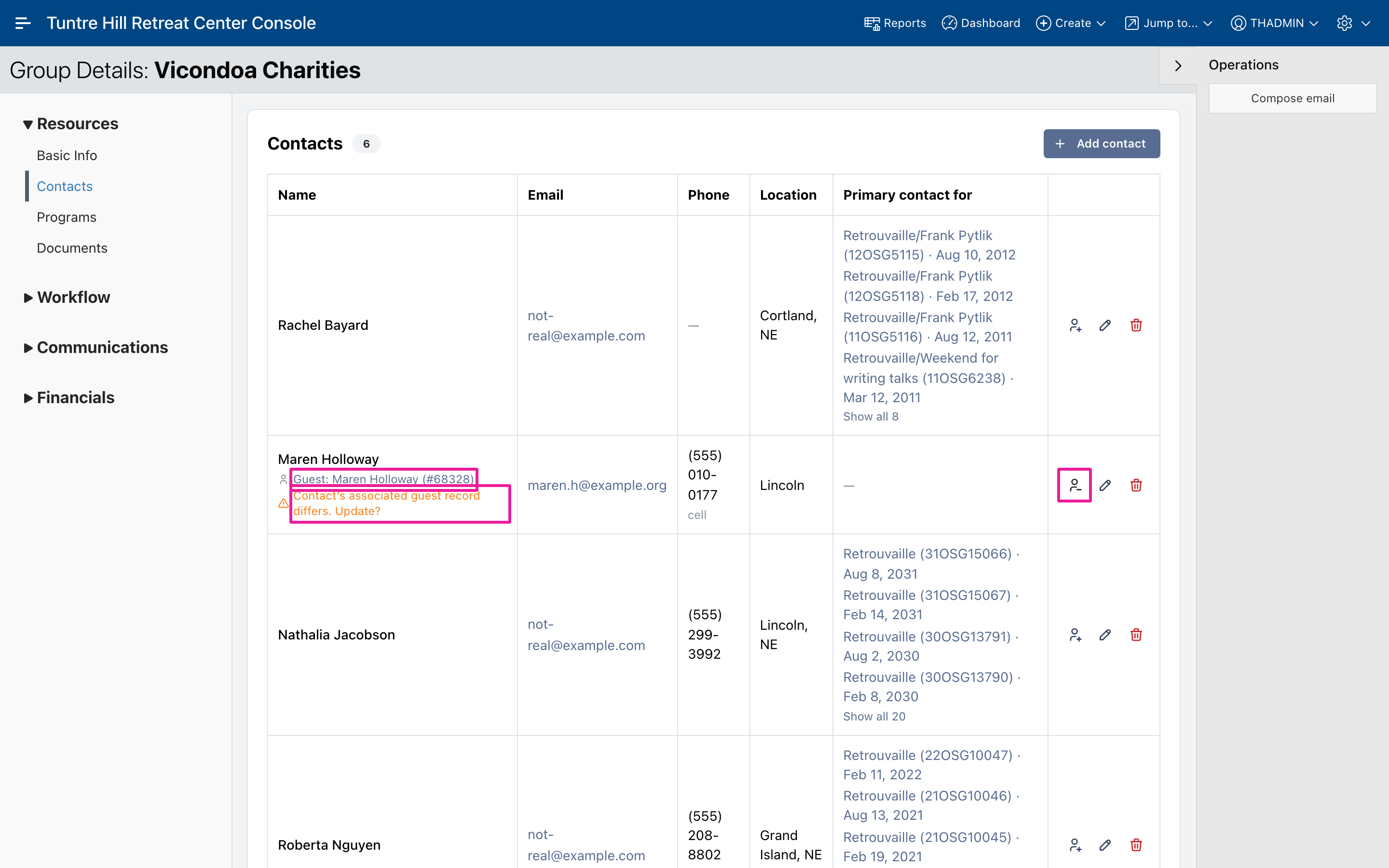
Once linked, the guest shows under the contact’s name, for example ‘Guest: Maren Holloway (#68328)’. Click it to open the guest’s record.
When the contact and guest differ
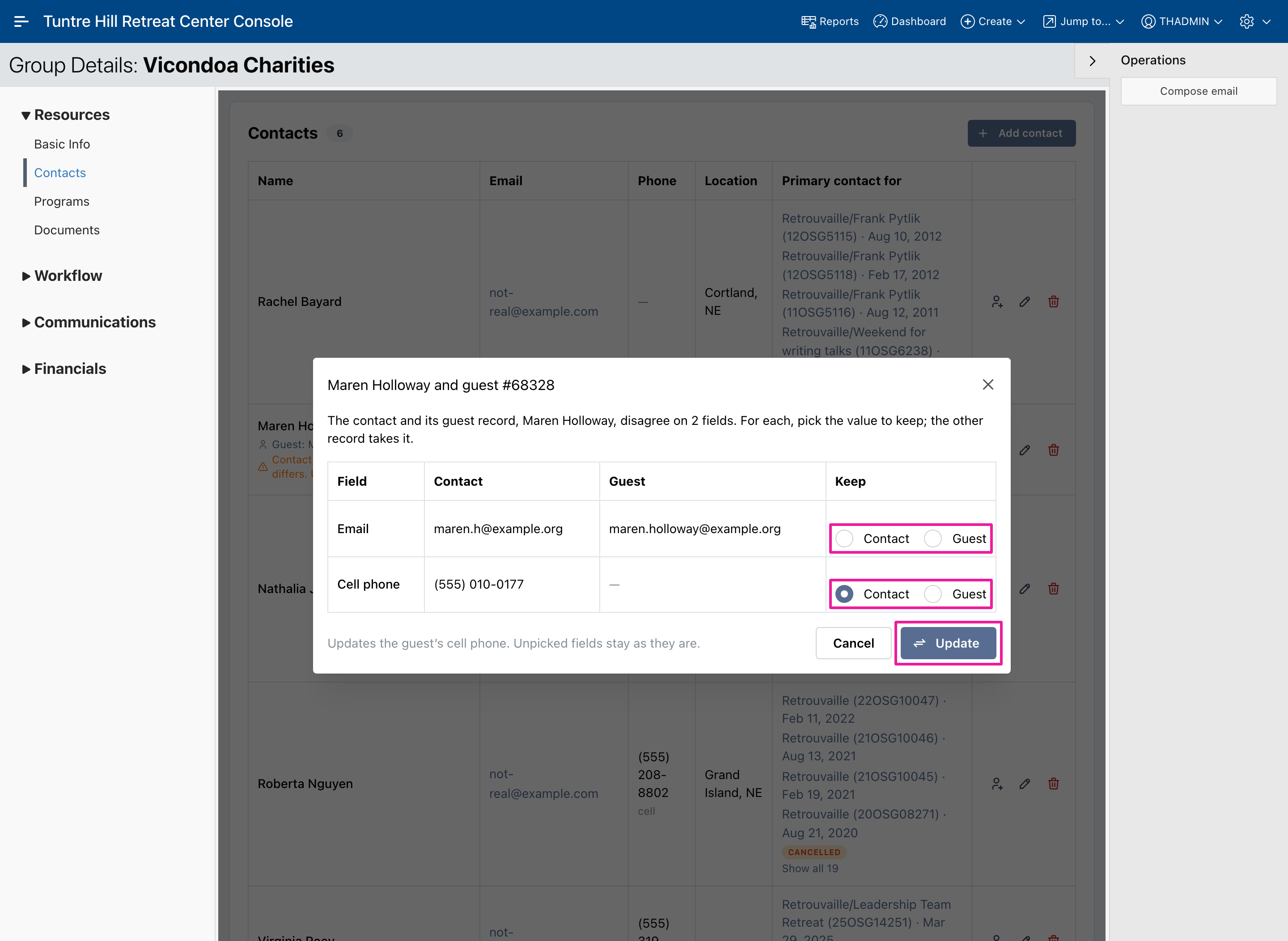
Section titled “When the contact and guest differ”A contact and their guest are still two records. Changing one doesn’t change the other. When they no longer agree on a name, email, phone number, address or country, an orange ‘Contact’s associated guest record differs. Update?’ appears under the guest. Click it.
Each field that disagrees gets a row. Under ‘Keep’, pick ‘Contact’ or ‘Guest’ for each: the value you keep is copied to the other record. Where only one side has a value, that side is already picked. Where both have one, you choose. Rows you leave unpicked stay as they are. Click ‘Update’.
If the guest is also a private-retreat group, the window tells you that group is updated along with them.
Unlink a guest
Section titled “Unlink a guest”Click the person-with-a-minus icon on the contact’s row and confirm with ‘Unlink’. Both records stay exactly as they are; only the link goes. Deleting a contact removes the link too, and the guest stays.