
Record a Payment
Record a payment when money arrives for a stay or a program: a check in the mail, cash at the desk, a card over the phone. One window takes every kind of payment, says what the balance is before you type an amount, and sends the receipt when you save.
Open the window
Section titled “Open the window”Click ‘Create’ on the top bar and select ‘Payment’.
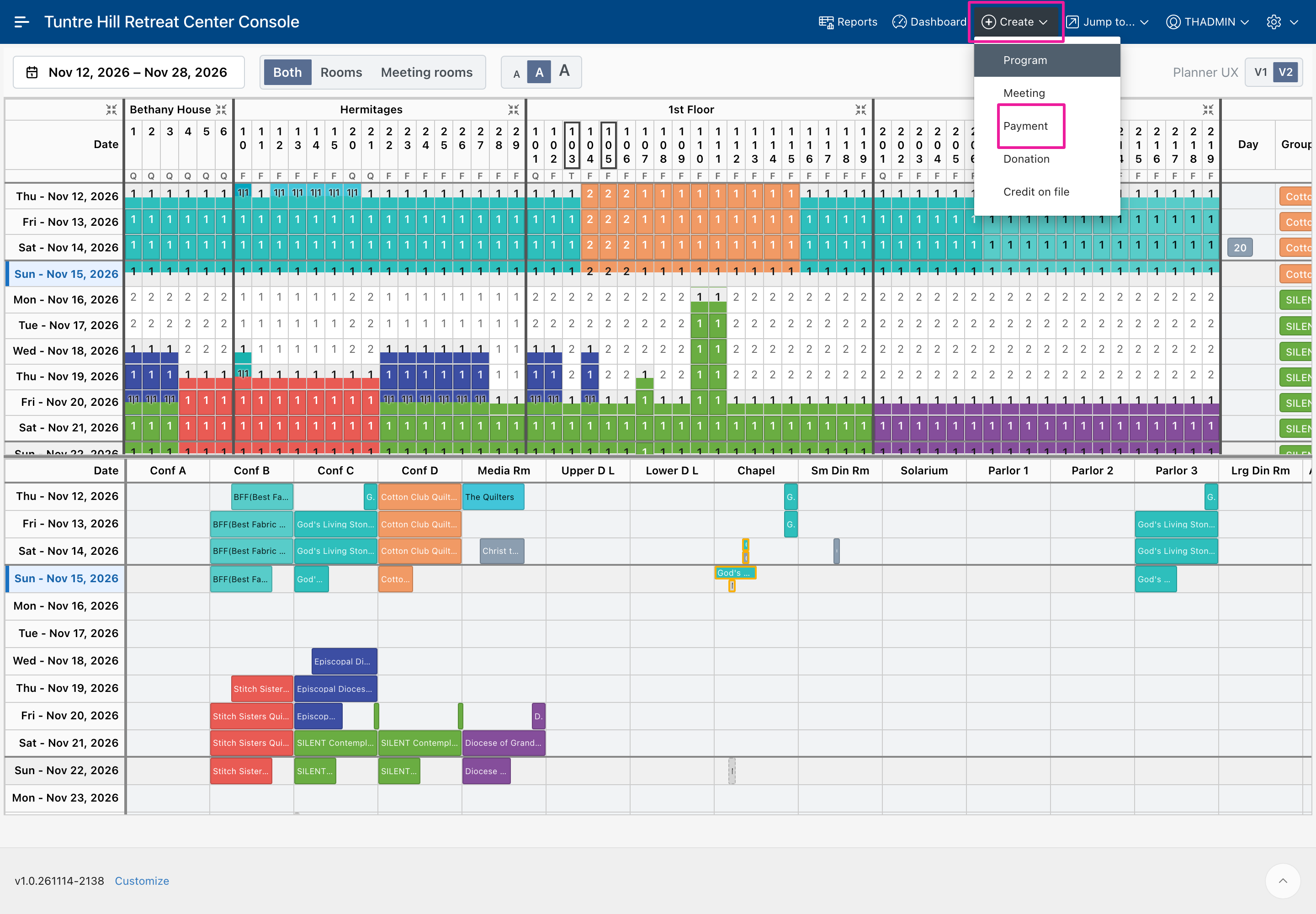
The same window opens from a reservation’s page or a program’s page: click ‘Record payment’ under Operations on the right. Opened that way, the payer and what the payment is for are already filled in, so you can skip to the tender.
Say who is paying
Section titled “Say who is paying”The left side is the payer. Keep ‘Guest’ selected and click ‘Pick the guest’, or switch to ‘Group’ when a church or a company is paying. Type part of the name in the search box and click ‘Select’ on the right row.
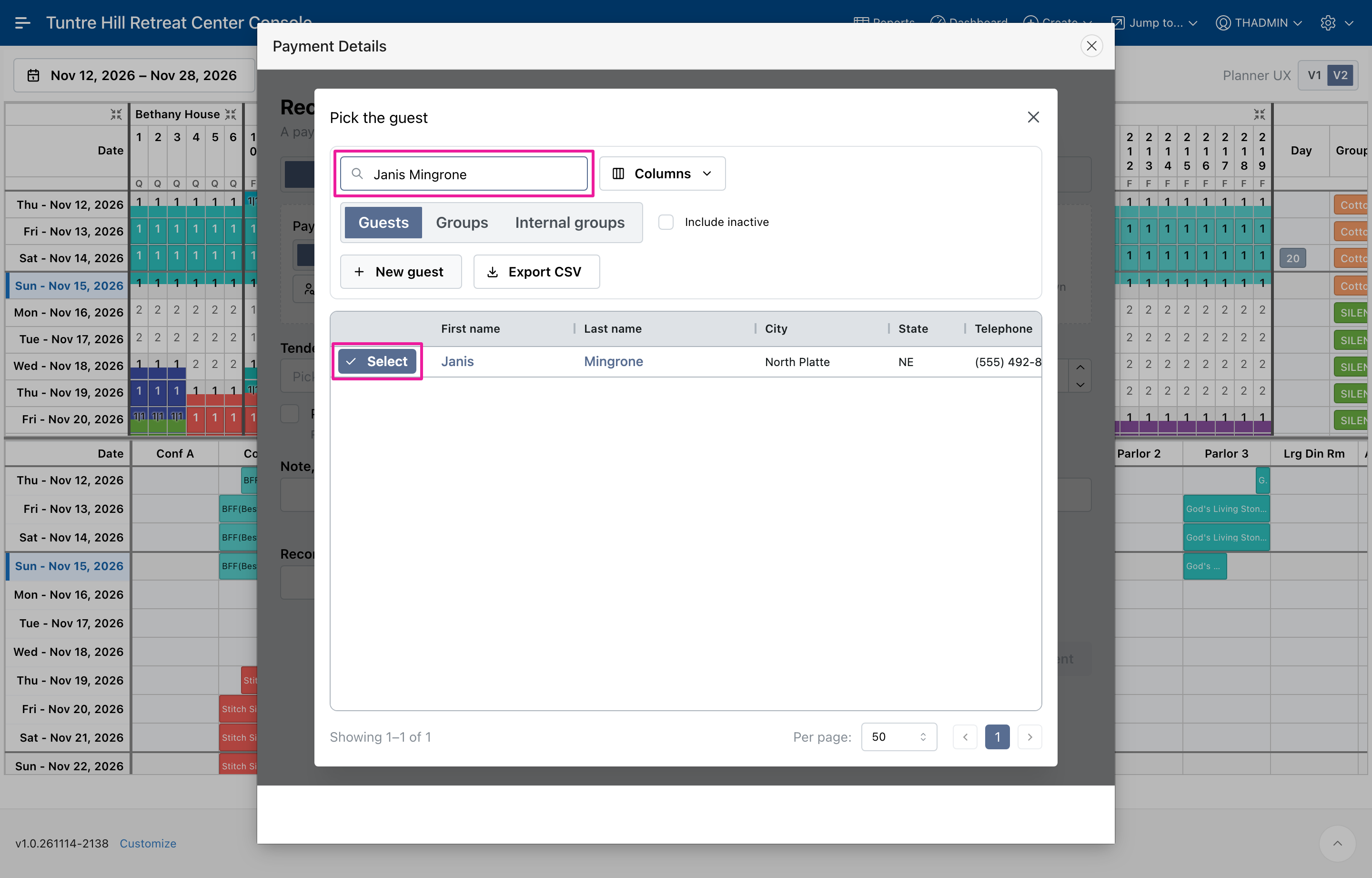
A payer doesn’t have to be the person who stayed. A parent paying for a child or a parish paying for a seat is still a payment on that stay; pick the parent or the parish here and the stay in the next step.
Say what it is for
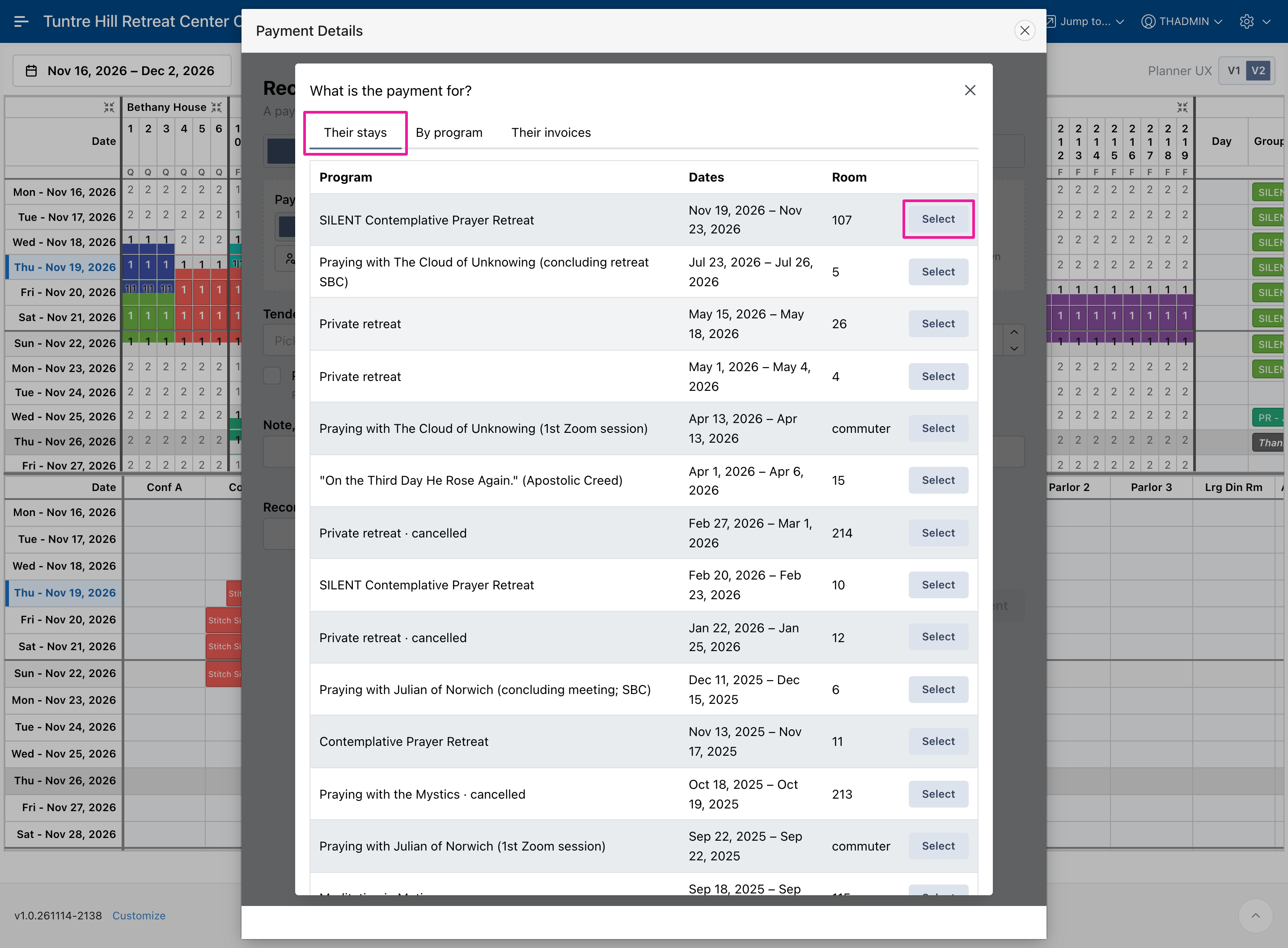
Section titled “Say what it is for”The right side is what the payment pays for. Click ‘Pick the reservation or program’. ‘Their stays’ lists the payer’s own reservations, newest first; click ‘Select’ on the right one. ‘By program’ finds any program by title and offers the program itself (the group’s own account) or one guest’s stay on it.
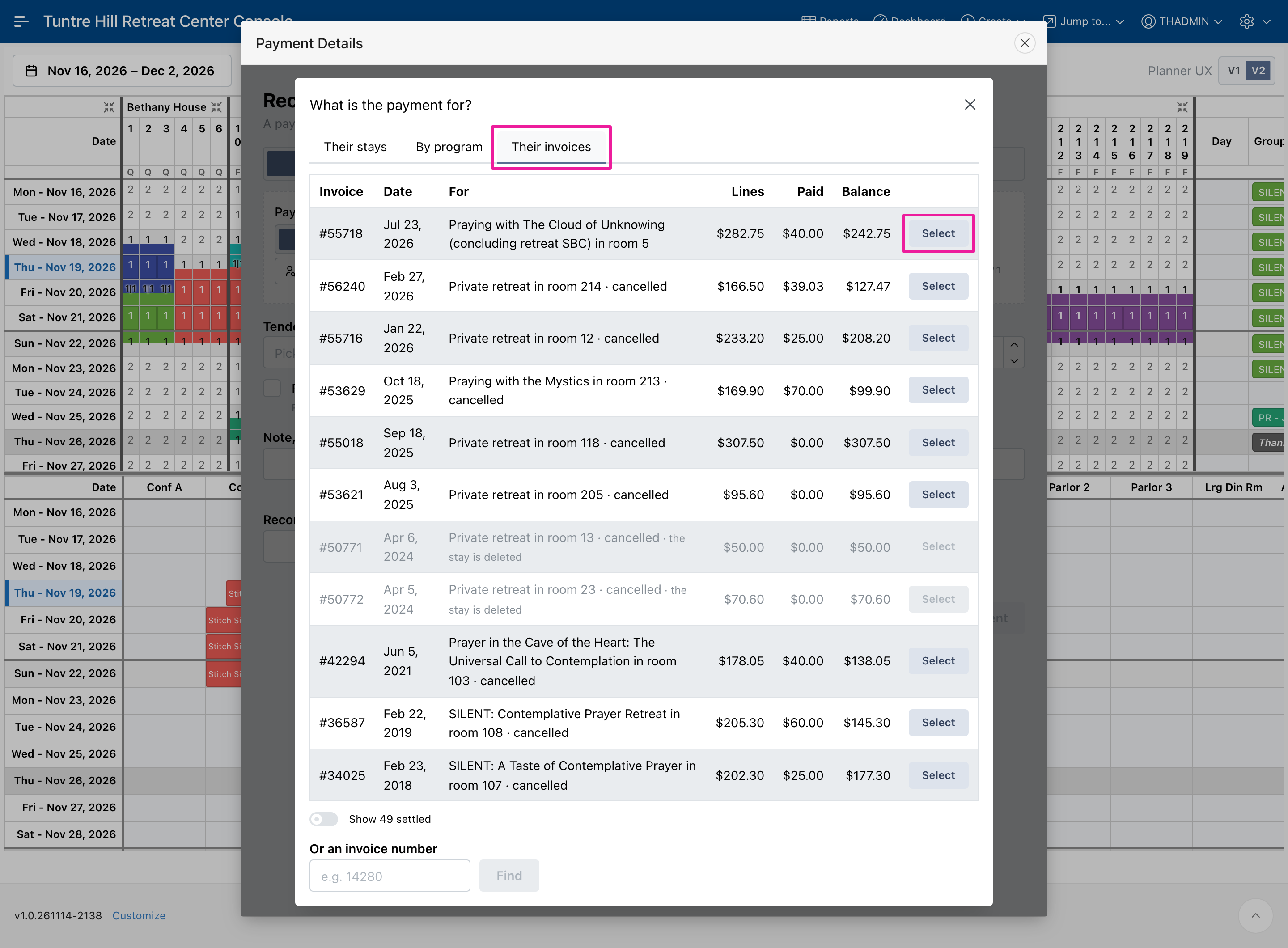
‘Their invoices’ is the third way in: every invoice billed to the payer, newest first, with its balance. It finds the things ‘Their stays’ can’t — a booking that carries an invoice in the payer’s name without a reservation of their own, such as a standing spiritual-direction arrangement. An invoice that can’t take a payment is greyed out with the reason, settled ones stay tucked behind a switch that says how many there are, and the invoice-number box at the bottom jumps straight to a number you’re holding in your hand.
The window then names the stay and shows the invoice total, what has been paid, and the balance due. When there is no invoice yet it says so and shows what has been paid so far; the payment still books against the stay.
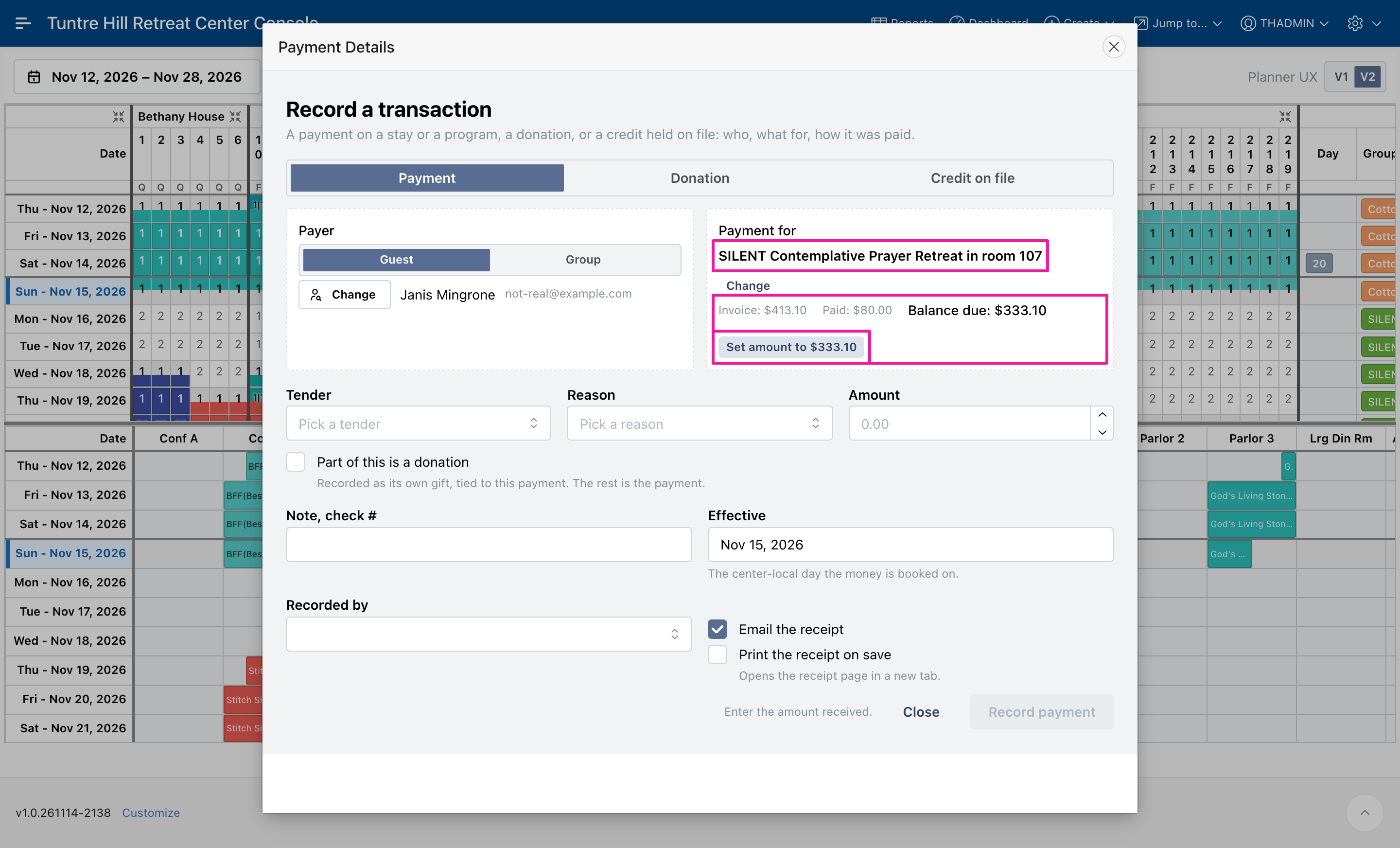
Tender, reason, and amount
Section titled “Tender, reason, and amount”Pick the ‘Tender’ (cash, check, a card brand, or any other payment type your center uses) and a ‘Reason’ such as Deposit or Final. Type the ‘Amount’, or click ‘Set amount to’ beside the balance to fill in exactly what is owed. Under ‘Note, check #’ type the check number or any reference you want on the record. ‘Effective’ is the day the money is booked on; it defaults to today and can be set back to the day the check actually arrived.
Leave ‘Email the receipt’ ticked to send the payer a receipt on save, or untick it for a back-dated entry nobody needs to hear about. ‘Print the receipt on save’ opens the receipt page in a new tab as well.
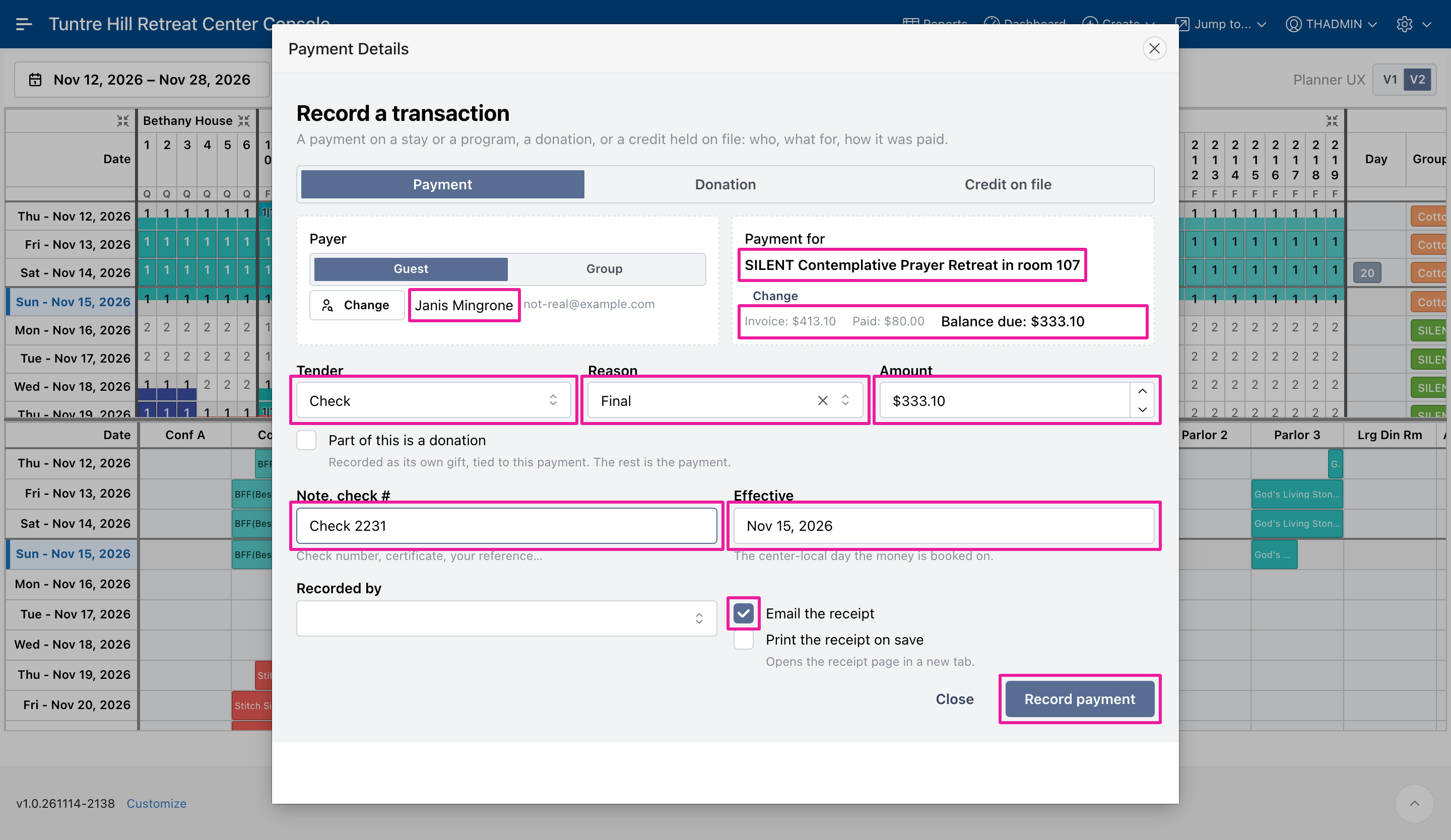
Click ‘Record payment’.
What you see after
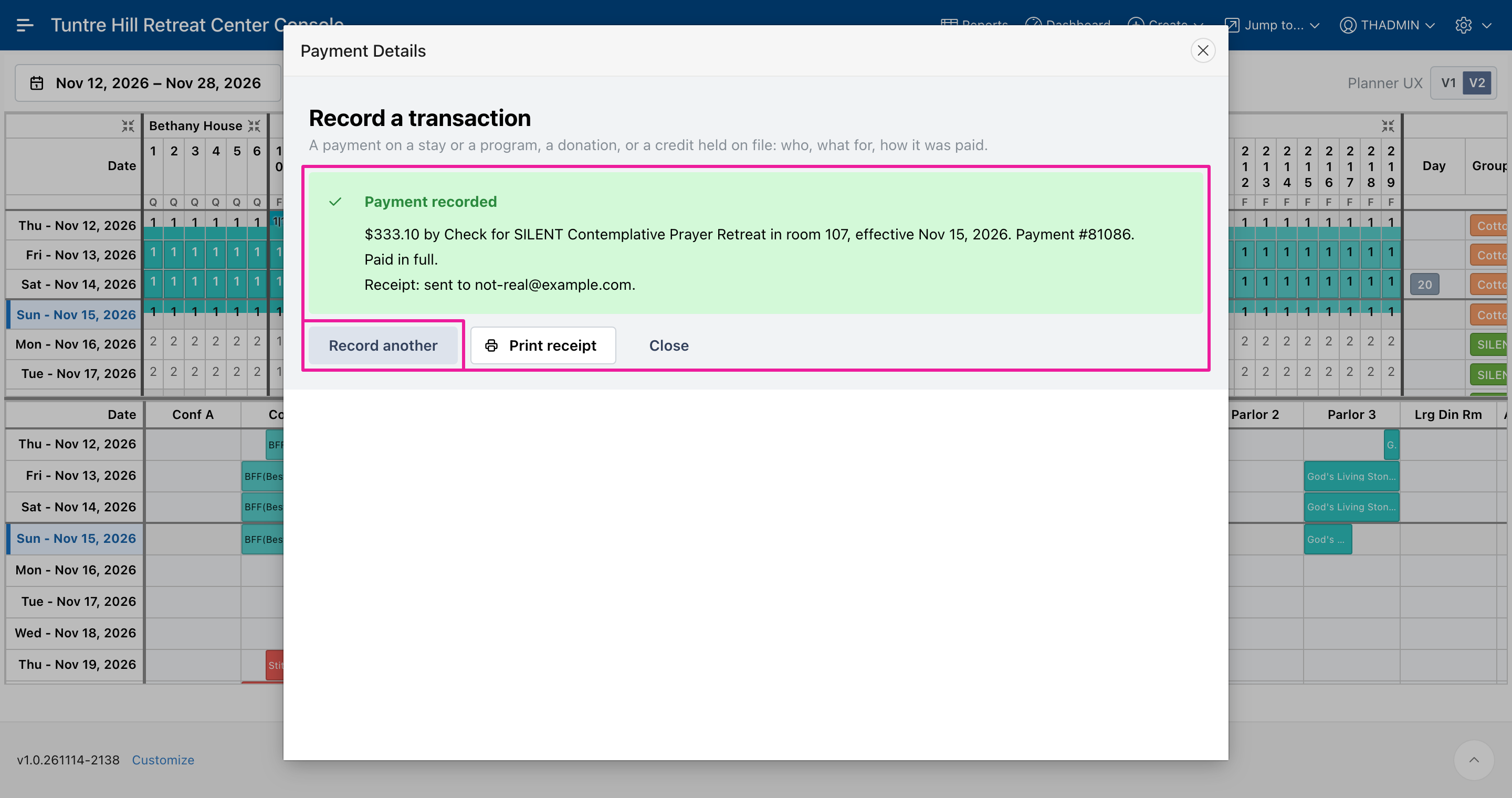
Section titled “What you see after”The window confirms what was recorded, the new balance (‘Paid in full’ here), and whether the receipt went out. ‘Record another’ starts a fresh entry; ‘Print receipt’ opens the receipt page.
A group paying its own program
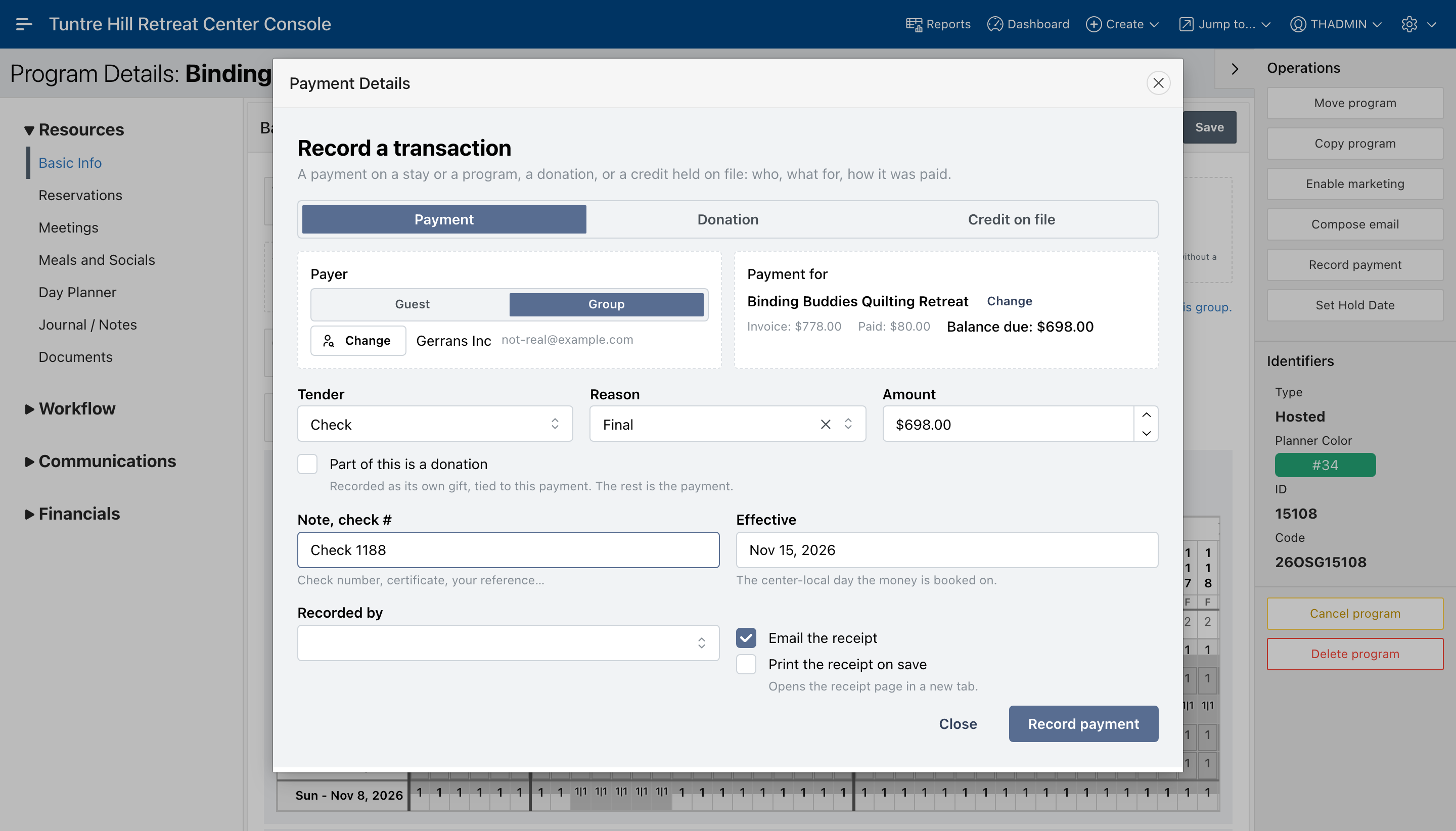
Section titled “A group paying its own program”For a hosted program the group pays one invoice for the whole program. Open the program’s page and click ‘Record payment’ on the right: the payer is the group and the payment is for the program itself, with the program invoice’s balance shown. Pick the tender and click ‘Set amount to’ as before.
Card payments add one step, the card itself: see Take a Card Payment. Where the payment shows up afterwards is in Where Payments Show Up.