Rename, Duplicate, and Archive
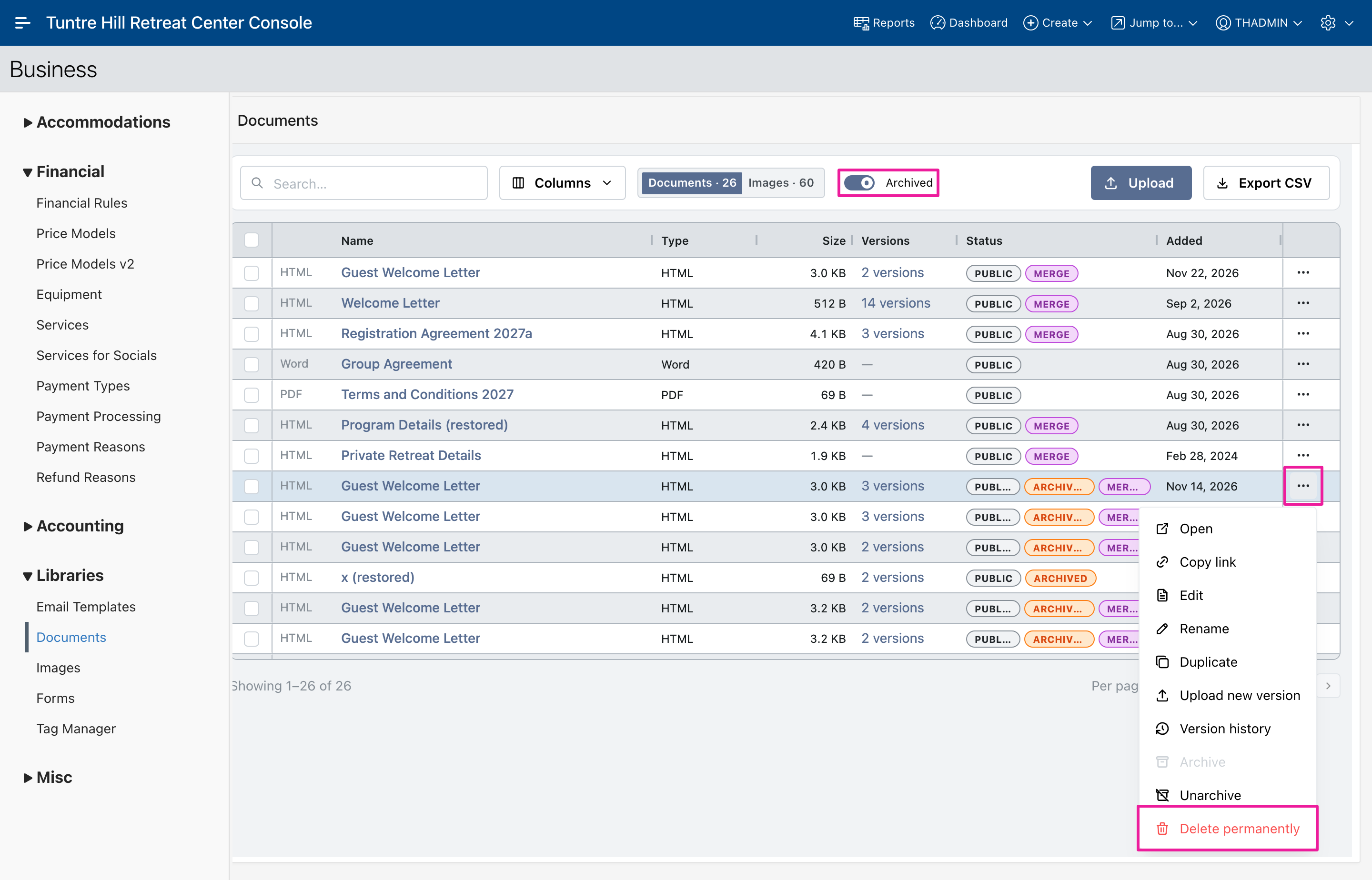
Housekeeping for the document library: give a document a clearer name, make a variation of an existing document, put one away when it’s no longer in use, or remove one for good. The actions are all in the row menu. Click the gear icon on the top-right and select ‘Business’. On the left, expand ‘Libraries’ and click ‘Documents’, find the document, and click the three dots on the far right.
Rename
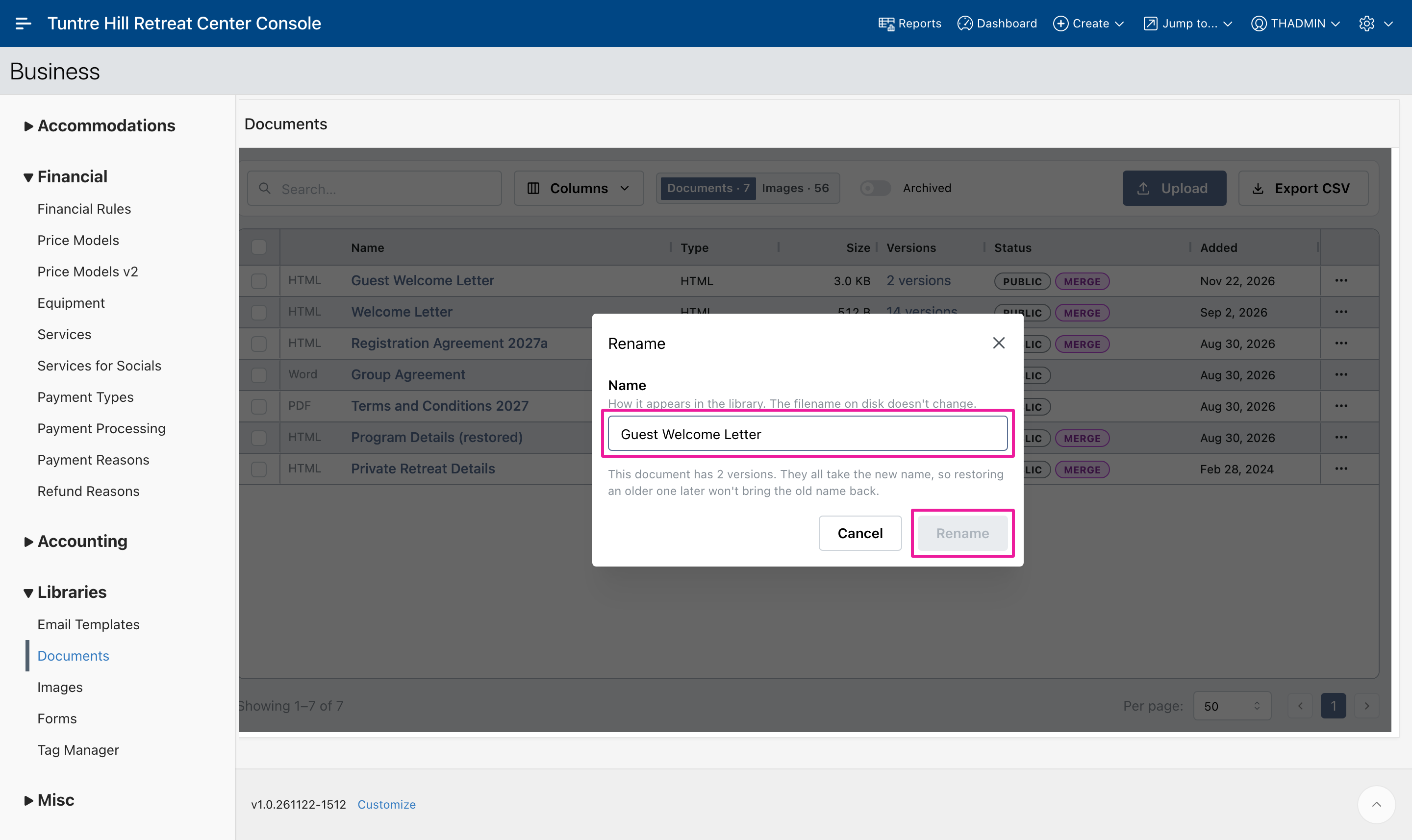
Section titled “Rename”Select ‘Rename’, type the new name, and click ‘Rename’. The name changes on every version of the document, so restoring an older version later won’t bring the old name back. The file itself isn’t touched, and links to it keep working.
Duplicate
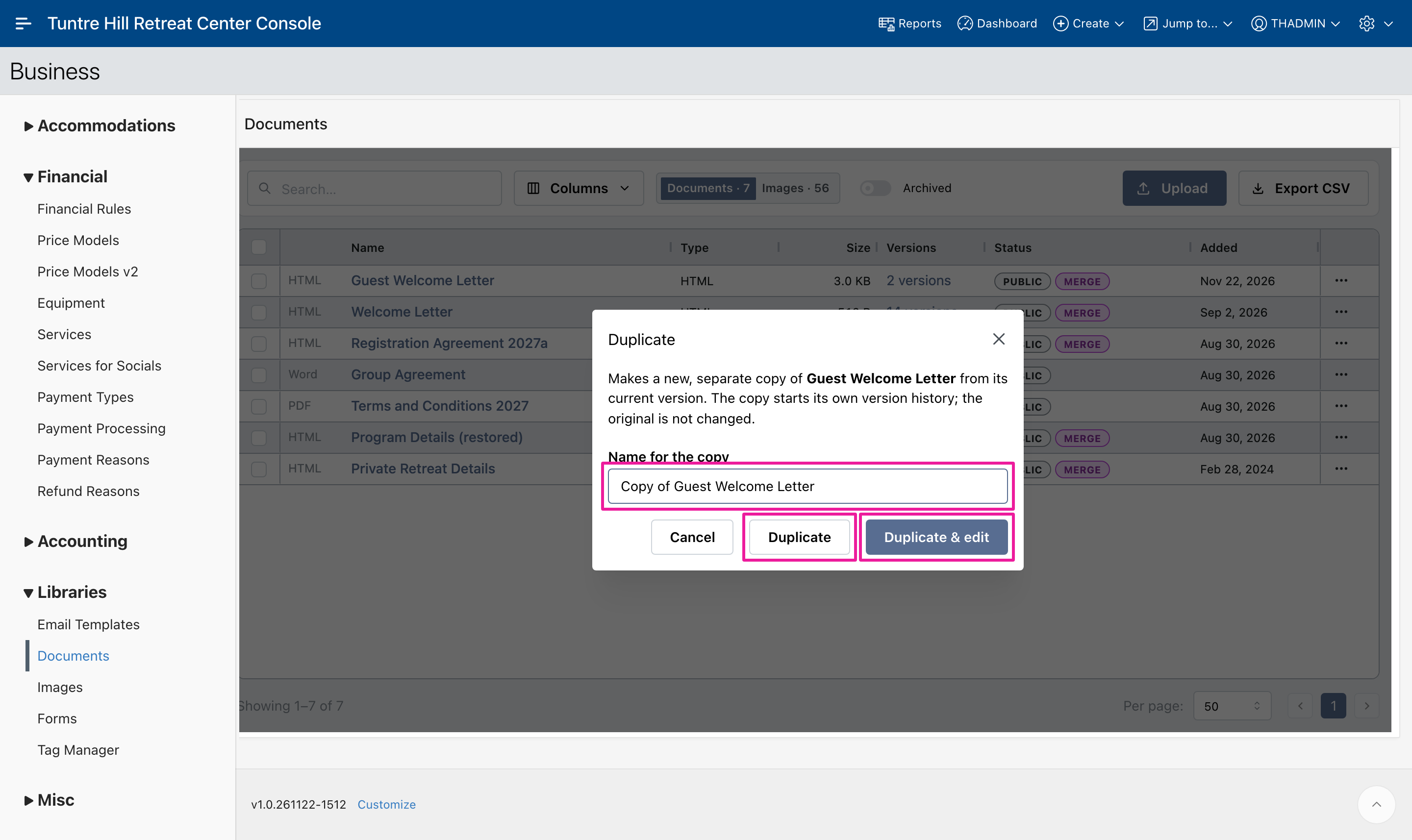
Section titled “Duplicate”Select ‘Duplicate’ to make a separate copy from the current version. This is how to create a variation of a letter or agreement without touching the original’s history. Give the copy a name and click ‘Duplicate’, or click ‘Duplicate & edit’ to open the copy in the editor right away.
Archive
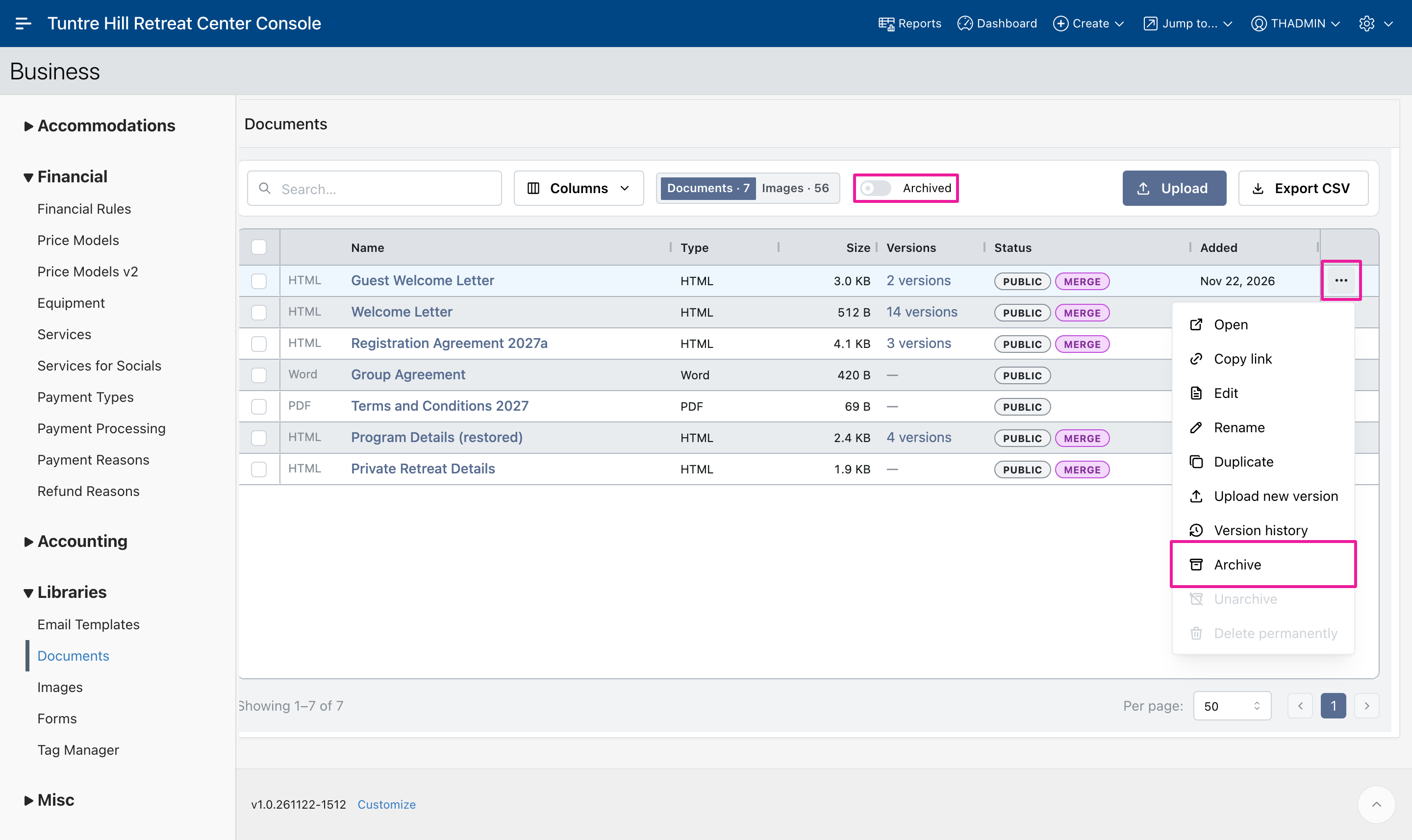
Section titled “Archive”Select ‘Archive’ to hide a document from the library and from the places where documents are picked. The file and its versions are kept, and existing links to it keep working. To see archived documents, turn on the ‘Archived’ switch at the top of the list; from there, the same menu offers ‘Unarchive’ to bring one back. To archive or unarchive several at once, tick their checkboxes and use the action bar above the list.
Delete permanently
Section titled “Delete permanently”When an archived document should leave the library for good, turn on the ‘Archived’ switch, open the row’s menu, and select ‘Delete permanently’. The action is offered only on archived documents, and only to administrators and staff; a confirmation spells out what you’re about to do. The document and its whole version history disappear from the library and from every place documents are picked, and there’s no bringing them back from the list — but anything that already uses the document, like a link you copied earlier, keeps working. Retreat Portal’s built-in system documents can’t be deleted; the confirmation says so instead of offering the button. Several archived documents can be deleted together from the action bar that appears when you tick their checkboxes — any row that can’t be deleted is left alone and named in a notice while the rest proceeds.