Track, Resend, and Void a Request
The Payment Requests list shows every request with its amount, who it went to, and how far it has got. From a row’s menu you can send a request early, send it again, or void it, depending on its status.
Find a request
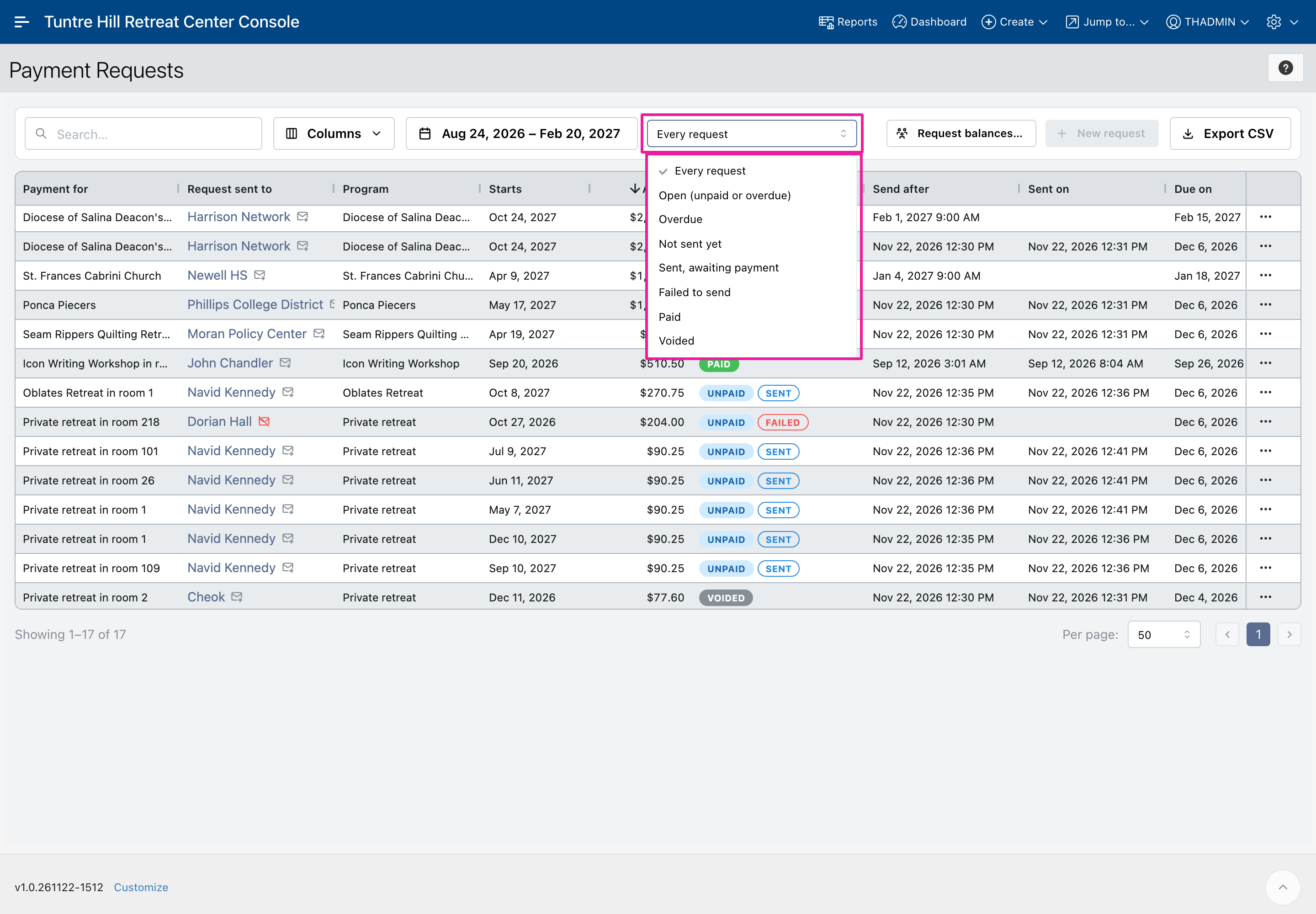
Section titled “Find a request”Click the menu icon on the top-left and select ‘Workflows’ > ‘Payment Requests’. The list opens on requests whose send date is within 90 days of today; click the date range to widen it. The status filter beside it narrows the list, for example to ‘Open (unpaid or overdue)’ or ‘Failed to send’.
The same list, limited to one program, reservation, guest, or group, is on that page under ‘Workflow’ > ‘Payment Requests’ on the left.
A request that has not been sent
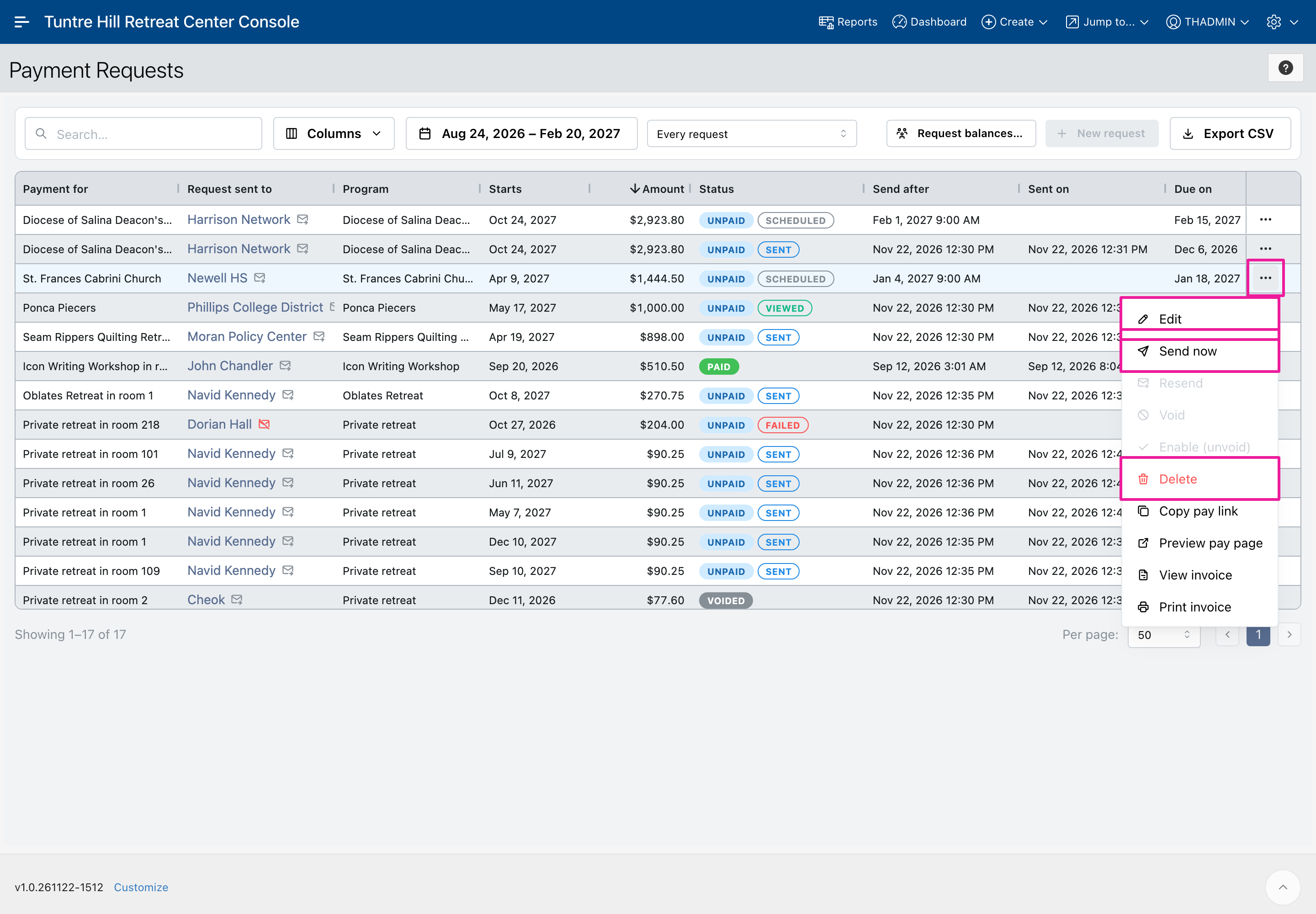
Section titled “A request that has not been sent”Click the three dots on the far right of a scheduled request. ‘Edit’ changes who is asked, the amount, the send date, or the due date. ‘Send now’ sends it without waiting for its date. ‘Delete’ removes it; nothing reaches the payer.
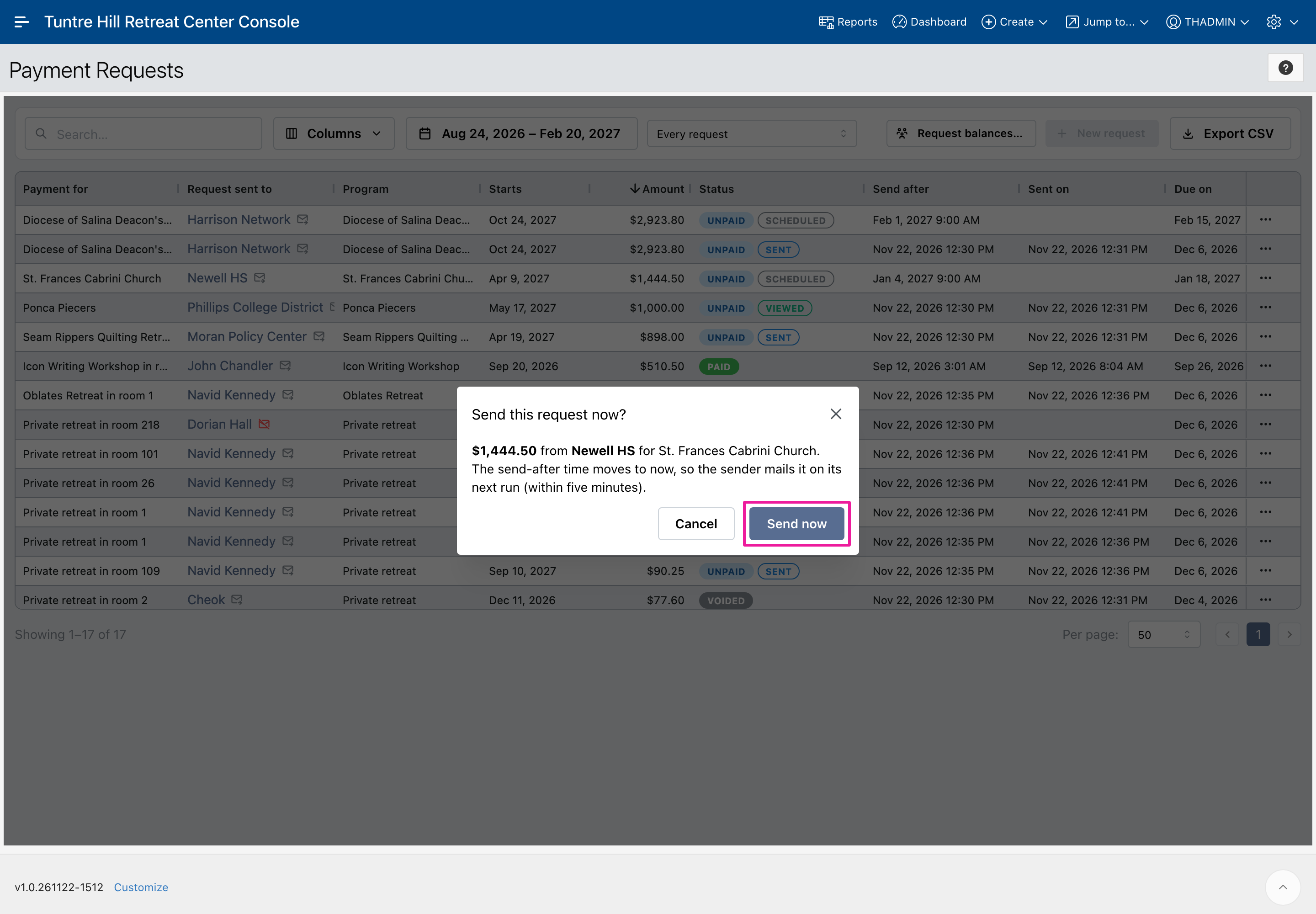
‘Send now’ asks you to confirm, then the email goes out within five minutes.
A request that has been sent
Section titled “A request that has been sent”Once the email is out, the request can no longer be edited or deleted. The menu offers ‘Resend’ and ‘Void’ instead.
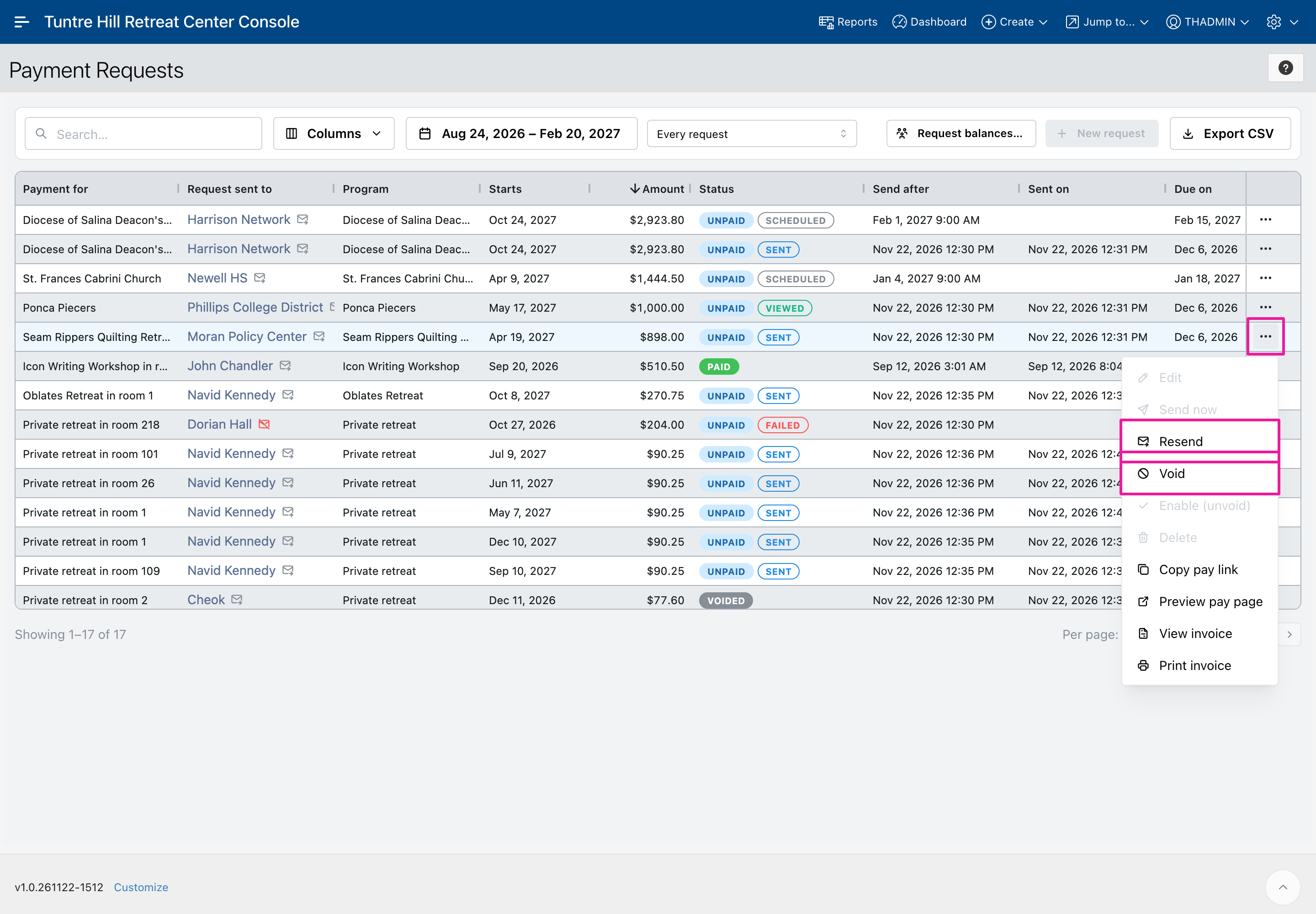
‘Resend’ sends the payer a second email with the same link. Use it too for a request marked ‘Failed’: add the missing email address on the guest’s or group’s page first, then resend.
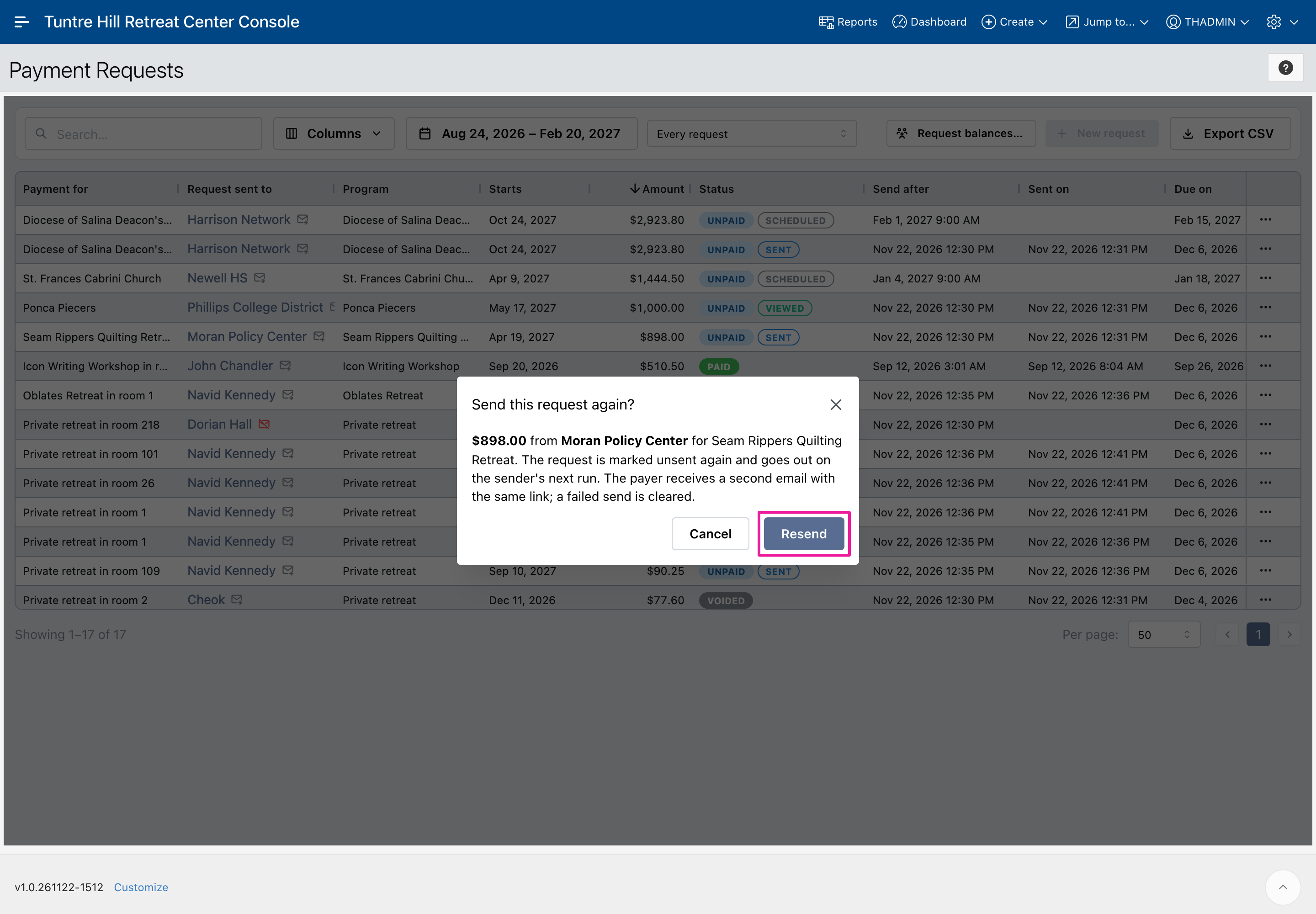
‘Void’ cancels the request. The link in the email still opens the pay page, which tells the payer the request has been voided and takes no payment.
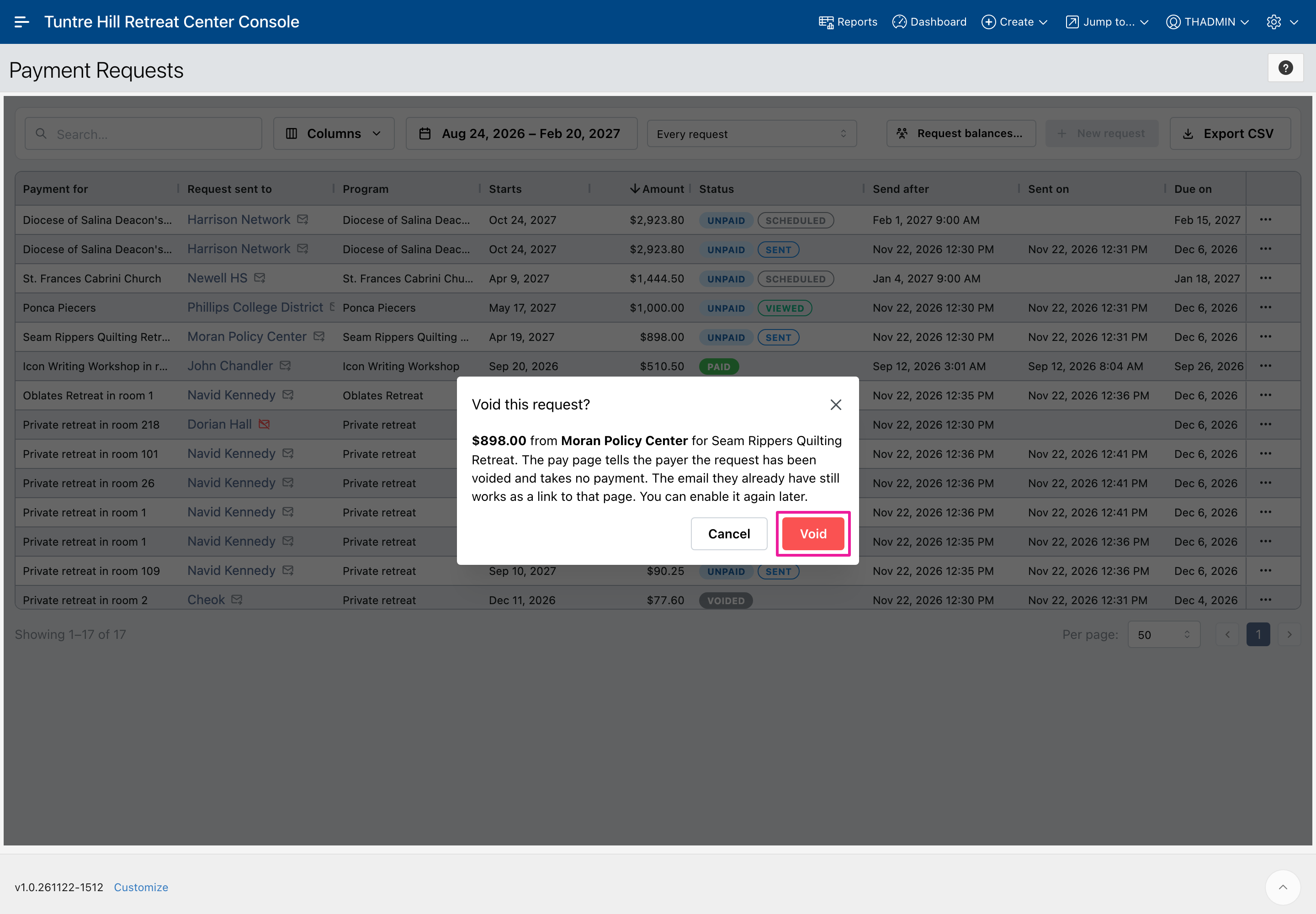
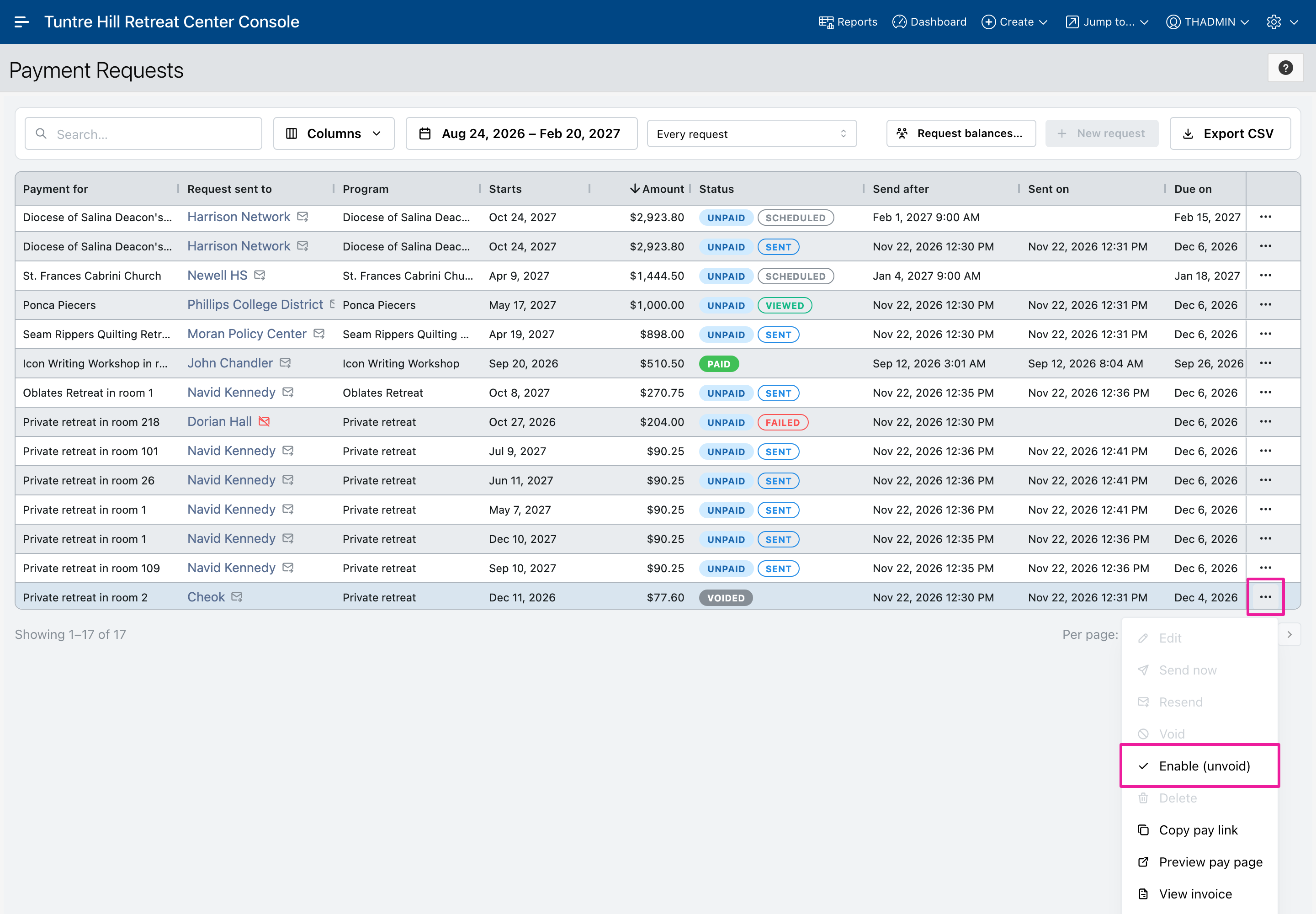
A voided request stays on the list. ‘Enable (unvoid)’ on its menu puts it back, and the pay page accepts the payment again.
A paid request cannot be changed. Its menu still opens the pay page and the invoice.
One invoice’s requests
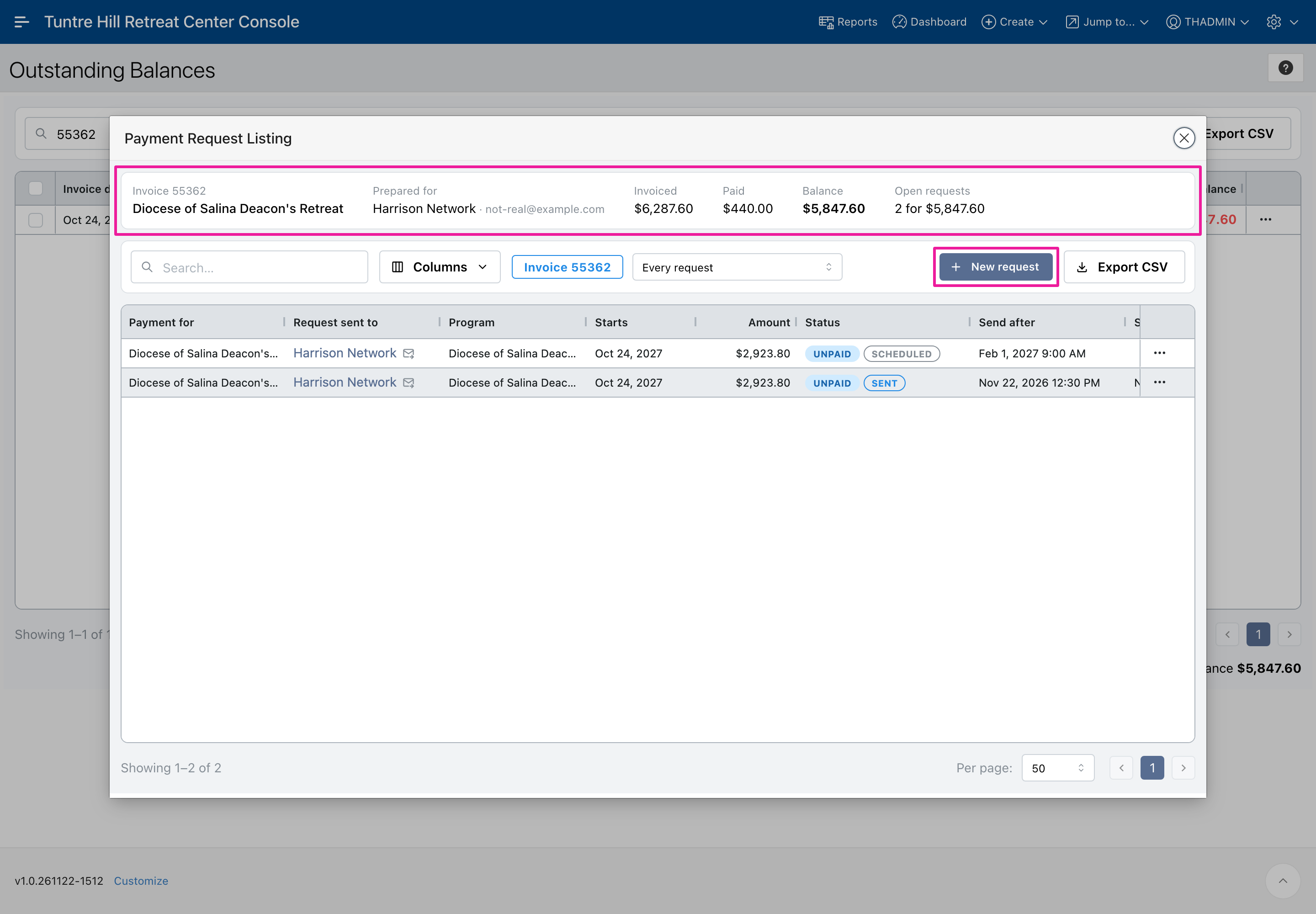
Section titled “One invoice’s requests”An invoice can carry more than one request, for example a deposit now and the rest later. To see them together, click the menu icon on the top-left and select ‘Financials’ > ‘Outstanding Balances’, find the invoice, click the three dots on the far right, and select ‘Payment requests’. The item shows how many are still open.
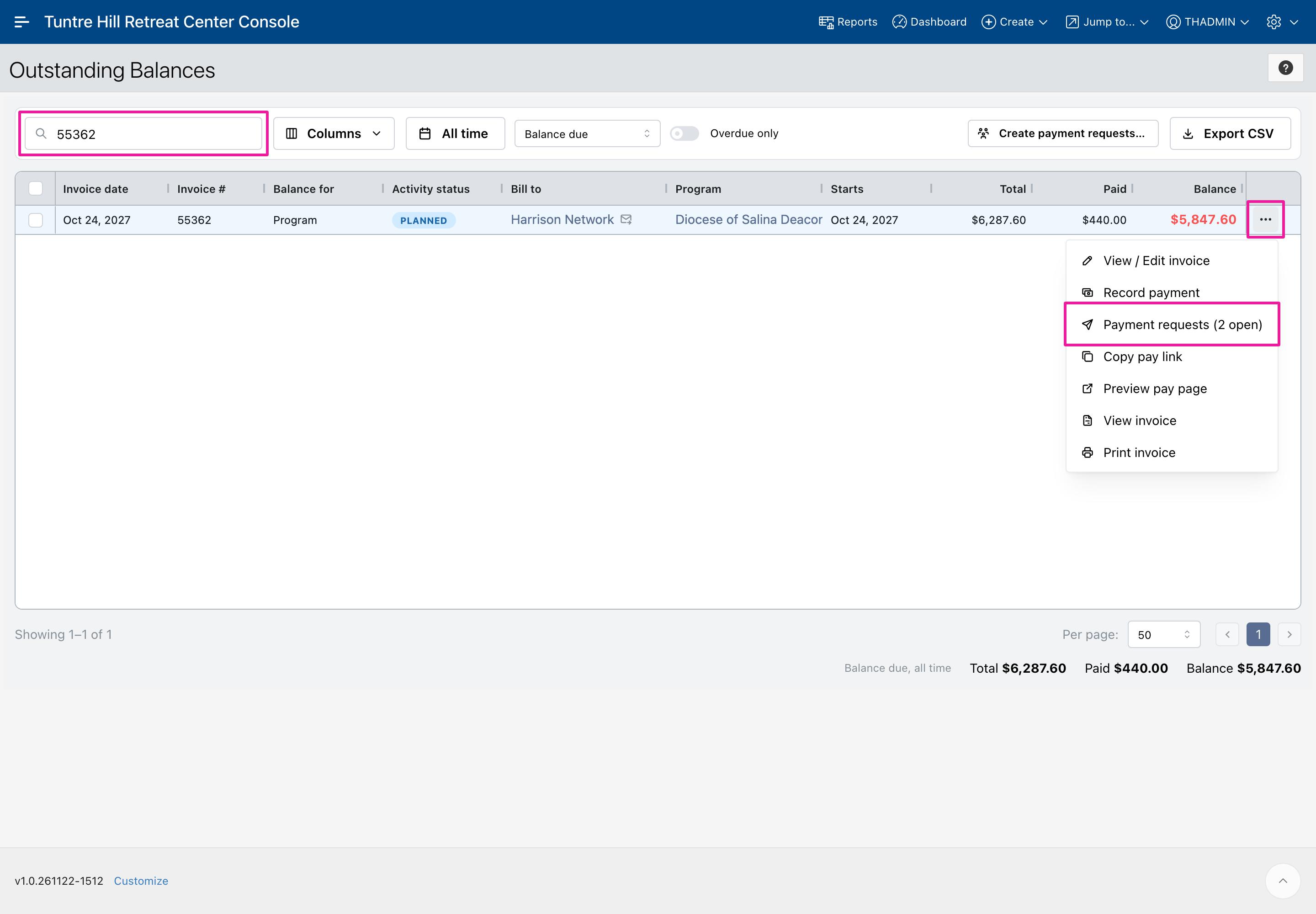
The window that opens shows the invoice’s total, what has been paid, its balance, and how much is already asked for in open requests, above the requests themselves. Each row has the same menu as on the main list, and ‘New request’ adds another request on this invoice.