
Import Guests
Import Guests in Retreat Portal fills a program’s open seats from the guest list a group sends you, whether that’s names pasted from an email, a spreadsheet, or a CSV file. You don’t have to type each person in and assign them a room one at a time. It’s handy when a hosted group sends 40 names the week before they arrive.
What it does, and what it doesn’t
Section titled “What it does, and what it doesn’t”- It fills seats the program already has. Each person goes into an open seat, a reservation on the program with no guest yet (‘Unassigned’ in the program’s reservations). It never adds reservations, so lay out the program’s rooms first. A reservation for more than one person doesn’t count as an open seat.
- It stops before changing anything if the list doesn’t fit. If the list has more people than the program has open seats, nothing is imported.
- It finds people you already have. Someone already in Retreat Portal is linked to their existing guest record instead of getting a duplicate, but only when the match is certain. Close calls are left for you to decide.
- It skips people already on the program, so you can import an updated list later and only the new names are added.
- It sends nothing. Importing doesn’t email anyone or create invoices.
Open Import Guests
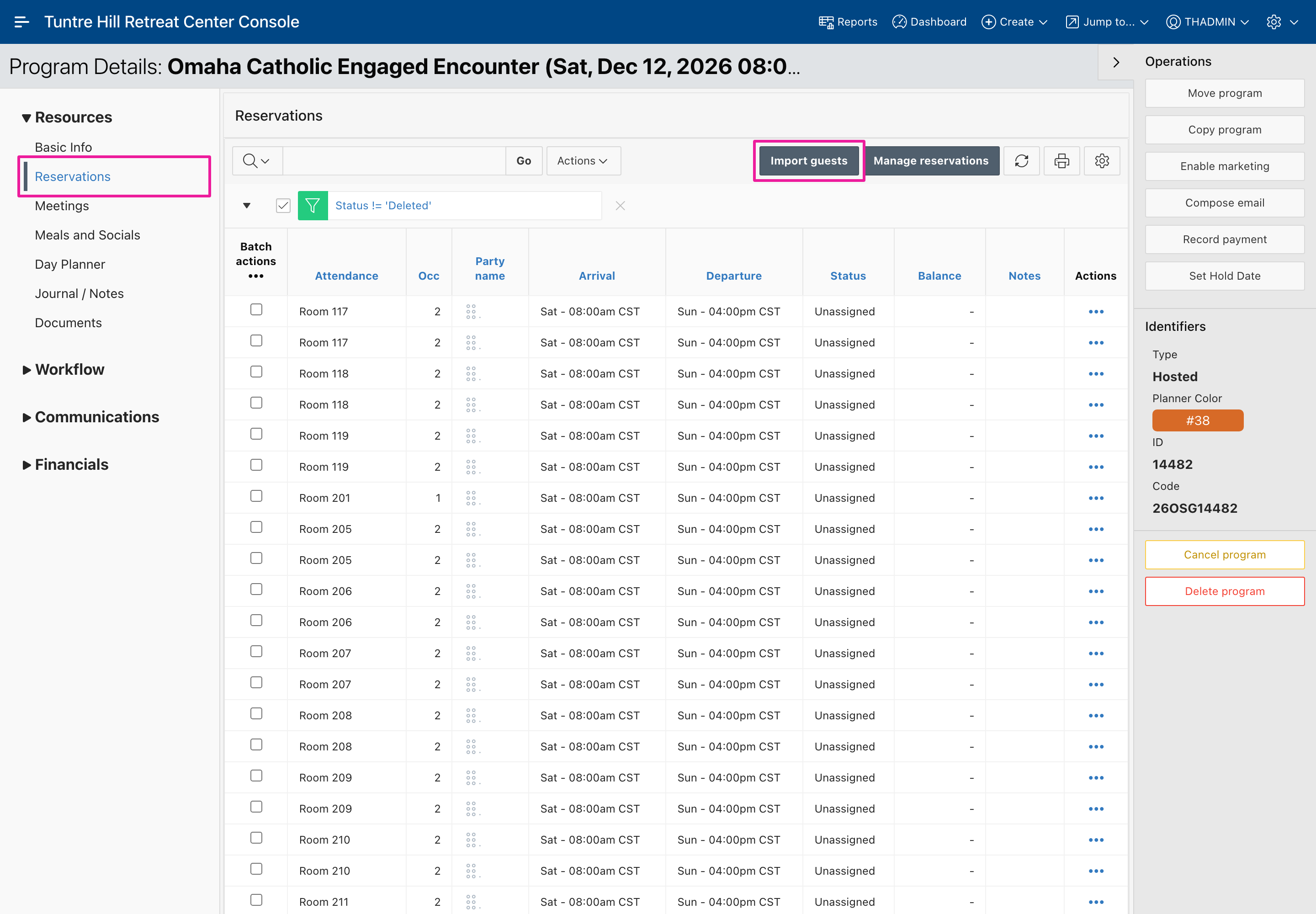
Section titled “Open Import Guests”Find the program in ‘Planning’ > ‘Program Search’ (the menu icon on the top-left) and click ‘Edit’ on its row. On the program’s page, click ‘Reservations’ on the left, then ‘Import guests’ above the list.
Add the list
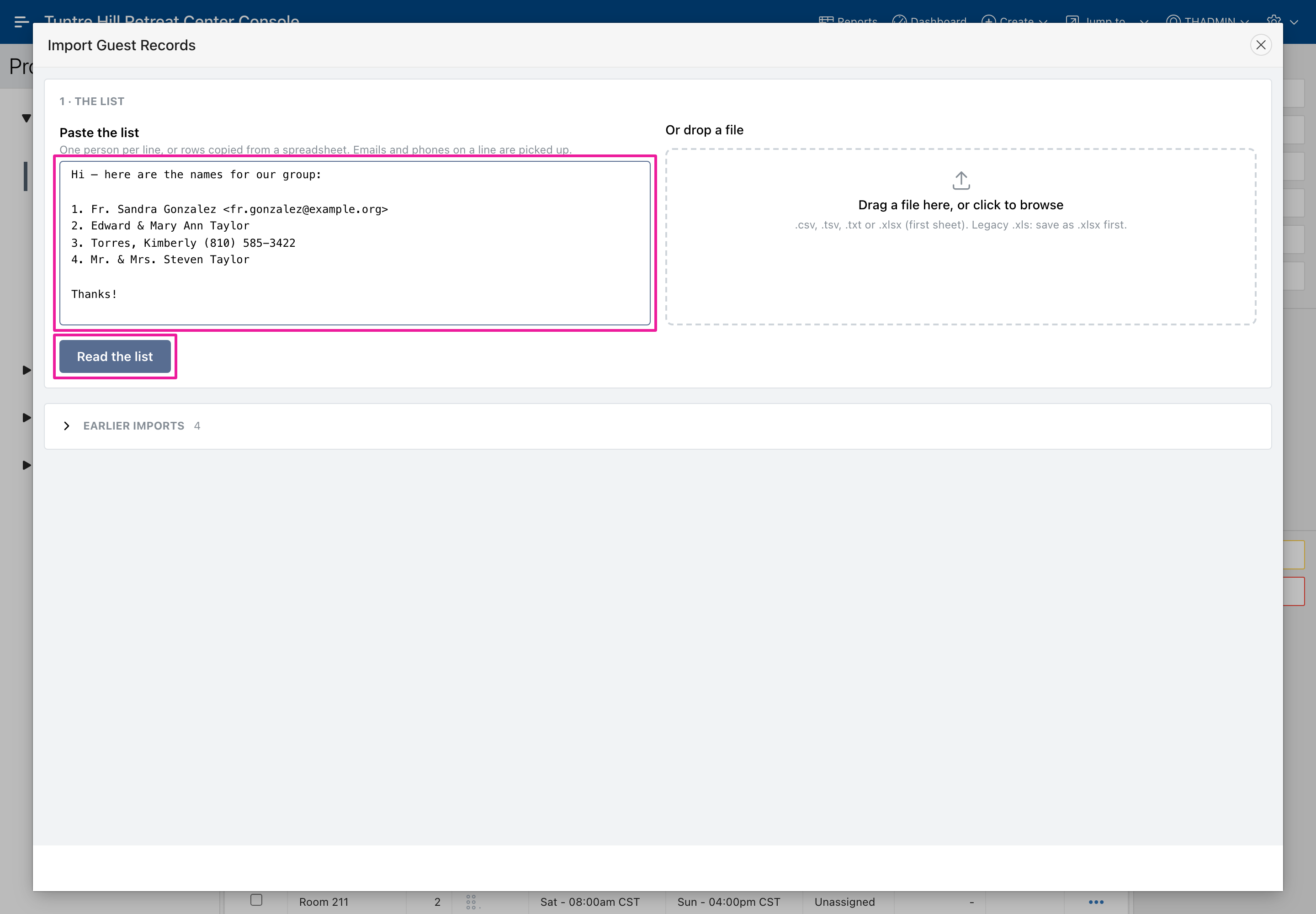
Section titled “Add the list”In the window that opens, paste the list into ‘Paste the list’, or drop a file onto ‘Or drop a file’ (or click it to browse). Retreat Portal reads .csv, .tsv, .txt and .xlsx files; for an Excel file it reads the first sheet only, and an older .xls file needs saving as .xlsx first. Then click ‘Read the list’.
Pasted text works best with one person per line. Emails and phone numbers on a line are picked up, titles such as ‘Fr.’ or ‘Mrs.’ become the salutation, and couples such as “Jane & John Smith” become two people. Greetings and sign-offs in a pasted email (“Hi, here are the names:”, “Thanks!”) are left out.
For a spreadsheet or CSV file, Retreat Portal shows the first few rows and guesses what each column holds. Check each guess in the drop-downs across the top, and change any that are wrong. Set a column to ‘Ignore’ to leave it out. Turn off ‘First row is a header’ if the file starts with a person rather than column names. Then click ‘Use these columns’.
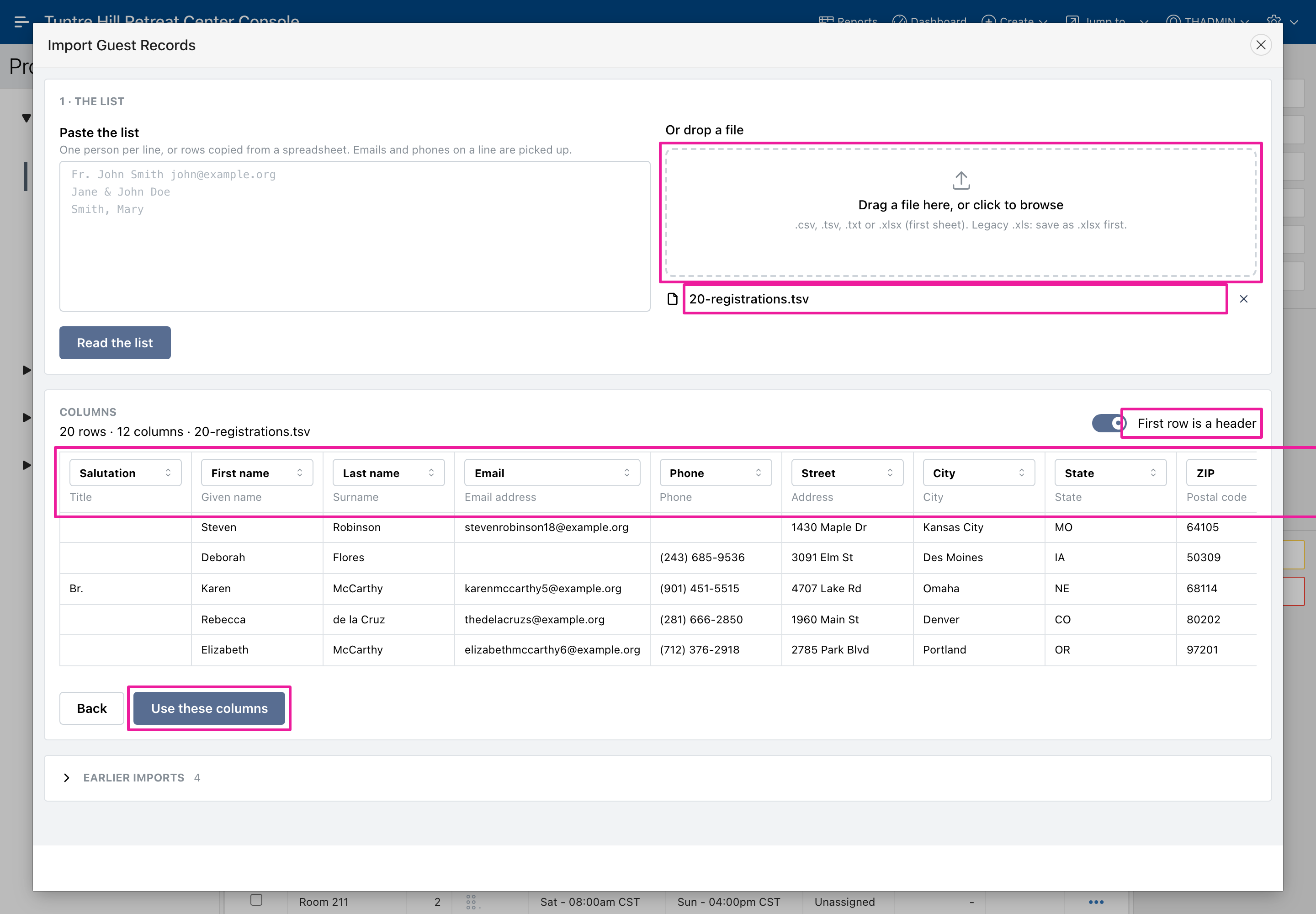
Import Guests understands a full name, or a first and last name, plus salutation, email, phone, street, city, state, ZIP, diet, roommate, and gender.
Proof the list
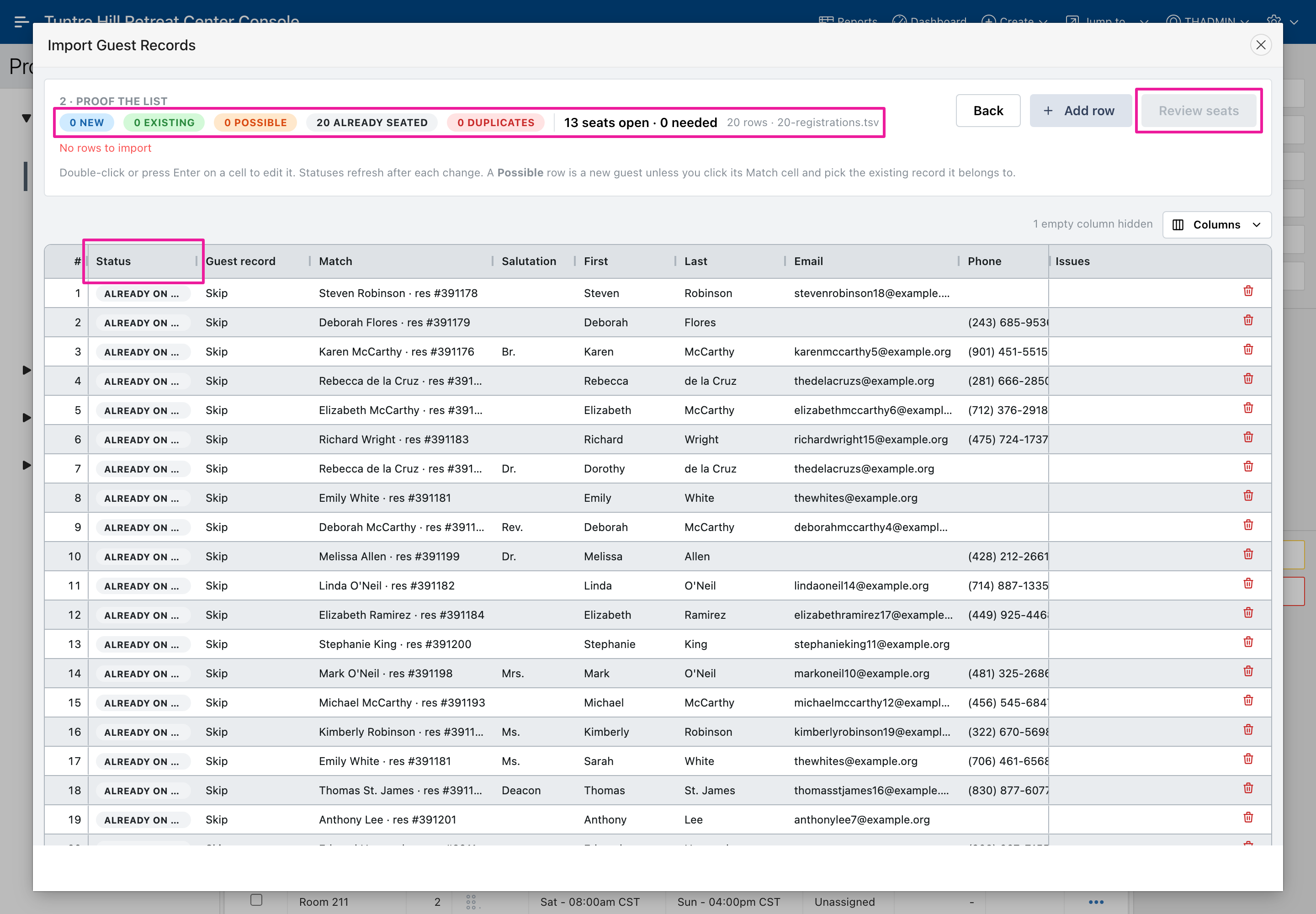
Section titled “Proof the list”Every person is now a row you can check and change. The ‘Status’ column says what Retreat Portal found:
| Status | Meaning | What happens |
|---|---|---|
| ‘New’ | Nobody like this is in Retreat Portal yet | A new guest record is made |
| ‘Existing’ | Certainly someone you already have | Linked to their guest record |
| ‘Possible’ | Someone with a similar name or the same email | A new guest record is made, unless you pick the match |
| ‘Already on this program’ | This person already has a seat on the program | Skipped |
| ‘Duplicate in file’ | The same person appears twice in the list | Skip one of the two rows |
The counts at the top add these up, next to how many seats are open and how many the list needs. Double-click any cell to fix a typo, use ‘Add row’ for someone who was left off, and click the trash can on the right to remove a row. The ‘Guest record’ column lets you skip a person without removing them.
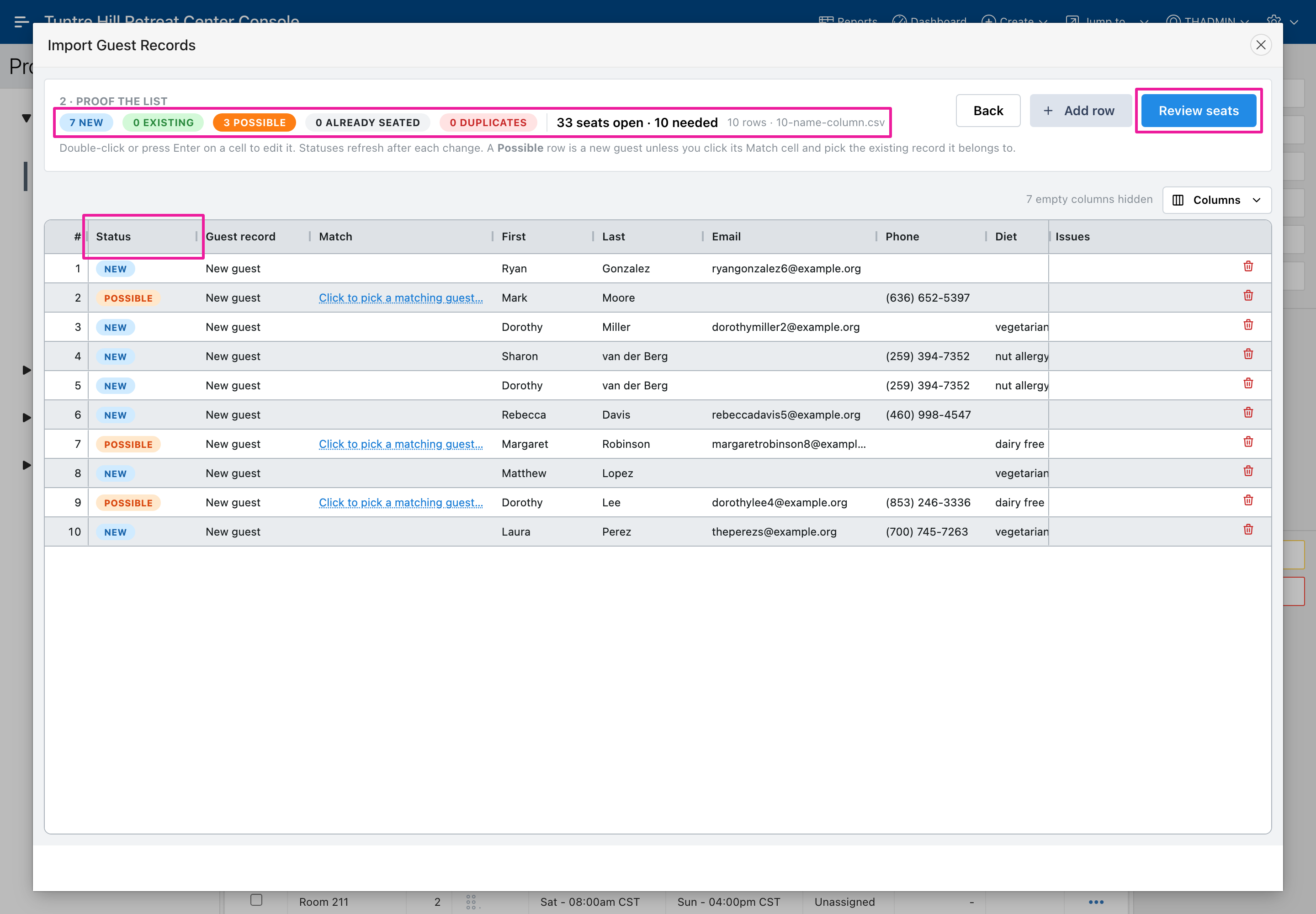
When an ‘Existing’ guest’s details in the list differ from their record, an ‘Update’ column appears. Tick it to copy the list’s phone, address, email, and diet onto their record.
Pick a possible match
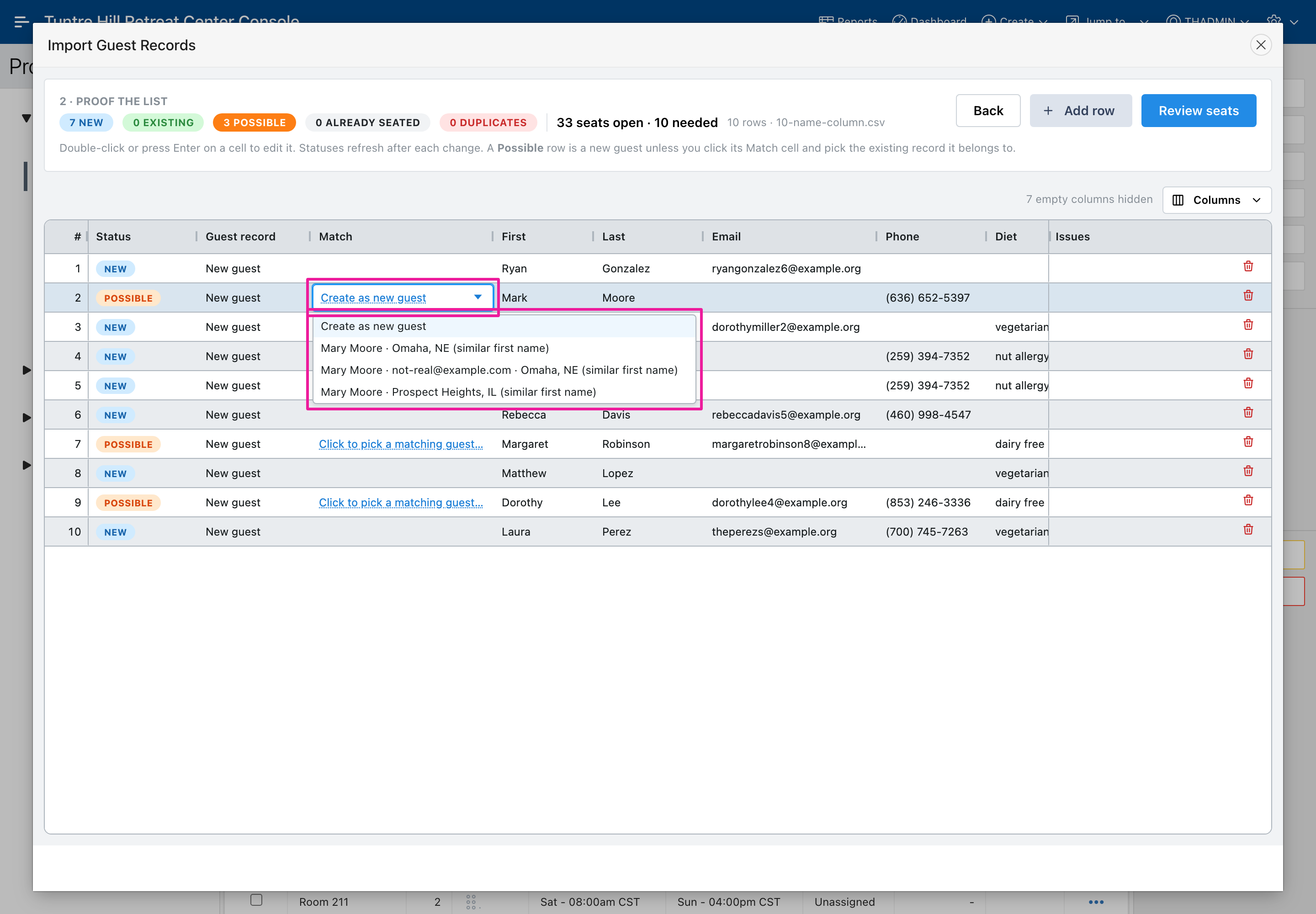
Section titled “Pick a possible match”A ‘Possible’ row reads ‘Click to pick a matching guest…’. Click it to see who it might be, with what they have in common, such as “similar first name”. Choose the person if it’s them, or keep ‘Create as new guest’. If you aren’t sure, leave it. A duplicate guest can be merged later with Guest Merge.
Fix the rows that need it
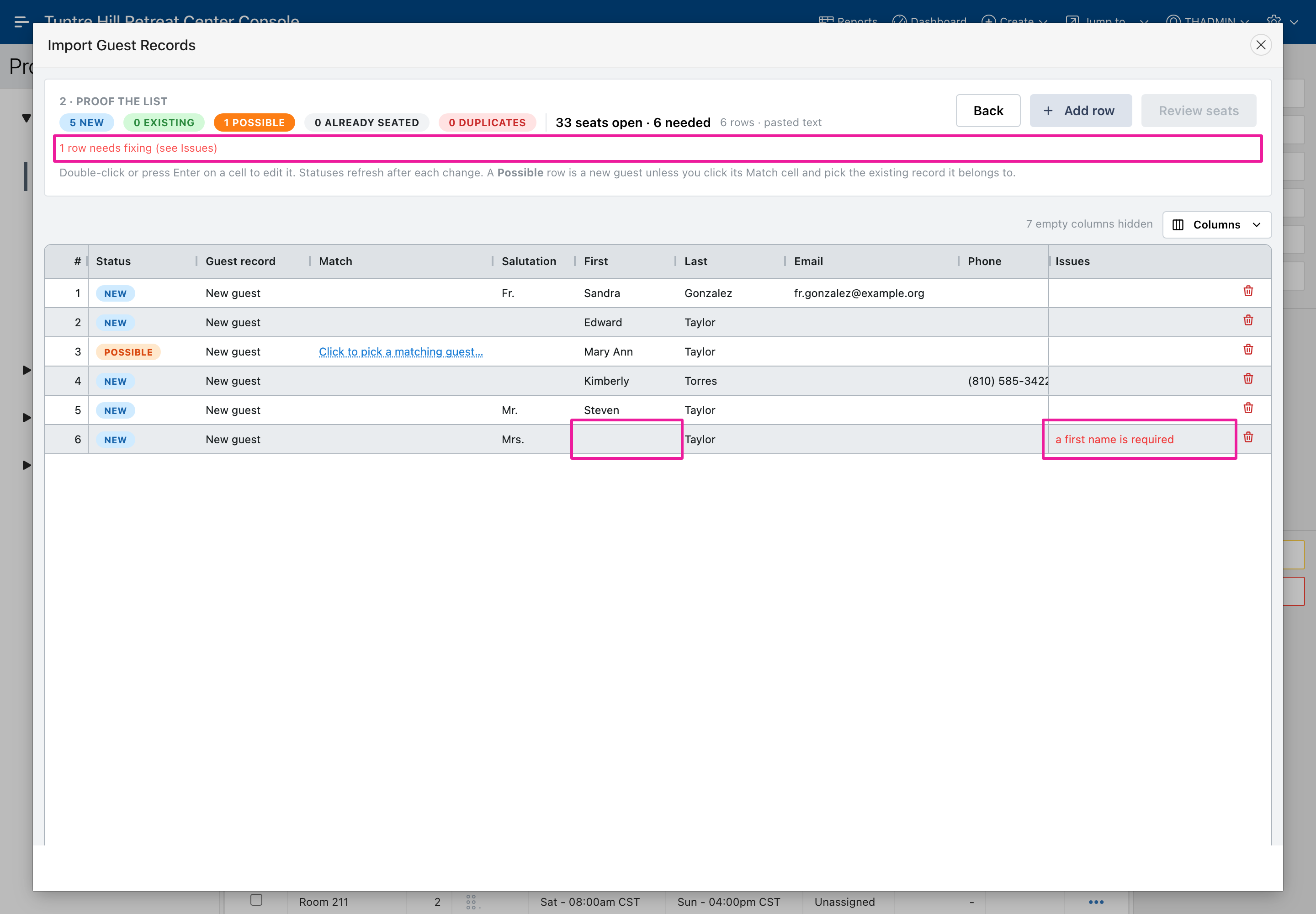
Section titled “Fix the rows that need it”Rows with a problem show what’s wrong in red under ‘Issues’, and ‘Review seats’ stays off until every one is fixed or skipped. With a pasted email, the usual one is a missing first name: “Mr. & Mrs. Steven Taylor” becomes two people, and the second one needs a first name. Double-click the empty ‘First’ cell and type it in.
When the list is bigger than the program
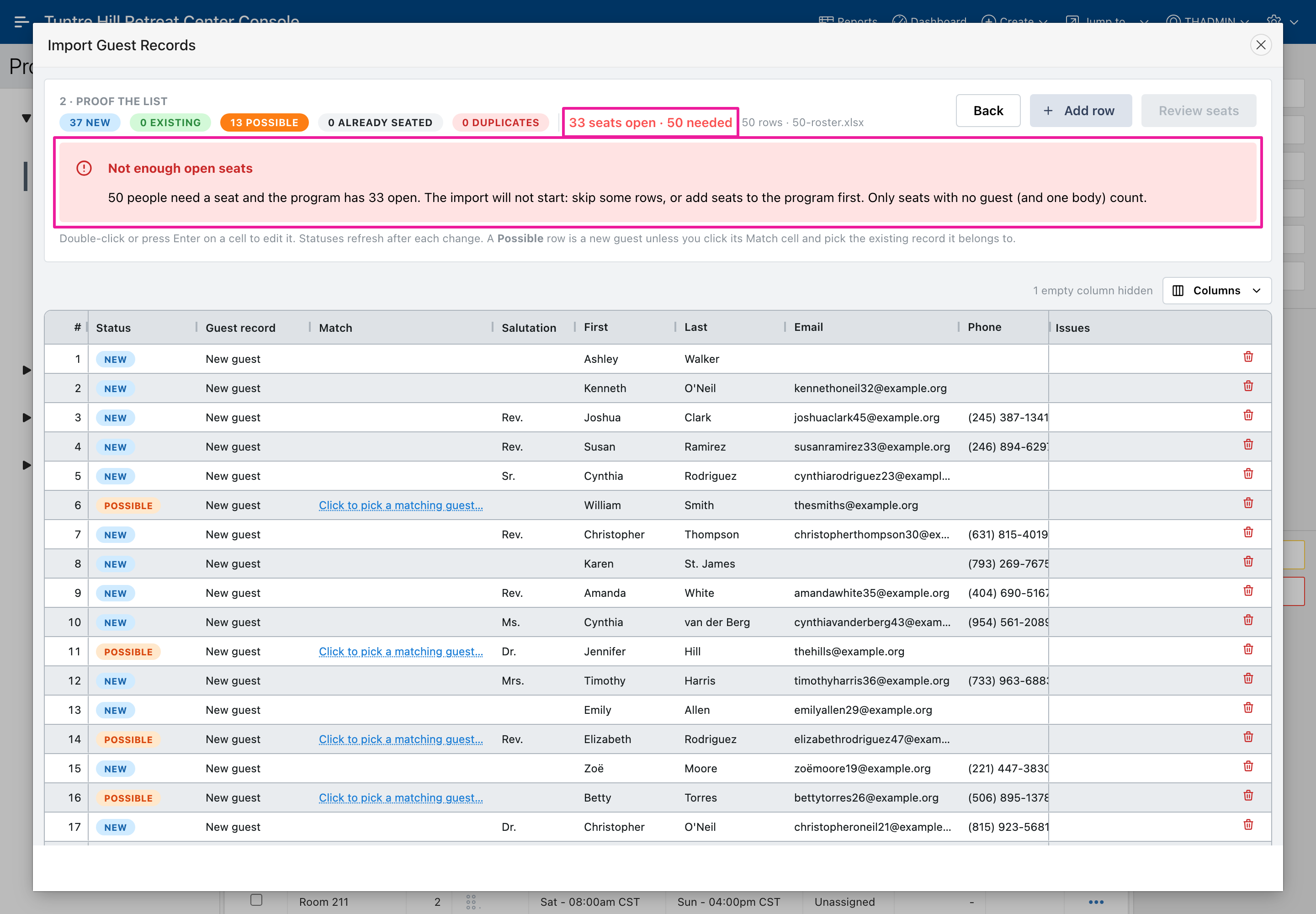
Section titled “When the list is bigger than the program”If more people need a seat than the program has open, a red ‘Not enough open seats’ note says so and the import won’t start. Skip or remove some rows, or add seats to the program and open Import Guests again.
Review the seats
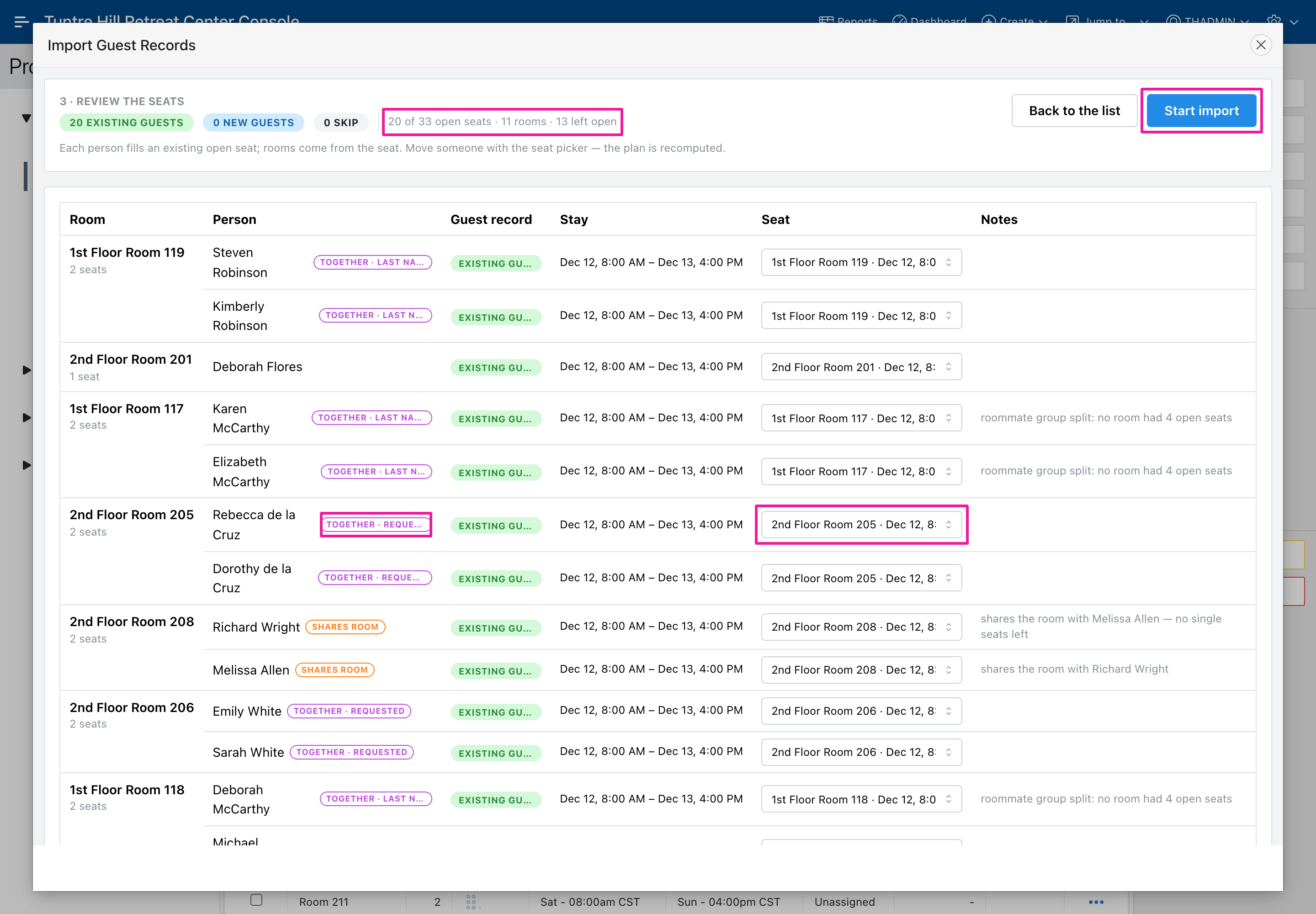
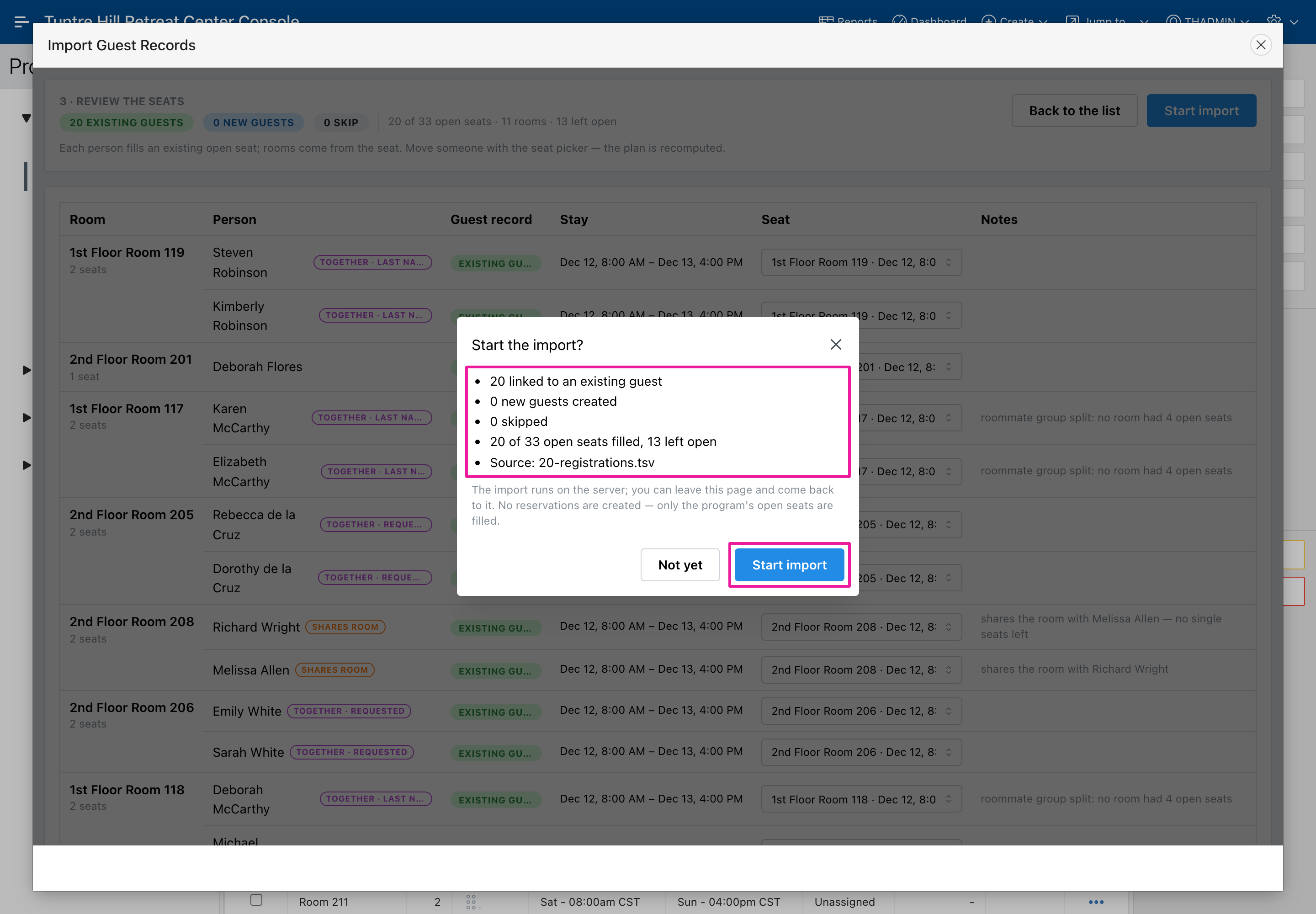
Section titled “Review the seats”When the list is ready, click ‘Review seats’. Retreat Portal proposes a seat for everyone, room by room, and keeps people together where it can:
- ‘together · requested’ means the list asked for these two to room together, under a roommate column.
- ‘together · last name’ means they share a last name, so they’re likely a couple or family.
- ‘shares room’ means the person shares a room with someone outside their group, because no single seats were left. The ‘Notes’ column says who.
When a group can’t fit in one room, the ‘Notes’ column says so. To move someone, pick another seat in their ‘Seat’ column; the rest of the plan is worked out again. Click ‘Back to the list’ to change the list itself.
Start the import
Section titled “Start the import”Click ‘Start import’. The window that opens sums up what will happen. Click ‘Start import’ again.
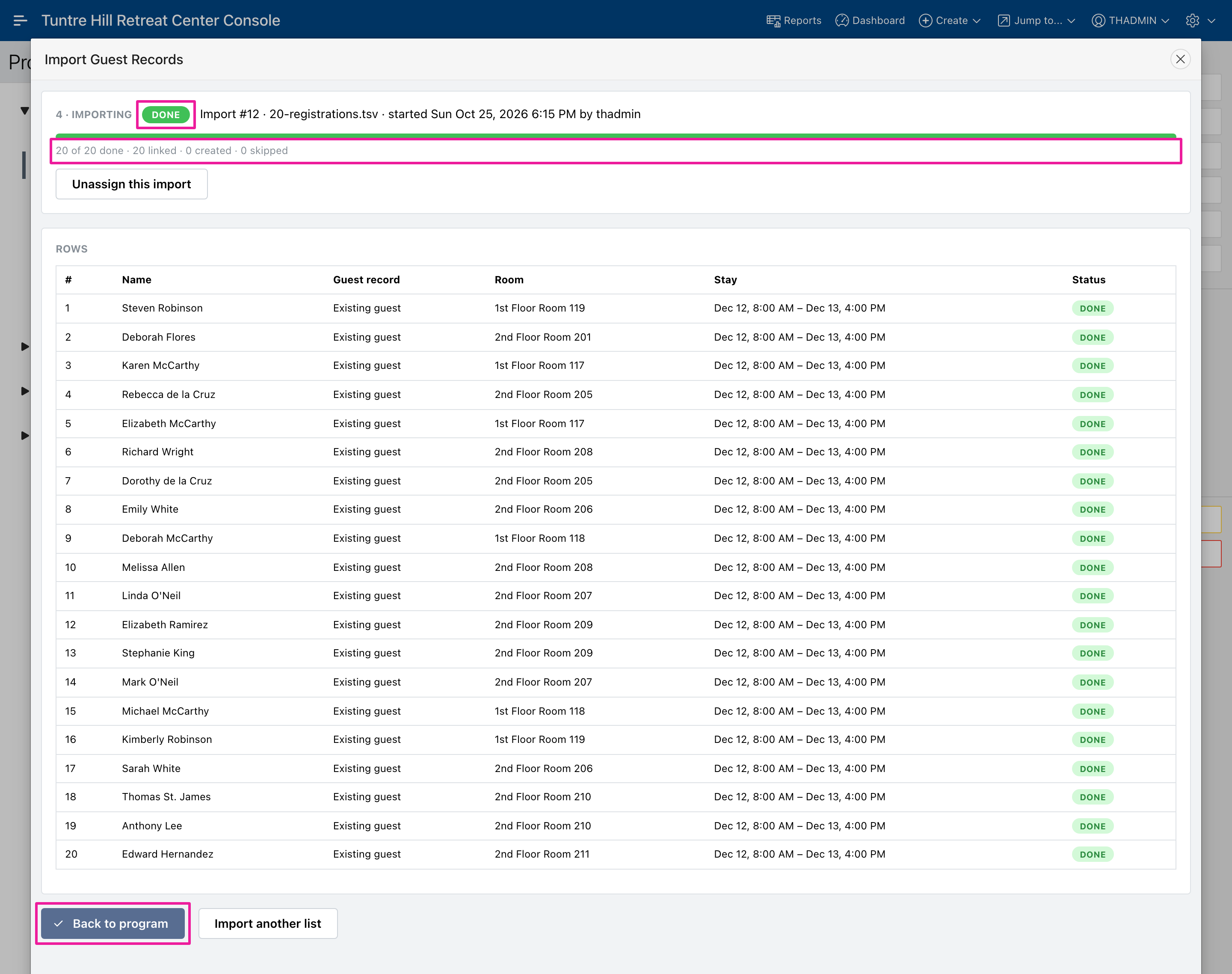
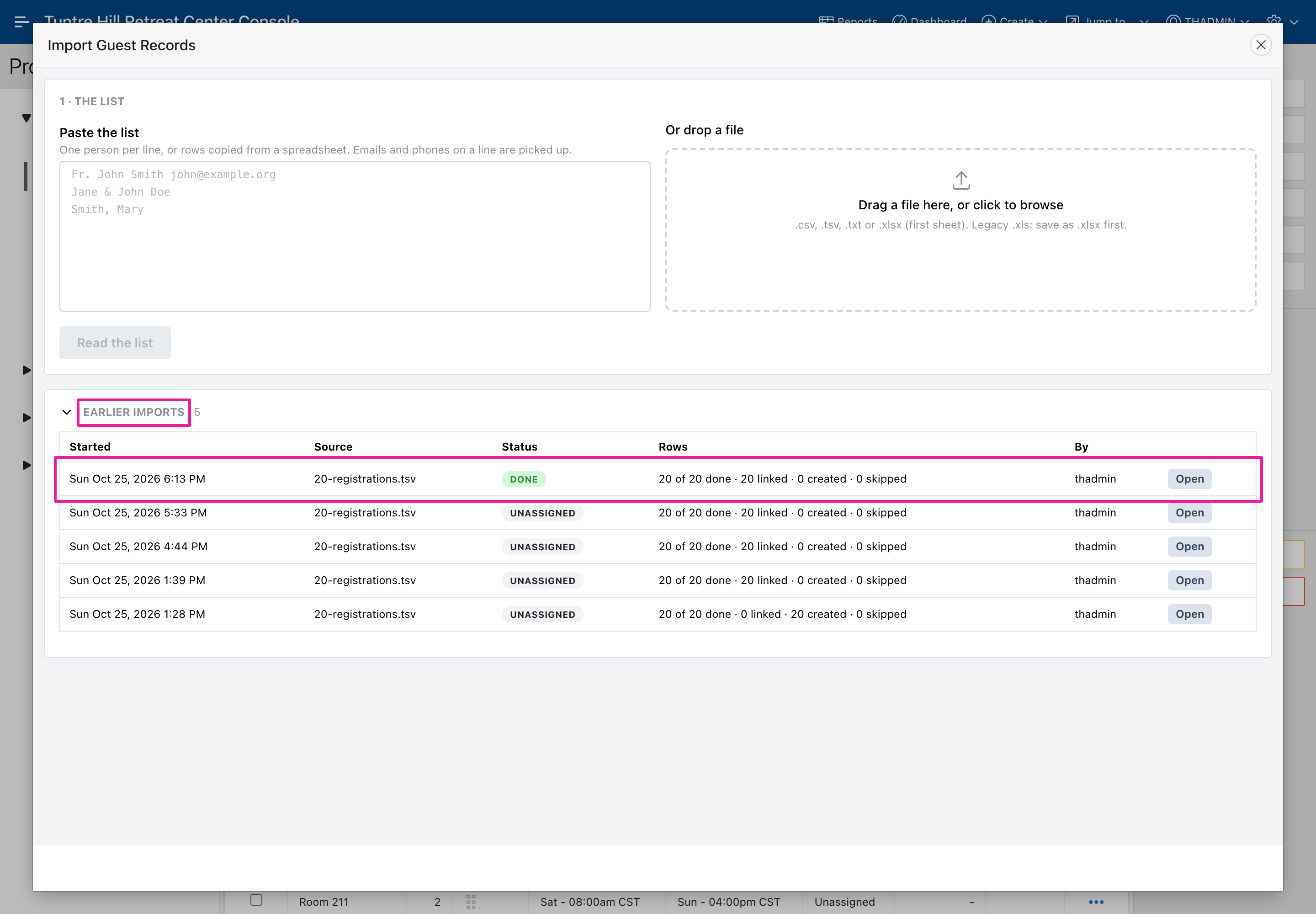
The import runs in the background with a progress bar, so you can close the window and come back: open Import Guests again and click ‘Open’ under ‘Earlier imports’. Each row turns ‘done’ as the person is seated. If the import stops partway, click ‘Resume’ to finish it.
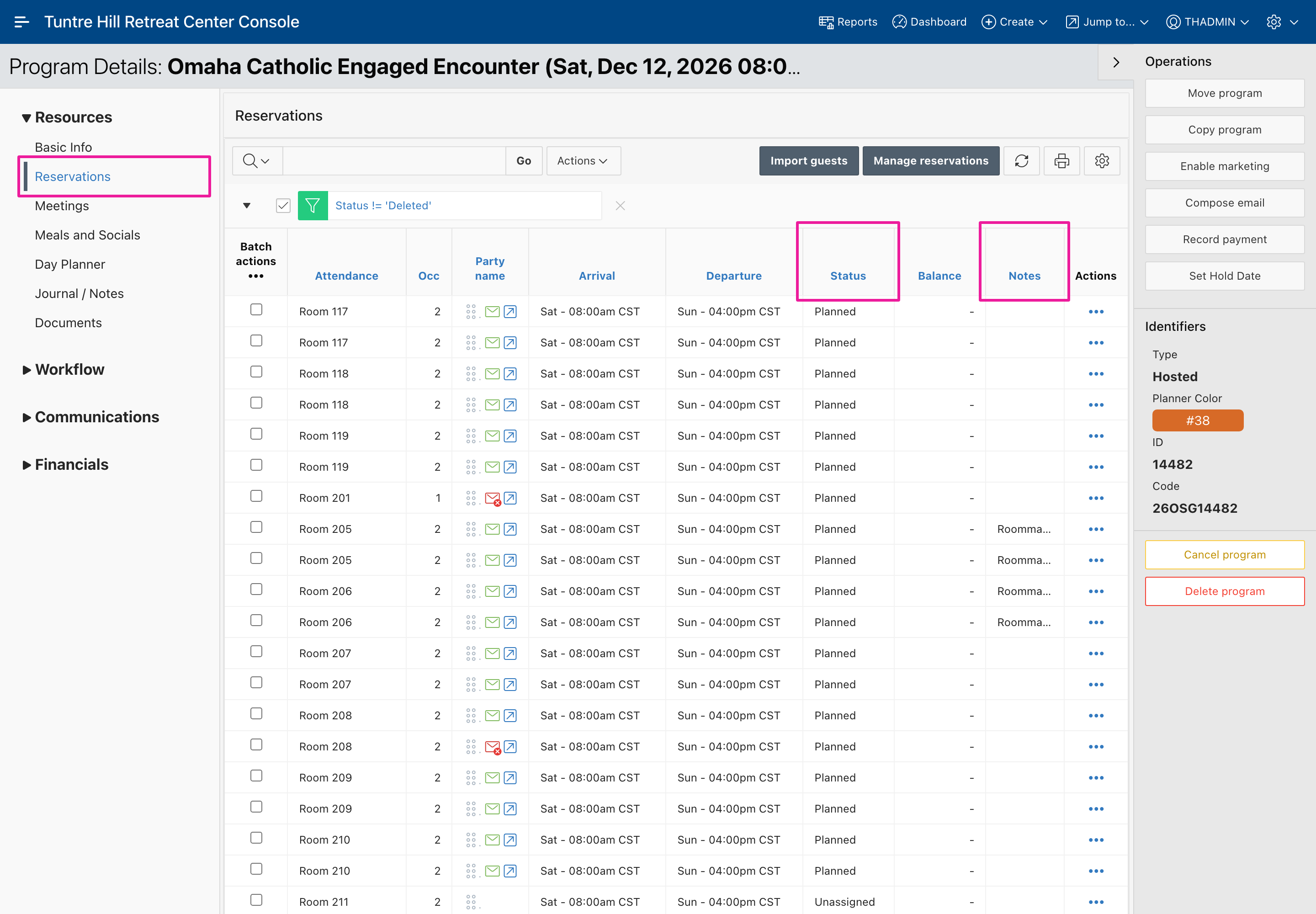
Click ‘Back to program’. The window closes, and on the program’s page the filled seats now read ‘Planned’, with roommate requests in each seat’s ‘Notes’.
Import an updated list
Section titled “Import an updated list”When the group sends a new version of the list, import the whole thing again. Everyone already seated shows ‘Already on this program’ and is skipped, so only the new names take a seat.
Undo an import
Section titled “Undo an import”Open Import Guests on the program again and click ‘Earlier imports’ under the list to see every import made on this program. Click ‘Open’ on the one to undo.
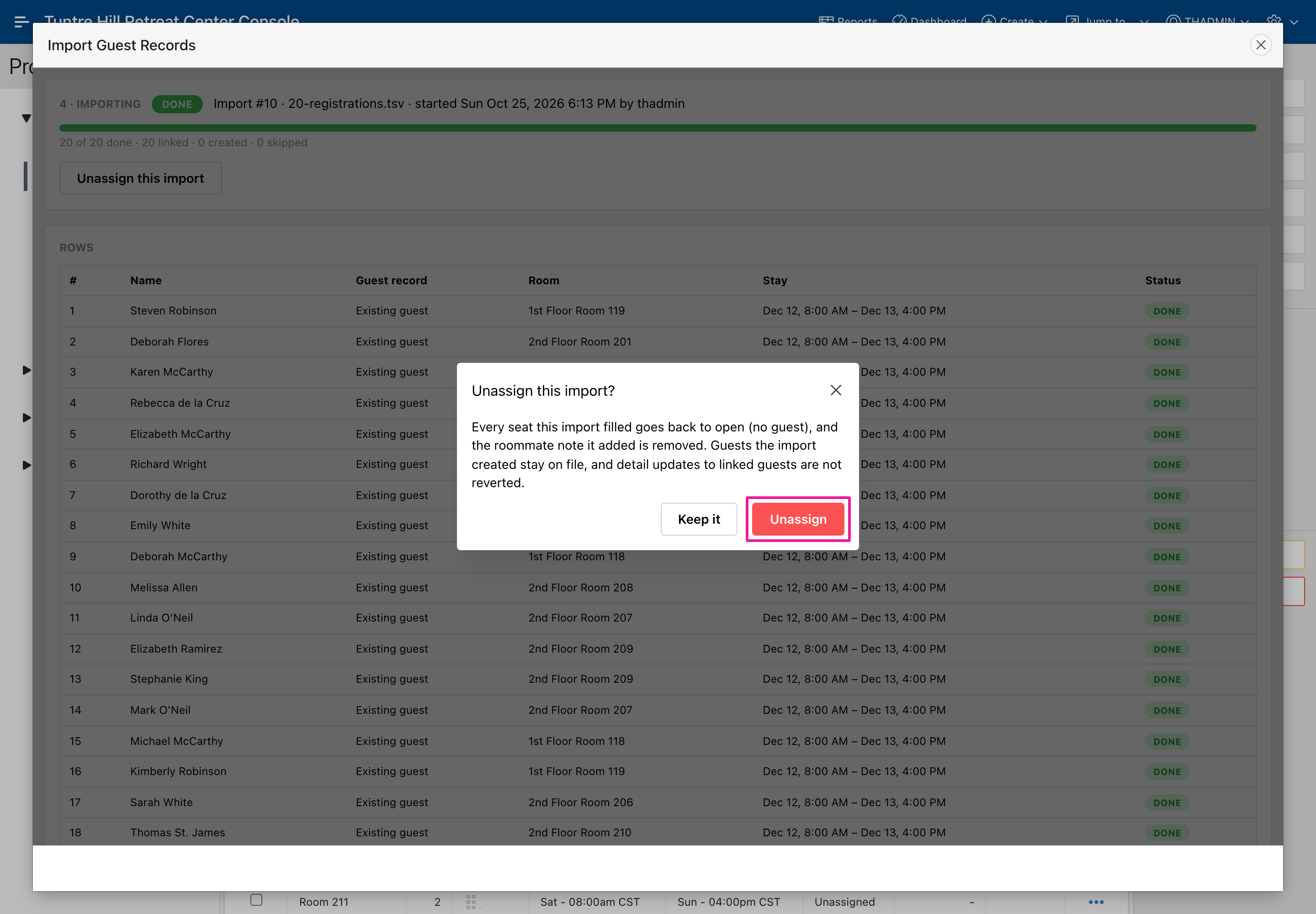
Click ‘Unassign this import’, then ‘Unassign’. Every seat the import filled goes back to open, and the roommate notes it added are removed. The guest records it created stay in Retreat Portal, and changes it made to existing guests’ details stay too.
Good to know
Section titled “Good to know”- Up to 500 people per import, and one import at a time per program.
- A ‘Gender’ value that doesn’t match your center’s list shows in red. Pick one from the list, or clear it.
- Everyone keeps the dates of the seat they fill. A list can’t set different arrival or departure times per person yet.
- A list is read in your browser. Only the rows in the grid are sent to Retreat Portal, not the file itself.
- Group contacts can’t import their own lists from the Group Portal yet.