
A Room Across the Program
Most rooms are planned for the whole program, not one day at a time: the main hall every day, the chapel at a few set times, a breakout room for three mornings. ‘A room across the program’ shows one room for every day of one program, so you can reserve it for the whole stay, re-time several days at once, copy one day’s setup notes, equipment, and socials onto the others, or release the days you no longer need. Every change is shown for review before anything is saved.
Here is an outline of the steps in the video:
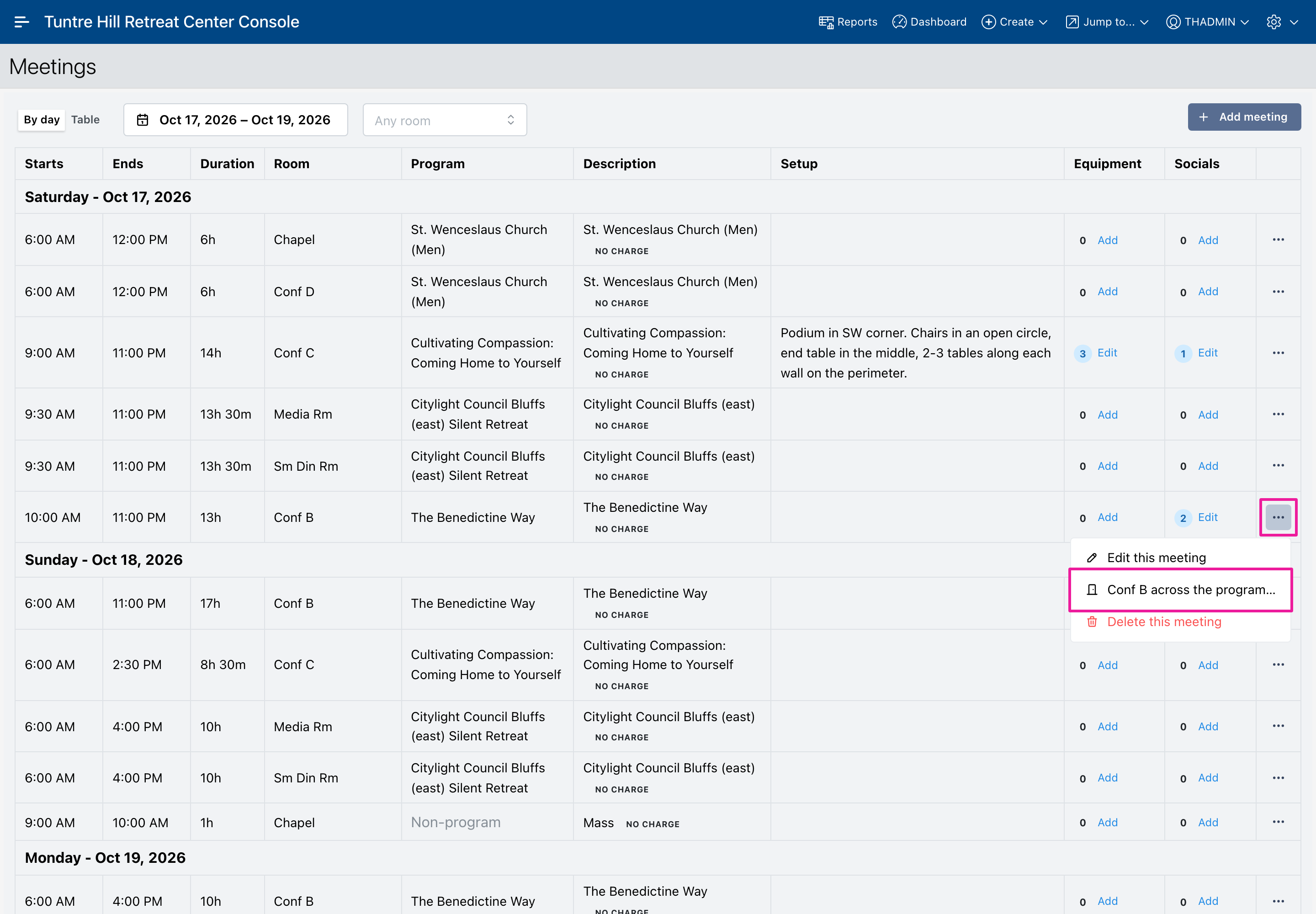
- In the Meetings list, click the three dots on one of the program’s meetings and choose the room’s ‘across the program…’ item, here ‘Conf B across the program…’.
- Under ‘Room’, pick ‘Another room…’ to start a room the program has not booked yet.
- Click ‘Reserve the whole program’ and choose ‘Program hours’.
- Check the review, then click ‘Save’.
Open it
Section titled “Open it”Click the menu icon on the top-left and choose ‘Planning’ > ‘Meetings’. Click the three dots at the end of one of the program’s meetings and choose the room’s name followed by ‘across the program…’, for example ‘Conf B across the program…’. A program’s own Meetings list (Resources > ‘Meetings’ on the program’s page) has the same menu, and so does the ‘Meeting’ window: the button under the room’s list of days opens the same view.
Read it
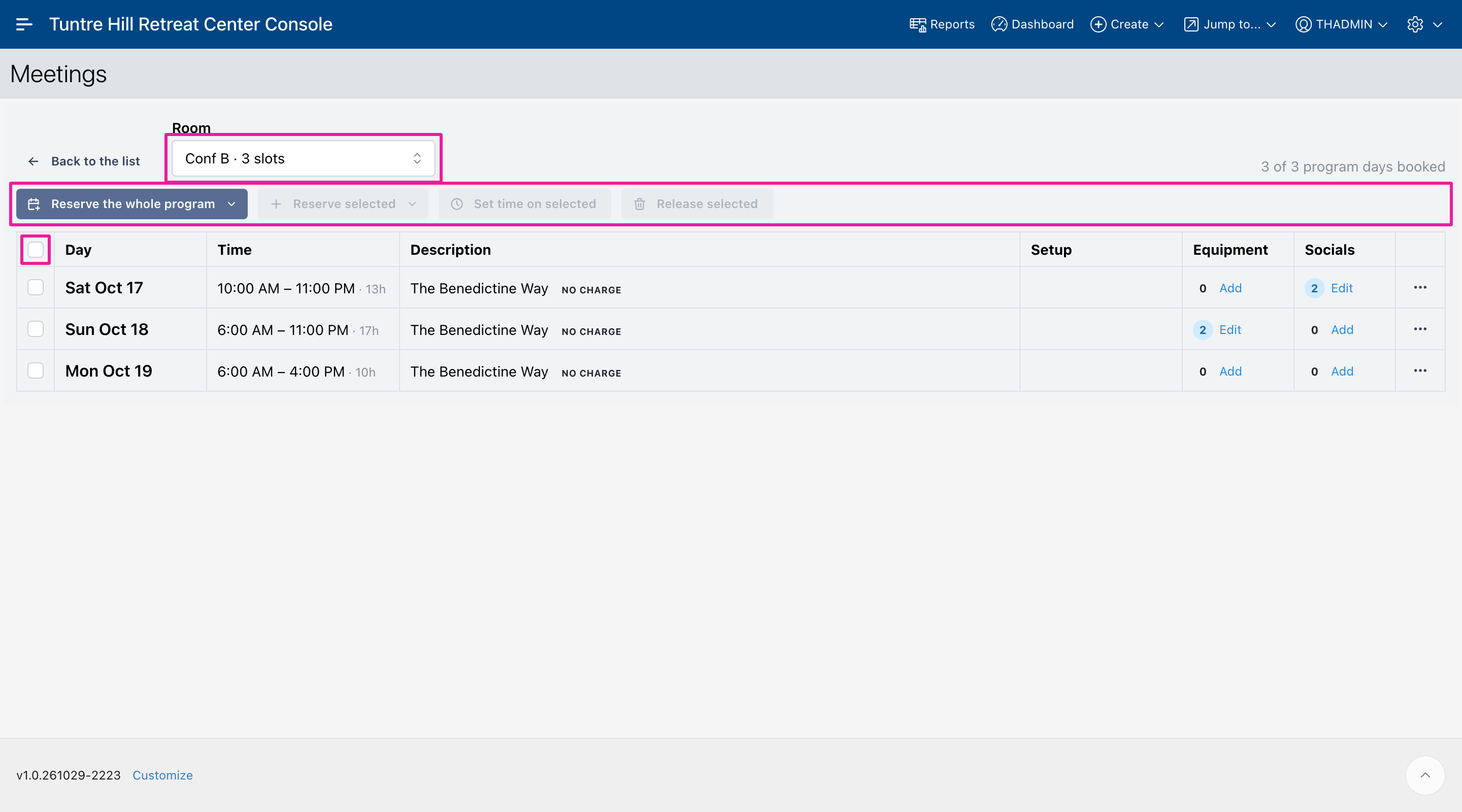
Section titled “Read it”Each row is one day of the program, with the meeting’s time, description, setup notes, and its ‘Equipment’ and ‘Socials’ counts. A day with two meetings in the room, such as the chapel at 7 AM and 5 PM, shows both. A day with nothing booked shows ‘Add a slot’. Days booked before or after the program, for setup or teardown, are listed too and marked ‘before program’ or ‘after program’. The count on the right says how many of the program’s days are booked.
Use ‘Room’ at the top to switch to another room the program uses, or pick ‘Another room…’ to plan a room it has not booked yet. ‘Back to the list’ returns to the Meetings list.
Reserve the room
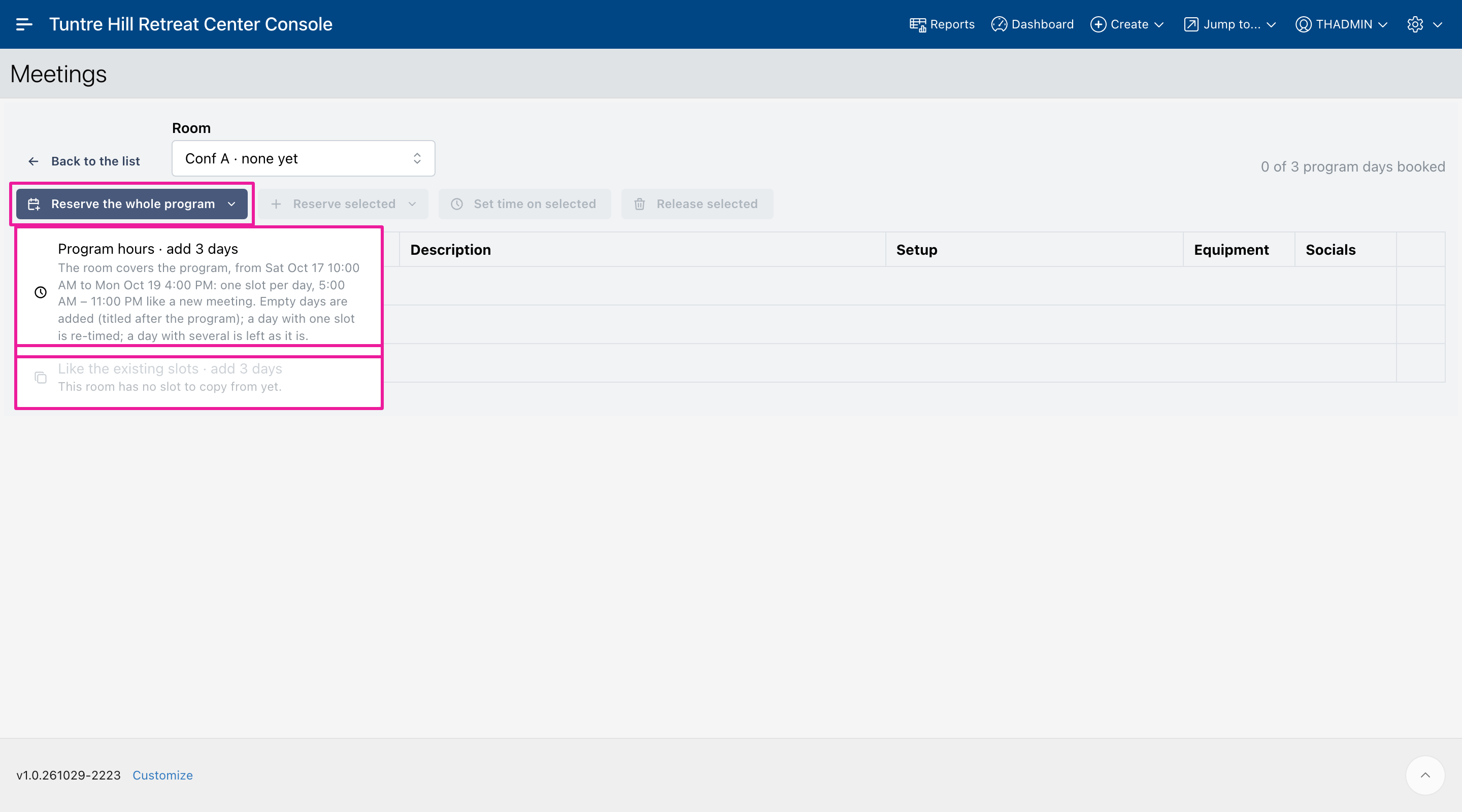
Section titled “Reserve the room”‘Reserve the whole program’ books every day of the program that the room doesn’t have yet. To book only some days, tick them on the left and click ‘Reserve selected’. Both buttons ask how to fill the days, and each choice says what it will do, for example ‘add 1 day, re-time 5’:
- Program hours: the room for the program’s whole stay, from 5:00 AM to 11:00 PM each day, starting at the program’s own start time on the first day and ending at its end time on the last day. Empty days are added, titled after the program. A day that already has one meeting is re-timed to those hours. A day with several meetings is left as it is.
- Like the existing slots: empty days copy the room’s first meeting: its time, description, setup notes, and equipment. Days already booked are not touched. This is greyed out until the room has a meeting.
Review, then save
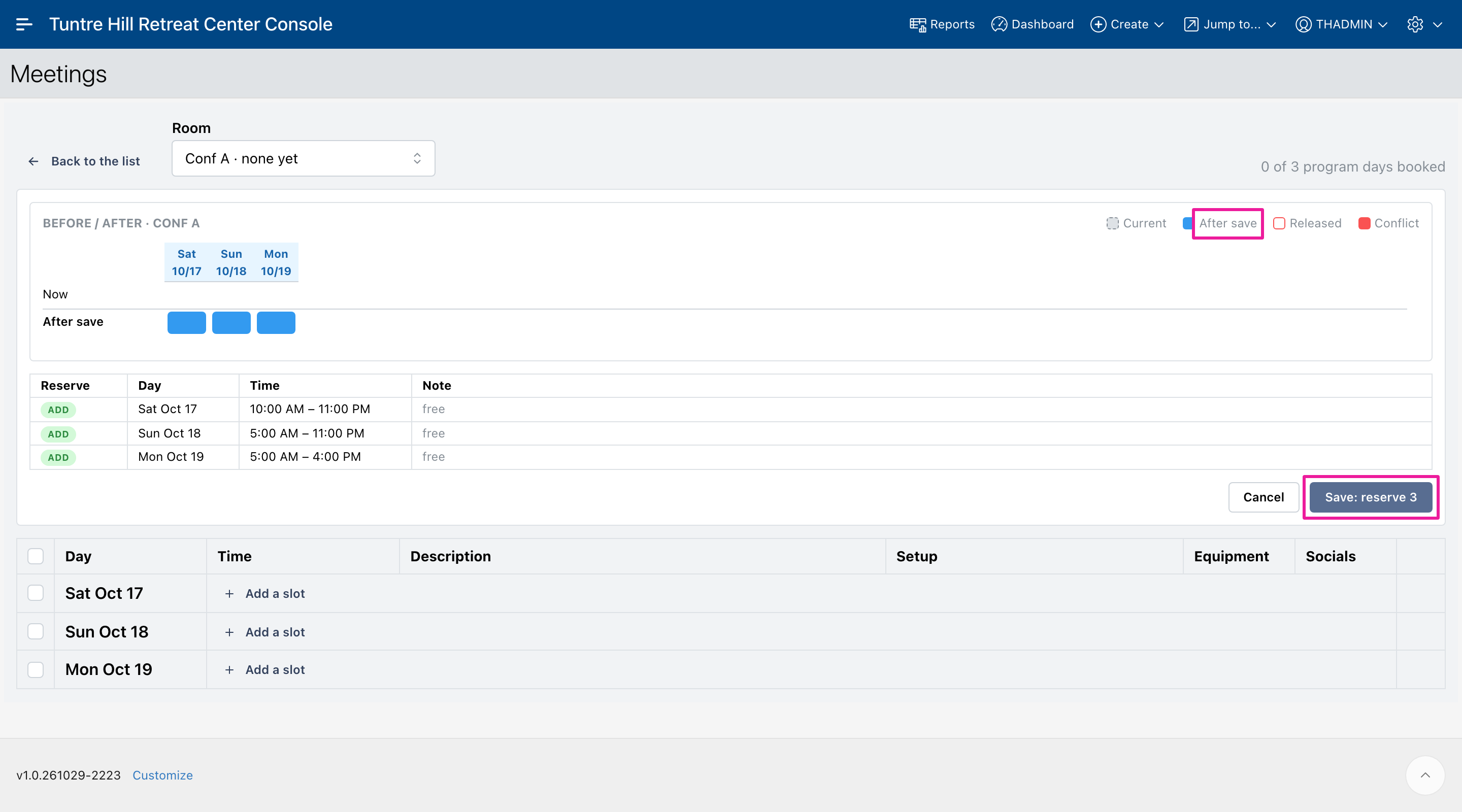
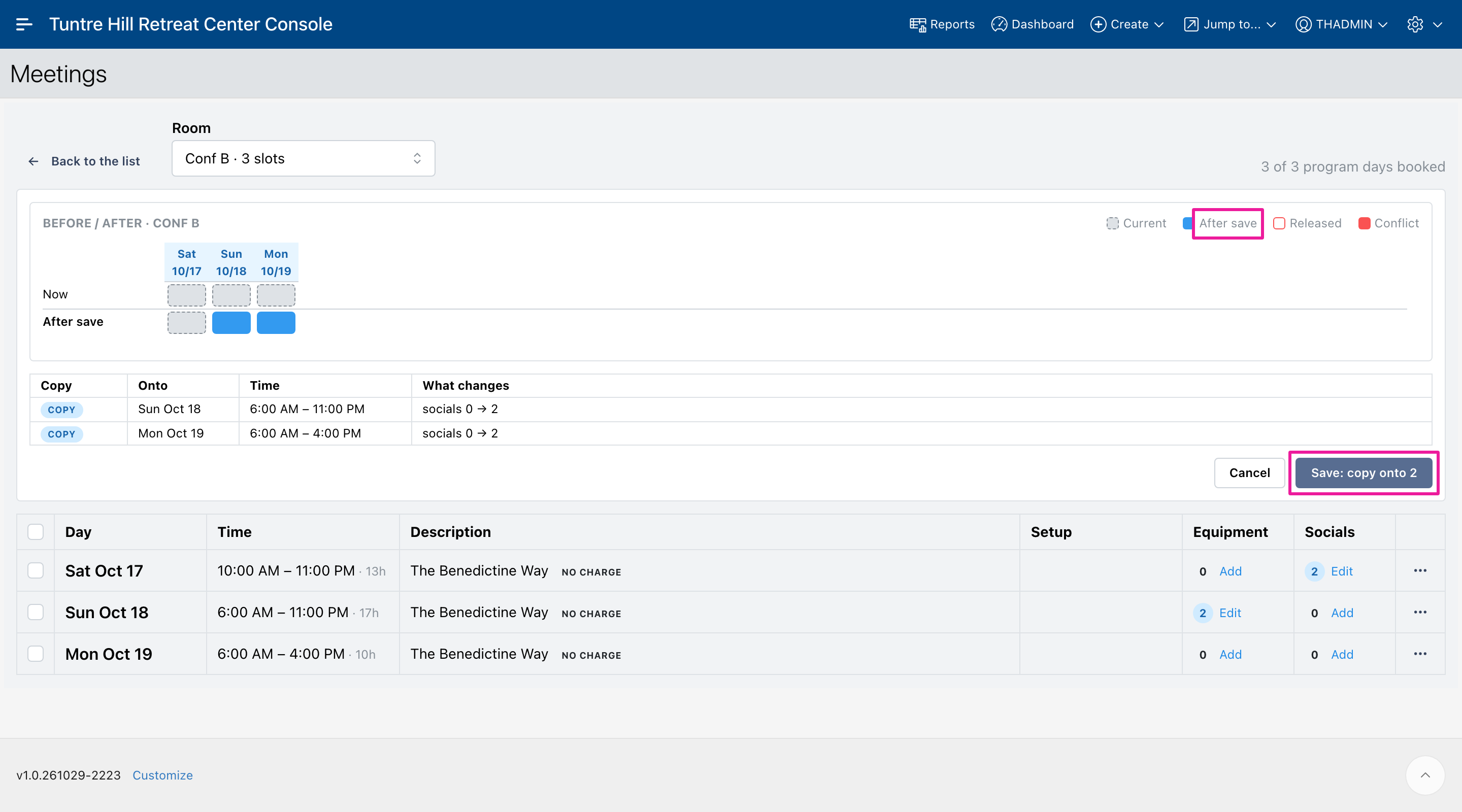
Section titled “Review, then save”Every change opens a review before anything is saved. The strip at the top shows each day ‘Now’ and ‘After save’: blue for a day that is reserved or changed, red where another booking already holds the room at that time, a red outline for a day being released. A clash doesn’t stop the booking; the table underneath names the other booking so you can decide. The button says what it will do, for example ‘Save: reserve 3’. Click it to save, or ‘Cancel’ to go back without changing anything.
Change the time on several days
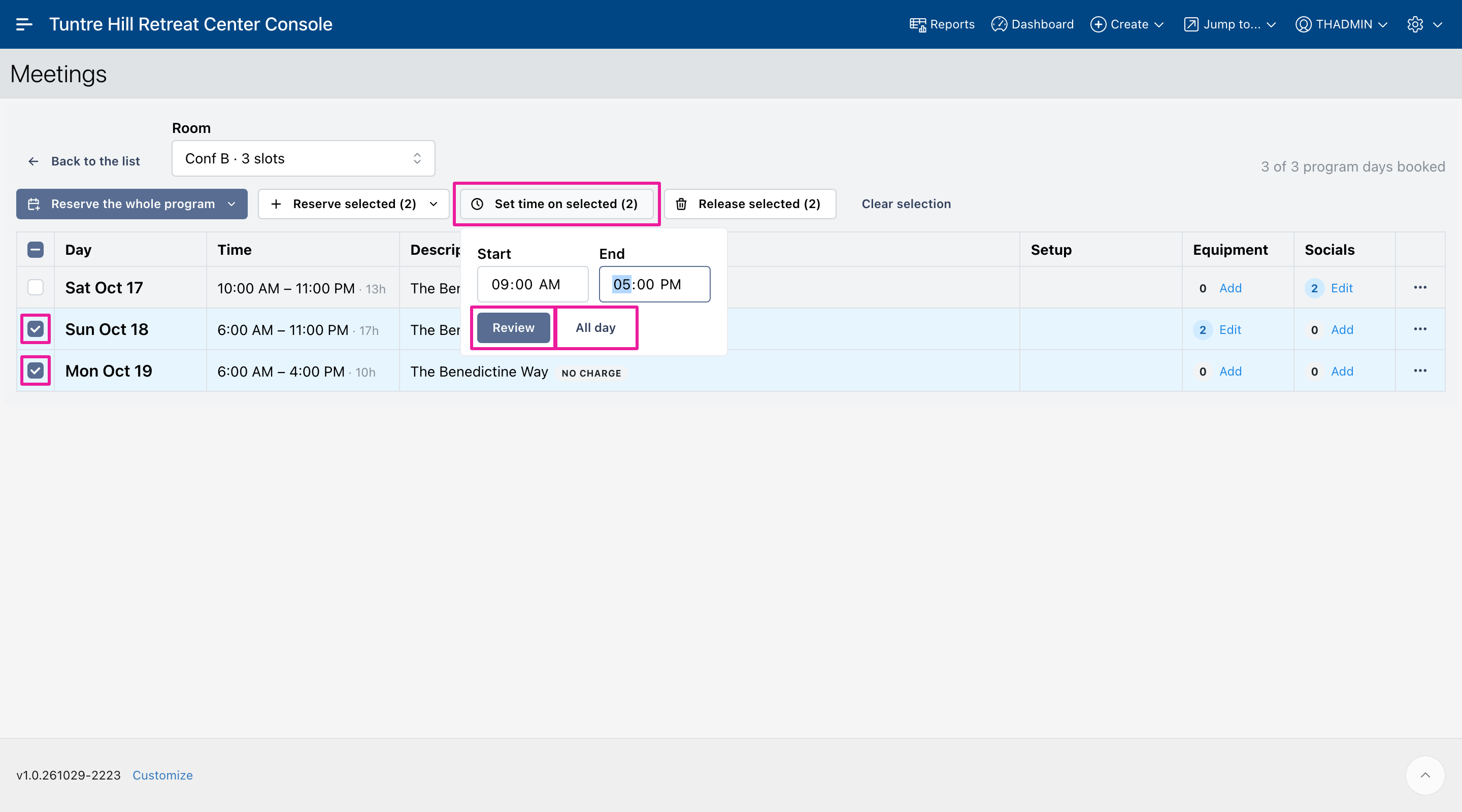
Section titled “Change the time on several days”Tick the days on the left and click ‘Set time on selected’. Type the ‘Start’ and ‘End’, or click ‘All day’ for 5:00 AM to 11:00 PM, then click ‘Review’. Every meeting on those days moves to the new time.
Copy one day’s details to other days
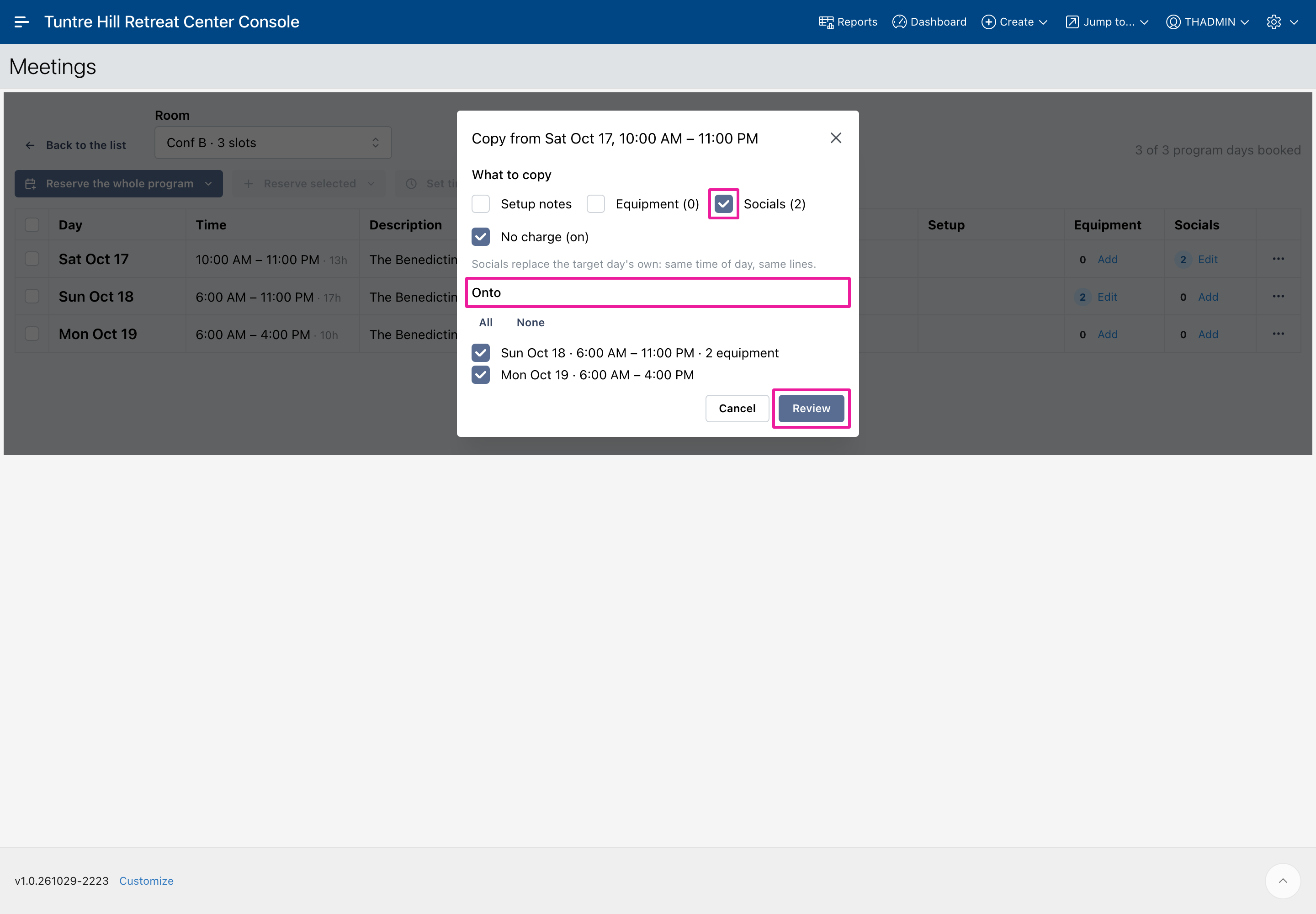
Section titled “Copy one day’s details to other days”Click the three dots at the end of a day’s meeting and choose ‘Copy details to other days…’. Under ‘What to copy’, tick any of ‘Setup notes’, ‘Equipment’, ‘Socials’, and ‘No charge’; the numbers show what the day has. Under ‘Onto’, tick the days to copy to, then click ‘Review’.
Copied socials replace the other days’ own socials, at the same time of day with the same items and quantities. Copied equipment replaces their equipment the same way. This is the one place in Retreat Portal that copies socials from one day to another.
The review lists each day and what will change on it.
Release days
Section titled “Release days”Tick the days you no longer need and click ‘Release selected’, or choose ‘Release this meeting’ from a meeting’s three dots. The review lists each meeting with the socials and equipment that go with it; saving removes them all.
One meeting at a time
Section titled “One meeting at a time”The three dots on a day’s meeting also hold ‘Edit this meeting’, which opens the ‘Meeting’ window for that day only (see Change or Cancel a Meeting), and ‘Add another meeting this day’. The ‘Equipment’ and ‘Socials’ counts open the same windows as in the Meetings list: see Request Equipment for a Meeting and Plan a Social for a Meeting.