
A Payment That Includes a Donation
A guest sends one check that covers the balance and adds a gift on top, or a card payment where part of the amount is meant for the program. Record it as one payment and tick ‘Part of this is a donation’: the window records a payment for the balance and a separate donation for the rest, tied together so the books show one check and both of its parts.
Record the whole amount
Section titled “Record the whole amount”Open the payment window as in Record a Payment and type the full amount of the check. When it is more than the balance, the window says by how much and offers ‘Keep $X as a donation’.
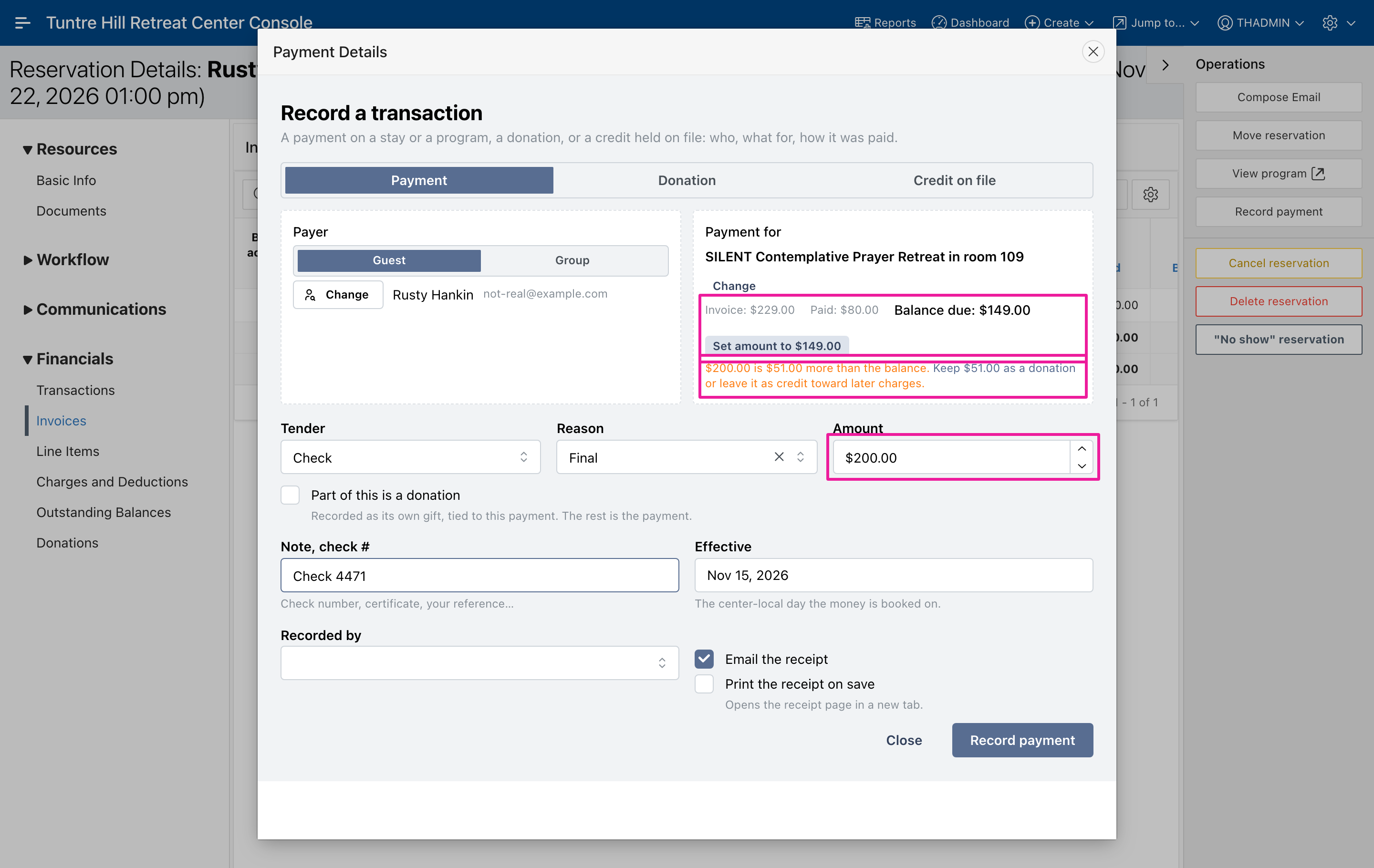
Click the ‘Keep … as a donation’ link, or tick ‘Part of this is a donation’ yourself when the gift is a different amount. Either way the split appears below the amount.
Say how much is the gift and what it is for
Section titled “Say how much is the gift and what it is for”‘Donation portion’ is the part that becomes a gift; the line under it shows the payment and the donation it leaves. ‘For’ is what the gift is designated to: the program the stay belongs to, or one of your center’s causes such as the general fund or an appeal.
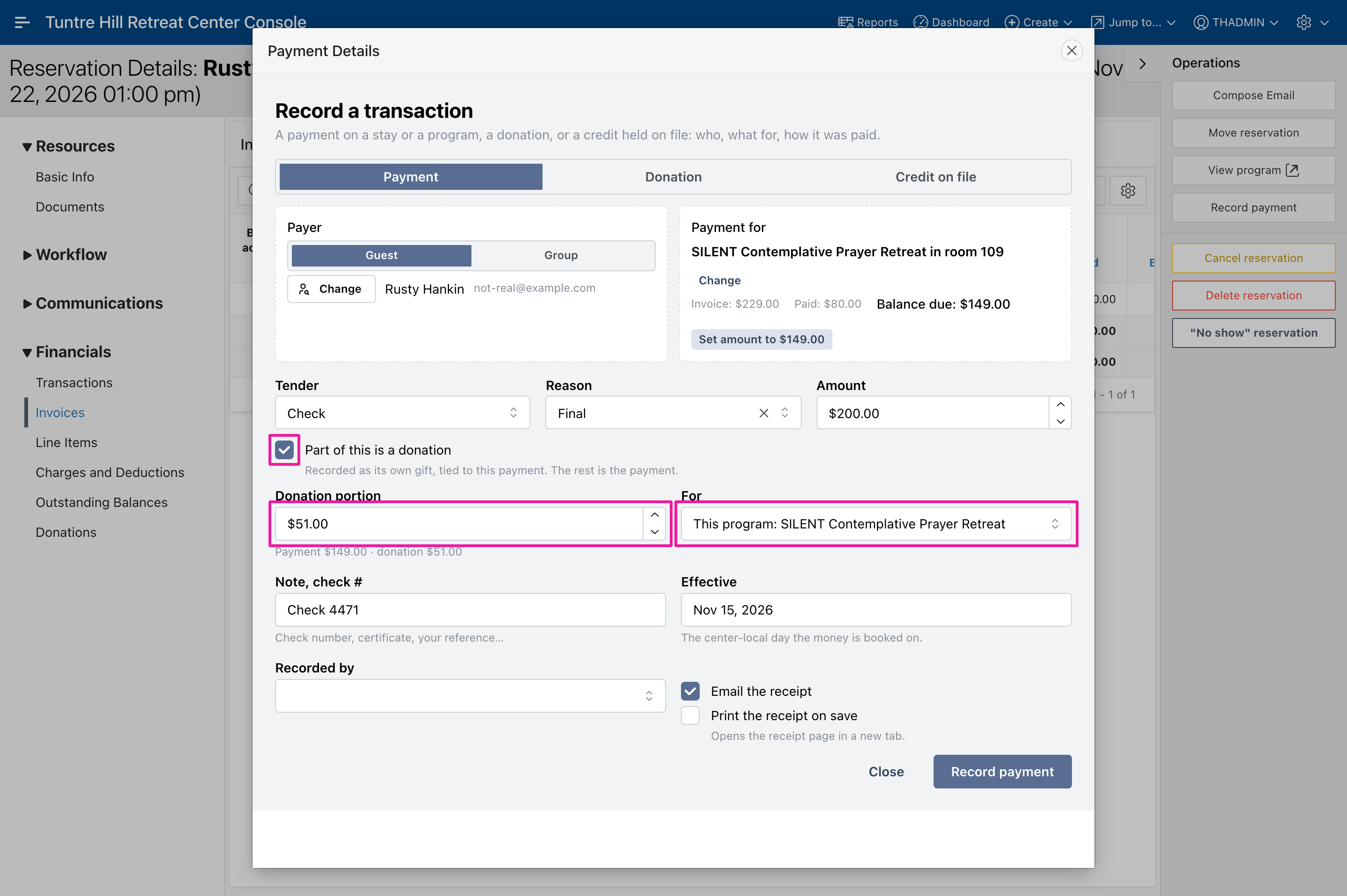
Click ‘Record payment’.
Two records, one check
Section titled “Two records, one check”The confirmation names both: the payment for the balance, and the donation recorded as its own gift with its gift number, tied to the payment.
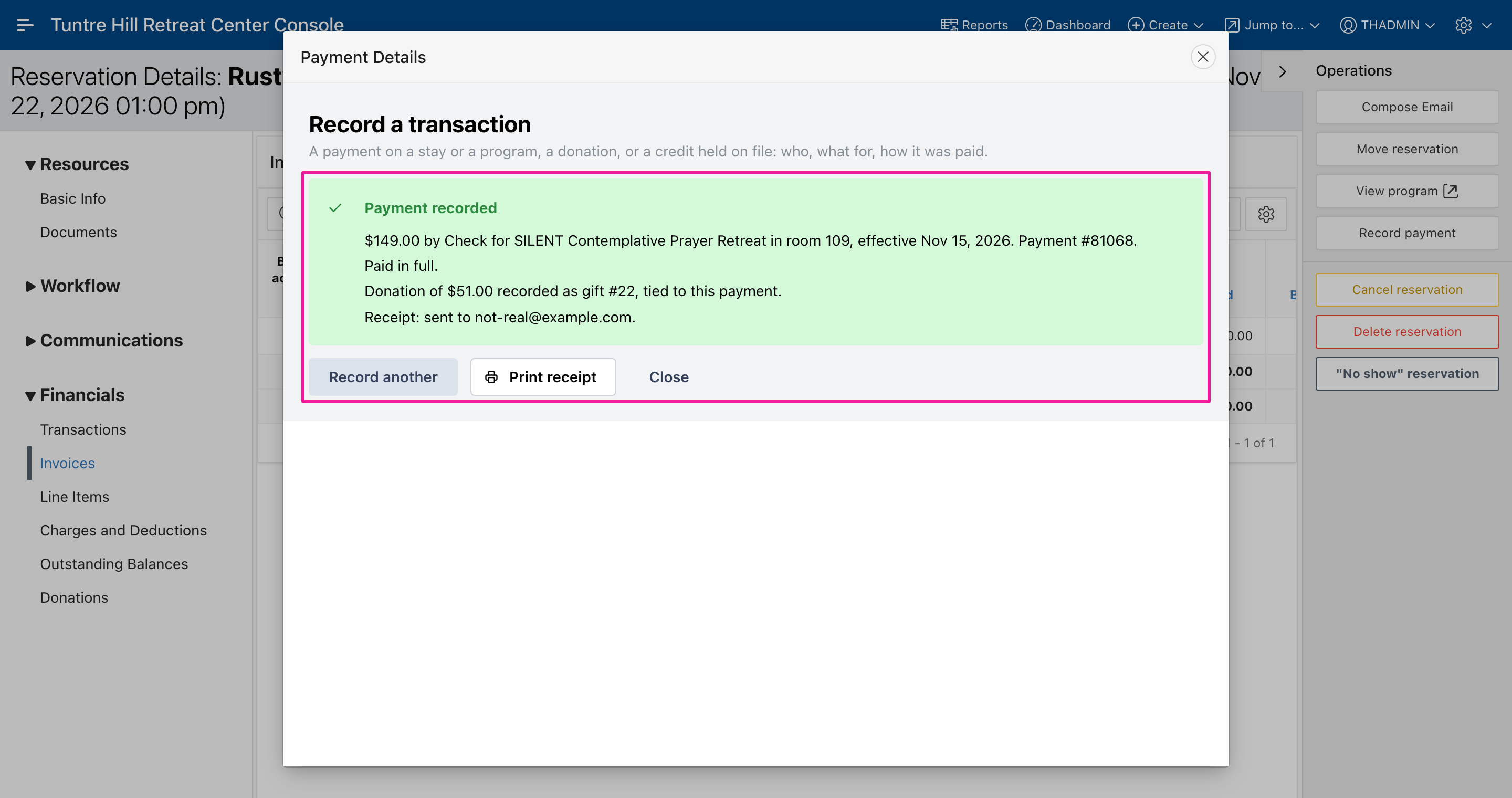
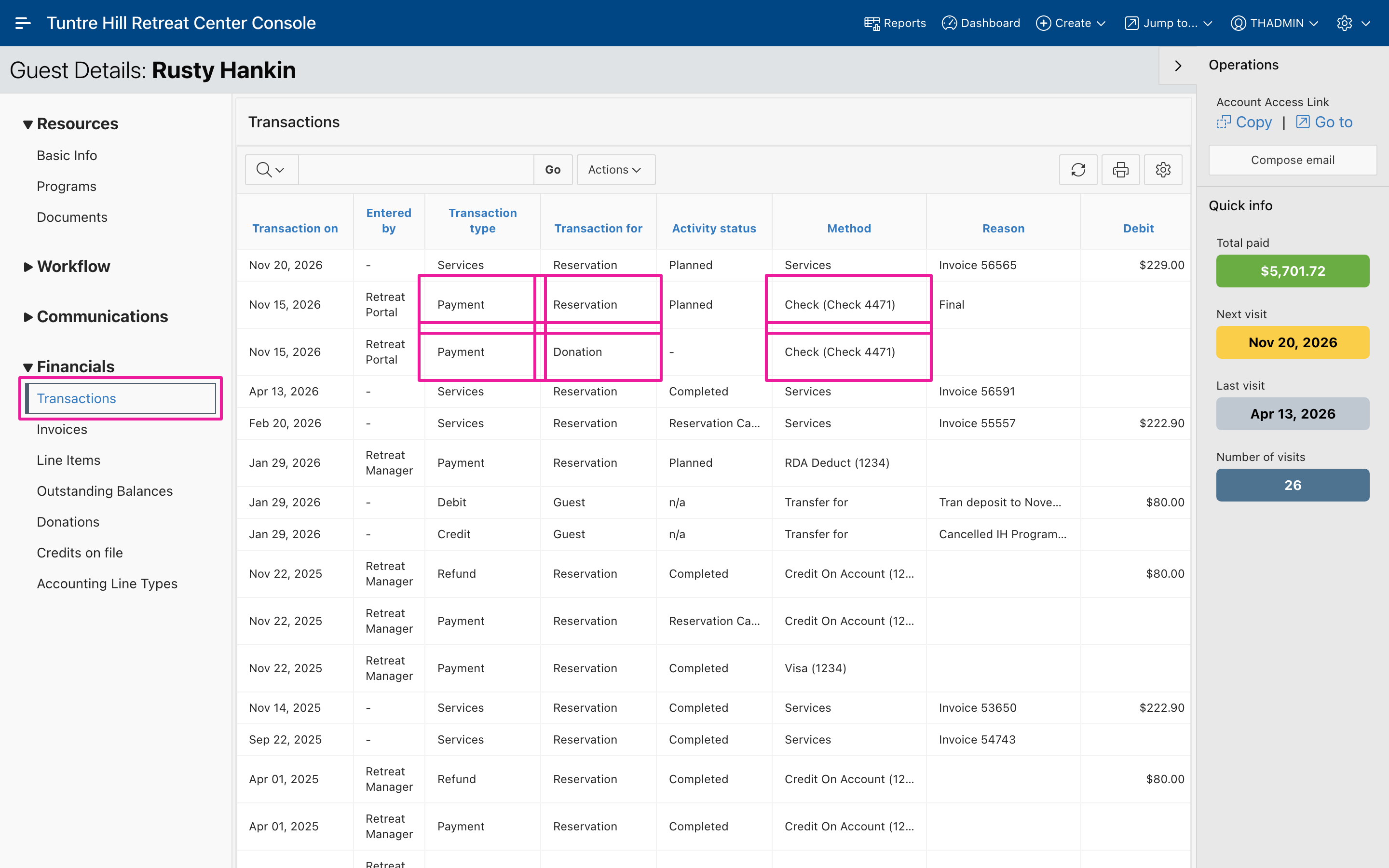
Both records carry the same check number, date, and tender, so you can always get back from one to the other. On a card, there is one charge for the total (and one service fee, shared across the two records in proportion); refunding is covered in Refunds and Voids.
Where each part shows up
Section titled “Where each part shows up”The payment is on the guest’s account: open the guest’s page, expand Financials on the left and click ‘Transactions’. The donation sits next to it in the same list.
The donation is also on the program it was designated to: open the program’s page, expand Financials and click ‘Donations’. The gift is listed there; scroll the list to the right and its ‘Status’ reads ‘From payment’, naming the payment it came out of.
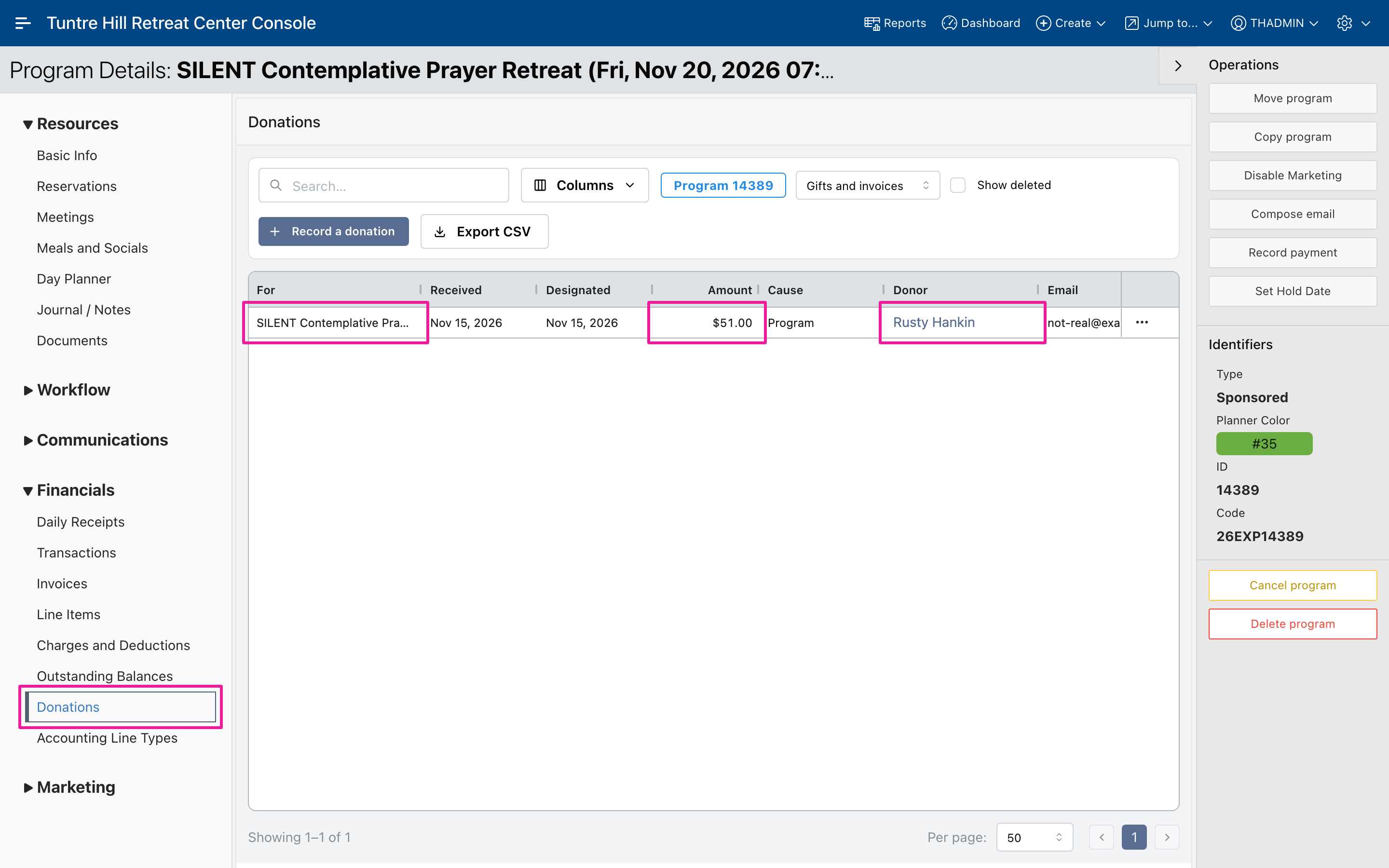
Daily Receipts shows the check as one line for the amount the bank sees, with the payment and the donation beneath it, and the Donations report lists the gift under the program. Nothing is added to the invoice: a donation never raises what a guest owes.
Deciding later
Section titled “Deciding later”If the overpayment was recorded as a plain payment and the guest only later says to keep the difference, open the payment and use ‘Move to donation…’; see Refunds and Voids. Until then an overpaid invoice simply stands as credit toward later charges.