
Merge Fields
Merge fields are placeholders like {guest.first_name} or {program.start_date} that Retreat Portal replaces with real information when it sends a document. One welcome letter serves every guest of every program because the fields are filled in for each one. This tutorial covers adding a field in the editor and checking how it will look.
Insert a field
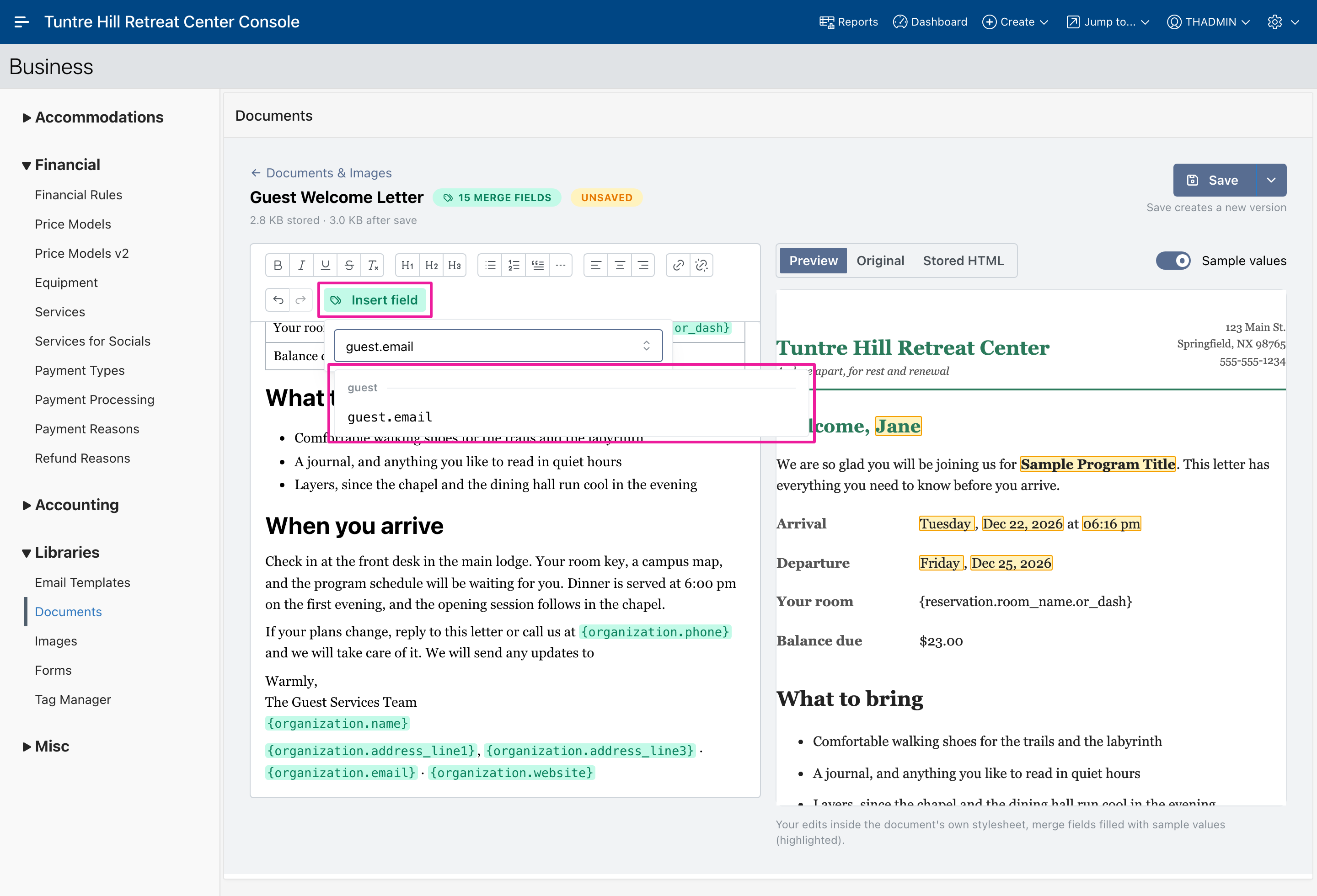
Section titled “Insert a field”Open the document in the editor (see Edit a Document) and click where the field should go. Click ‘Insert field’ below the toolbar and start typing to search. Fields are grouped by what they describe: guest, program, reservation, group, invoice, organization, and so on. Click the one you want and it’s inserted at the cursor.
See how it fills in
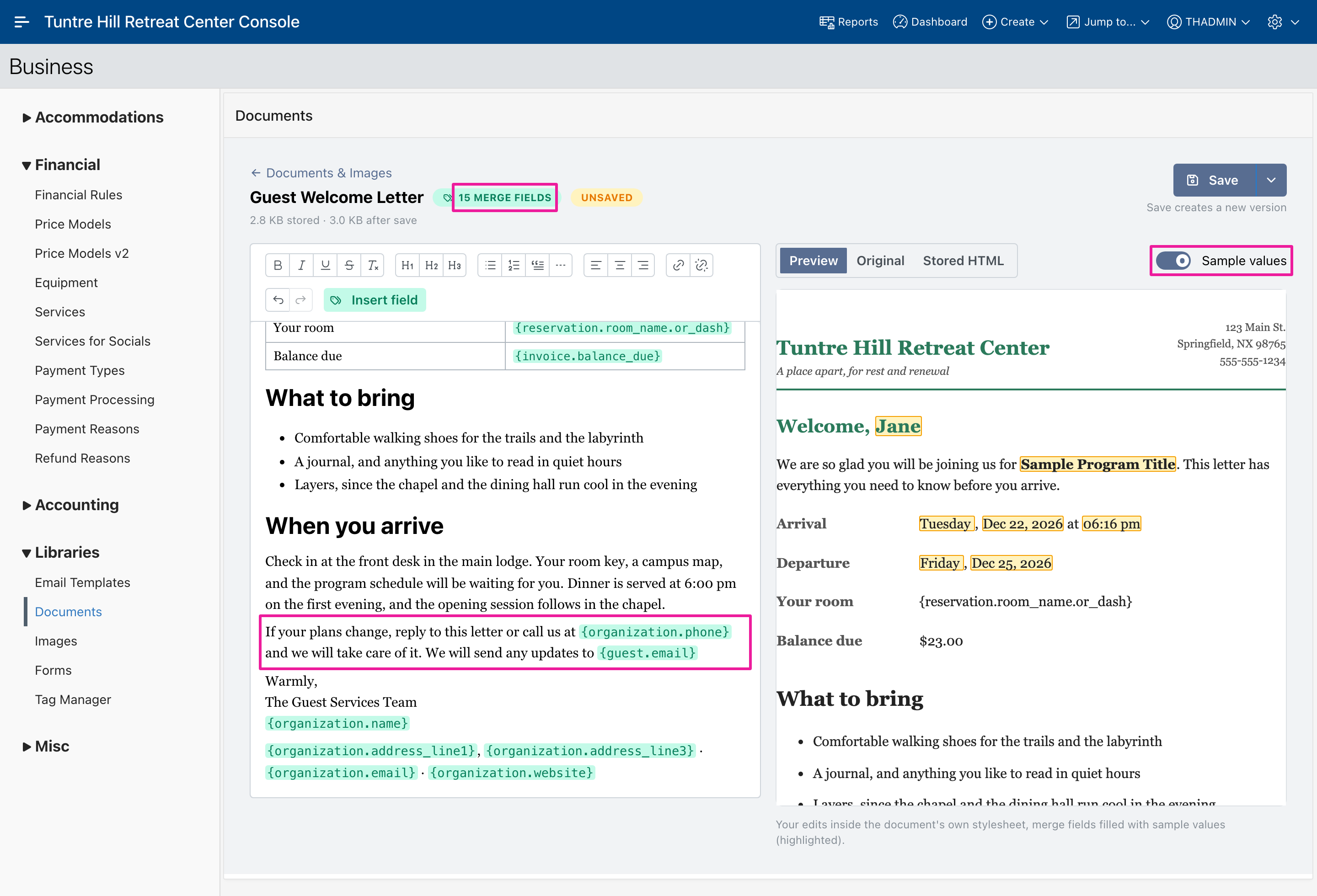
Section titled “See how it fills in”Fields show in green in the editing pane. With ‘Sample values’ switched on above the preview, each one is filled in with an example on the right, so you can read the sentence the way a guest will. The badge next to the document’s name counts the fields it contains.
Keep fields intact
Section titled “Keep fields intact”A field only works while its name and both curly braces are exactly as inserted. If you edit the text inside a field, or delete one of the braces, the portal will leave it as plain text in the finished document. When that happens, delete the broken field and insert it again with ‘Insert field’.
Click ‘Save’ when you’re done.