The 'New meeting' Window
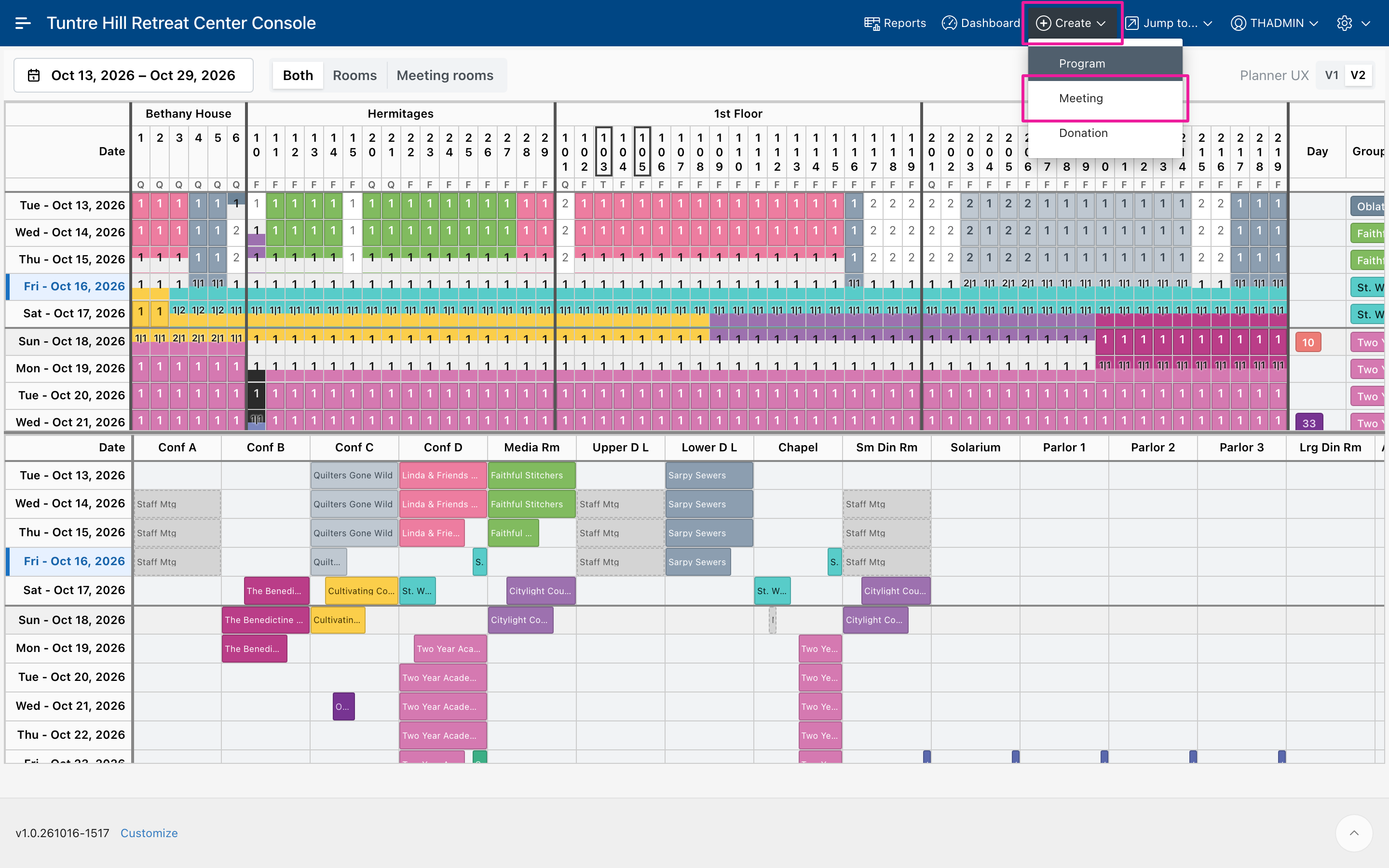
The ‘New meeting’ window books one room for one day, or a block of rooms for a stretch of days, in one pass. It opens from the Program Planner, from a program’s page, or from ‘Create’ > ‘Meeting’ on the top bar, which is the door used here.
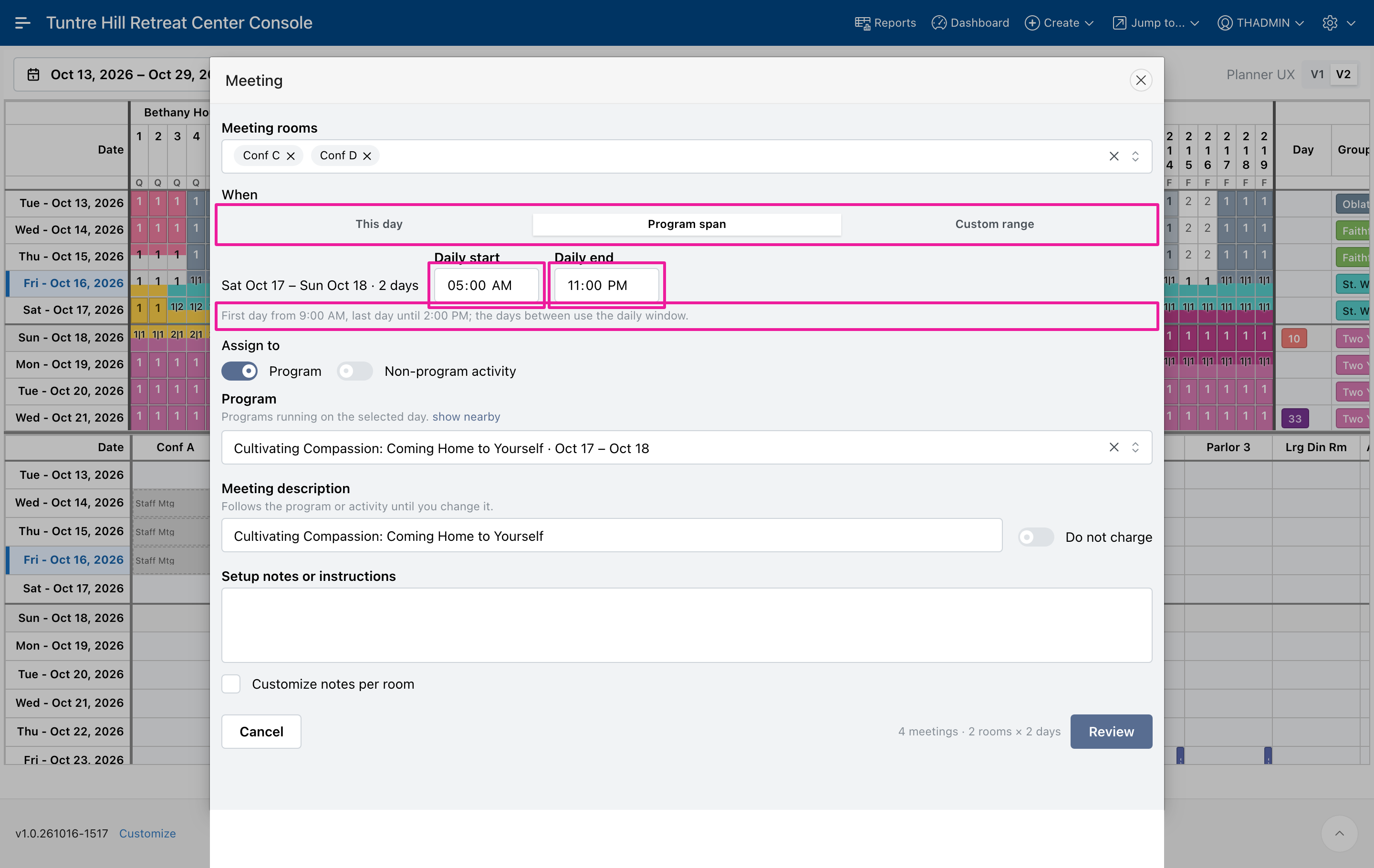
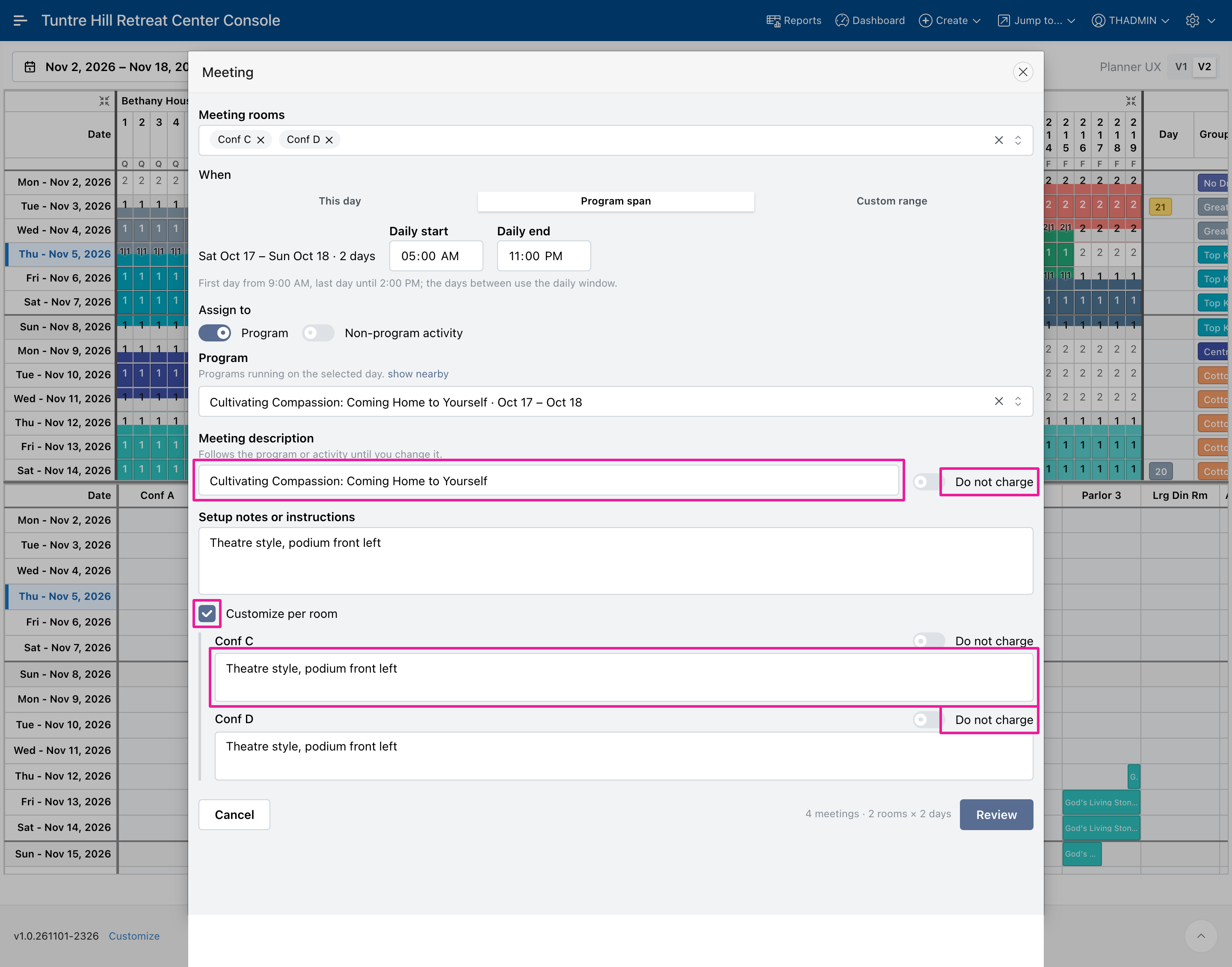
‘Meeting rooms’ at the top holds the rooms as chips. Add another by picking it from the list, or remove one with the × on its chip. Retreat Portal creates one meeting per room.
Pick how the dates work:
- ‘This day’ — one date, with a start and end time.
- ‘Program span’ — every day of the chosen program, using the ‘Daily start’ and ‘Daily end’ you set (5:00 AM to 11:00 PM unless you change them). On the first day the meeting starts no earlier than the program does, and on the last day it ends no later than the program ends. A day where that leaves no time, such as an evening meeting on a program that ends at 11 AM, is listed in the review and skipped.
- ‘Custom range’ — a ‘From’ and ‘To’ date with the same daily window.
Days you do not want are unticked in the review step below.
Assign to
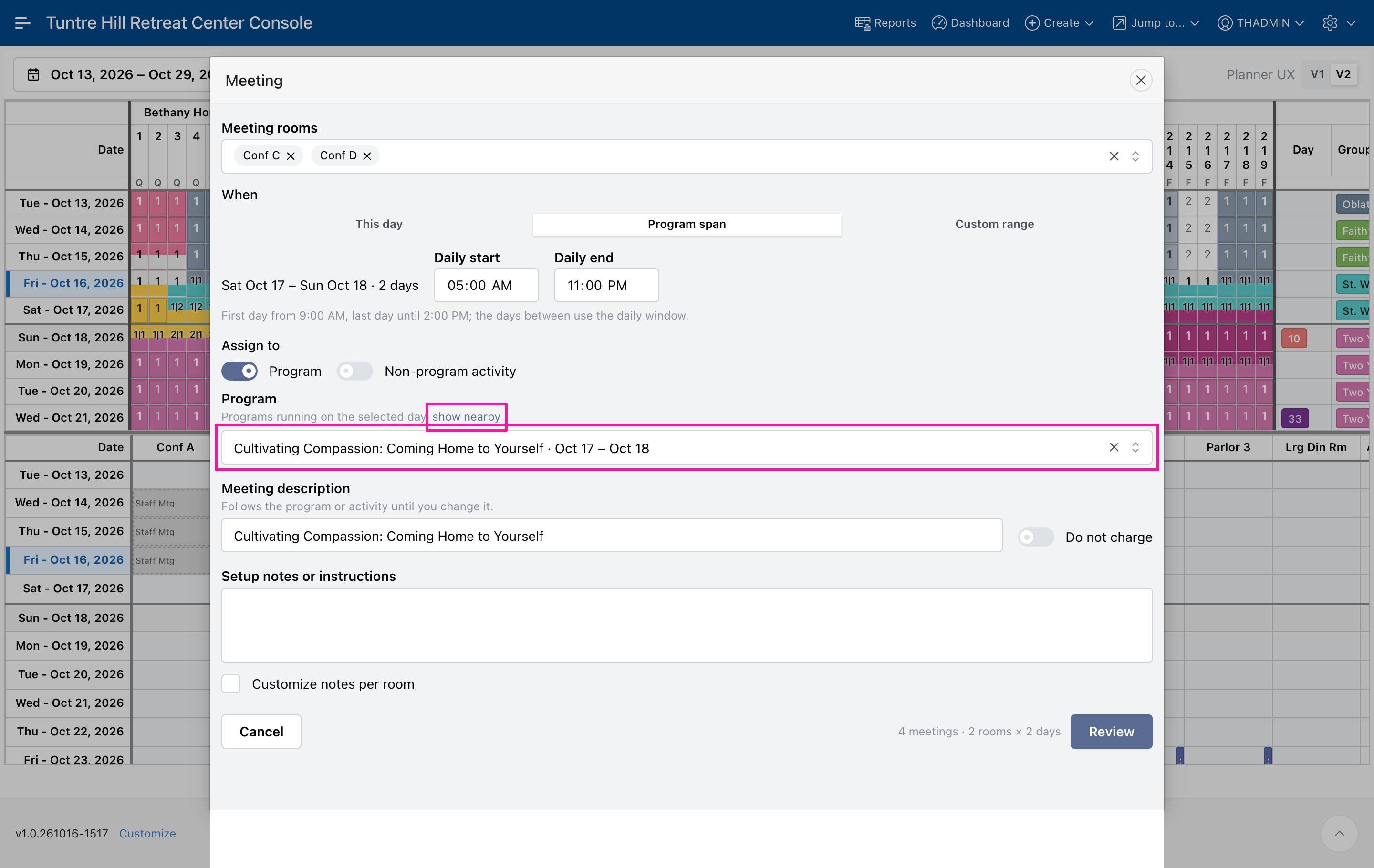
Section titled “Assign to”Under ‘Assign to’, leave ‘Program’ on and pick the program. The list shows the programs running on the chosen day; click ‘show nearby’ to widen it to programs starting within the next week or ending within the last two, which covers set-up and tear-down days. For a staff or community booking, switch to ‘Non-program activity’ and pick the activity instead.
Description and notes
Section titled “Description and notes”‘Meeting description’ follows the program or activity name until you change it. Turn on ‘Do not charge’ when the rooms are not billed to the program. Type what the crew should do in ‘Setup notes or instructions’; tick ‘Customize per room’ to give each room its own note and its own ‘Do not charge’ switch — the notes start from the shared text, the switches from the main one, so you can bill the hall while giving the breakout room away. A room created free shows a ‘No charge’ badge on its review row. A chapel room adds ‘Chapel activity’ and ‘Expected attendance’.
Review and create
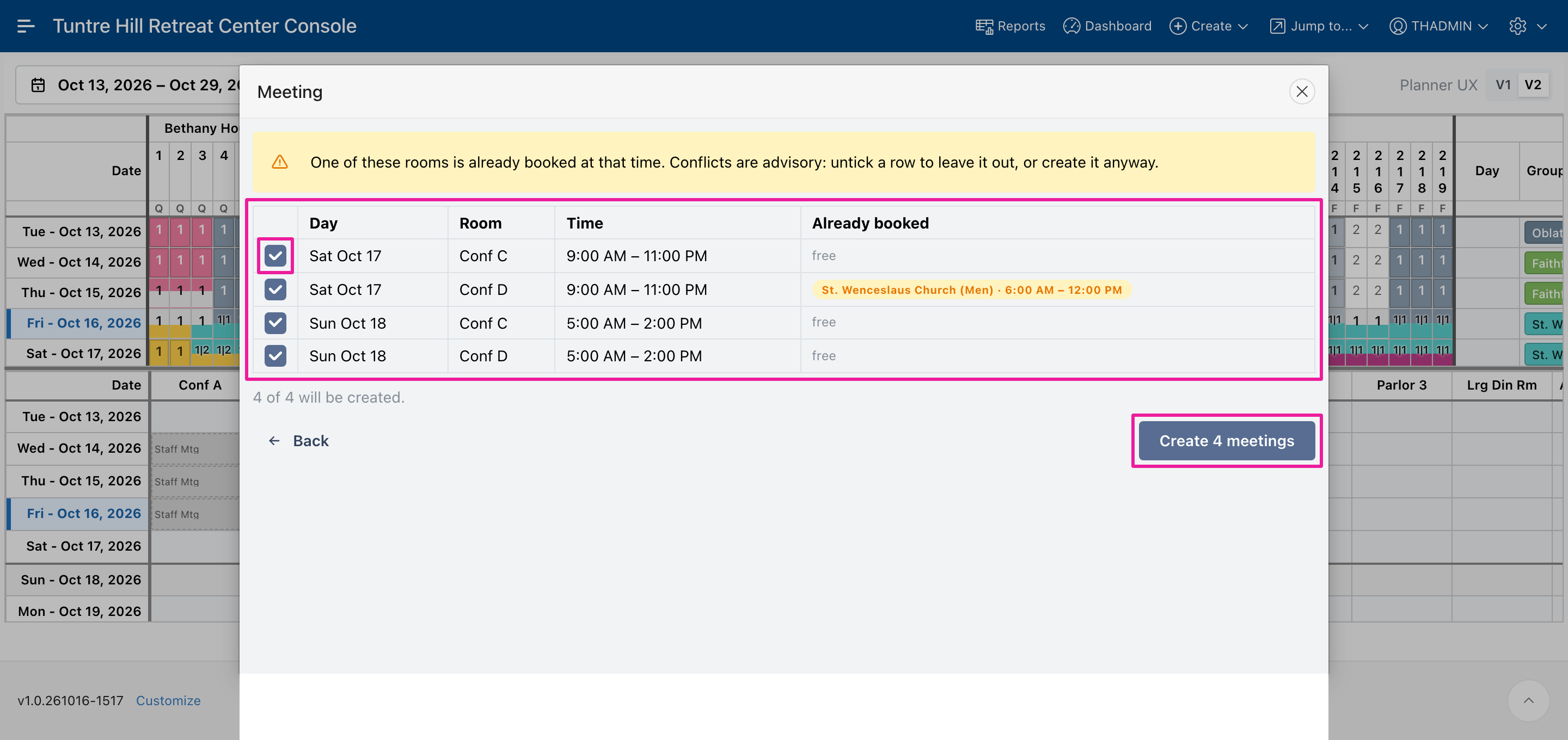
Section titled “Review and create”One room on one day creates at once with ‘Create meeting’. More than one, or a clash with an existing booking, shows ‘Review’ instead: every meeting to be made, with any room already booked at that time flagged — including by this same program (‘this program · 9:00 AM – 5:00 PM’), which usually means the meeting is already on the books. Clashes are a warning, not a stop — untick a row to leave it out, or create it anyway. Click ‘Create N meetings’ and watch the bar; each booking takes a moment.