
Cloud Export Folders
Published July 12, 2021, updated June 27, 2022
Applies to Retreat Manager Cloud only.
Saving Word documents, Excel spreadsheets, or PDF documents to your local computer requires a few extra steps.
Setup your local computer
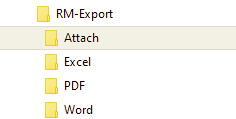
Section titled “Setup your local computer”On your local computer create a folder named C:\RM-Export, or any name of your choosing in any location, and three sub-folders named Word, Excel, PDF, Attach.
Open File Explorer on your computer. If you’re unfamiliar with File Explorer you can open it by searching for ‘File Explorer’.
Right-Click on C:\, select New, then click Folder

Then type RM-Export as the name of the new folder.
Right-Click on the new folder, RM-Export, select New, then click Folder
Type Word
Right-Click on the new folder, RM-Export, select New, then click Folder
Type Excel
Right-Click on the new folder, RM-Export, select New, then click Folder
Type PDF
Right-Click on the new folder, RM-Export, select New, then click Folder
Type Attach
When done your File Explorer should look like this:
Configure Retreat Manager Cloud to save to your new, local, folders.
Section titled “Configure Retreat Manager Cloud to save to your new, local, folders.”Open Retreat Manager Cloud and log in.
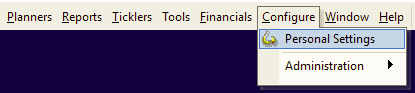
Click Configure > Personal Settings
Click the Maps tab on the left
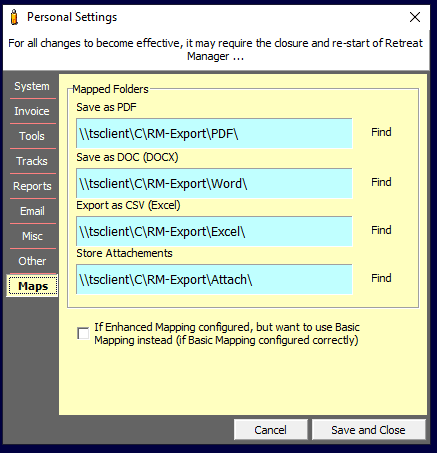
Double-Click on the blue area for ‘Location for Exporting DOCX’.
Expand ‘This PC’ and then expand ‘C:\’. Depending on how many folders you have under C:\ this may take a little while to load. Once expanded select C:\RM-Export and then select Word. Finally, click Open.
The value in the blue area will change to be something like \\tsclient\C\RM-Export\Word\
Repeat for CSV and PDF.
When done click Save and Close button.
Setup Mapped Locations
Section titled “Setup Mapped Locations”Open Retreat Manager Cloud and log in.
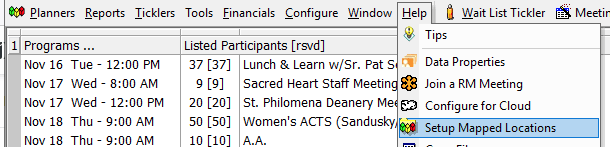
Click Help > Setup Mapped Locations
Click the Find button for each row and select a location on your Local Computer where you want those types of files saved.
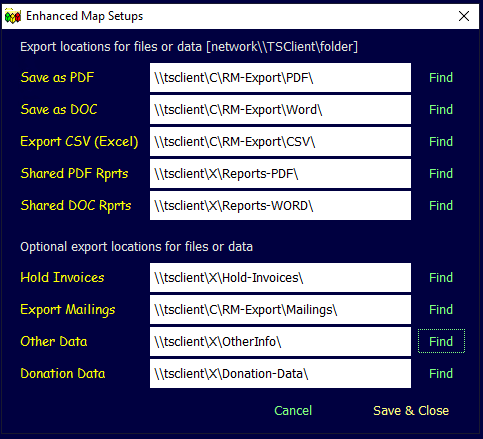
Expand ‘This PC’ and then expand ‘C:\’. Depending on how many folders you have under C:\ this may take a little while to load.
The value in the blue area will change to be something like \\tsclient\C\RM-Export\Word\
Repeat for each file type. They can all be saved to the same folder or unique folders.
When done click Save & Close button.