Plan a Social for a Meeting
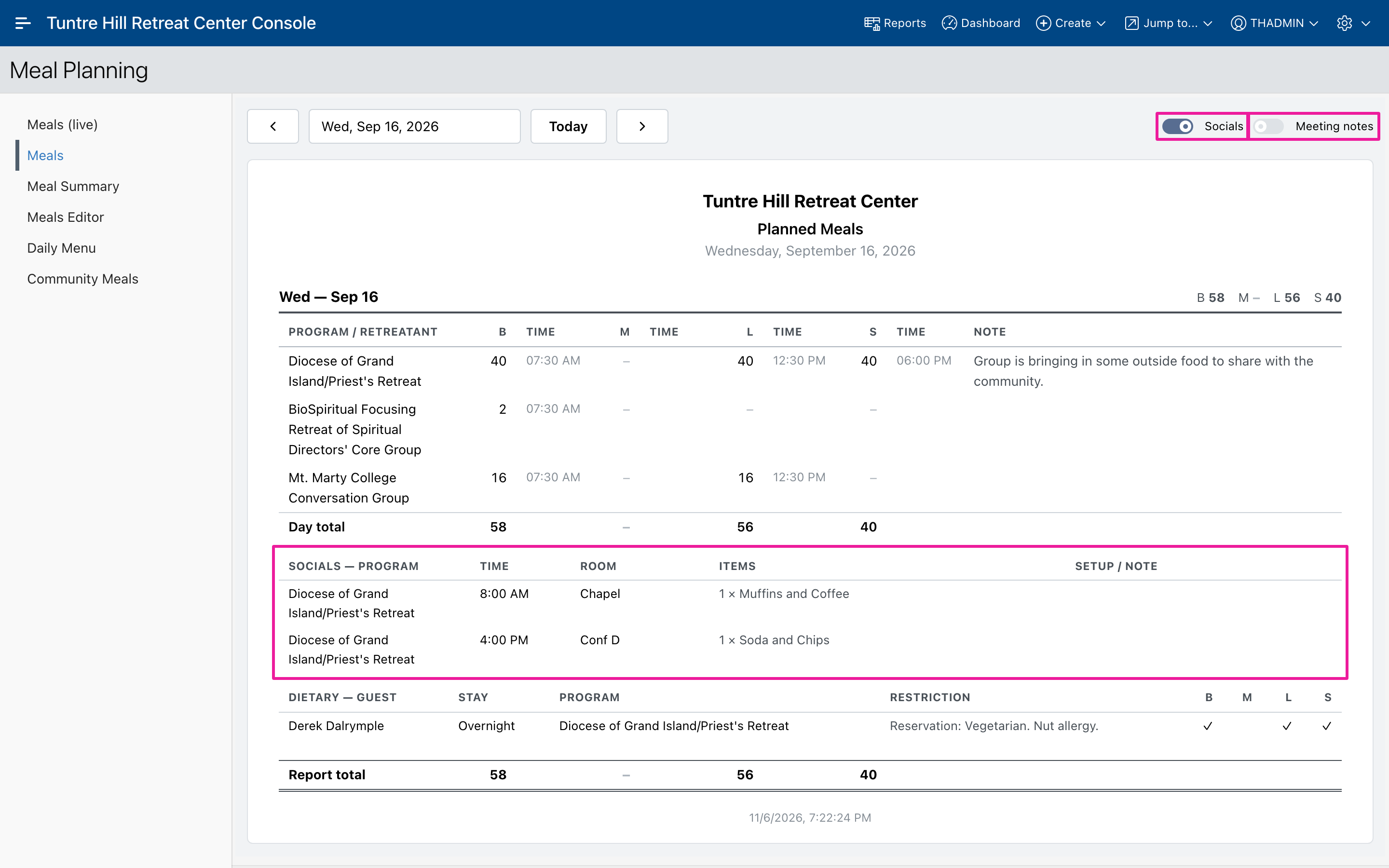
A social is the catered break that goes with a meeting — coffee at 10:30, a snack tray at 3 — with the items the kitchen should prepare. Add it to the meeting and it appears on the kitchen’s meal sheets the same day.
Open the socials for a meeting
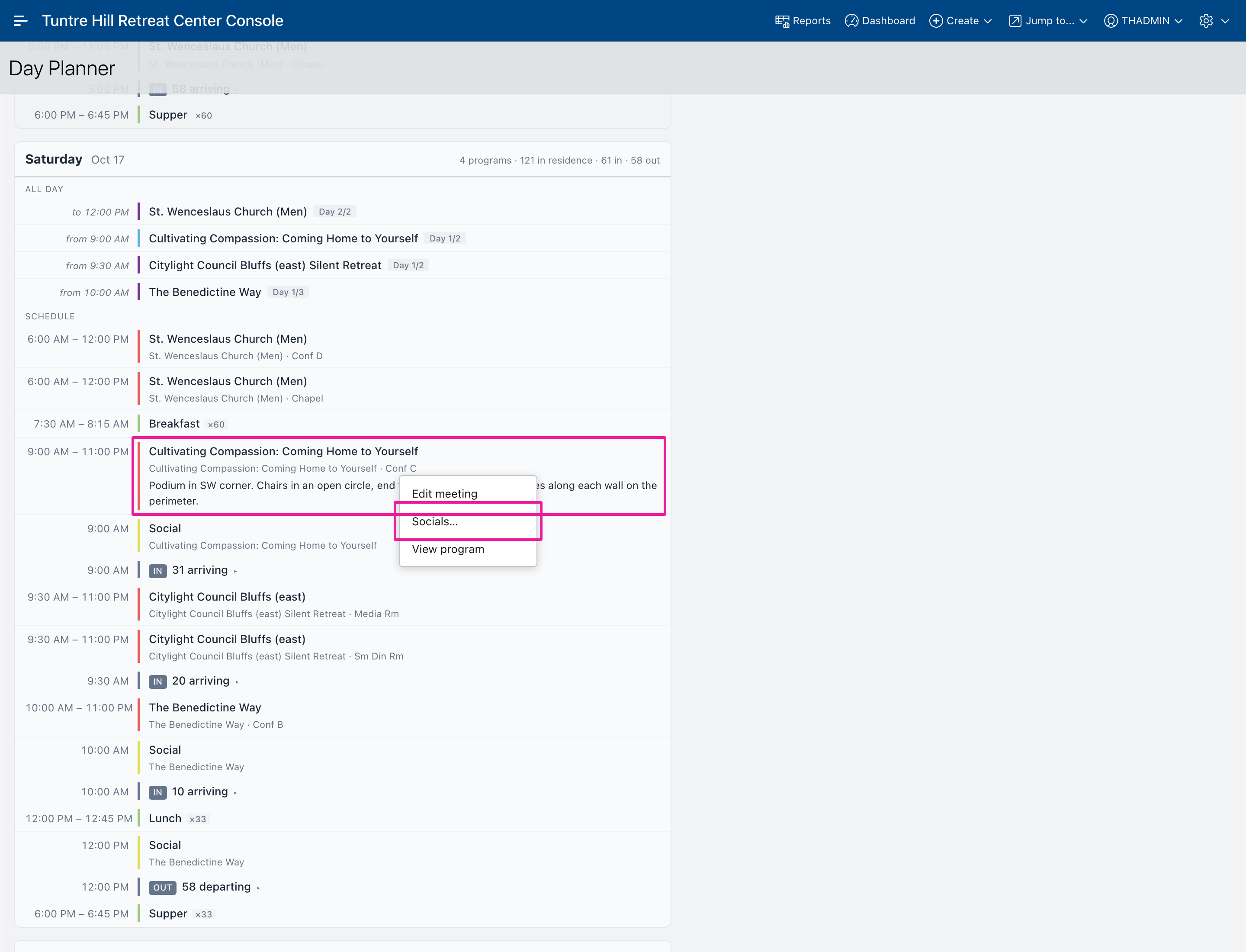
Section titled “Open the socials for a meeting”Click the menu icon on the top-left and choose ‘Planning’ > ‘Day Planner’. Find the meeting in the day’s schedule, right-click it, and choose ‘Socials…’. Right-clicking a social itself offers ‘Edit social’, which opens straight on that one. The ‘Socials’ column of the Meetings list and the ‘Edit socials’ button in the ‘Meeting’ window open the same place.
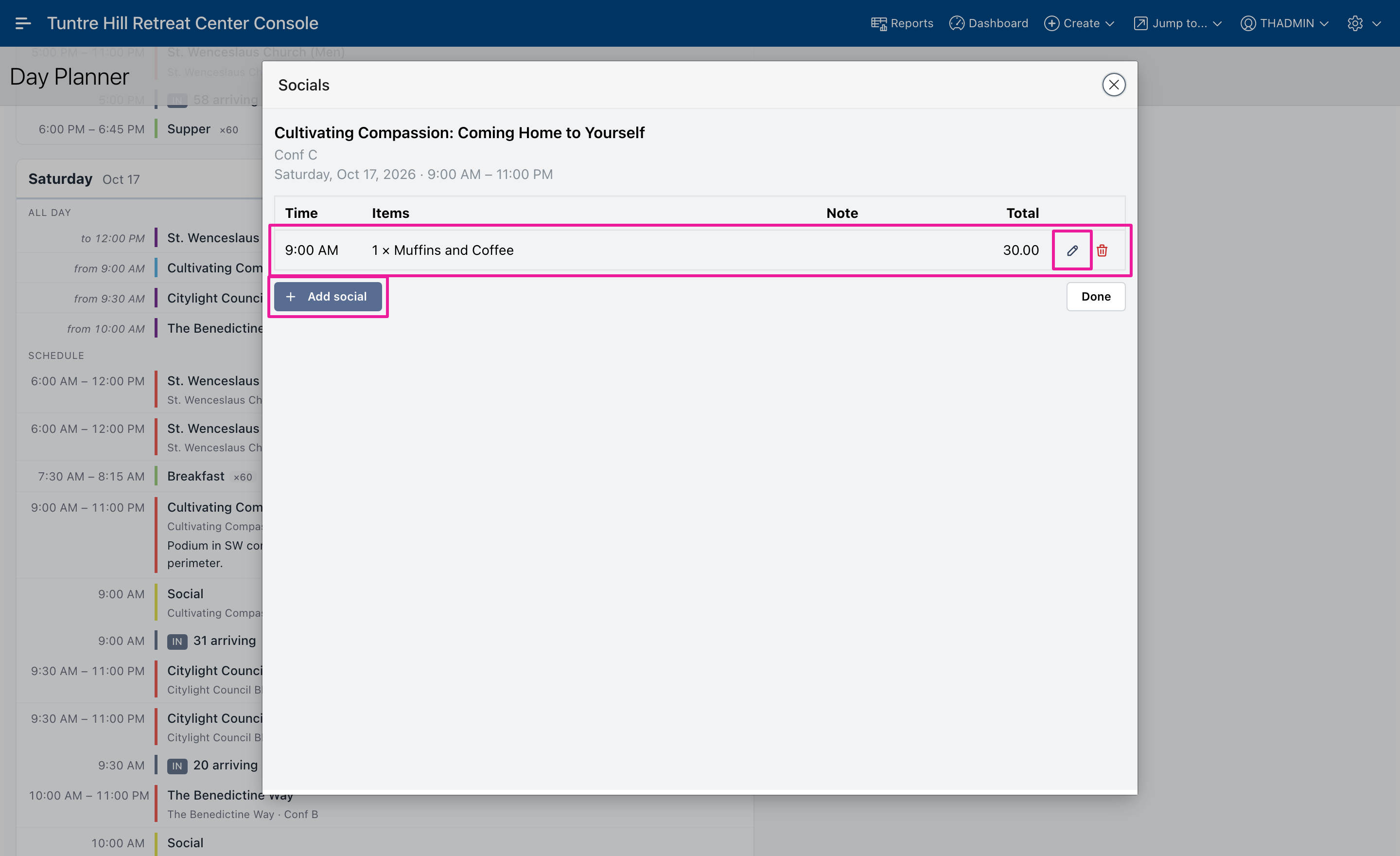
The ‘Socials’ window opens with the meeting at the top and its socials below: the time, the items, the note, and the total.
Add a social
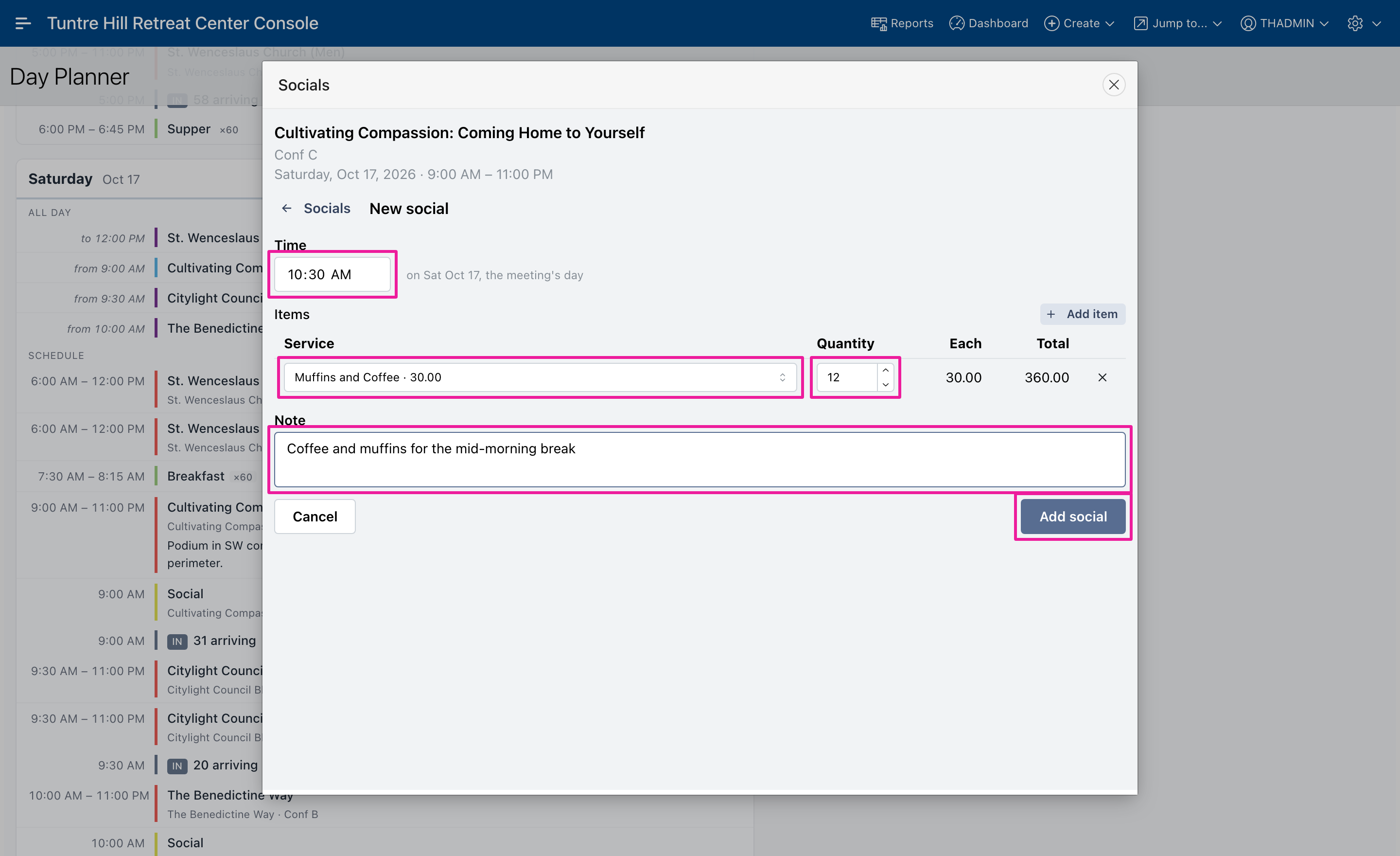
Section titled “Add a social”Click ‘Add social’. ‘Time’ starts at the meeting’s start time; change it to when the break happens — it is always on the meeting’s day. Click ‘Add item’, pick a service, and set the ‘Quantity’; the price each and the total fill in, and ‘Add item’ again adds another line. Type anything the kitchen or setup crew should know in ‘Note’, then click ‘Add social’. When your center uses pickups, a ‘Pickup’ time and ‘No pickup’ tick appear beside the time.
Change or remove one
Section titled “Change or remove one”Click the pencil on a social to open it, make the change, and click ‘Save’. The bin removes the social and its items. Click ‘Done’ when you are finished with the meeting.
Before the first one
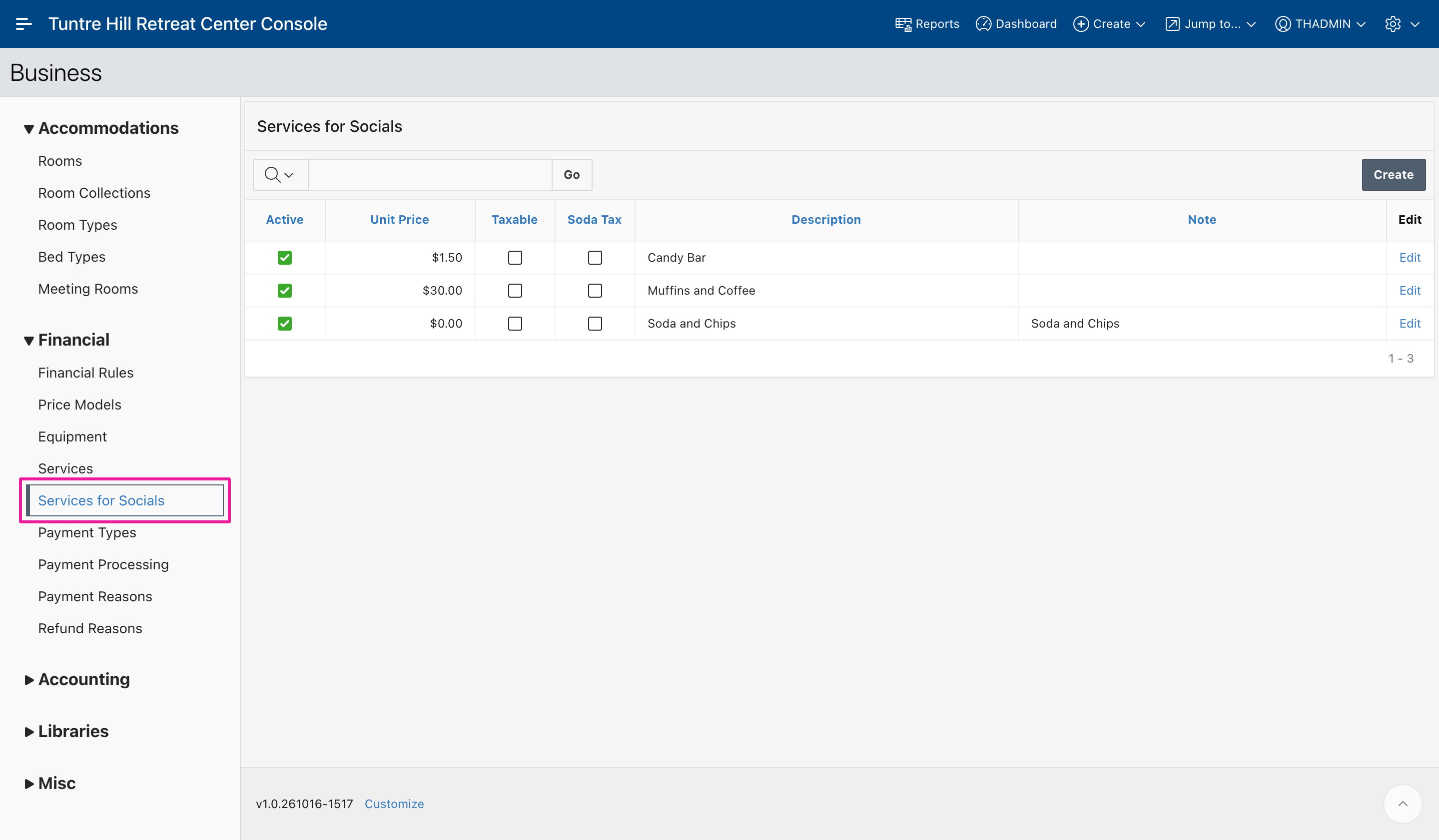
Section titled “Before the first one”The items come from the services your center has flagged for socials. If the list of services is empty, click the gear icon on the top-right and select ‘Business’, then ‘Services for Socials’ on the left under Financial, and add the coffee, snacks, and trays the kitchen offers with their unit prices.
Where it goes next
Section titled “Where it goes next”Socials appear on the kitchen’s pages with ‘Socials’ switched on: the meal sheet for one day, the Meal Summary, and today’s live board. They also show on the Day Planner at their time, under the program.