Request Equipment for a Meeting
Each meeting can carry a list of equipment — a projector, a flip chart, a podium — that the setup crew sees on the Meeting Room Schedule. Set it from the Meetings list.
Open the equipment list
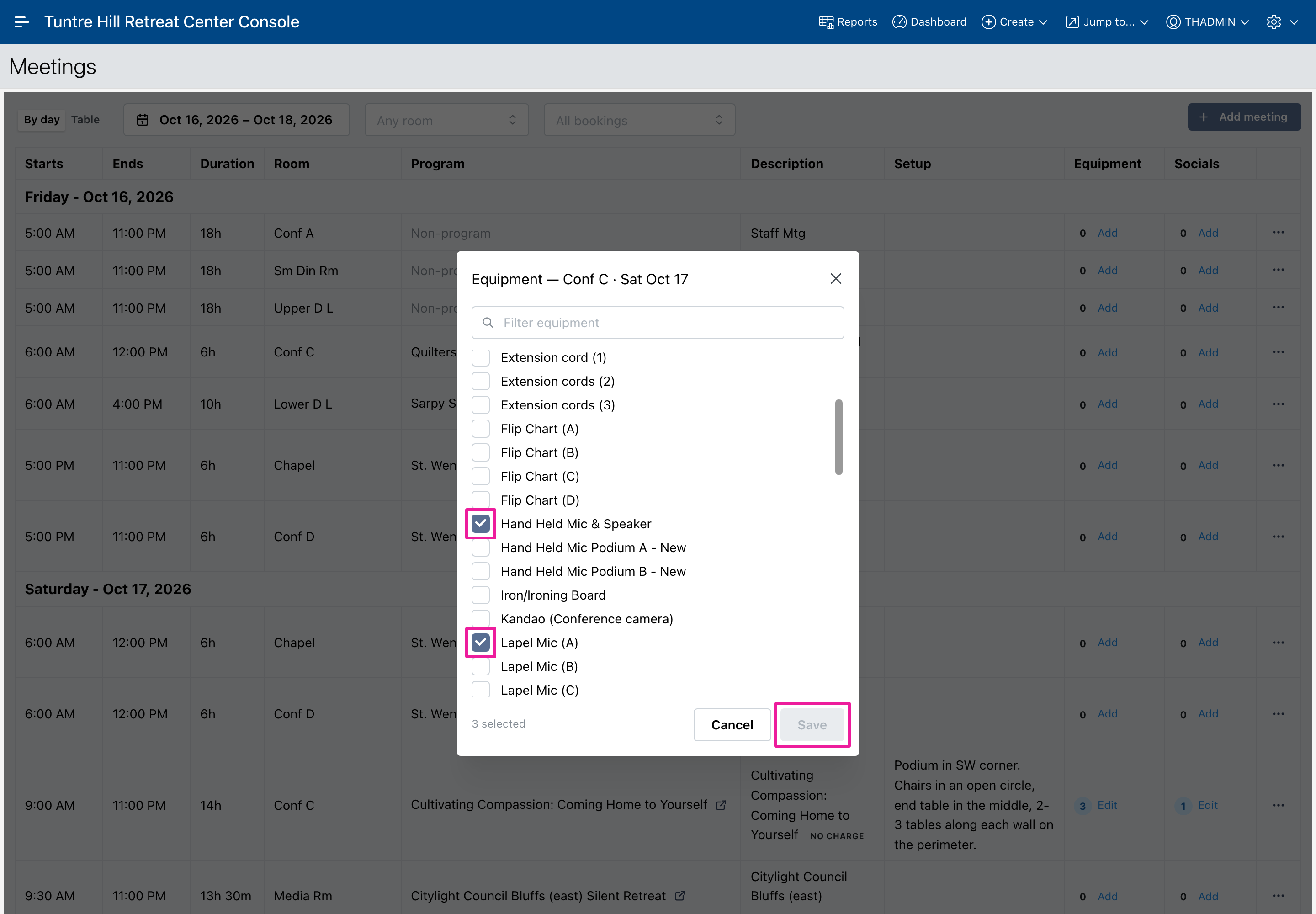
Section titled “Open the equipment list”Click the menu icon on the top-left and choose ‘Planning’ > ‘Meetings’, then find the meeting. In the ‘Equipment’ column click ‘Add’ (or ‘Edit’ when the meeting already has some). The same column is on a program’s own ‘Meetings’ section.
Tick what the room needs
Section titled “Tick what the room needs”The window lists your equipment catalog with a checkbox per item; type in ‘Filter equipment’ to shorten it. Tick what the meeting needs, untick what it no longer does, and click ‘Save’. The count on the list updates. An item that has since been retired from the catalog stays listed while it is assigned, so it can still be released.
Where the crew sees it
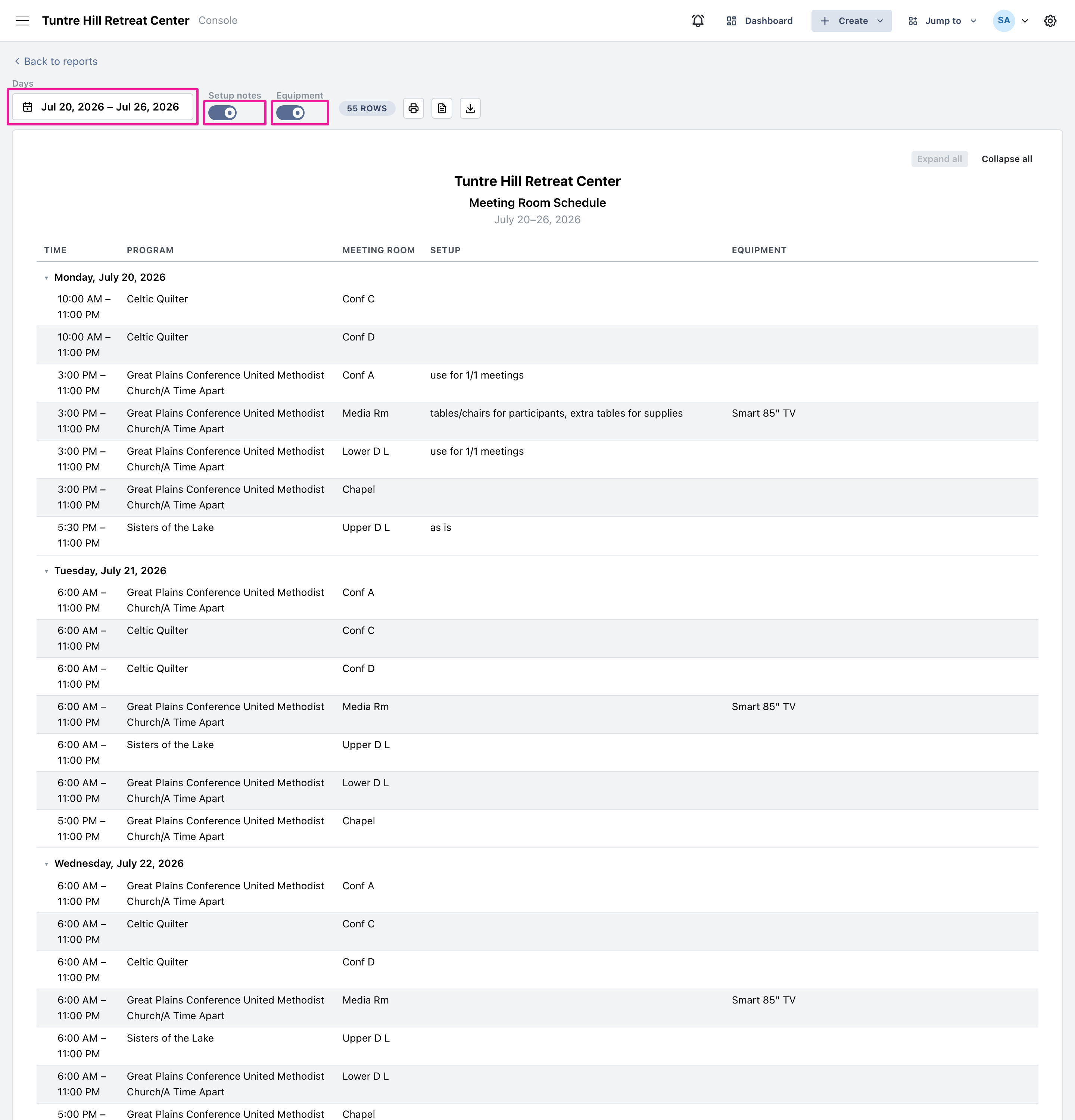
Section titled “Where the crew sees it”The ‘Equipment’ column on the Meeting Room Schedule and the Meeting Room Schedule by Room lists the requested gear next to the setup notes.
The catalog itself
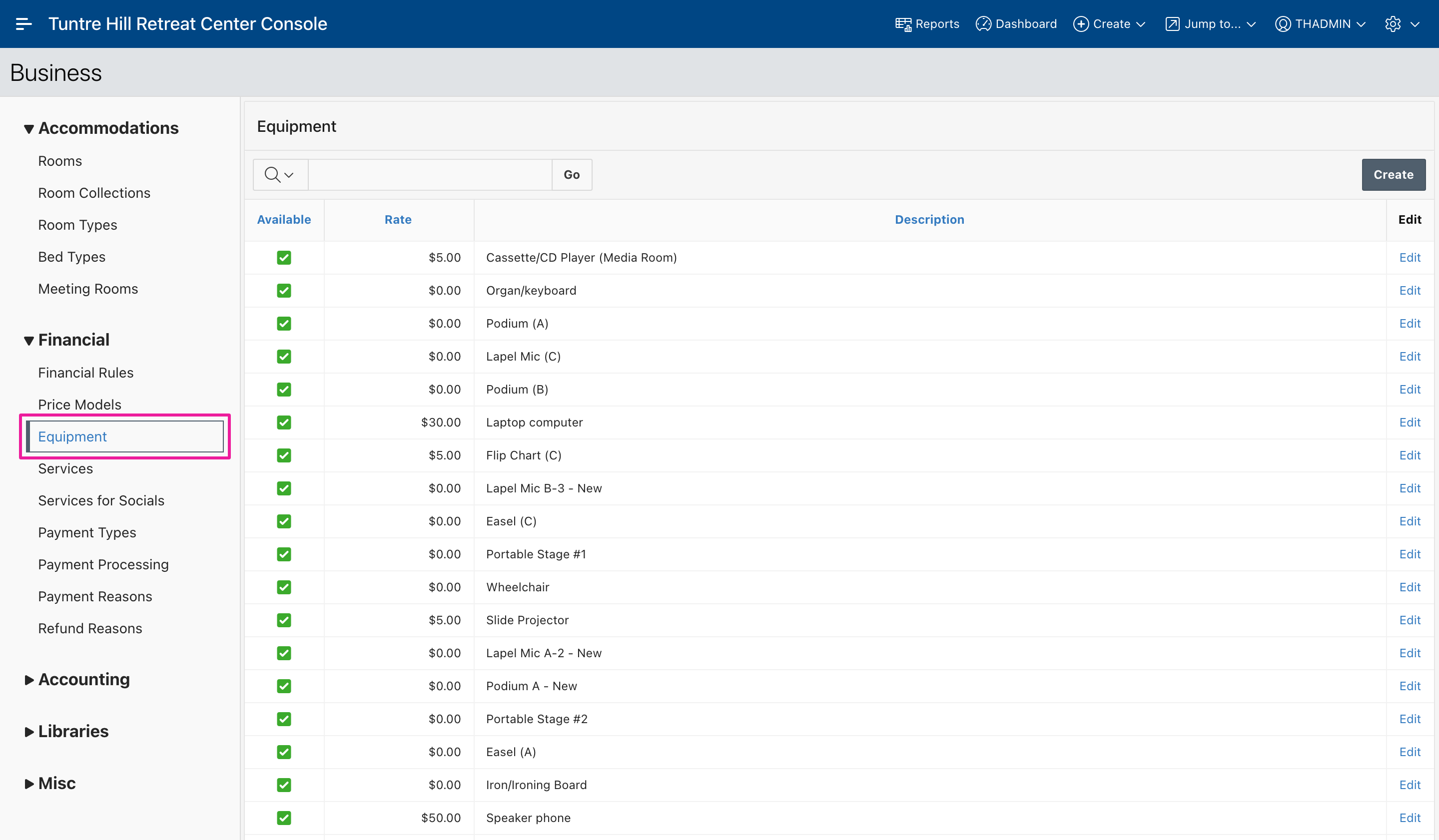
Section titled “The catalog itself”The items on offer come from the equipment catalog. Click the gear icon on the top-right and select ‘Business’, then ‘Equipment’ on the left under Financial, to add an item, change its rate, or mark it unavailable.