
Convert a Payment to a Donation
A group overpays and tells you to keep the difference. A guest’s invoice comes down after a cancellation and they’d rather the center keep what they paid. A payment was recorded in full and only later turns out to include a gift. In each case the money is already on the books as a payment; this moves part or all of it to a donation, with the gift keeping the payment’s tender, check number, and date so the two stay tied.
When you know at the time of recording, tick ‘Part of this is a donation’ in the payment window instead: A Payment That Includes a Donation. This page is for deciding afterwards.
Open the payment
Section titled “Open the payment”Find the payment on the guest’s or group’s page (expand Financials on the left and click ‘Transactions’), click the three dots at the end of its row, and select ‘Edit’. The ‘Donation’ box at the top of the window says whether any of it has already been moved; click ‘Move to donation…’.
Say how much, and what for
Section titled “Say how much, and what for”‘Amount to move’ defaults to the overpayment when the invoice is overpaid, and can be any part of the payment. Say what the gift is for: the program the payment was on (the switch, on by default), a ‘Cause’ from your center’s list, or both. ‘Email the thank-you’ sends the donation’s thank-you to the donor; ‘Re-send the payment receipt’ sends a fresh receipt for the payment at its new amount.
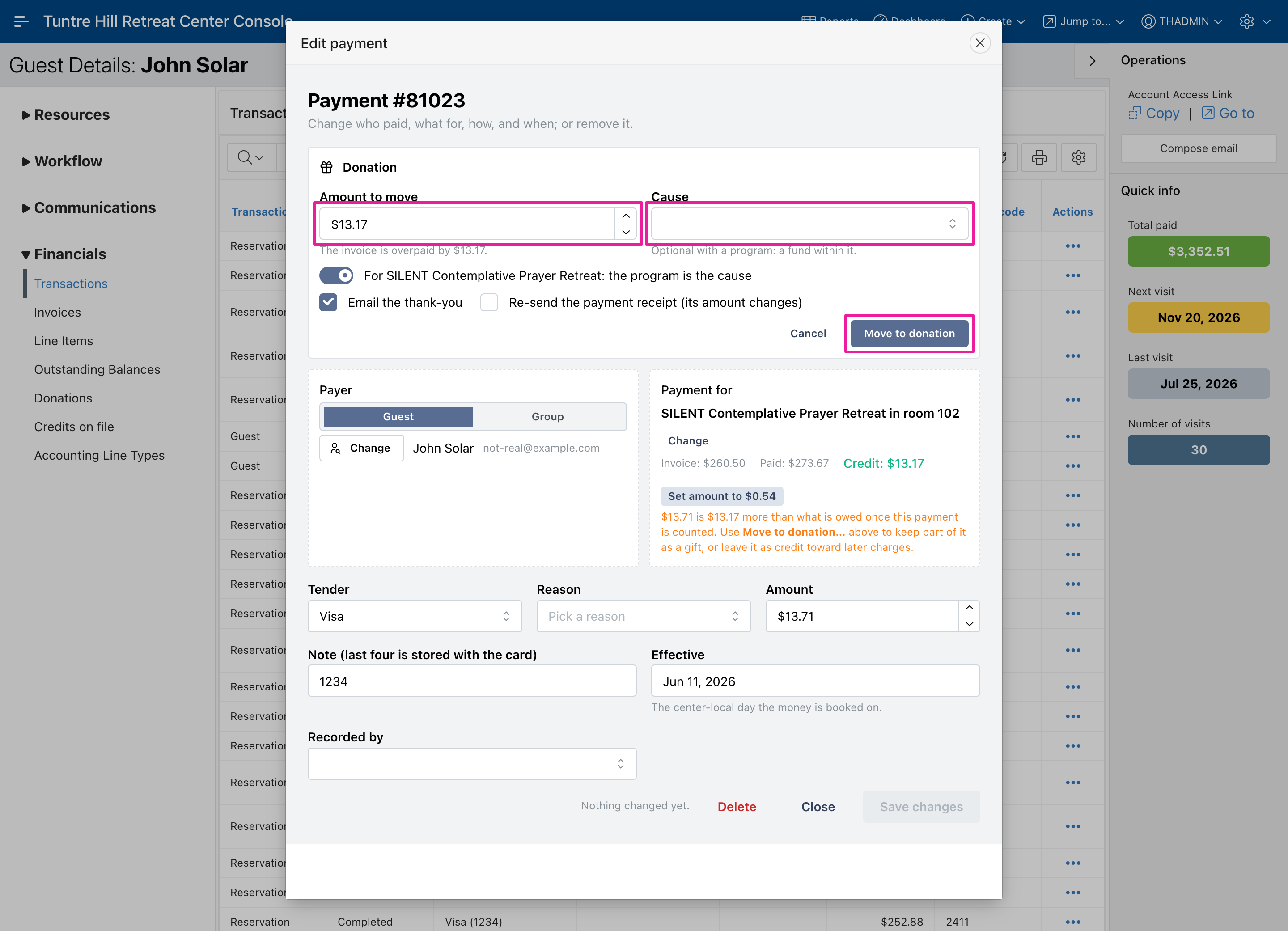
Click ‘Move to donation’ and confirm.
What changes
Section titled “What changes”The payment shrinks to what it keeps, and a gift is created for the rest with the same tender, reference, and received date. Moving the whole payment leaves it at $0 with the gift named in its note, so the original entry stays visible on the account.
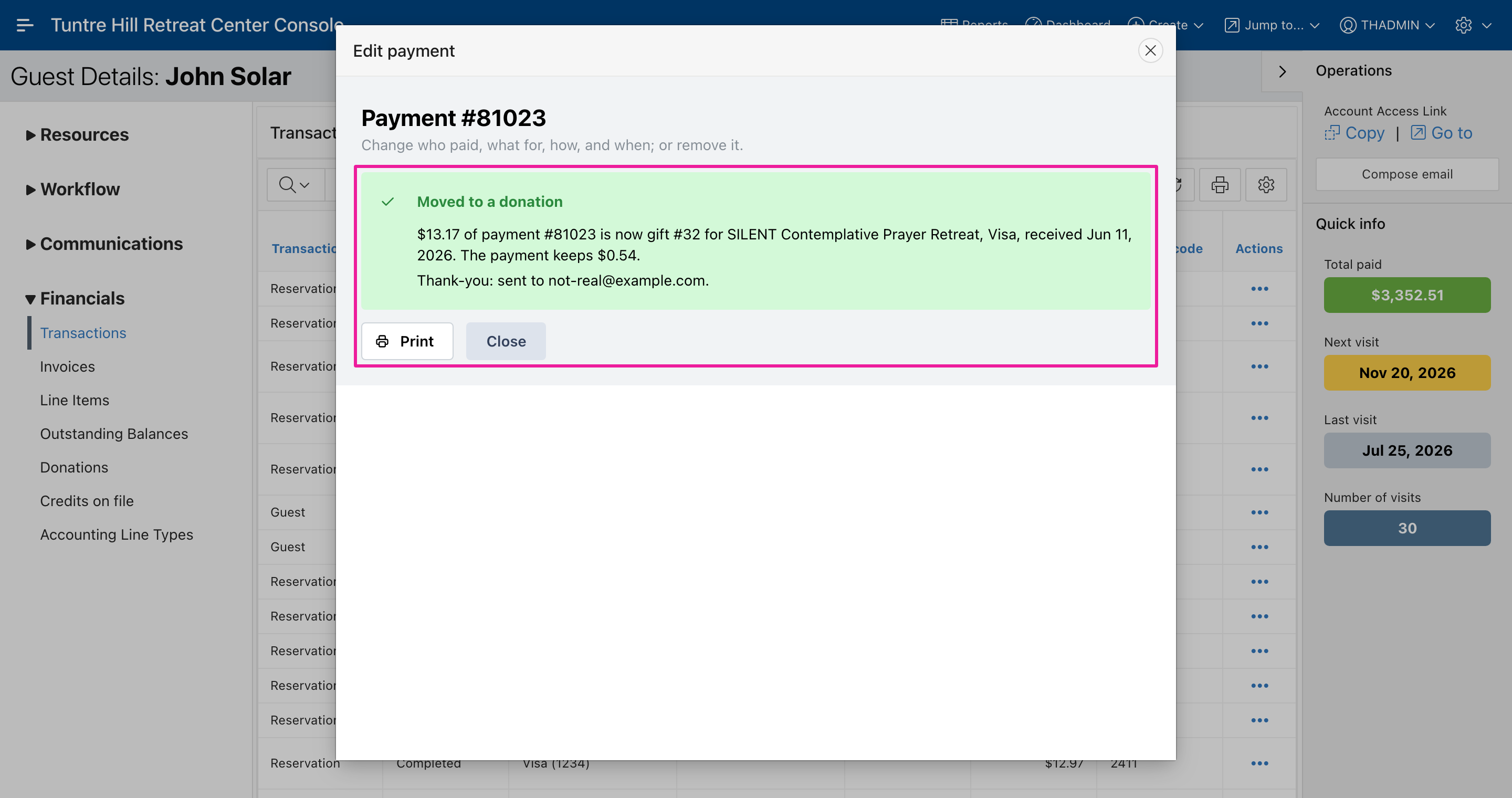
The gift shows on the program’s Donations tab with ‘From payment’ as its status, and in Daily Receipts the original check or charge is grouped with its two parts. On the Donations report, a gift decided after the money arrived carries both dates, received and designated, so a run on the ‘Designated’ basis lands it in the month it was decided.
Undo it
Section titled “Undo it”Open the gift (the program’s or guest’s Donations tab, the three dots on its row, ‘Edit’) and click ‘Move back to payment’. The payment goes back to its full amount and the gift is retired. A gift that came out of a payment can’t be deleted; moving it back is the way to undo it.