
Email Integration with Google Workspace
Published June 26, 2021, updated September 20, 2024
In this post we will describe how to integrate your Google Workspace Email into Retreat Manager and Retreat Manager Cloud.
Option1 (Preferred) Enable your Google Workspace account for 2-Step Verification, then add an ‘App Password’ which would be used only with Retreat Manager.
Option 2 (Less Secure) (Google will stop supporting this on September 30, 2024) Have your Google Workspace Administrator permit Less Secure access to your organization’s users, then turn on Less Secure access for your individual account and use your Google password in Retreat Manager.
Option 1, Utilize 2-Step Verification (Preferred Method)
Section titled “Option 1, Utilize 2-Step Verification (Preferred Method)”You must enable 2-Step Verification in order to create a password specifically for Retreat Manager Email sending. 2-Step verification is a great overall way to protect your account and creating a separate password just for Retreat Manager Email ensures limited risk should that password be compromised. You can also revoke just the email password without impacting your overall Google account password.
Enable 2-Step Verification
Section titled “Enable 2-Step Verification”Log in to https://myaccount.google.com/
On the left side of the page click Security, then under How you sign in to Google click 2-Step Verification. If it is already selected, then skip this step.
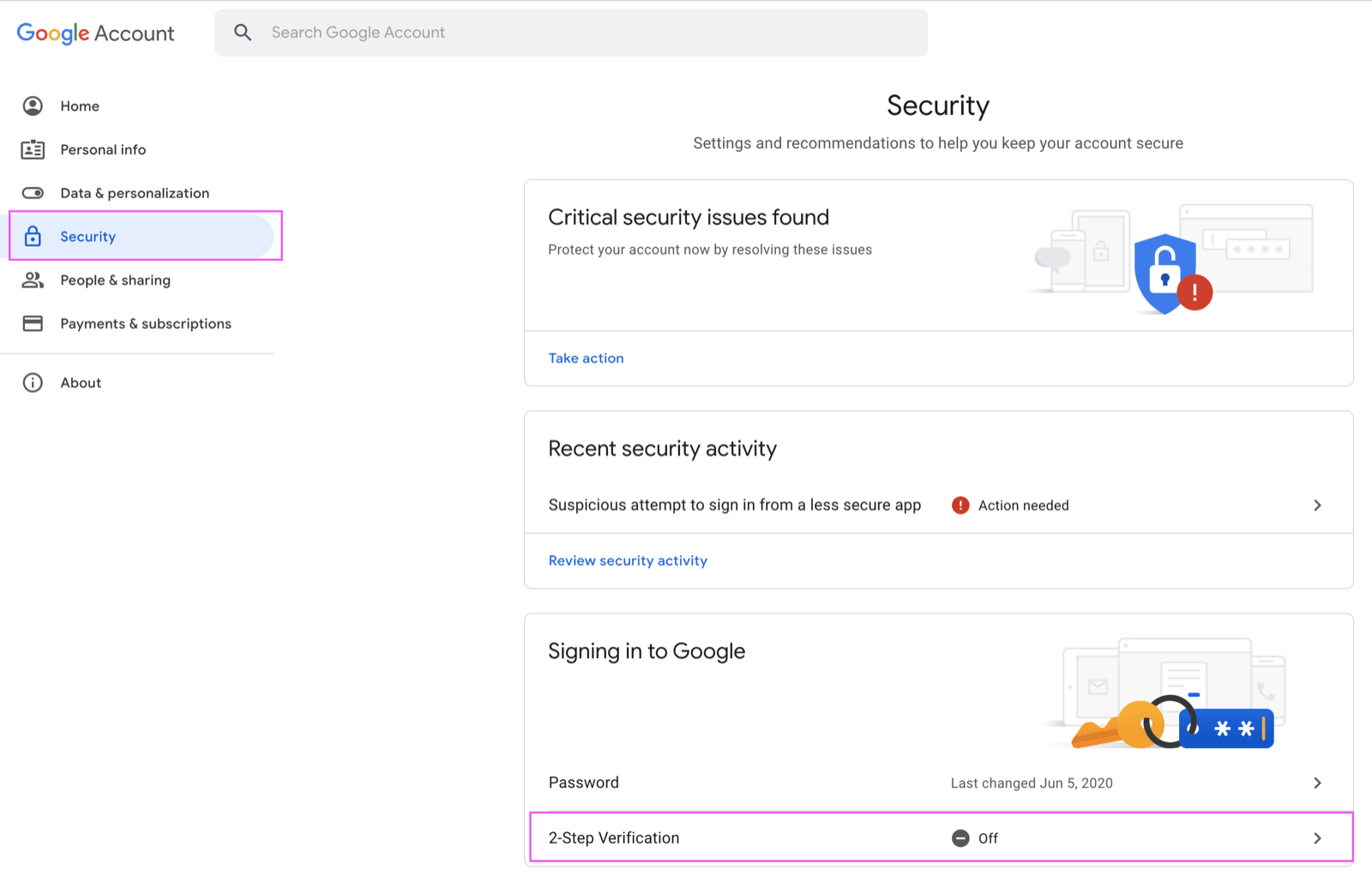
You may have to supply your password again.
Click Continue and follow the steps in the wizard by supplying a phone number which will text you a number to use during log in.
Add an App Password for Sending Emails through Retreat Manager
Section titled “Add an App Password for Sending Emails through Retreat Manager”Log in to https://myaccount.google.com/
On the left side of the page click Security, then under How you sign in to Google click 2-Step Verification.
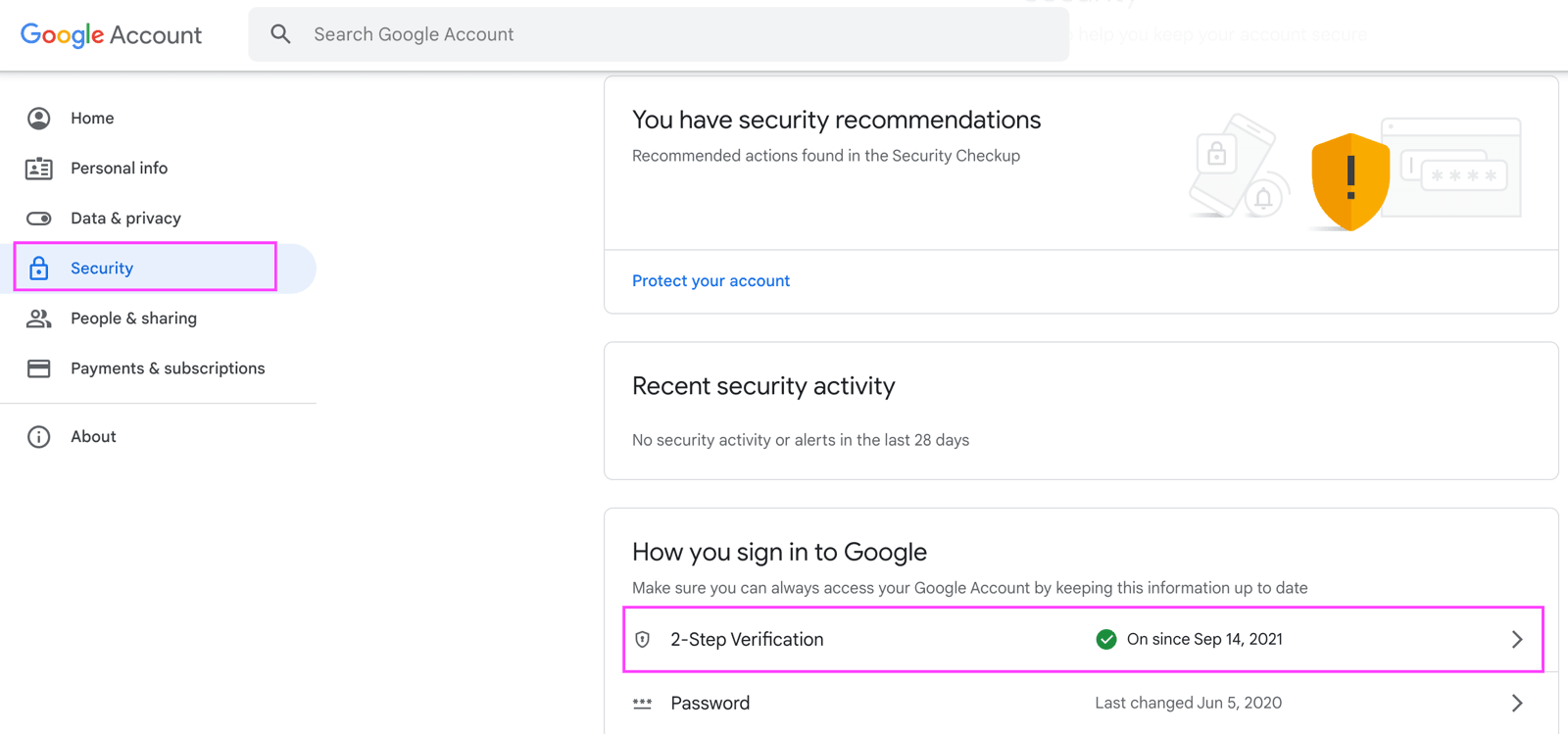
Scroll to the bottom of the next page until you see App passwords.
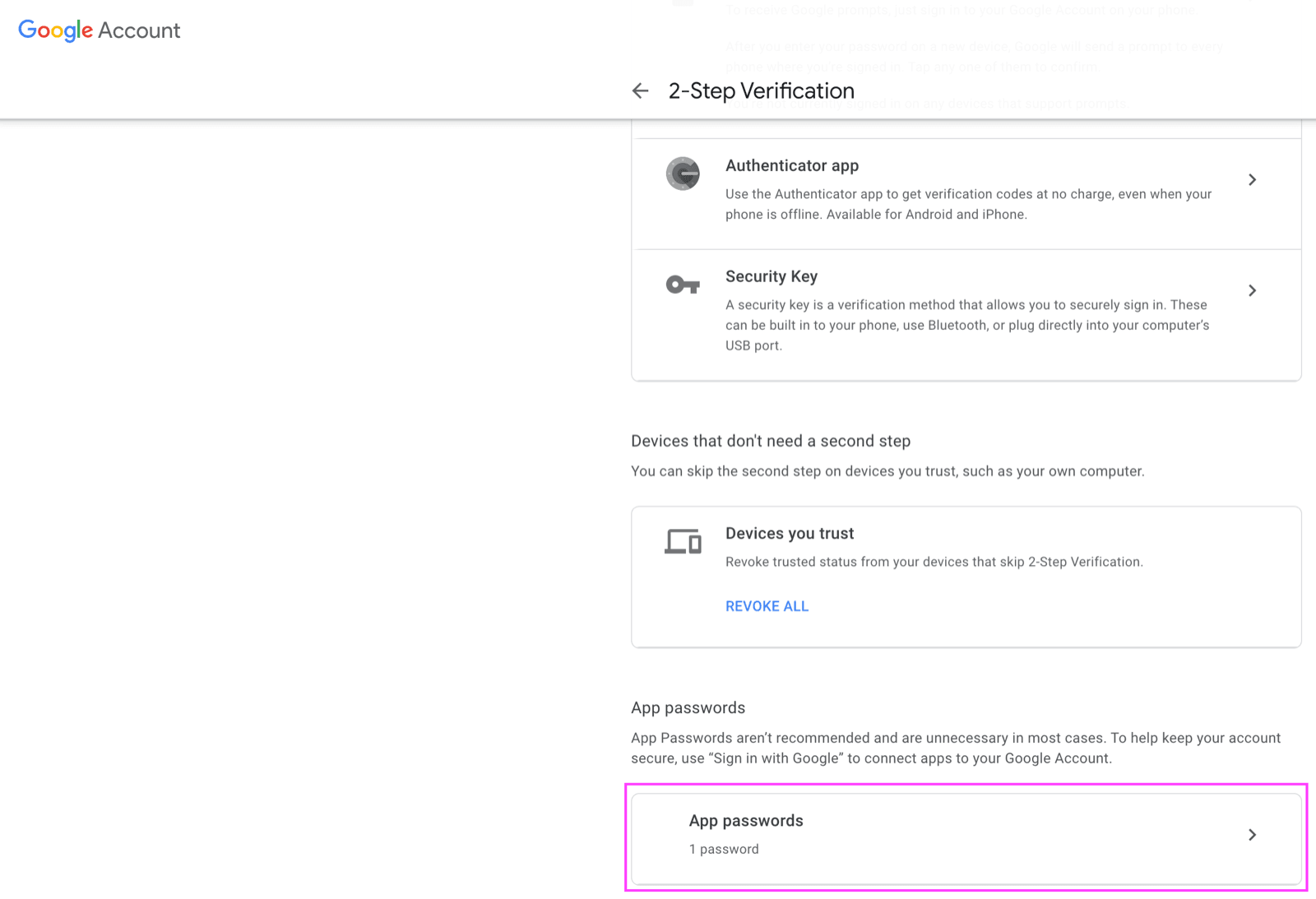
You may have to supply your password again.
Under Select app choose Mail. Under Select device choose Other, then type Retreat Manager Email as the name (or anything that makes sense to you).
Click Generate
Save a copy of the 16-character password - you’ll need this when you configure Email in Retreat Manager. Once you close this window you will not be able to get it again, but you can create another App Password and simply use the new one.
Click Done
Configure Email in Retreat Manager
Section titled “Configure Email in Retreat Manager”Open Retreat Manager or Retreat Manager Cloud
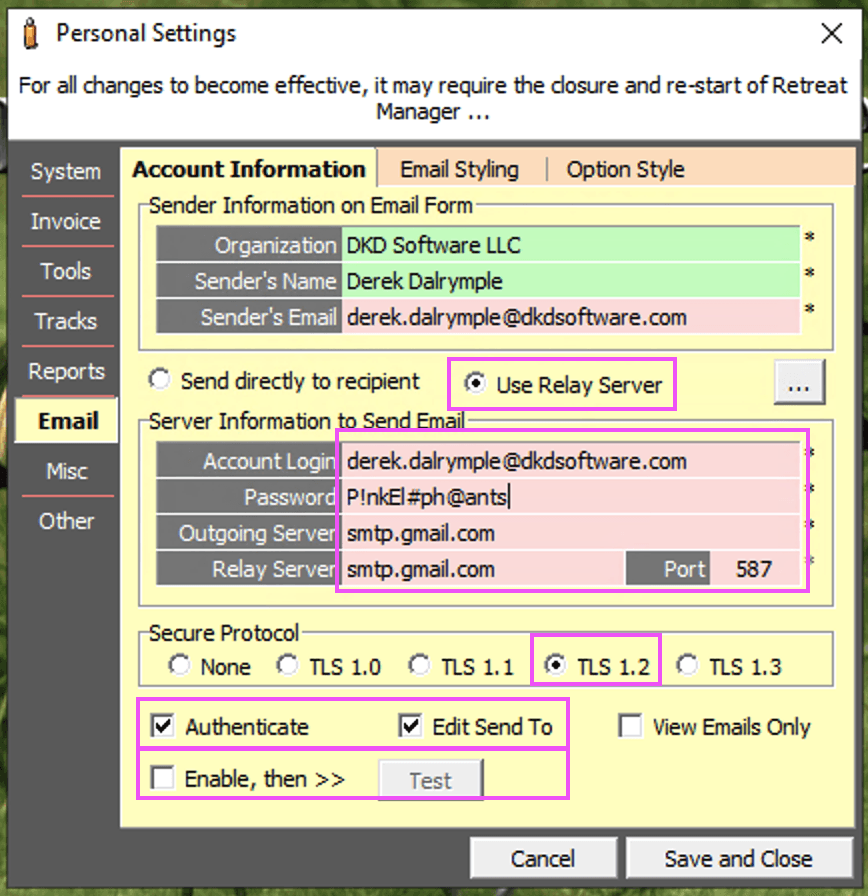
Click Settings > Personal Settings, then click Email on the left-hand-side.
Click Use Relay Server Enter your Google Workspace email address for Account Login
Enter the 16-character password that matches your App password you created in the prior step. Outgoing Server is smtp.gmail.com
Relay Server is smtp.gmail.com
Port is 587
Click TLS 1.2
Click Authenticate
Click Edit Send To
Click Enable
Finally, click the Test button to test.
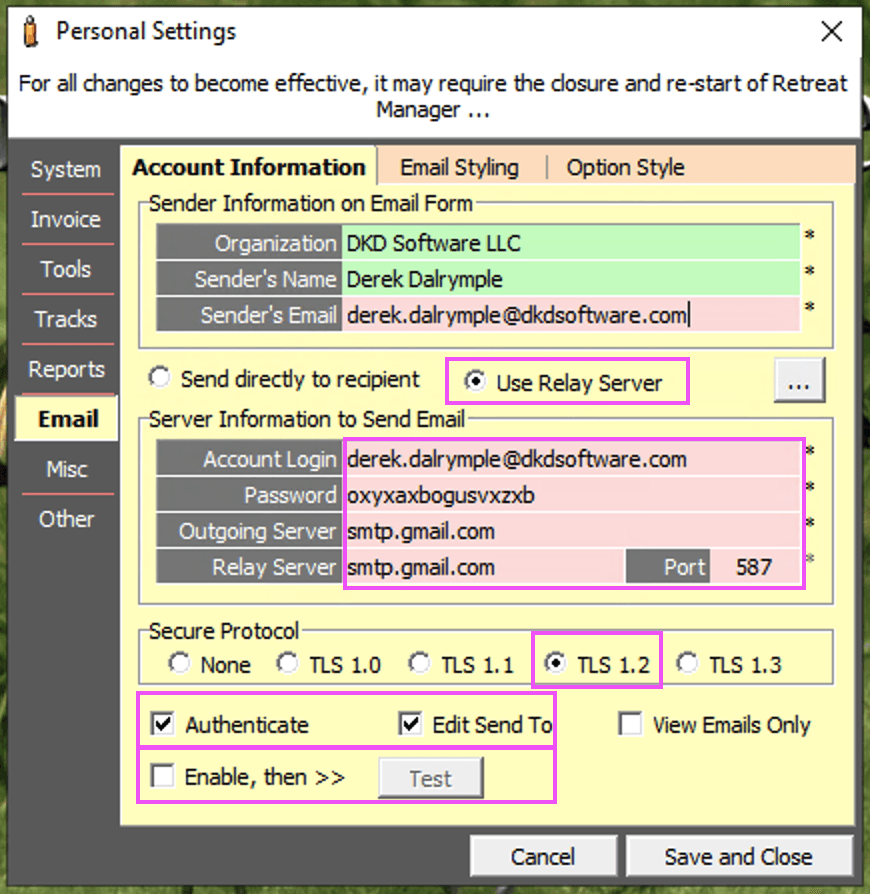
If the test is successful you’ll get a pop-up message saying the integration succeeded. If the test fails, then please double check all values and that you copied the password - it is exactly 16-characters long.
Click Save and Close.
In your Google Email Inbox will be a Test Message from Retreat Manager and, in your Sent folder, will be a copy of the message that was sent to you.
Option 2, Enable Less Secure Access
Section titled “Option 2, Enable Less Secure Access”This option will no longer be available from Google starting September 30, 2024.
Enabling Less Secure access is not as desirable since, as the description implies - it is a less secure method of authentication. Ultimately you will supply your Google account password in Retreat Manager and while every effort is taken to protect this information there is no guarantee it will never be compromised. While going through this process Google makes it abundantly clear that this path is making your Google Workspace **less secure.
Enable Less Secure Access for your Organization
Section titled “Enable Less Secure Access for your Organization”Log in to https://admin.google.com
Click Security
Click Less secure apps
Click Allow users to manage their access to less secure apps (as the note says it may take 24 hours for this option to appear in your user’s account)
Click Save
Enable Less Secure Access for the User
Section titled “Enable Less Secure Access for the User”Log in to https://myaccount.google.com/
On the left side of the page click Security, then under Less secure app access click Turn on access (not recommended).
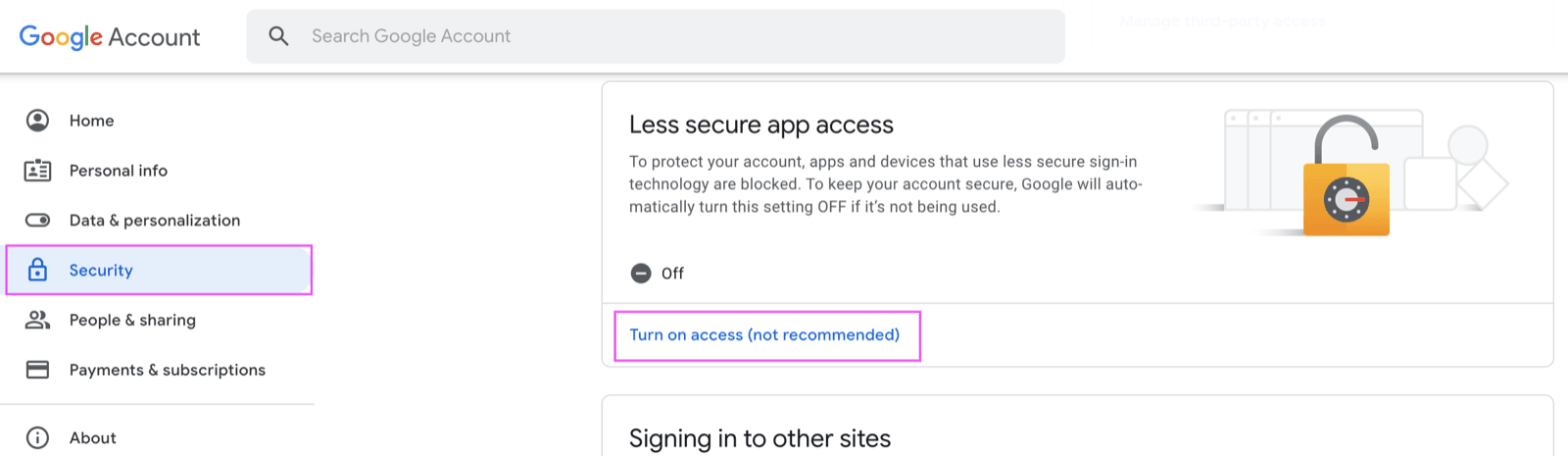
You may be asked to verify your password.
You will then be asked to flip a switch confirming you want to enable Less Secure access.
Configure Email in Retreat Manager
Section titled “Configure Email in Retreat Manager”Open Retreat Manager or Retreat Manager Cloud
Click Settings > Personal Settings, then click Email on the left-hand-side.
Click Use Relay Server Enter your Google Workspace email address for Account Login
Enter your Google Workspace password Outgoing Server is smtp.gmail.com
Relay Server is smtp.gmail.com
Port is 587
Click TLS 1.2
Click Authenticate
Click Edit Send To
Click Enable
Finally, click the Test button to test.
If the test is successful you’ll get a pop-up message saying the integration succeeded. If the test fails, then please double-check all values.
Click Save and Close.
In your Google Email Inbox will be a Test Message from Retreat Manager and, in your Sent folder, will be a copy of the message that was sent to you.