
The Meal Sheet for One Day
‘Meals’ is the meal sheet for a single day, any day: every program and private retreatant eating that day, their counts and serve times for each meal, the day’s totals, and the dietary needs and socials underneath. Use it to look ahead at tomorrow, check a day that’s already past, or print one day for the kitchen wall.
Open it
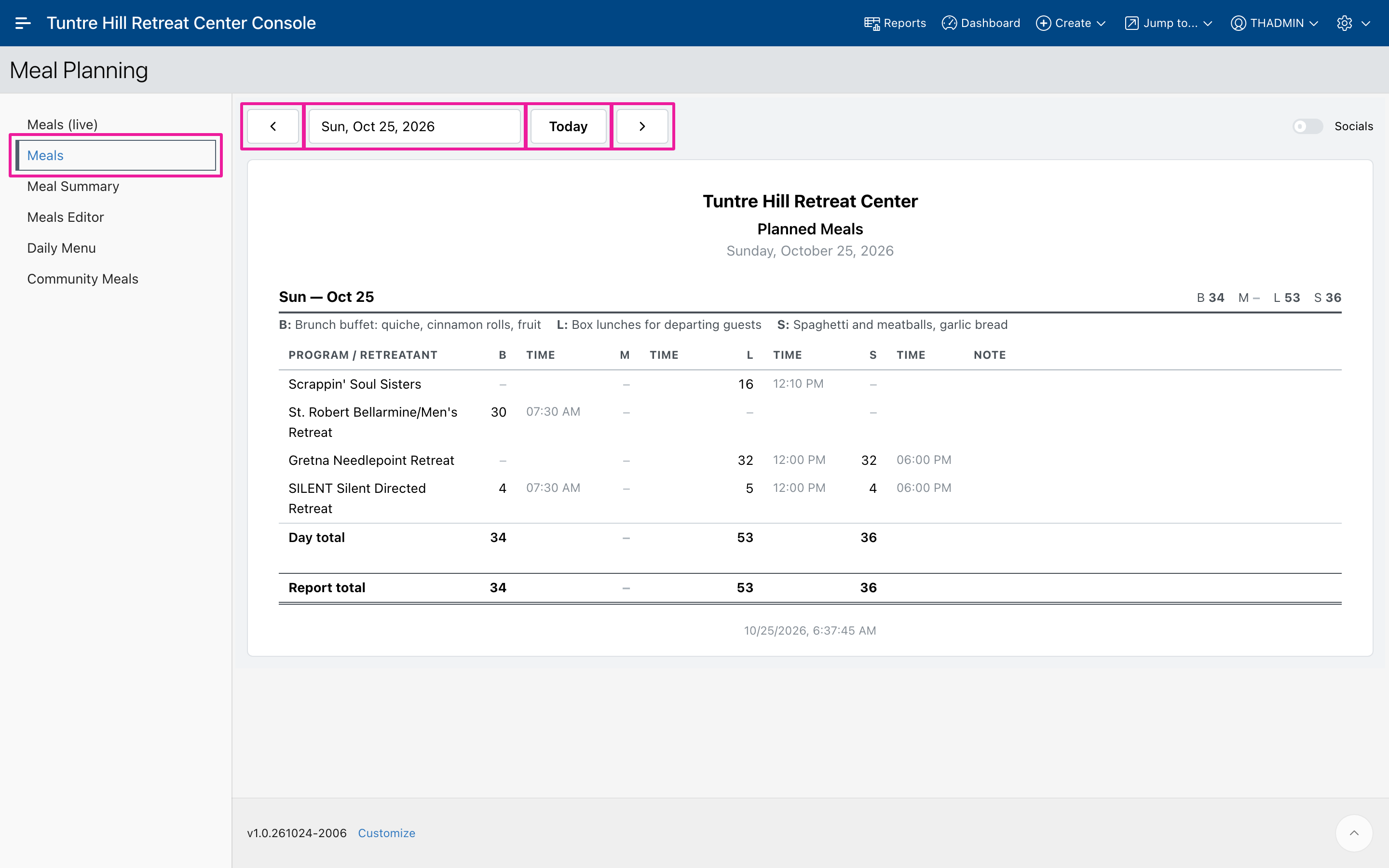
Section titled “Open it”Click the menu icon on the top-left and select ‘Planning’ > ‘Meal Planning’, then click ‘Meals’ on the left. In the Kitchen app it’s the ‘Meals’ button across the top.
Pick the day
Section titled “Pick the day”The sheet opens on today. The arrows step a day back or forward, the date button opens a calendar to jump anywhere, and ‘Today’ brings you back.
Read the sheet
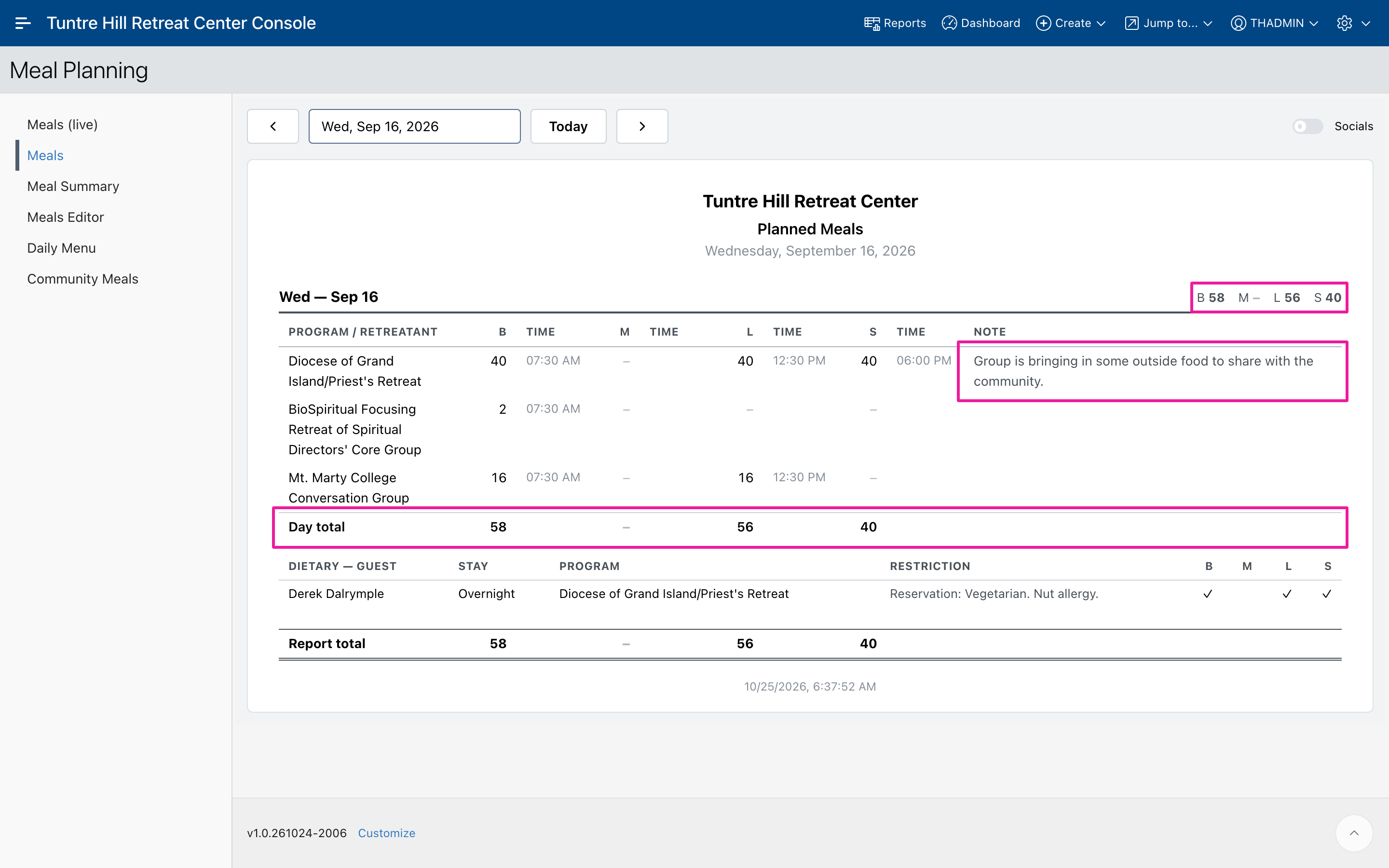
Section titled “Read the sheet”Each row is one program or private retreatant. Under each meal is the number of servings and the time it’s served — that program’s time for that day, since a program can shift its meals. The strip at the top-right of the day is the total for each meal, and ‘Day total’ repeats it under the rows. Under the day’s heading is the day’s menu, when the kitchen has written one. A dash means no servings; a red number after a count is servings cancelled. The ‘Note’ column carries any meal note the office left on the program for that day — a heads-up the kitchen should read before cooking. Reading the Meal Sheet covers every mark on the page.
Dietary needs
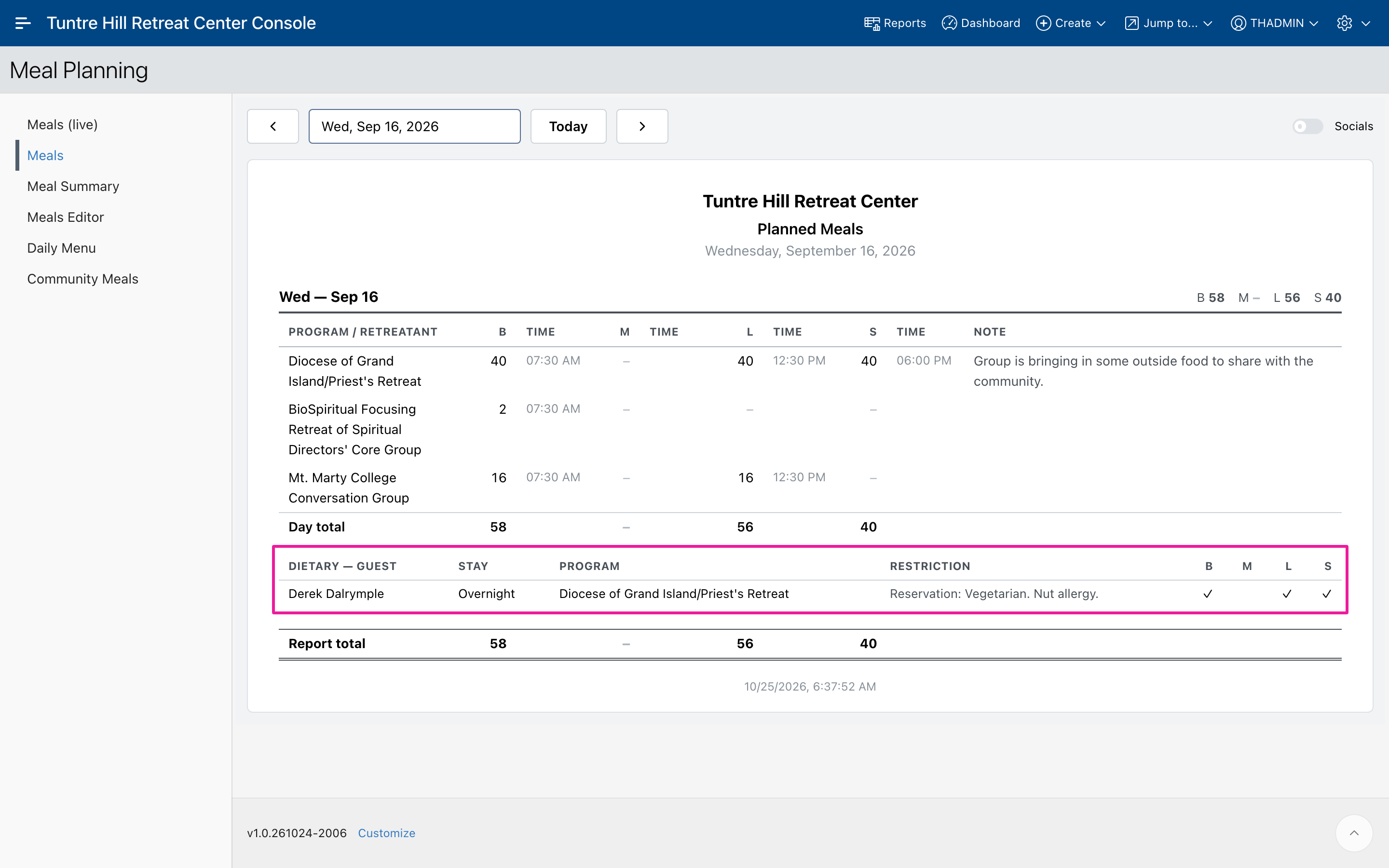
Section titled “Dietary needs”When a guest eating that day has a dietary note, the ‘Dietary’ table lists them under the meals: who, whether they stay overnight, their program, the restriction, and a check under each meal they’re having that day. A guest whose note is only for a meal they aren’t having today isn’t listed.
Socials
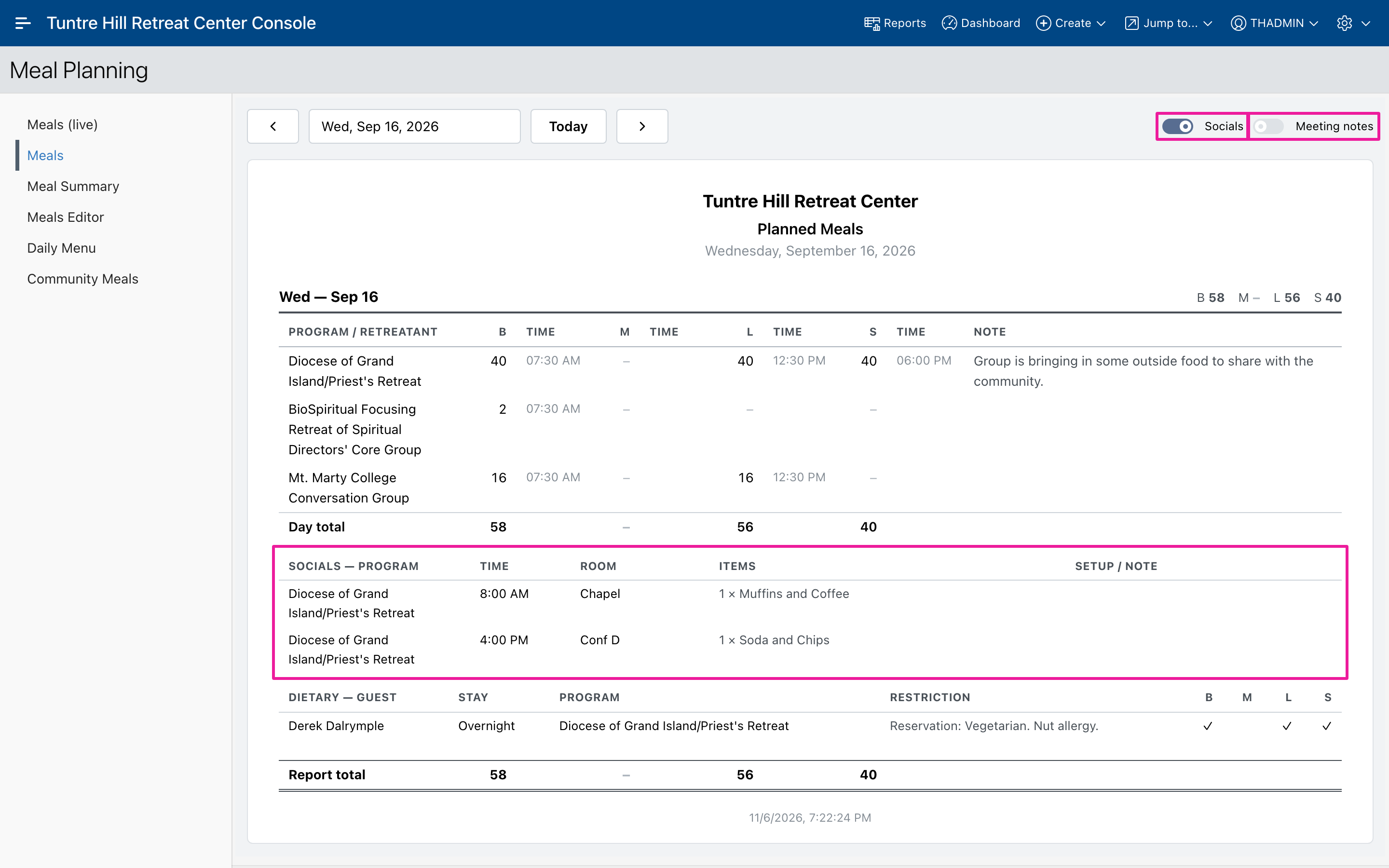
Section titled “Socials”Turn on ‘Socials’ at the top-right to add the day’s catered socials between the meal table and the dietary table: the program, the time, the room, and what to bring. ‘Meeting notes’ appears beside it when it’s on and adds the meeting’s setup instruction to each social’s ‘Setup / Note’ — leave it off for a kitchen-only sheet. Both switches are remembered on that screen, and the live board shares them.
To add or change a social, see Plan a Social for a Meeting.