Saving and Version History
Every save in the editor, and every uploaded replacement, is kept as a version. Nothing is thrown away, so you can always get an earlier version of a document back. This tutorial covers how Save works, how to replace a Word or PDF file, and how to restore.
Save in the editor
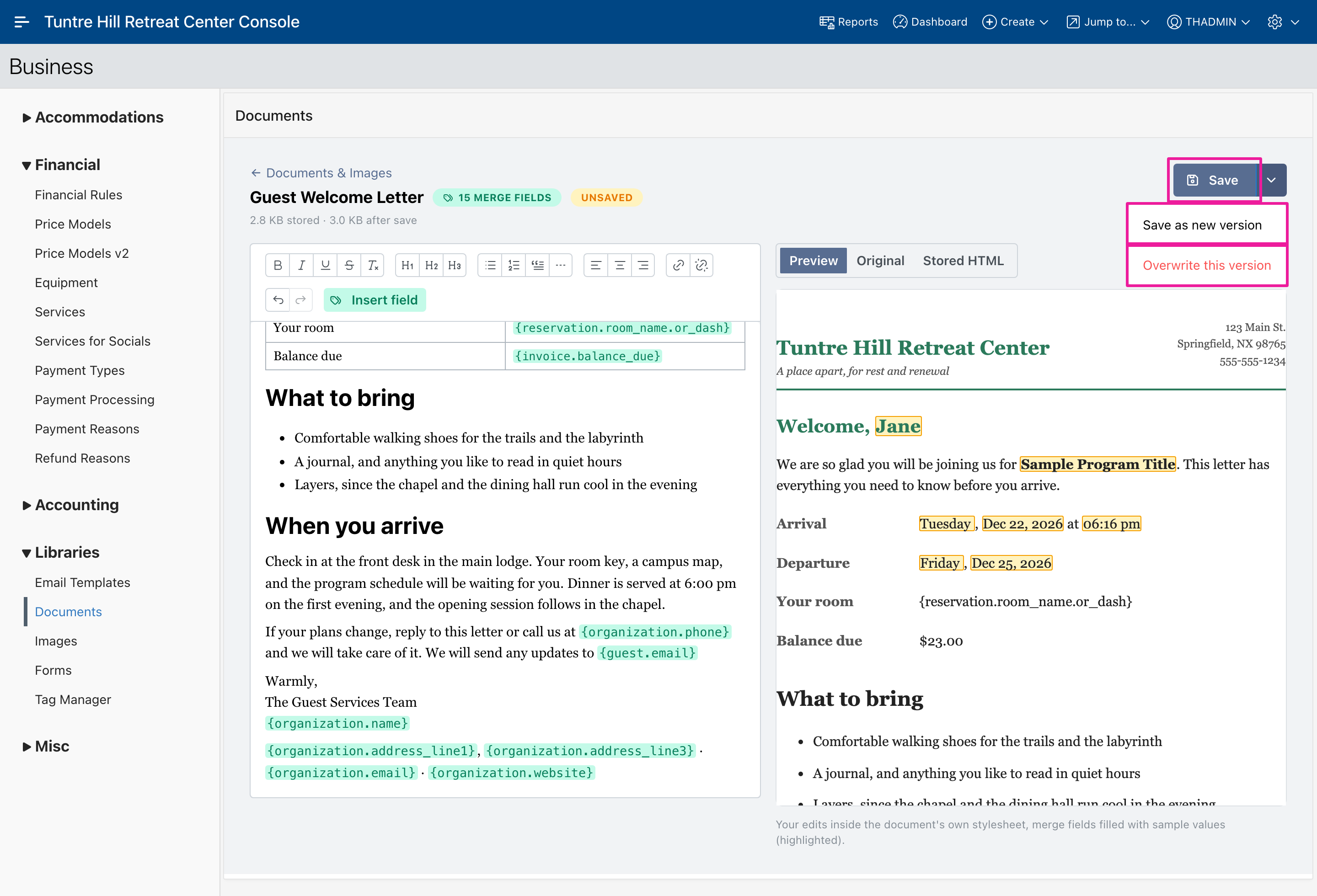
Section titled “Save in the editor”‘Save’ on the top-right of the editor saves your changes as a new version of the document, and the version you opened stays in the history. The note under the button says which it will do. Once you’ve saved, further saves in the same sitting update that version rather than adding another, so a working session ends up as one version, not twenty.
Click the arrow next to ‘Save’ for two more choices. ‘Save as new version’ always adds a version. ‘Overwrite this version’ replaces the saved file with no history entry, so use it only when you’re sure; if someone else saved the document since you opened it, the overwrite is refused so their work isn’t lost.
Replace a Word or PDF file
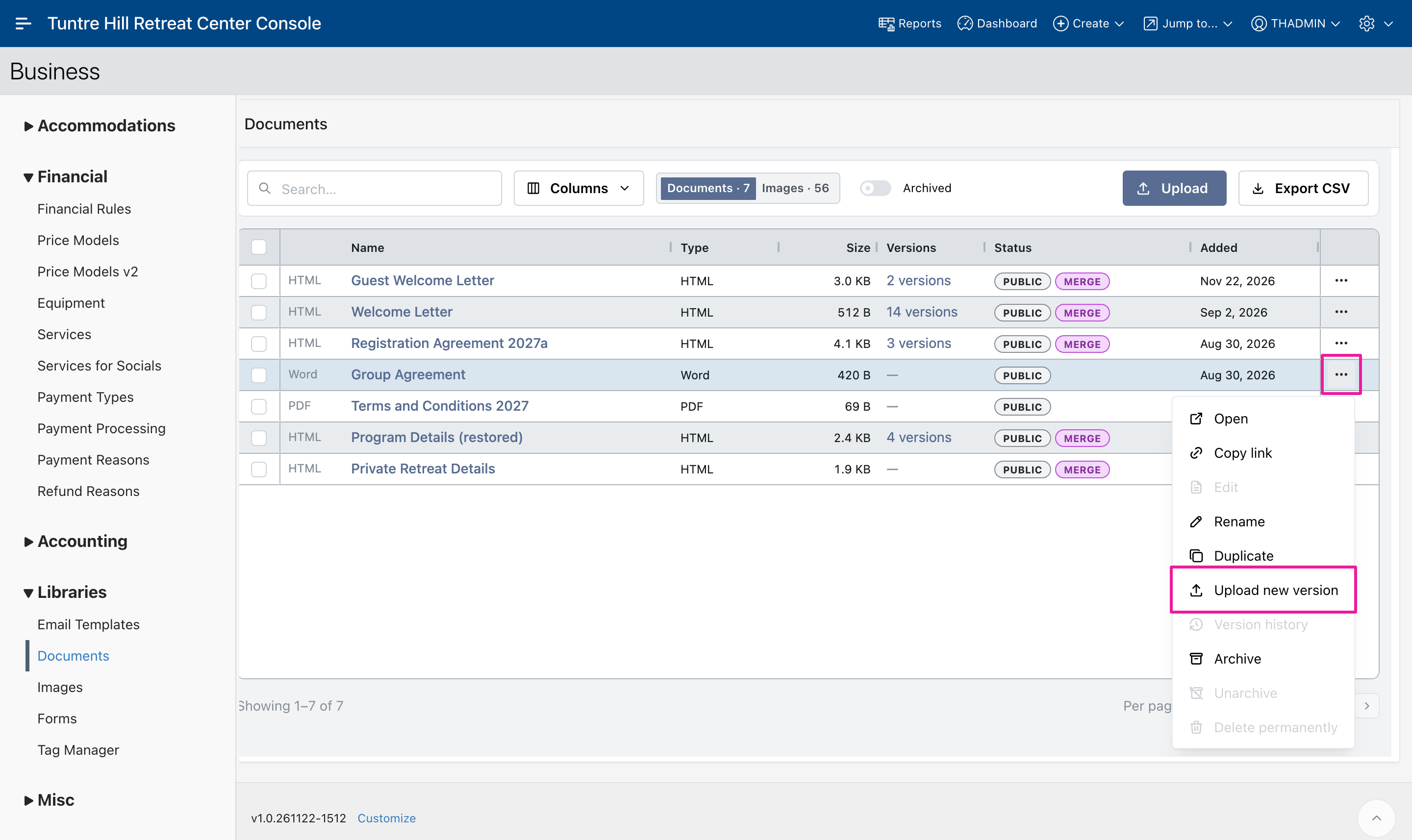
Section titled “Replace a Word or PDF file”Documents that aren’t edited in the portal are replaced by uploading a new file. In the library, click the three dots on the far right of the row and select ‘Upload new version’.
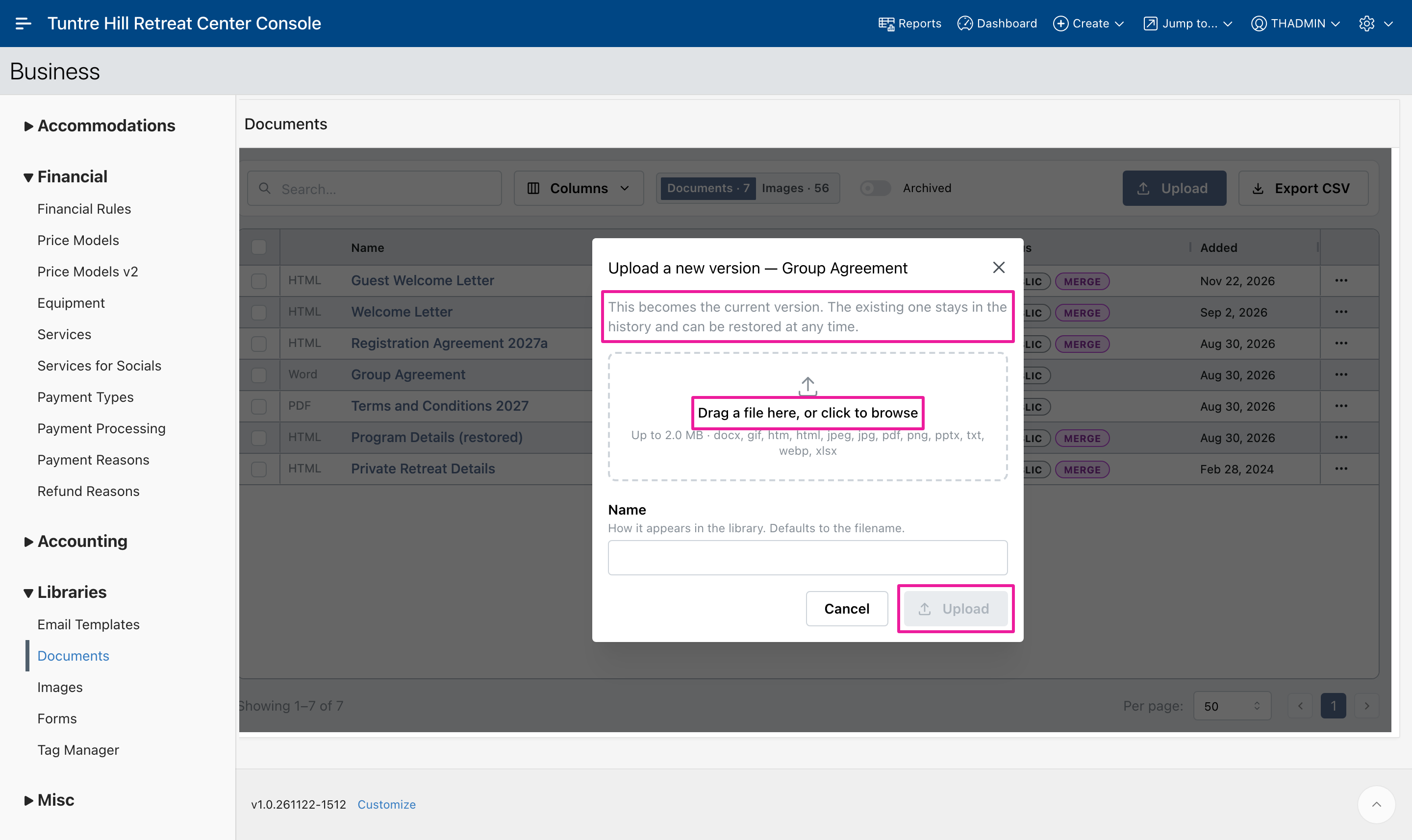
Choose the new file. It becomes the current version, and the existing one stays in the history. ‘Name’ fills in with the new file’s name, so change it back to the document’s existing name unless you want the name to change too. Click ‘Upload’.
See the versions
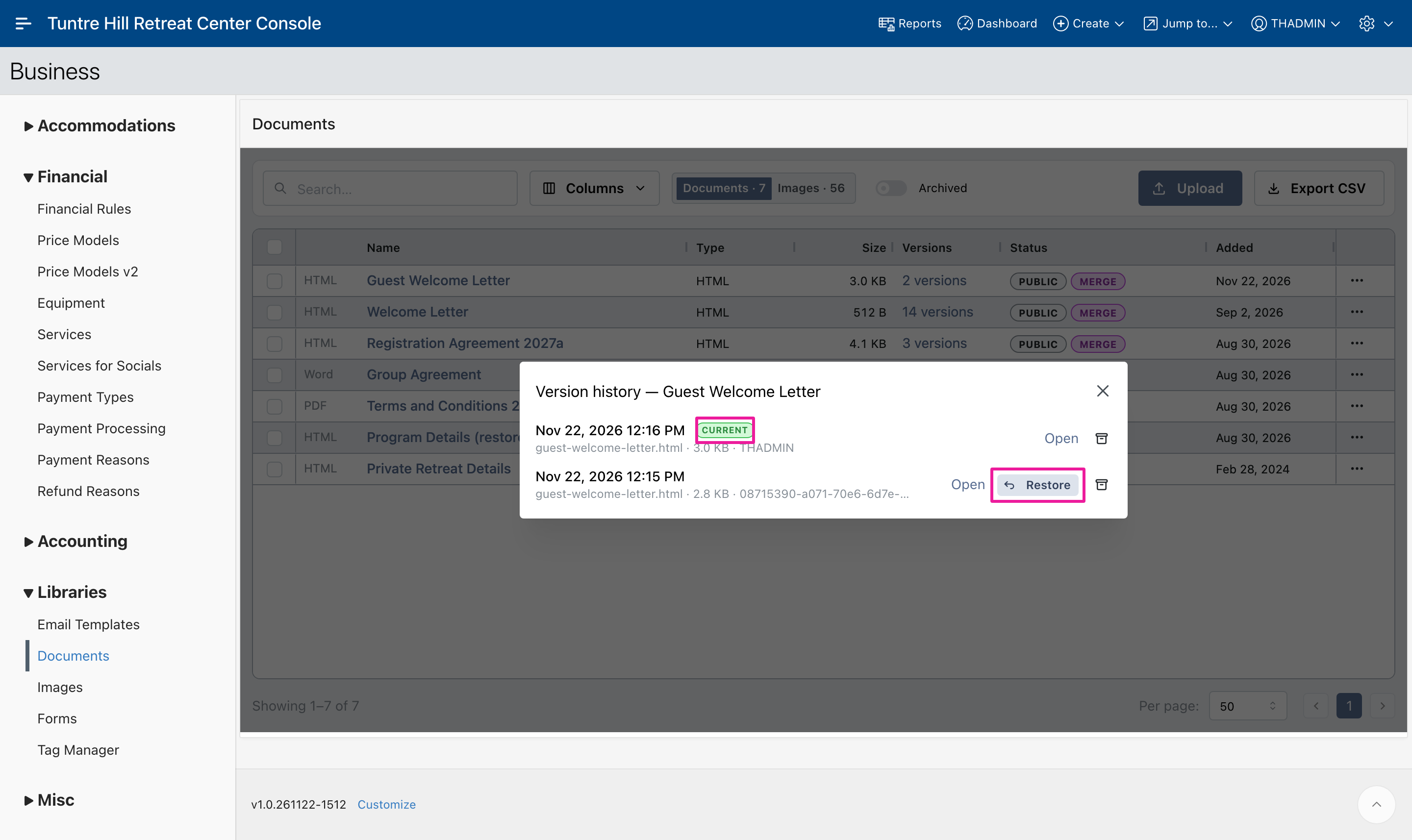
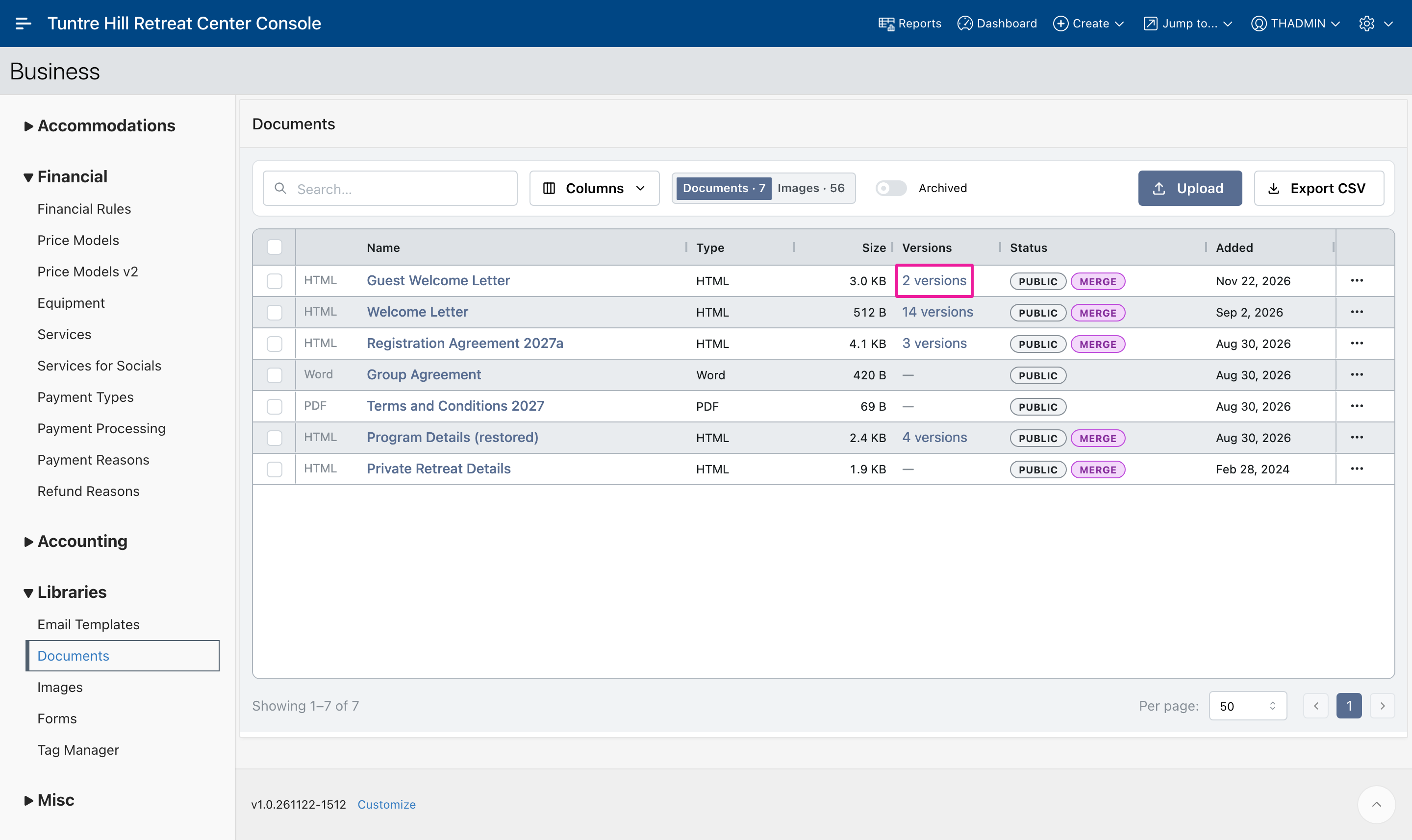
Section titled “See the versions”In the library, the ‘Versions’ column shows how many versions a document has. Click it to open the history.
Versions are listed newest first, with the one in use marked ‘Current’. Click ‘Open’ to look at any version in a new tab.
Restore an earlier version
Section titled “Restore an earlier version”Click ‘Restore’ next to the version you want back. It becomes the current version, added to the top of the list as a fresh copy; the versions after it aren’t deleted, so you can restore in the other direction too. There’s no confirmation because nothing is lost.