The Meeting Rooms Catalog
The Meeting Rooms catalog is the list of spaces you can book: each room’s name, capacity, location, and features, whether it is a chapel, and the order the rooms appear in on every planner, schedule, and report.
Open the catalog
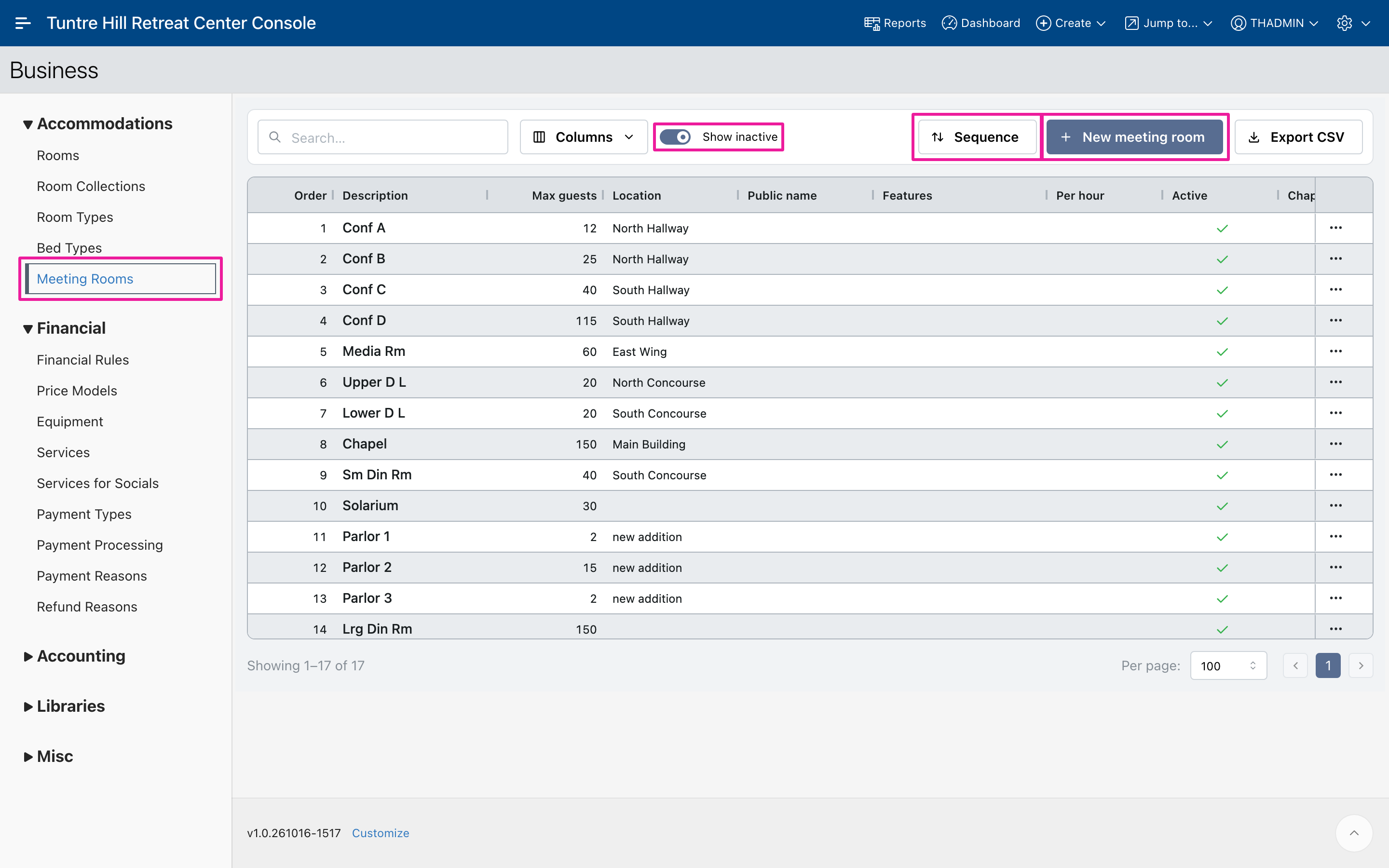
Section titled “Open the catalog”Click the gear icon on the top-right and select ‘Business’, then ‘Meeting Rooms’ on the left under Accommodations. The list shows each room’s ‘Order’, ‘Description’, ‘Max guests’, ‘Location’, ‘Public name’, ‘Features’, and whether it is active. Click a column heading to sort, type in ‘Search…’ to filter, and turn off ‘Show inactive’ to hide retired rooms.
Add or change a room
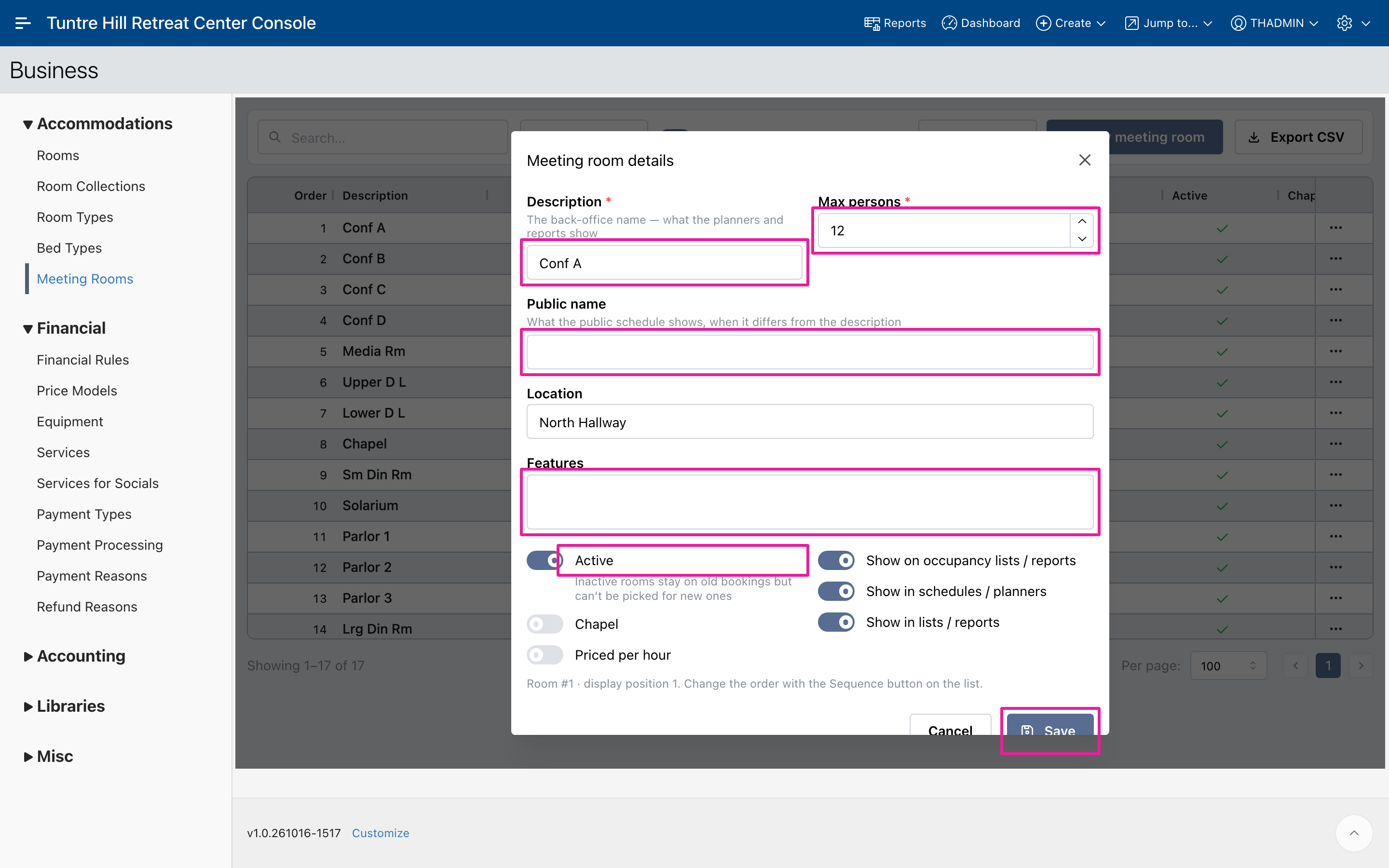
Section titled “Add or change a room”Click ‘New meeting room’, or the three dots on a row and then ‘Edit’. ‘Description’ is the name the planners and reports show; ‘Public name’ is what the public schedule shows when it should differ. Set ‘Max persons’, the ‘Location’, and the ‘Features’ (the room’s own fixtures, as opposed to the equipment you request per meeting). Turn on ‘Chapel’ for a chapel, which adds the chapel fields to its meetings, and ‘Priced per hour’ when the room is billed that way; the three ‘Show’ switches decide which lists and reports include the room. Click ‘Save’.
Retire a room
Section titled “Retire a room”Turn off ‘Active’ and save. An inactive room keeps its old bookings and its place in the order, but cannot be picked for new meetings. Delete, under the three dots, is only for a room created by mistake; a room with meetings behind it cannot be deleted.
Set the order
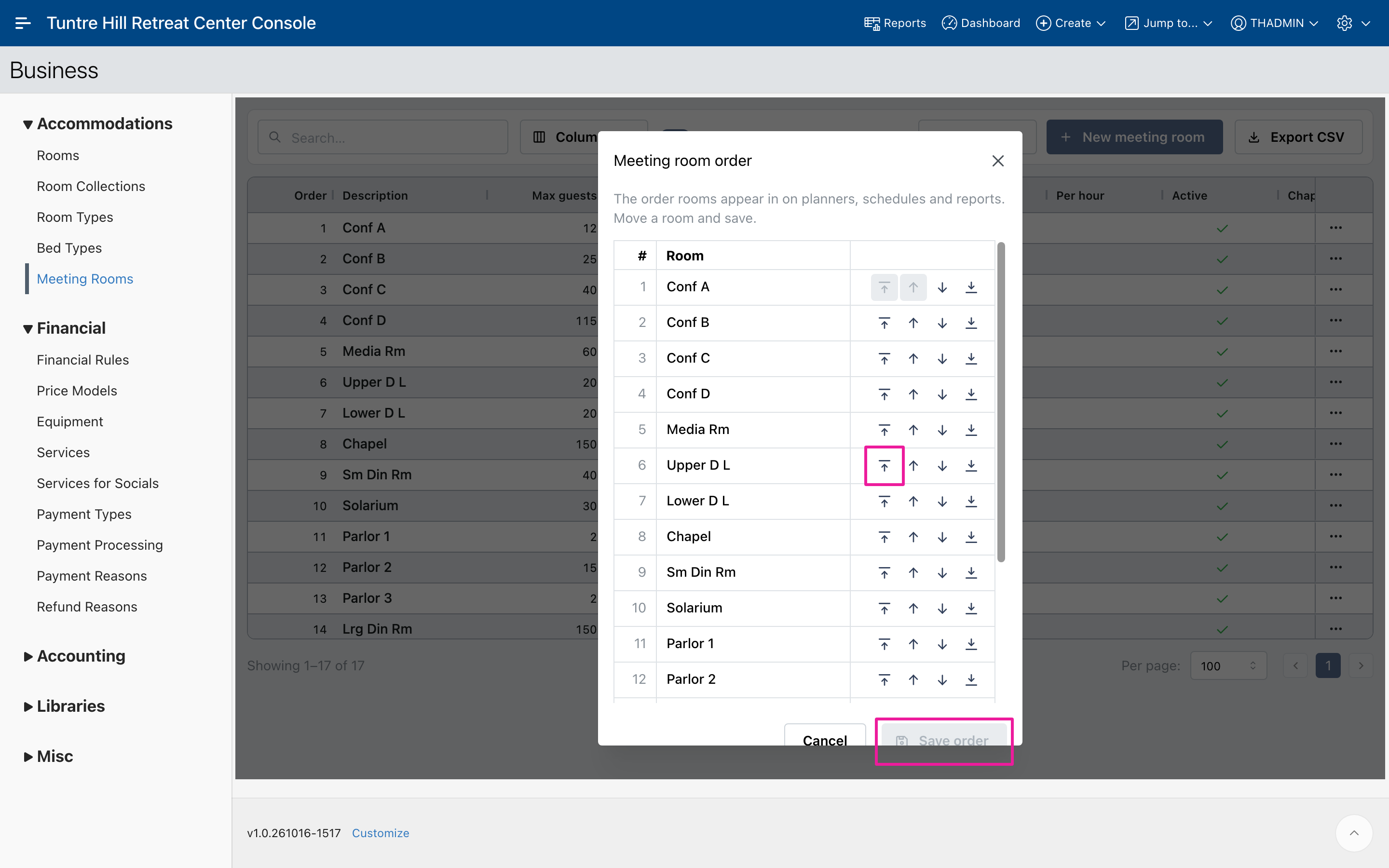
Section titled “Set the order”Click ‘Sequence’. The window that opens lists every room; move one with the arrows (to top, up, down, to bottom) and click ‘Save order’. This is the order the Program Planner’s columns, the schedule reports, and every room list follow.