
Today's Meals on the Live Board
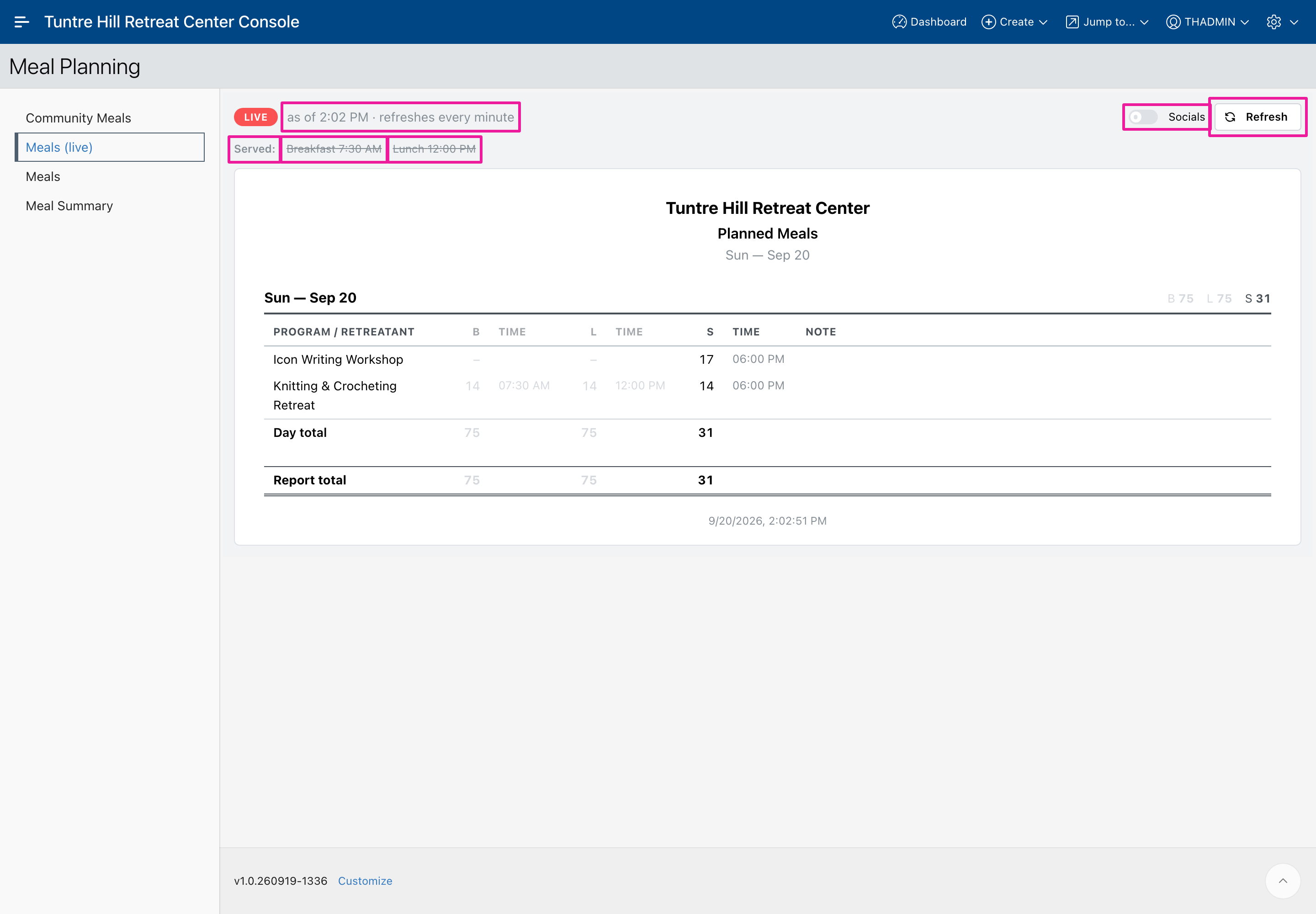
‘Meals (live)’ is the page a kitchen leaves up on a screen all shift. It shows today’s meal sheet — who is eating, how many, and when — and as the day goes on, each meal that has been served greys out where it stands, so a glance always says what is still ahead.
Open it
Section titled “Open it”Click the menu icon on the top-left and select ‘Planning’ > ‘Meal Planning’, then click ‘Meals (live)’ on the left. In the Kitchen app it’s the ‘Meals (live)’ button across the top.
What it shows
Section titled “What it shows”The red ‘Live’ badge and the “as of” time tell you how fresh the board is: it refreshes itself every minute, and the ‘Refresh’ button fetches it on demand. Below is today’s meal sheet — one row per program or private retreatant, a count and serve time under each meal, the day’s totals in the header strip, the day’s menu under the heading when the kitchen has written one, and the dietary needs for the day underneath. Reading the Meal Sheet explains every column.
As the day goes on
Section titled “As the day goes on”A meal counts as served 45 minutes after its latest serve time that day. When that passes, the meal’s column dims in place, its totals still readable, and the meal joins the ‘Served:’ line at the top, struck through. Nothing shifts sideways, so the supper count is where it was at breakfast. What does change is the rows: a program or retreatant with nothing left to eat today drops off the board, and so do dietary lines that were only for a served meal. Once the last meal is past, the board says so: “All of today’s meals are done.” A day with nothing scheduled says “No meals scheduled for today.”
Socials
Section titled “Socials”Turn on ‘Socials’ at the top-right to add today’s catered socials — the coffee and snack orders a program books in a meeting room — as a list under the meal table, each with its time, room, and items. A social greys out 45 minutes after its time and joins the ‘Served:’ line, and the board stays up until the last social is past even when every meal is done. ‘Meeting notes’ appears beside the switch when it’s on and adds the meeting’s setup instruction to each social’s note. Both settings are remembered on that screen, and the ‘Meals’ page shares them.
Keep it on a screen
Section titled “Keep it on a screen”The board needs no one to touch it. Open the Kitchen app on the kitchen’s screen or tablet, click ‘Meals (live)’, and leave it; the “as of” time is the proof it’s still updating.
To add or change a social, see Plan a Social for a Meeting.