
Where Meetings Live
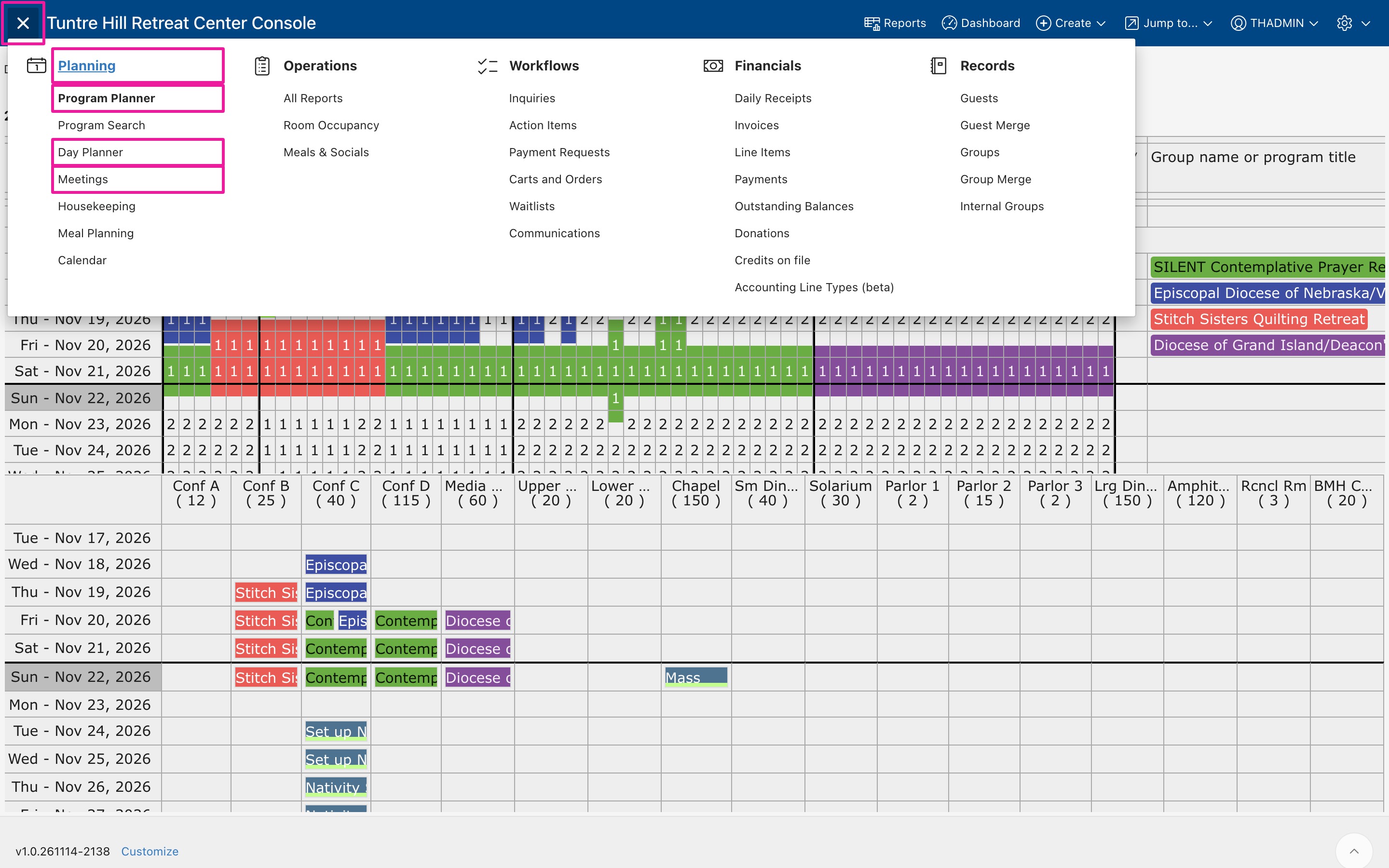
Meetings live in three places in Retreat Portal: the Program Planner, where you book them against the room grid; the Day Planner, where you see them in the day’s timetable; and the Meetings list, where you manage equipment and socials. Each program’s own page carries the same views for that program alone. All three open from the menu icon on the top-left, under ‘Planning’.
The Program Planner
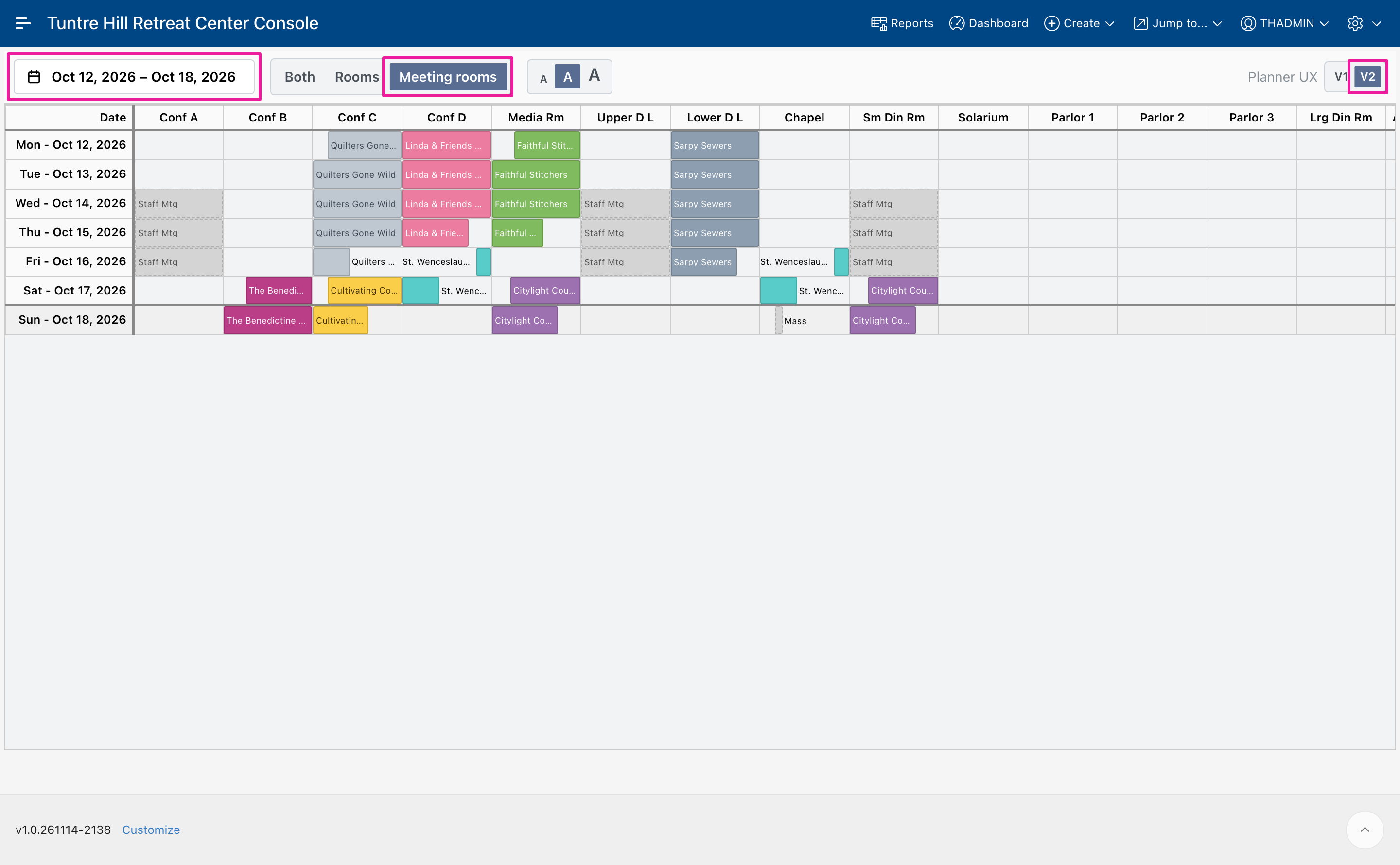
Section titled “The Program Planner”Click the menu icon on the top-left and choose ‘Planning’ > ‘Program Planner’. Switch the view to ‘Meeting rooms’ (or ‘Both’ to keep the bedrooms above it) and pick the date range. Each row is a day, each column a meeting room, and each coloured band a booked meeting. This is where you book: see Book Meeting Rooms on the Program Planner.
If the page opens on the older planner, set ‘Interface’ at the top to ‘v2’; Retreat Portal remembers your choice.
The Day Planner
Section titled “The Day Planner”Choose ‘Planning’ > ‘Day Planner’ for the week as a timetable. Meetings appear at their time with the program and the room under the title, and the setup note under that. Right-click a meeting to change it or to open its socials.
The Meetings list
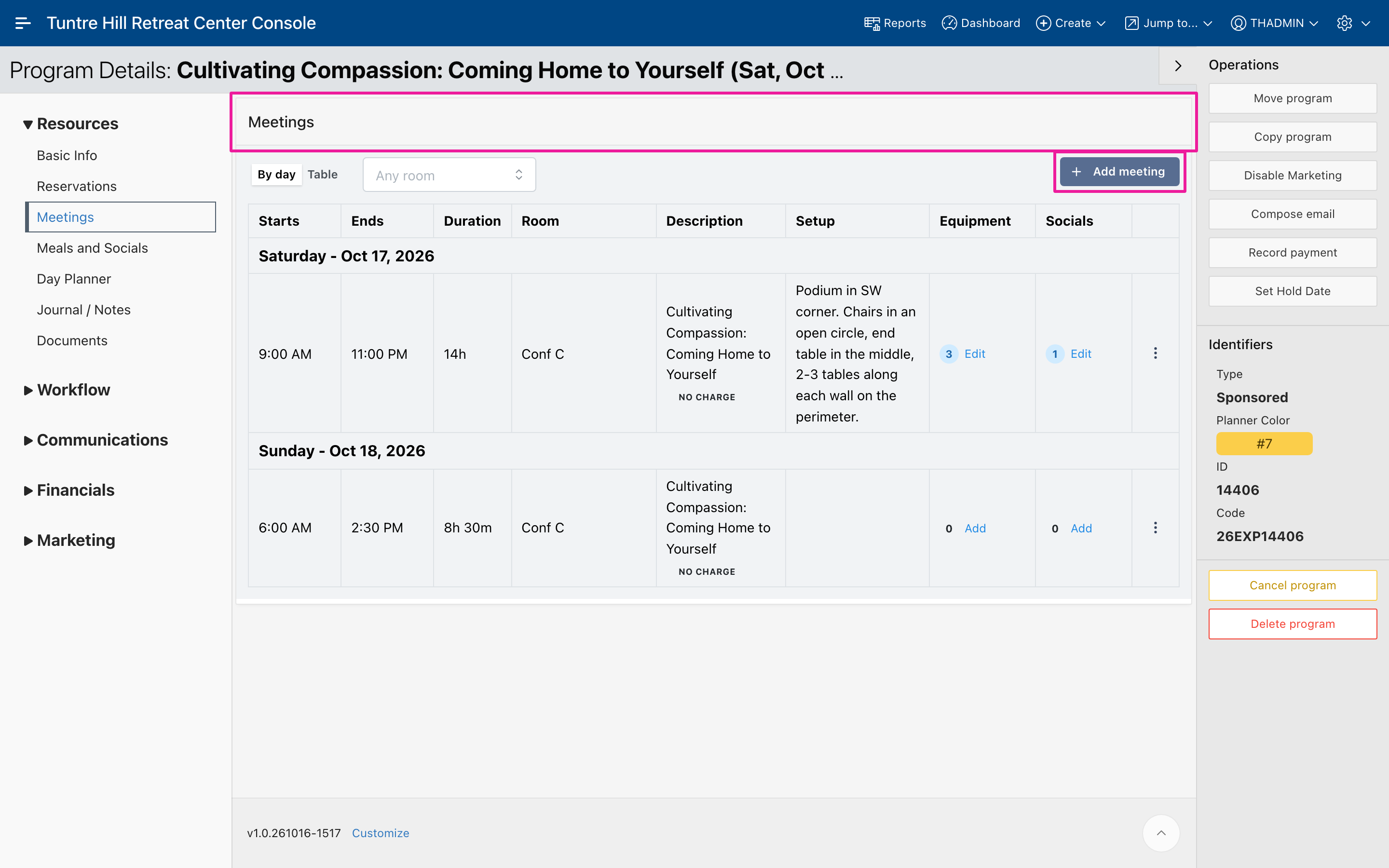
Section titled “The Meetings list”Choose ‘Planning’ > ‘Meetings’ for every booked meeting in a stretch of days, grouped by day. The ‘Equipment’ and ‘Socials’ columns are where you manage both; see The Meetings List. The three dots on a program’s meeting also open that room for every day of the program; see A Room Across the Program.
From a program
Section titled “From a program”Open the program (right-click one of its meetings on the Program Planner and choose ‘View program’, or find it under ‘Planning’ > ‘Program Search’). On the left under Resources, ‘Meetings’ is that program’s own list, and ‘Day Planner’ its own timetable.
One more door
Section titled “One more door”‘Create’ > ‘Meeting’ on the top bar opens the ‘New meeting’ window with nothing filled in, for a booking you want to make without a planner open.