
Copy a Program
Copy Program in Retreat Portal makes one or more new programs from an existing one, with the same length, rooms, meetings, and listing. It’s the quick way to set up next year’s retreat from this year’s, or a day program that repeats every month. The program you copy from is never changed, and it can be one that’s already over.
Open the program
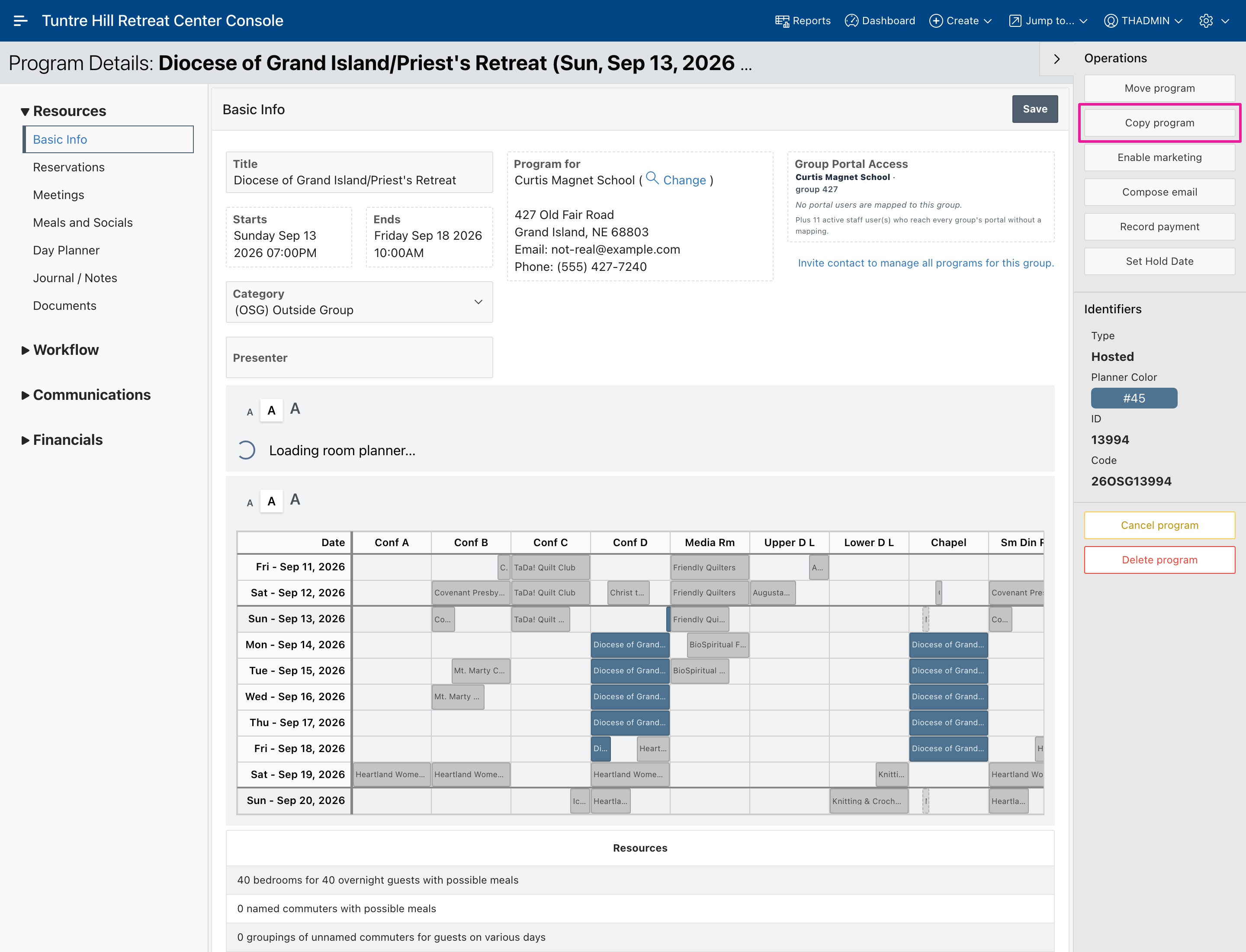
Section titled “Open the program”Find the program in ‘Planning’ > ‘Program Search’ (the menu icon on the top-left) and click ‘Edit’ on its row. For a program that’s already over, widen ‘Dates’ at the top of Program Search so the list reaches back to it. On the program’s page, click ‘Copy program’ under ‘Operations’ on the right.
Set up the copy
Section titled “Set up the copy”In the window that opens:
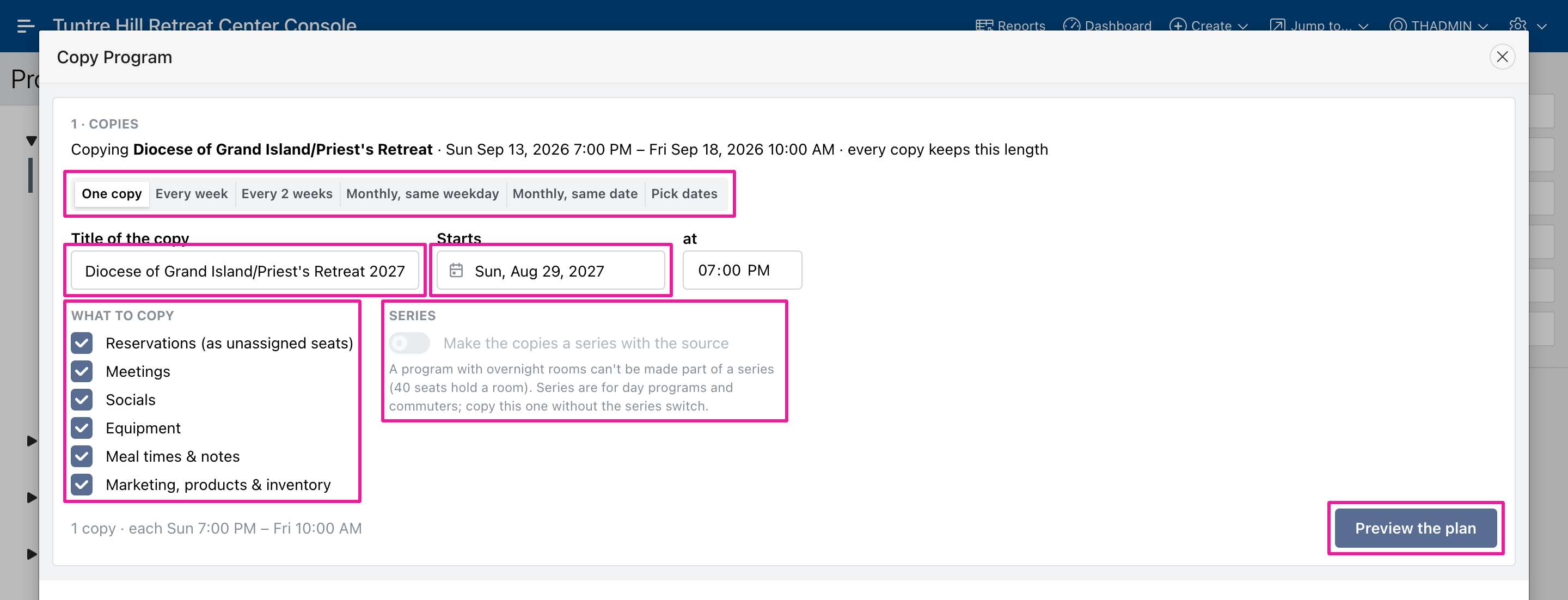
- Choose ‘One copy’, or a repeat: ‘Every week’, ‘Every 2 weeks’, ‘Monthly, same weekday’, ‘Monthly, same date’, or ‘Pick dates’.
- Give the copy a title in ‘Title of the copy’, for example with next year in it.
- Set ‘Starts’ and ‘at’. Every copy keeps the original’s length, so there’s no end date to set.
- Under ‘What to copy’, untick anything you don’t want. Reservations come across as open seats in the same rooms, without the guests.
Click ‘Preview the plan’.
Review the plan and start the copy
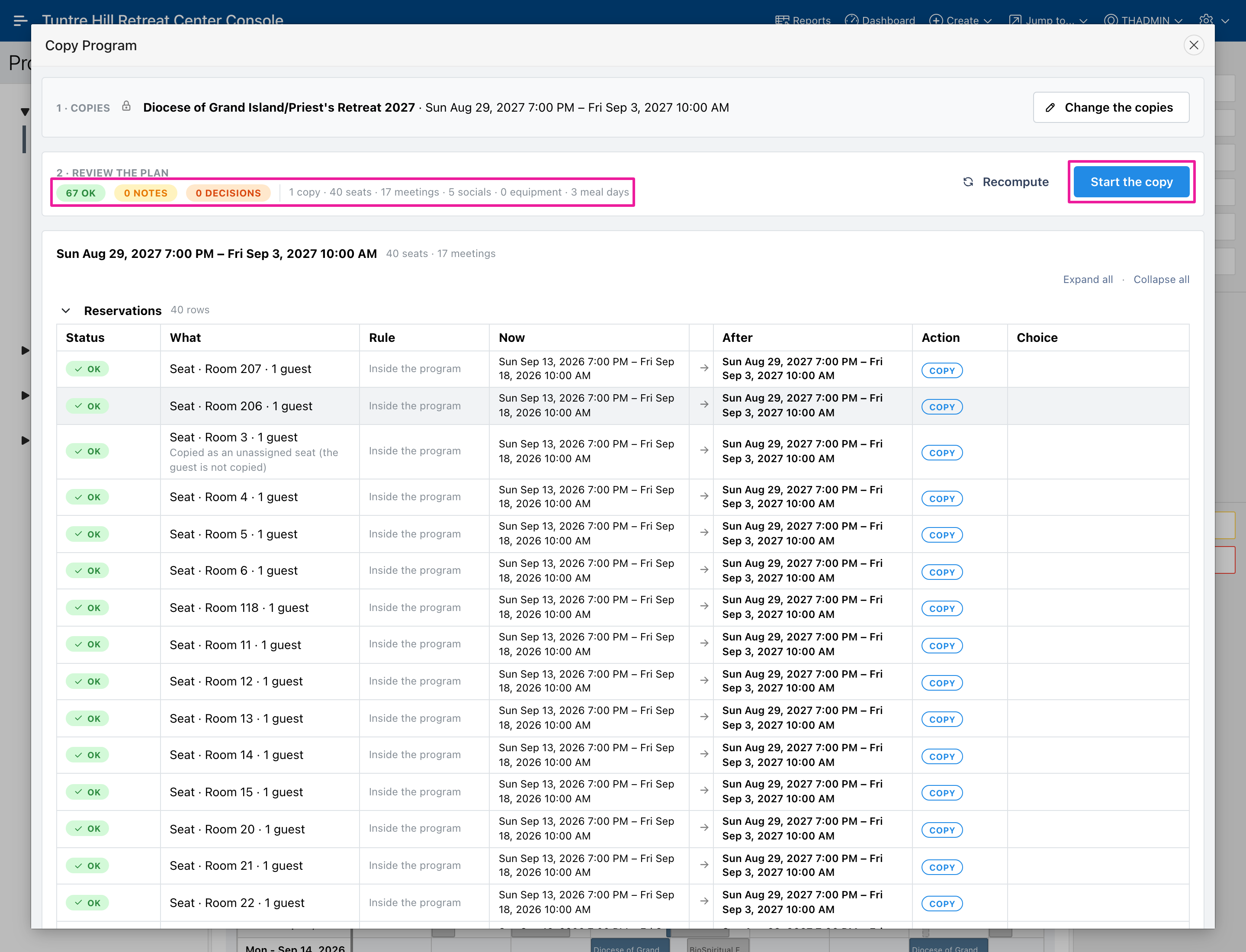
Section titled “Review the plan and start the copy”The plan lists every seat, meeting, social, and listing date the copy will get, with its new dates. When the room is free for every row, click ‘Start the copy’.
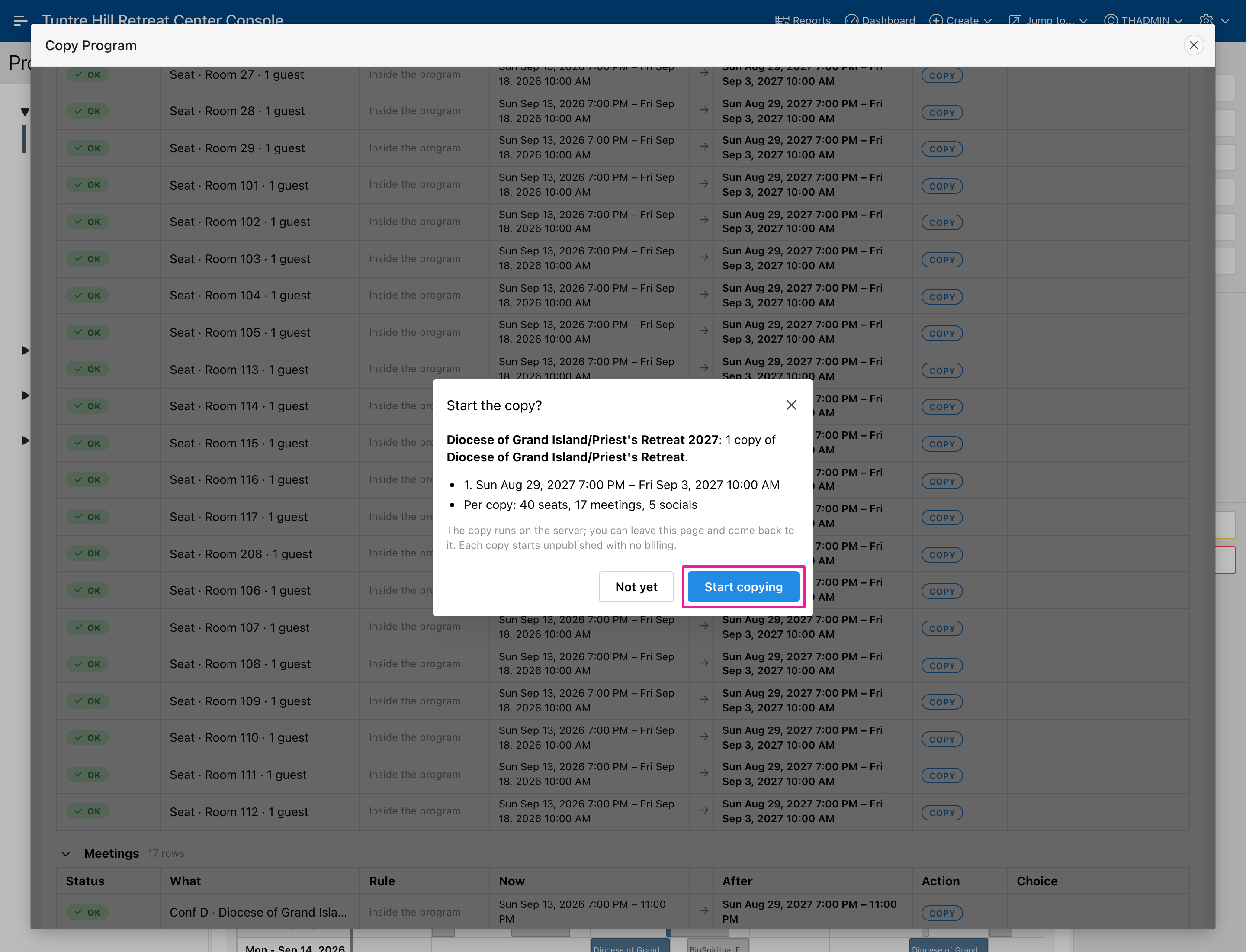
The window that opens sums it up. Click ‘Start copying’.
The copy runs in the background with a progress bar, so you can leave the page and come back. While it runs, a line under the progress bar says whether the center’s background sync is keeping up with it; if a copy stops partway, that same line tells you when everything written so far has caught up, so you know it’s safe to resume. When it’s done, the window lists the new programs and a ‘Still to do’ list. Each copy starts unpublished and without billing, so publish its listing and set up its pricing when you’re ready. If a copy stops partway, click ‘Resume’ to finish it, or ‘Discard the copy’ to delete what it created. The original is never touched. Click ‘Back to program’ to close the window.
When a room is already taken
Section titled “When a room is already taken”If another booking already holds a room or meeting room on the new dates, that row needs a decision and the button reads ‘Decide N rows to start’. Click ‘Leave out of the copy’ on the row, or ‘Leave out all N conflicts’ at the top. You can also click ‘Change the copies’ and pick other dates.
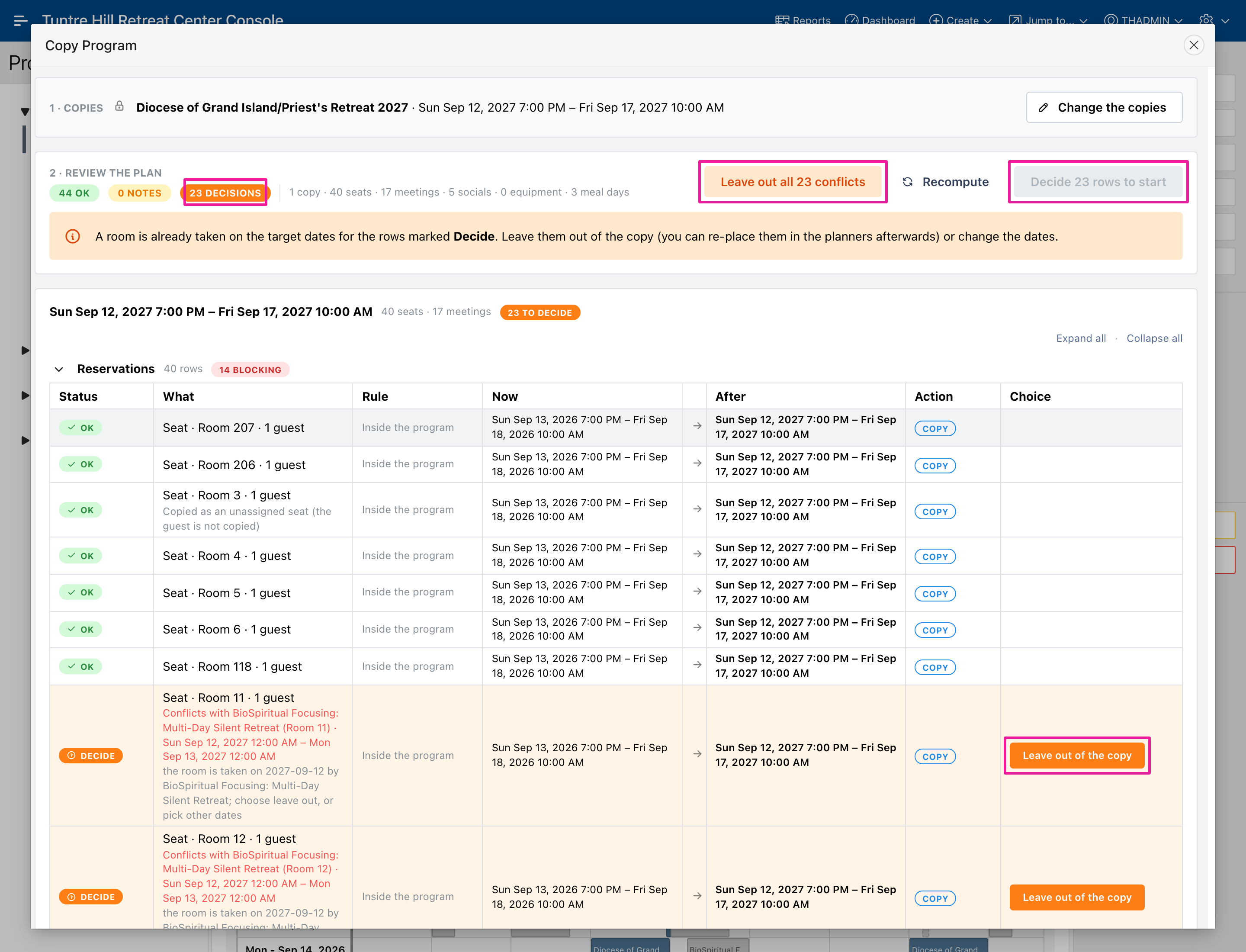
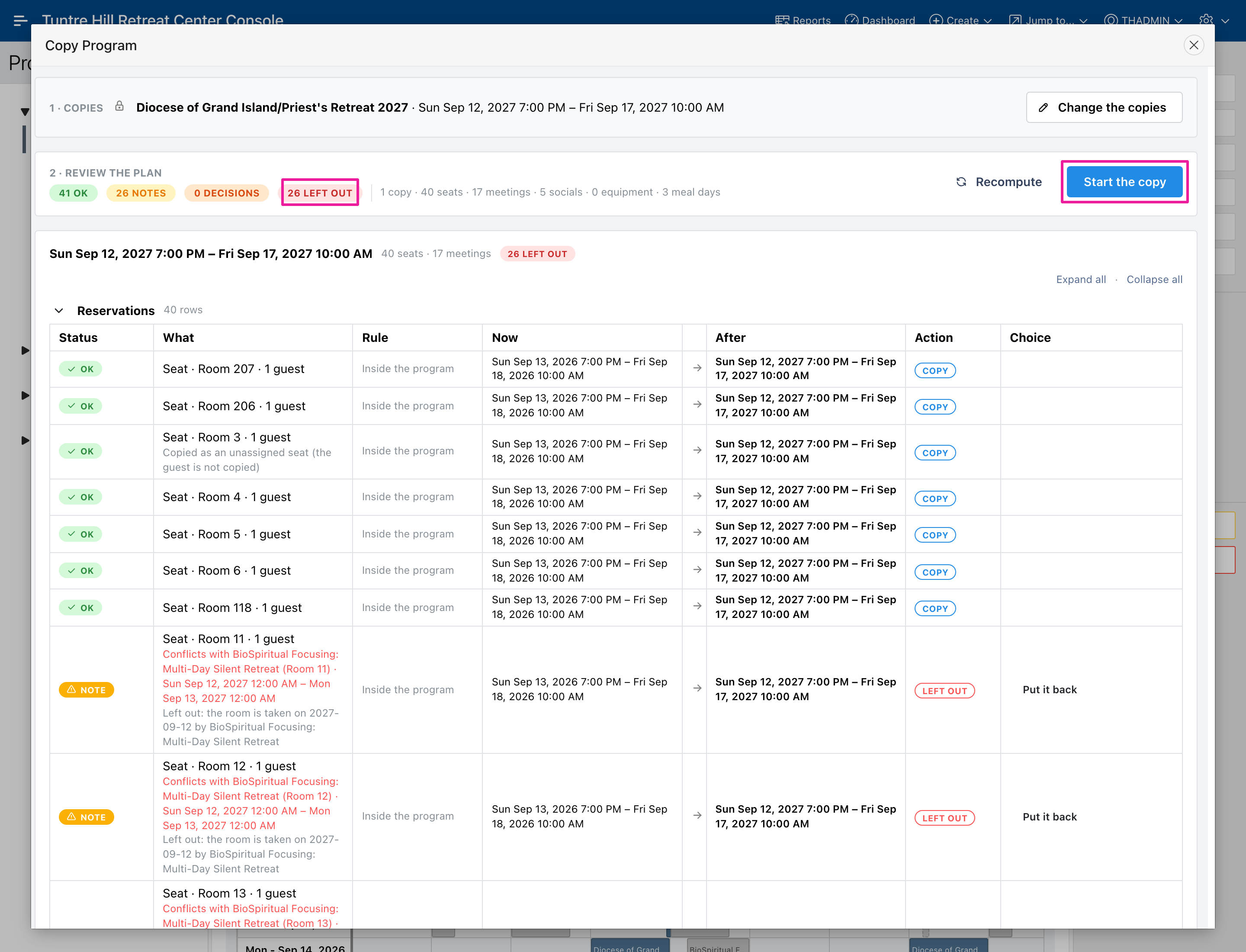
The rows you leave out are marked ‘Left out’, and ‘Put it back’ undoes one. Once nothing is left to decide, ‘Start the copy’ is back. Add the left-out seats and meetings in the Program Planner after the copy is made.
Make a series
Section titled “Make a series”A repeat can also become a series with the original. Choose the repeat, set ‘First copy starts’ and how many ‘Copies’, and check the dates listed underneath. Click the ✕ on any date to drop it. Then switch on ‘Make the copies a series with the source’. The original becomes the series parent and each copy joins it. If the original is already in a series, the copies join that series instead. Guests you add to the parent are added to the other programs in the series automatically, within a few minutes.
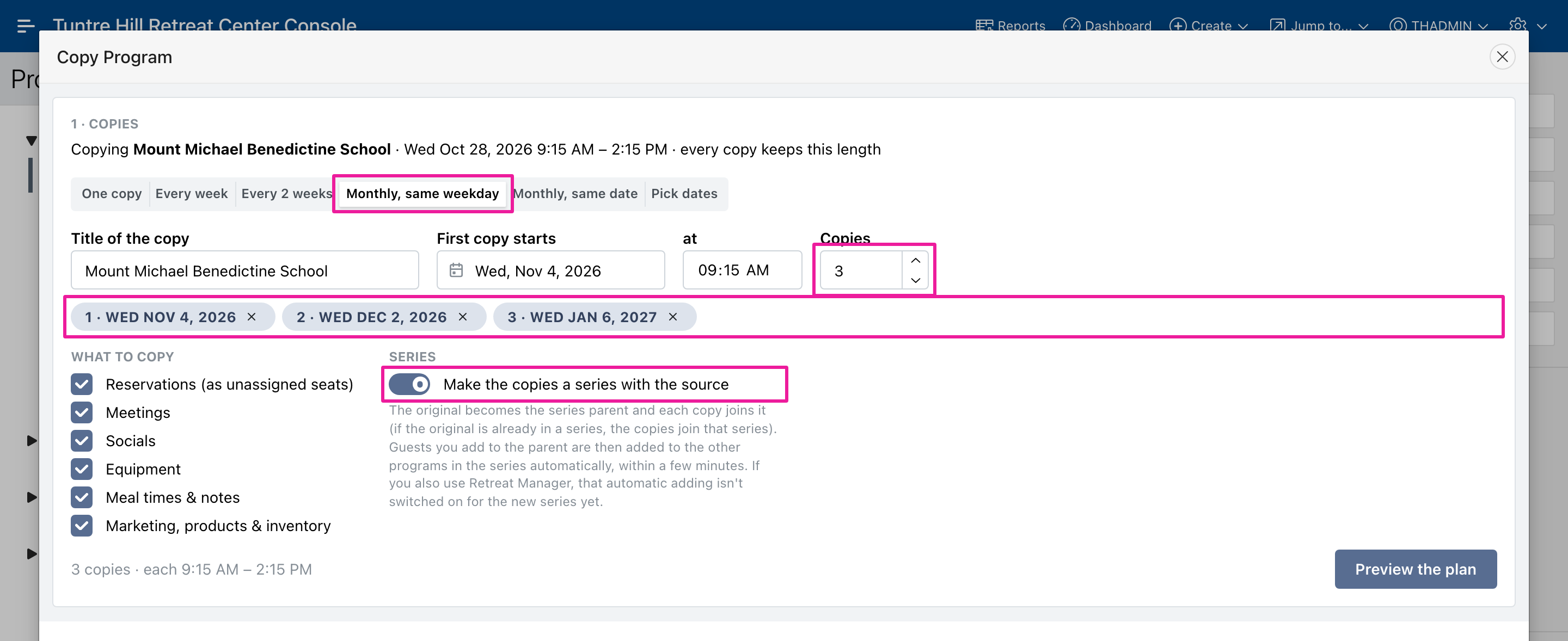
Series are for day programs and commuters. When the original holds overnight rooms, the switch is turned off and a note says why. Copy it without the series instead.