
Edit a Document
Retreat Portal has a built-in editor for the documents it fills in and sends: welcome letters, registration agreements, program summaries, and the like. Use it to change wording, fix a typo, or add a paragraph without leaving the portal. Editing is available for HTML documents, the type marked ‘HTML’ in the list. Word and PDF files can’t be edited here; upload a new version instead (see Saving and Version History).
Open the editor
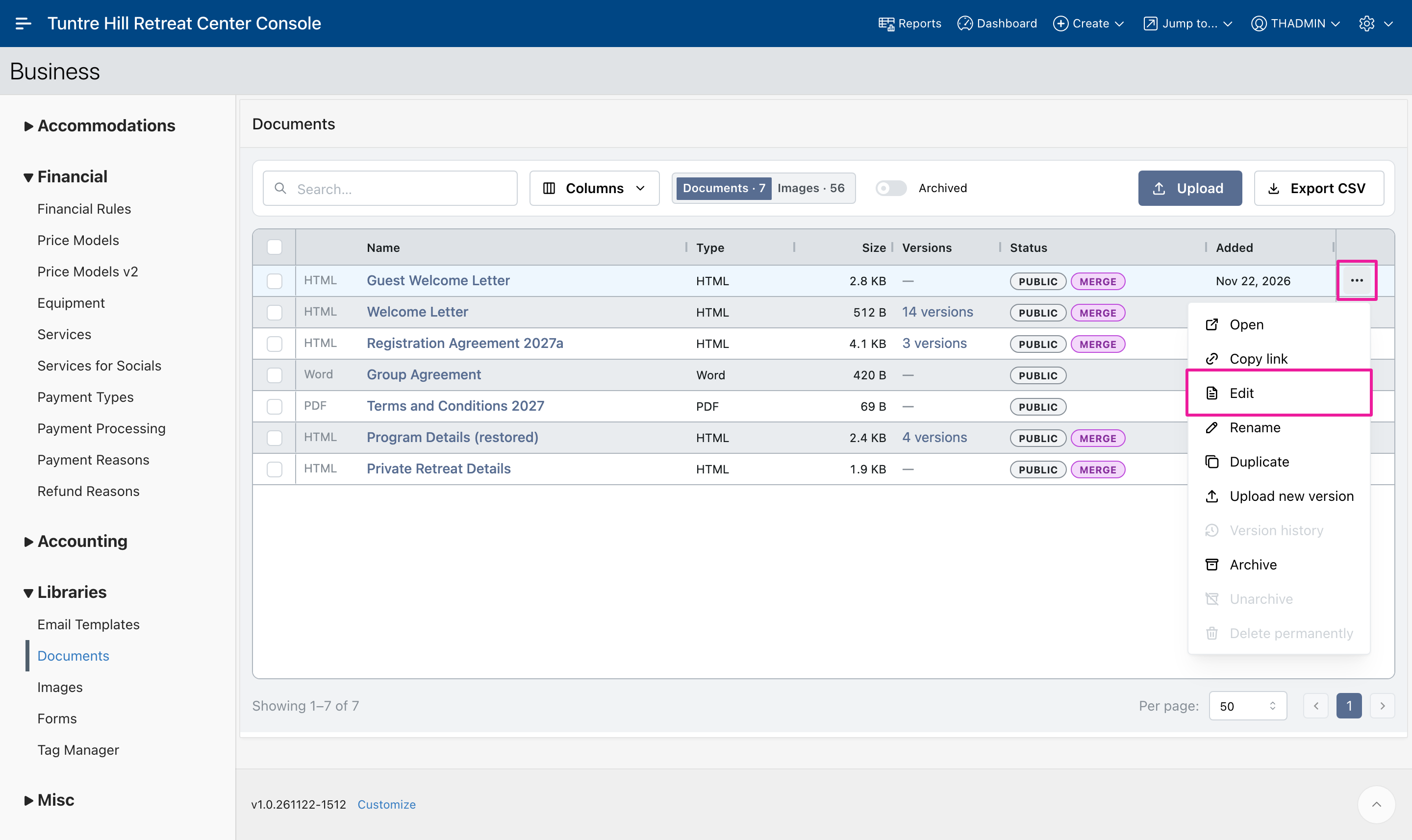
Section titled “Open the editor”Click the gear icon on the top-right and select ‘Business’. On the left, expand ‘Libraries’ and click ‘Documents’. Find the document in the list, click the three dots on the far right, and select ‘Edit’.
Find your way around
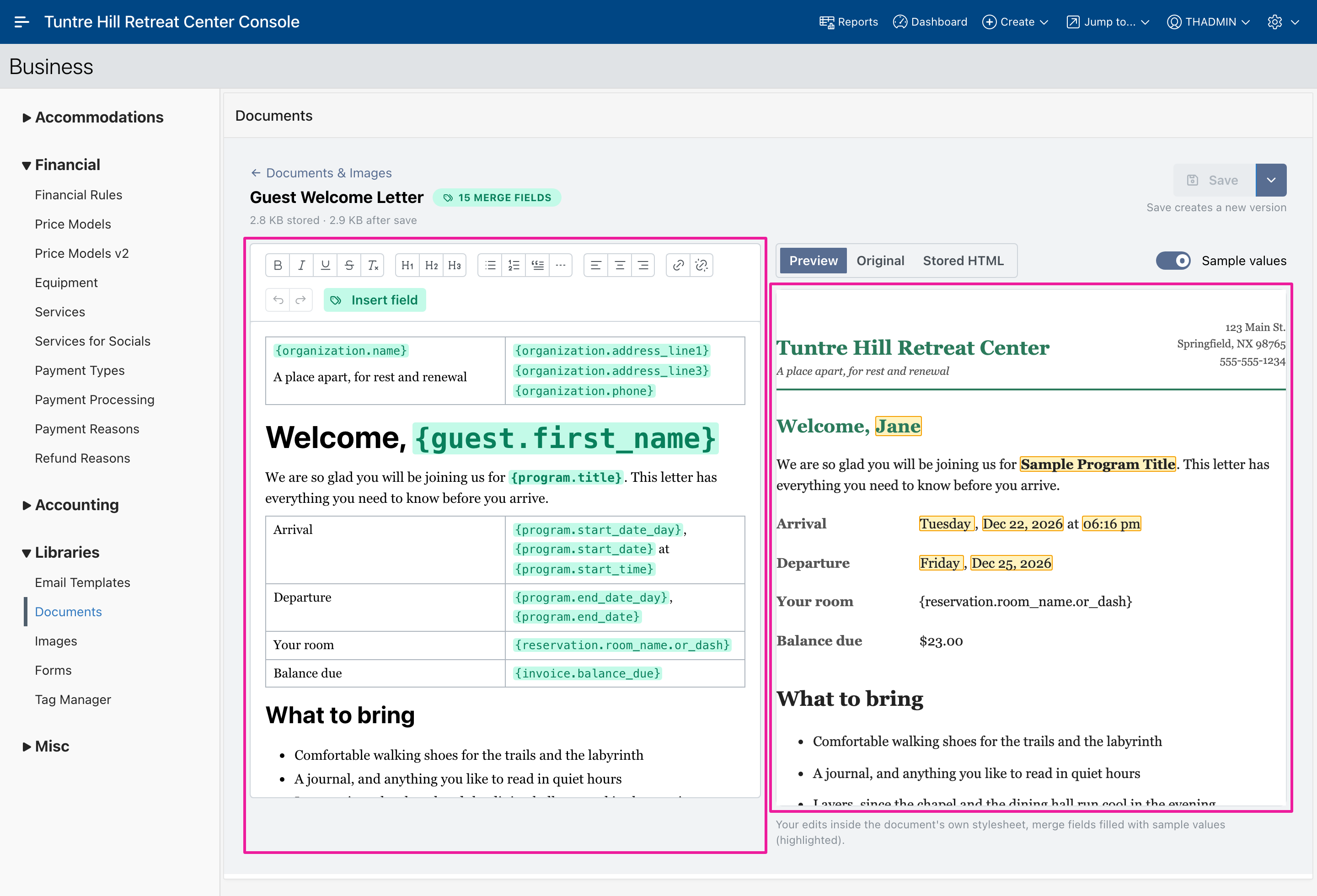
Section titled “Find your way around”The editor opens with two panes. The left pane is where you type. The right pane is a live preview of the finished document, exactly as a guest would see it, updating as you go. Merge fields such as {program.title} are highlighted in green on the left and filled in with sample values on the right (see Merge Fields).
Format the text
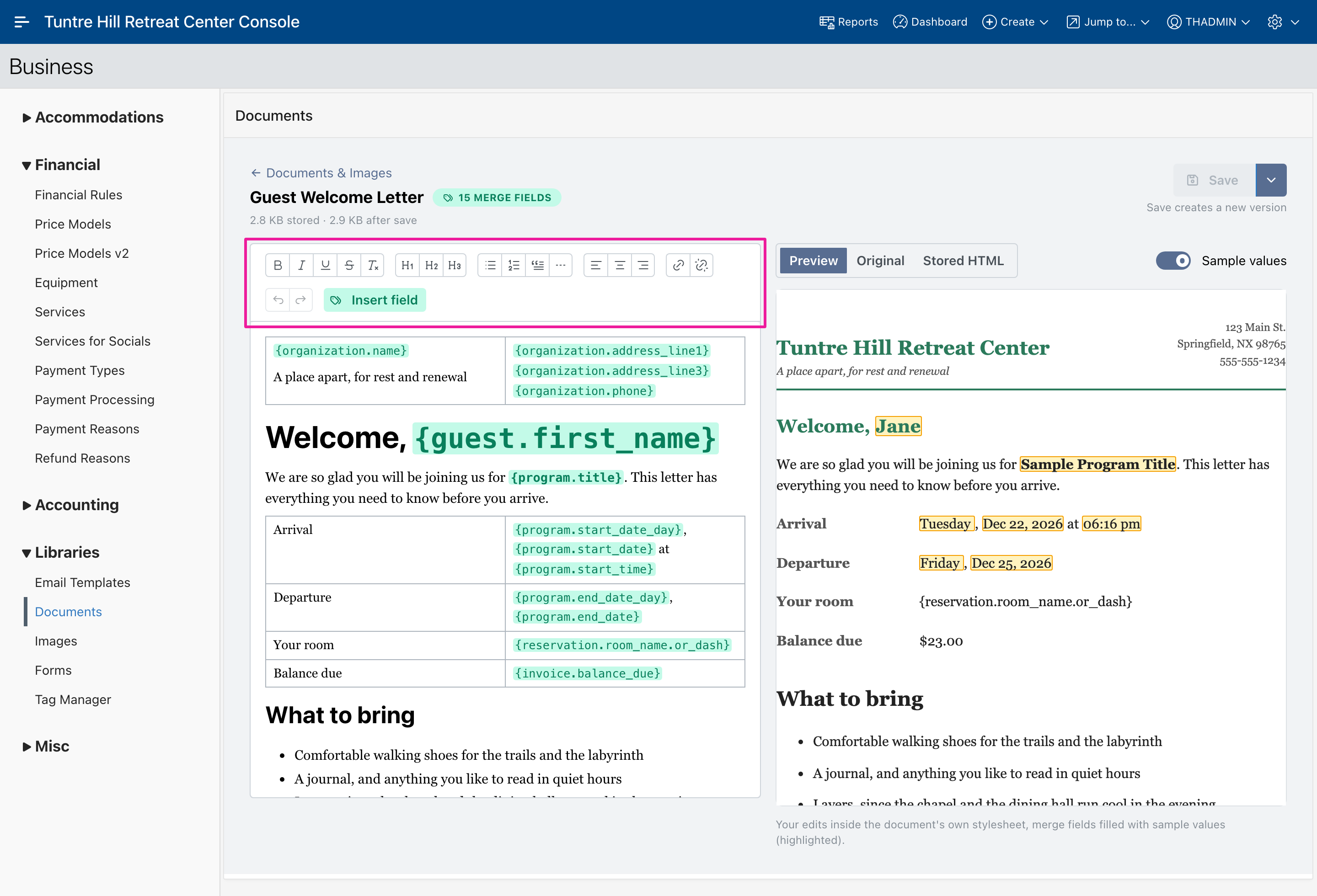
Section titled “Format the text”The toolbar above the editing pane works the way a word processor does. Select some text, then click bold, italic, underline, or strikethrough. The ‘H1’, ‘H2’, and ‘H3’ buttons turn a line into a heading; the next group makes bulleted and numbered lists, quotes, and a divider line. Alignment buttons follow, then link and unlink, and undo and redo. Click the last button in the first group, the ‘T’ with the small x, to clear formatting from the selected text.
Check your work
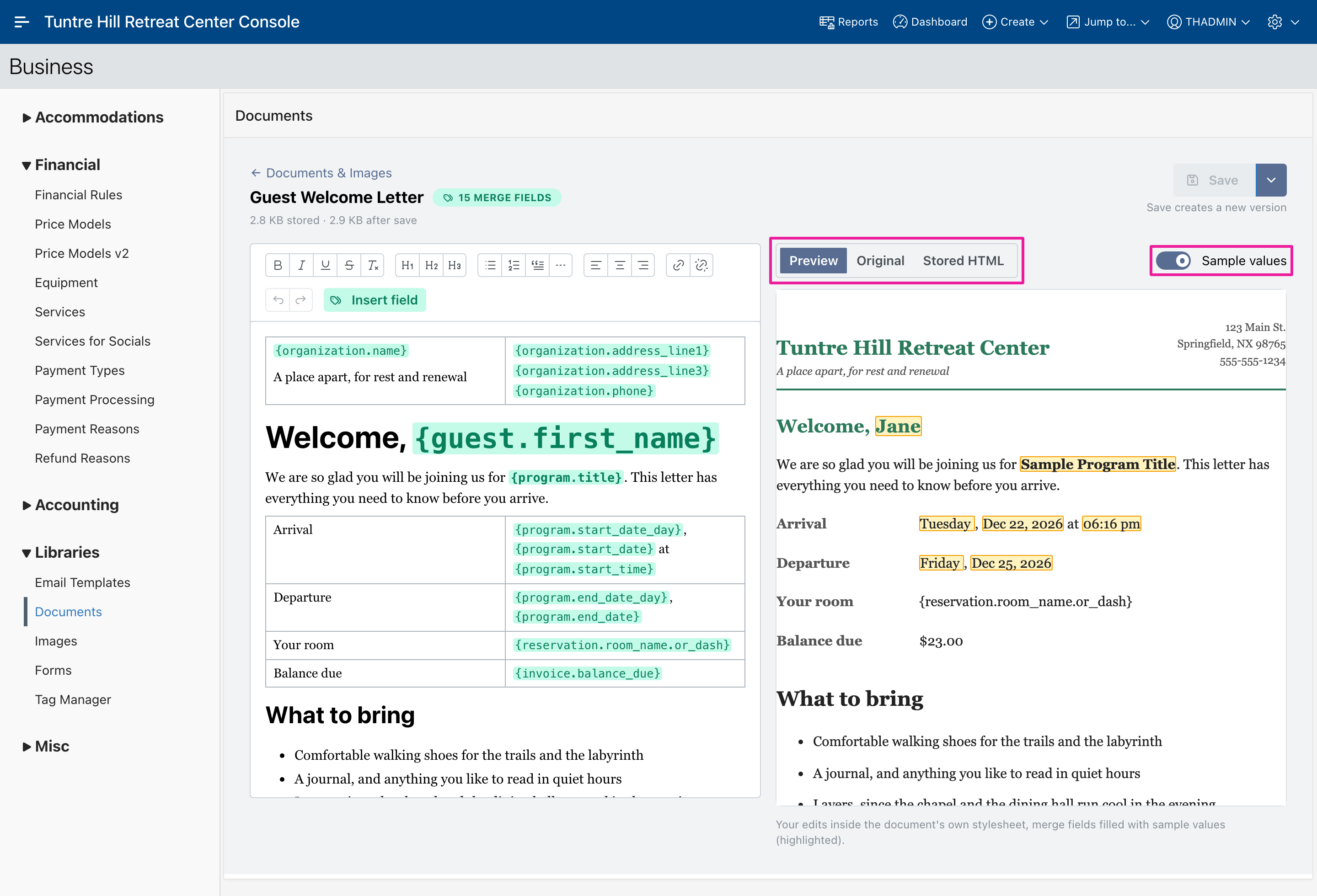
Section titled “Check your work”Above the preview, ‘Preview’ shows the document with your changes. ‘Original’ shows the document as it’s saved right now, so you can flip between the two to compare. ‘Stored HTML’ shows the underlying code, which you won’t normally need. The ‘Sample values’ switch fills merge fields with example values in the preview; turn it off to see the raw field names instead.
When you’re done, click ‘Save’ on the top-right. Saving and Version History explains what Save does and how to get an earlier version back. If you leave the page with unsaved changes, the editor asks first.