The Document Library
The Document Library in Retreat Portal holds every file your center has uploaded that isn’t a picture: welcome letters, registration agreements, contracts, maps, and the documents the portal fills in and sends to guests and groups. Come here to find a document, share a link to it, or start editing one.
Open the library
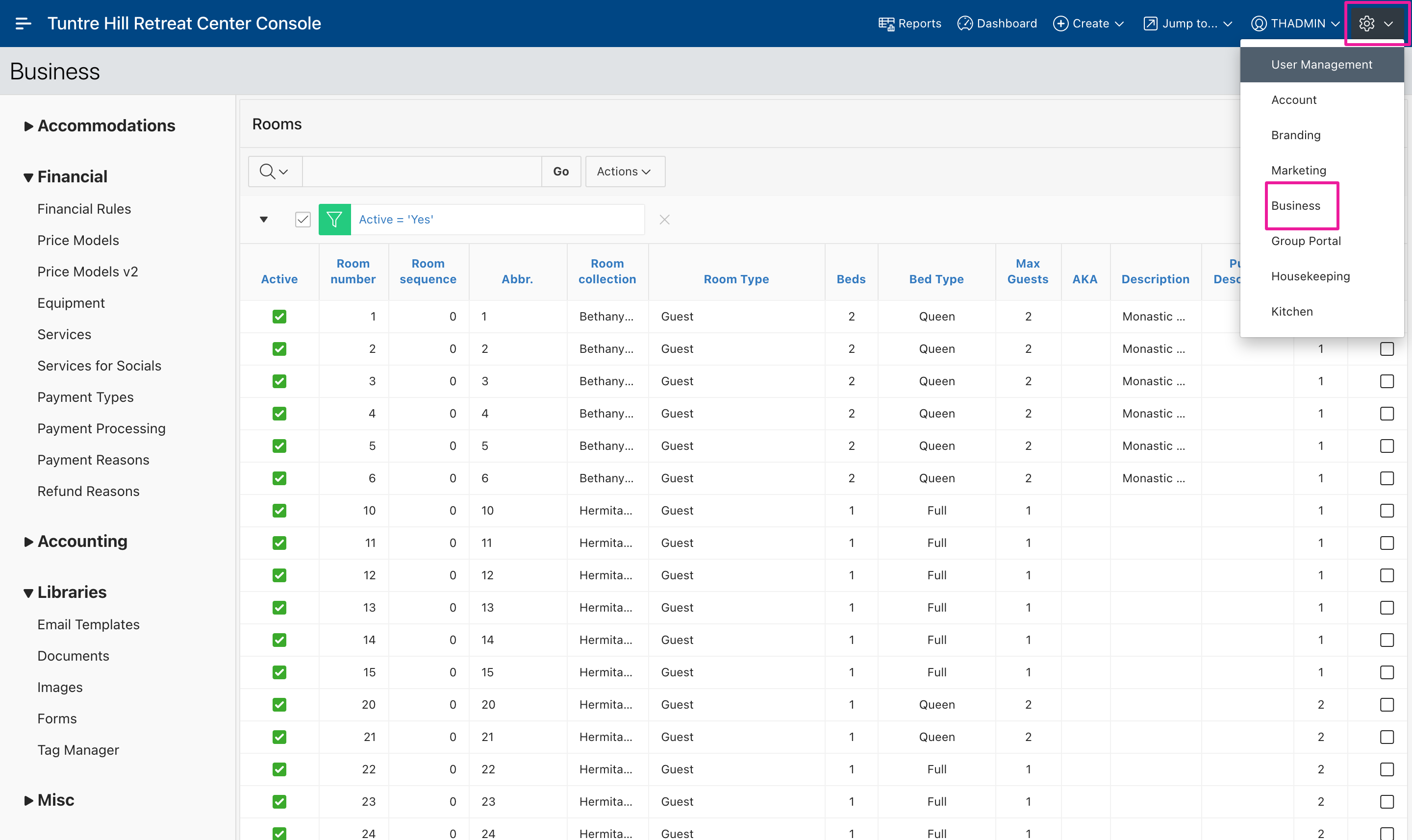
Section titled “Open the library”Click the gear icon on the top-right and select ‘Business’.
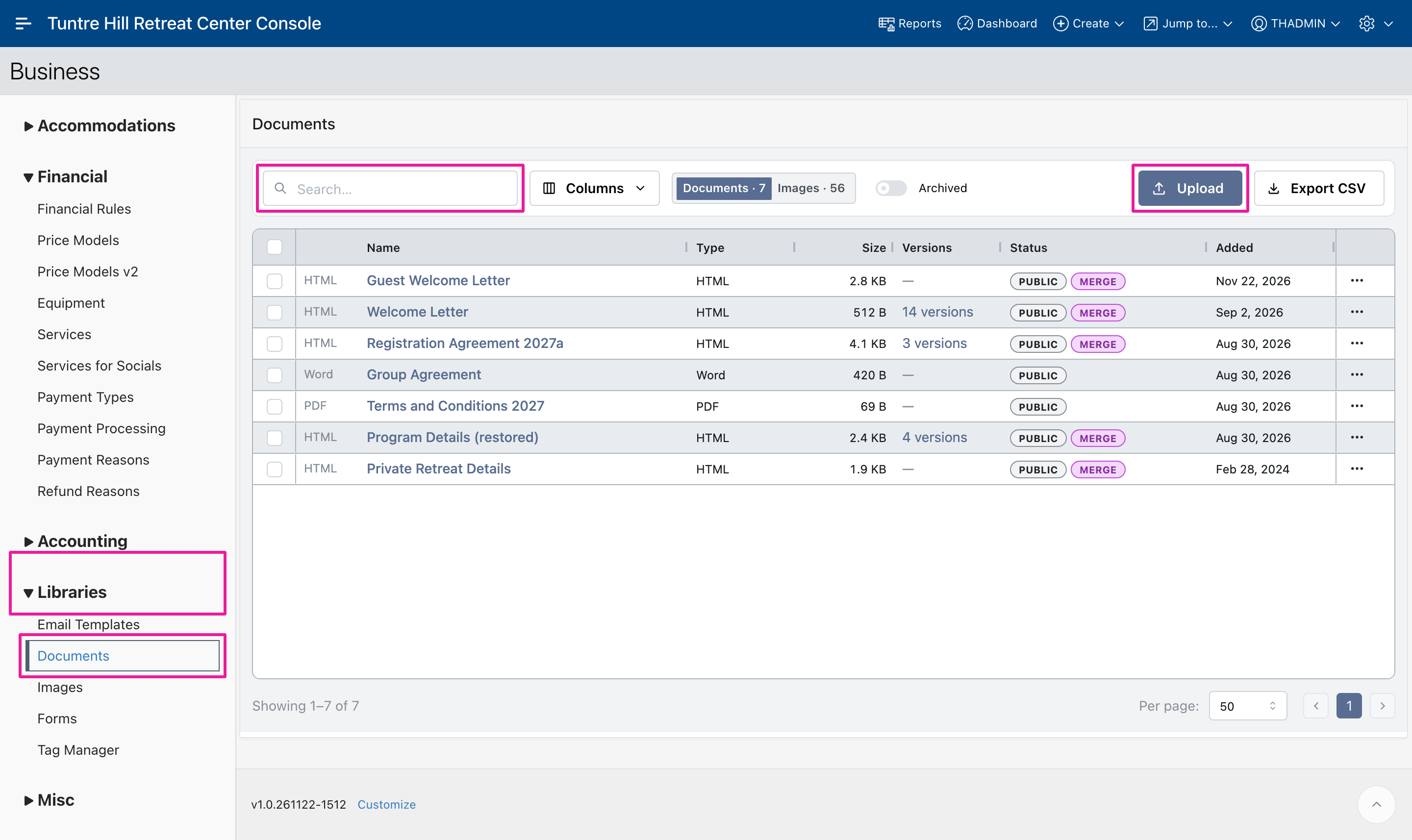
On the left, expand ‘Libraries’ and click ‘Documents’. Type in the search box to find a document by name, and use the ‘Upload’ button on the right to add one (see Upload a Document).
Read the list
Section titled “Read the list”Each row is one document. The ‘Type’ column tells you what kind of file it is, and ‘Versions’ shows how many saved versions it has; click that link to see them. Under ‘Status’, a ‘Merge’ badge means the document contains merge fields that the portal fills in for each guest or group.
Click a document’s name for a quick look at its details.
Open or share a document
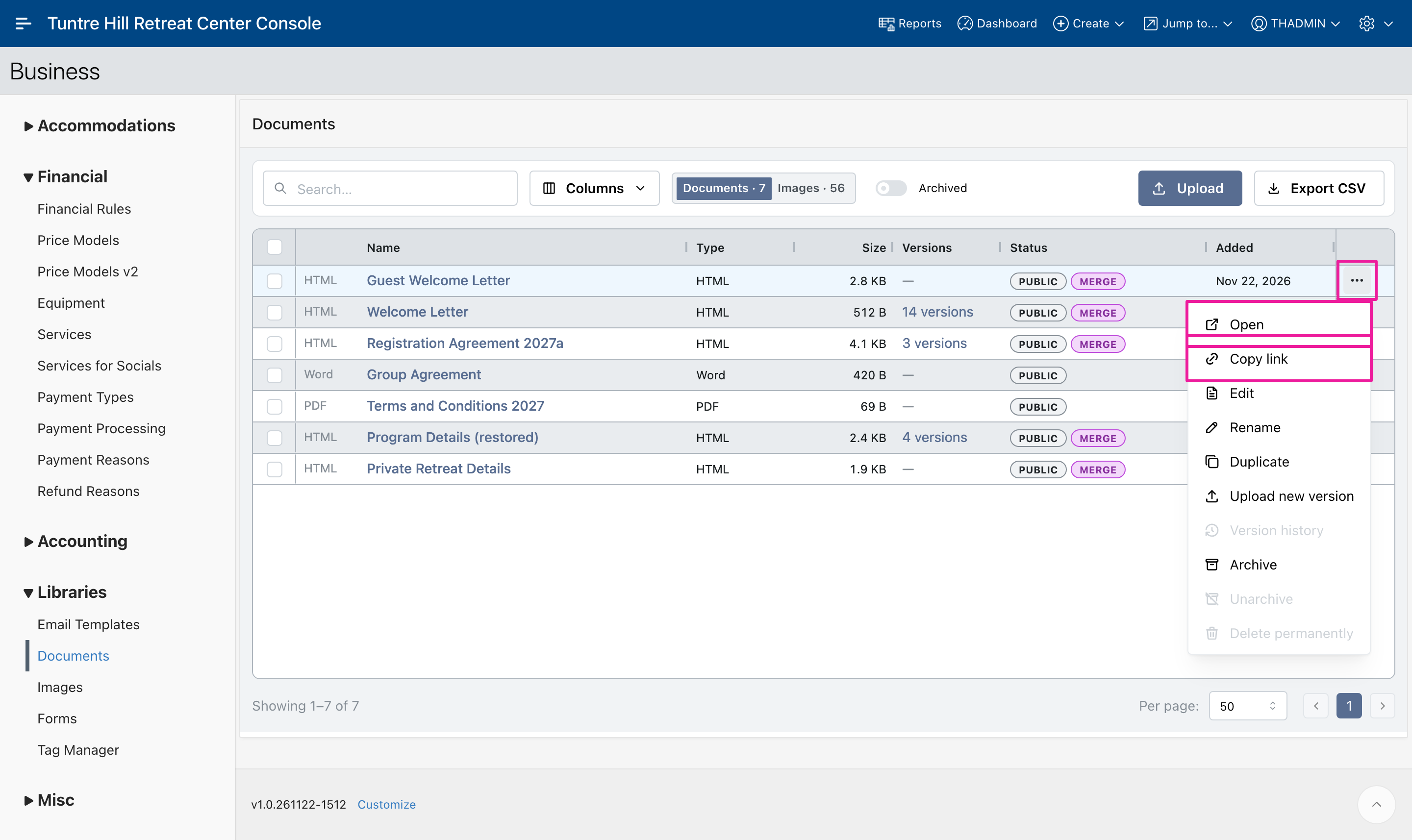
Section titled “Open or share a document”Click the three dots on the far right of a row. ‘Open’ shows the document in a new browser tab. ‘Copy link’ puts a link on your clipboard that you can paste into an email or a web page.
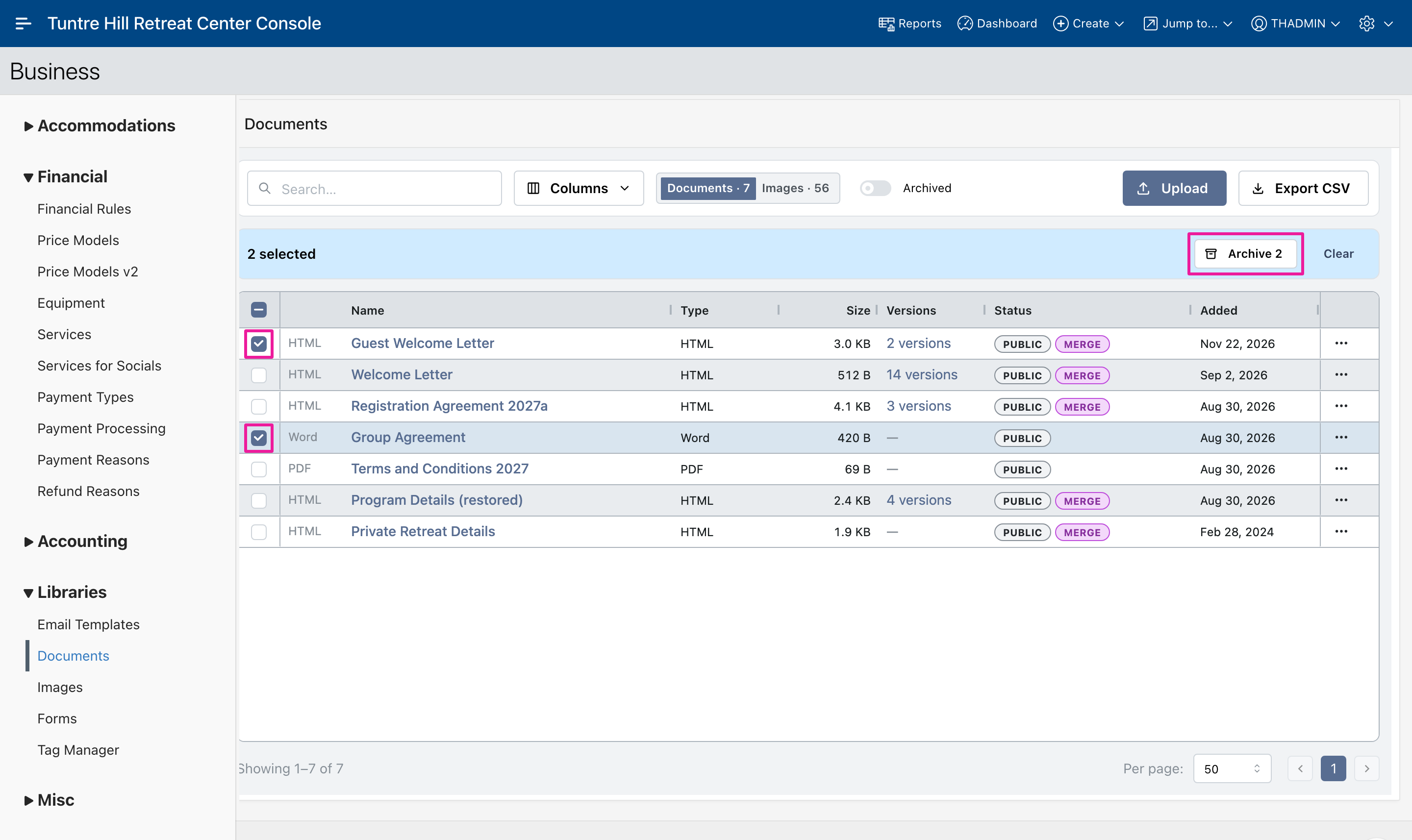
Work on several at once
Section titled “Work on several at once”Tick the checkboxes at the left of the rows and an action bar appears above the list with what fits the selection — ‘Archive’ for current documents, ‘Unarchive’ and ‘Delete permanently’ for archived ones, each showing how many rows it will touch. Deleting asks for a confirmation first, and anything in the selection that can’t take the action — a built-in system document, say — is left alone and named in a notice while the rest goes ahead. What archiving and deleting mean is covered in Rename, Duplicate, and Archive.