
Book Meeting Rooms on the Program Planner
The quickest way to book meeting rooms is straight on the Program Planner: drag across the rooms and days you need, right-click, and Retreat Portal books one meeting per room per day.
Find the meeting rooms
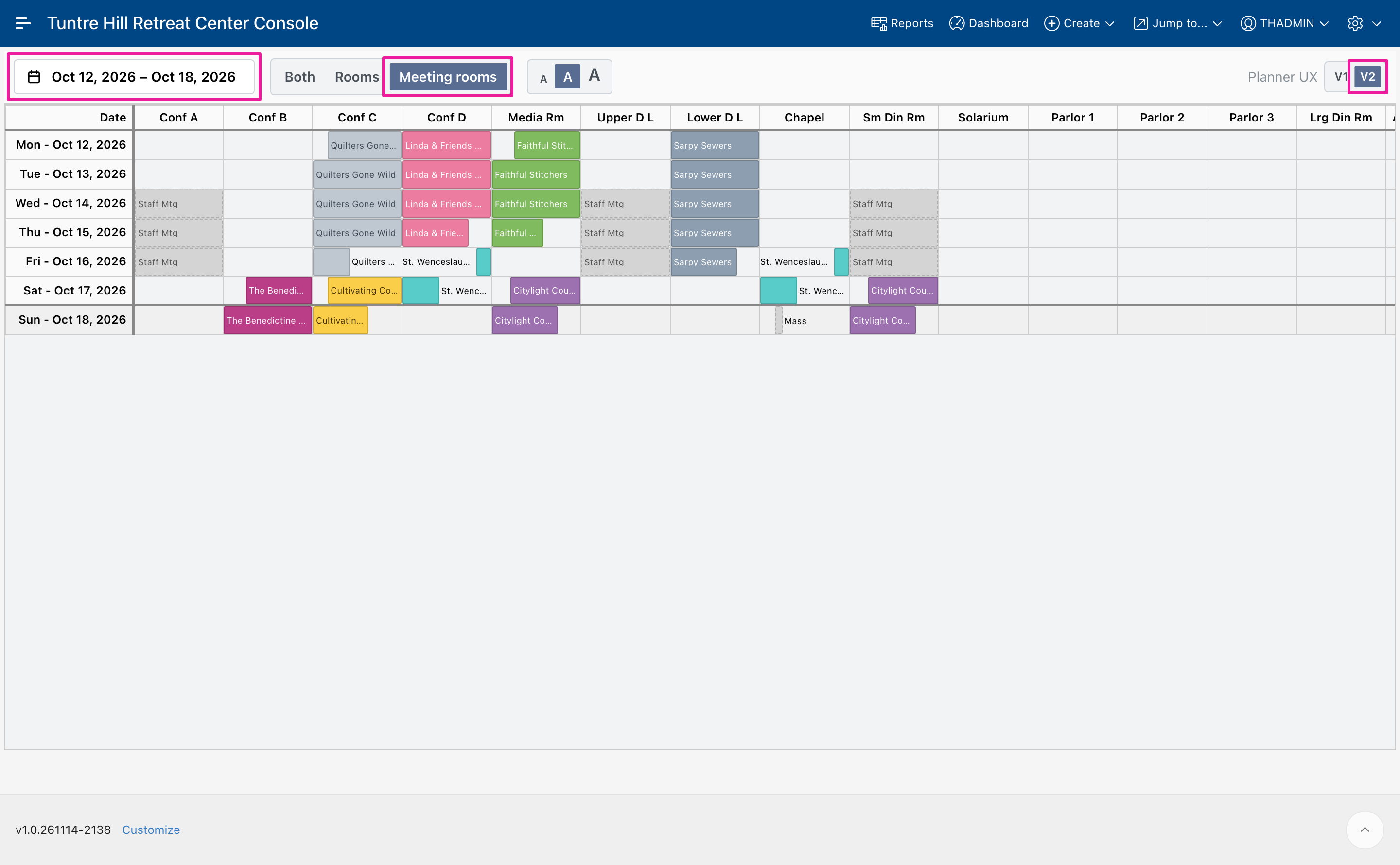
Section titled “Find the meeting rooms”Click the menu icon on the top-left and choose ‘Planning’ > ‘Program Planner’. Switch the view to ‘Meeting rooms’ and pick the dates with the date range button. Each row is a day, each column a room, and each band a meeting already booked. A band’s width is the meeting’s length, so a short meeting can be too narrow for its name — the name then sits in plain text beside the band, and hovering or right-clicking the band itself still works the same. A band outlined in yellow is a room booked twice at that time — a solid outline for another program’s booking, a dashed one for the same program’s own duplicate; the same warning appears on the Meetings list. The ‘A A A’ control beside the view switch sets the grid’s text size — handy on a wall display or for reading glasses — and Retreat Portal remembers your choice. If the page opens on the older planner, set ‘Interface’ at the top to ‘v2’.
Select rooms and days
Section titled “Select rooms and days”Click an empty cell and drag across the block of rooms and days you want; the block shades as you go. As you move, the date and room headers under the pointer light up, so you can aim a selection on a wide grid by its headers. Hold Shift and drag again to add rooms that are not next to the first block, for the same days. A plain click anywhere starts over. The clip below runs the whole gesture, from the first drag to the open window.
Create the meetings
Section titled “Create the meetings”Right-click inside the selection and choose ‘New meetings · 3 rooms × 3 days’ (the numbers follow your selection). The ‘New meeting’ window opens with those rooms as chips at the top and the dates already filled in. Assign the program, set the daily times and setup notes, and create; The ‘New meeting’ Window covers every field.
One room, one day
Section titled “One room, one day”For a single slot, right-click the empty cell and choose ‘New meeting here’. The window opens with that room and day; pick the program and click ‘Create meeting’.
To change a meeting you have already booked, right-click its band and choose ‘Edit meeting’; see Change or Cancel a Meeting.