
Change or Cancel a Meeting
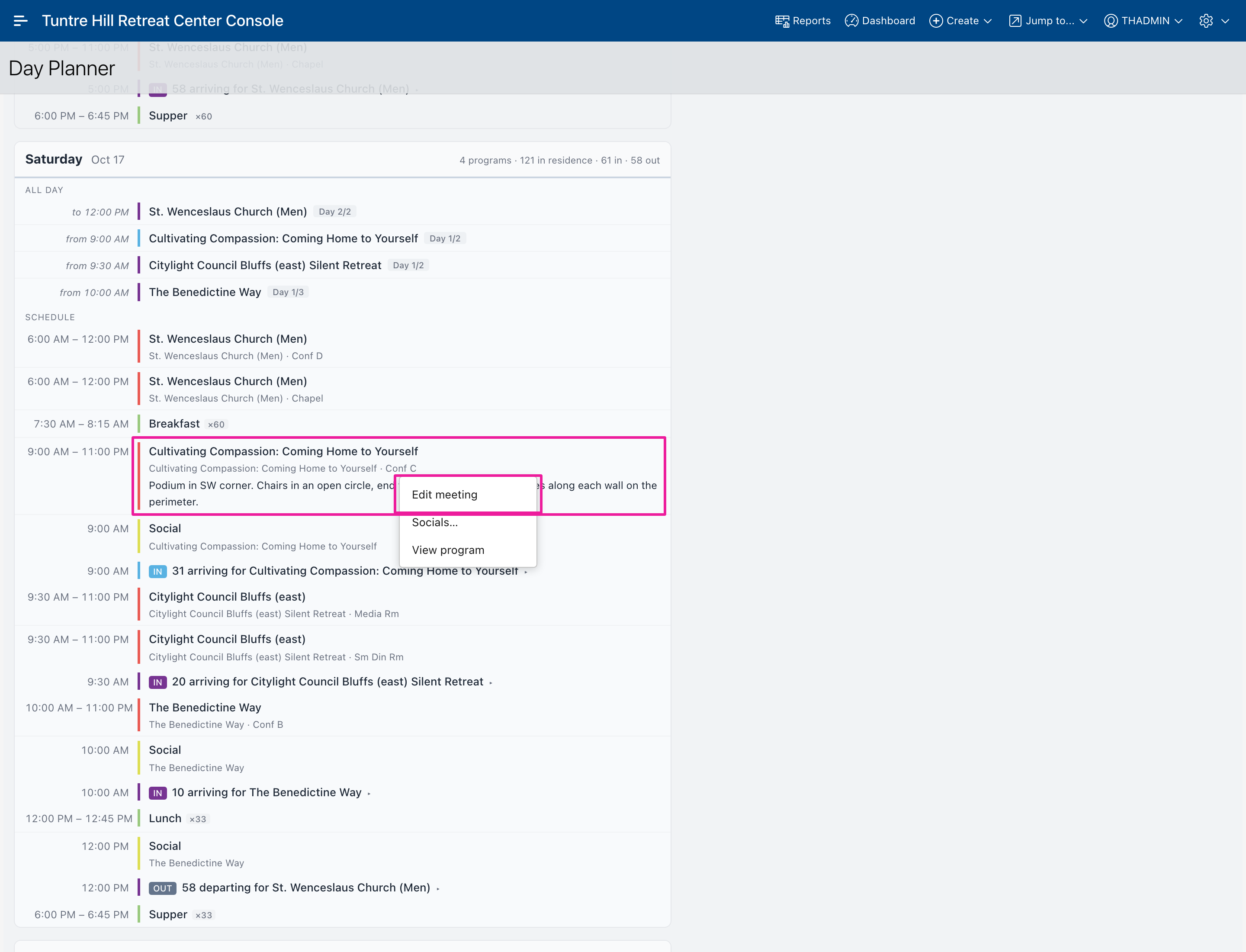
Right-click a meeting on the Program Planner or the Day Planner and choose ‘Edit meeting’ to change its room, day, times, or notes, or to remove it. The ‘Meeting’ window changes one day. To change a room on several days of a program at once, use A Room Across the Program.
Open it
Section titled “Open it”Click the menu icon on the top-left and choose ‘Planning’ > ‘Day Planner’. Find the meeting in the day’s schedule, right-click it, and choose ‘Edit meeting’. The same menu appears when you right-click a meeting band on the Program Planner, and ‘Edit this meeting’ on a row of the Meetings list does the same.
Change it
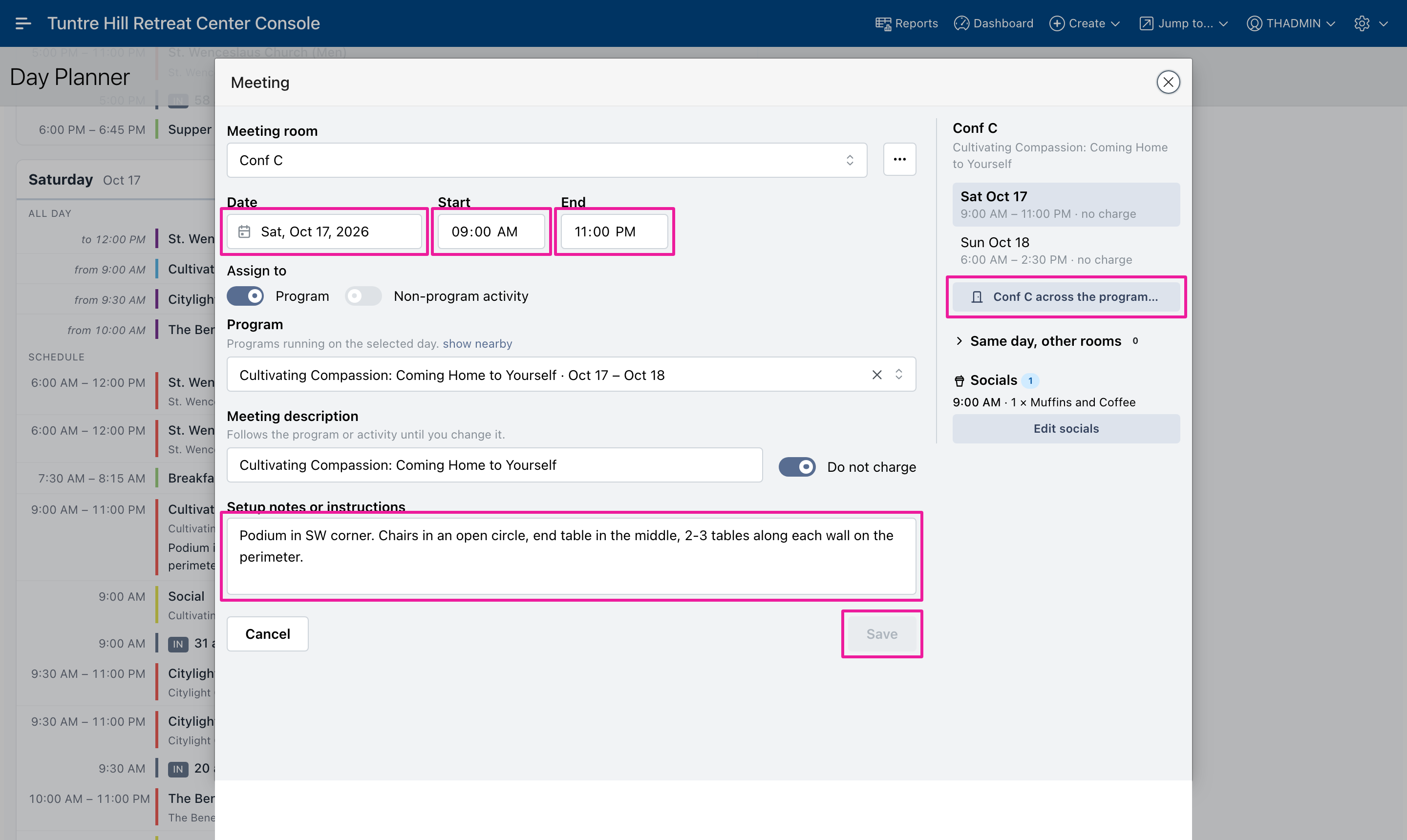
Section titled “Change it”The ‘Meeting’ window shows the booking: ‘Meeting room’, ‘Date’, ‘Start’ and ‘End’, which program or activity it belongs to, ‘Meeting description’, ‘Do not charge’, and ‘Setup notes or instructions’. Change what you need and click ‘Save’. As you change the room, day, or times, the window checks the room: a yellow notice names any booking already there at that time — another program’s, or this program’s own duplicate — and says so plainly: “A warning only — you can still save.”
The program’s other days in this room
Section titled “The program’s other days in this room”The list on the right shows the program’s meetings in this room by date, with the one you opened highlighted; click another day to switch to it. The button under the list, named after the room (‘Conf C across the program…’), opens A Room Across the Program in the same window, where you can re-time, copy, or release several days at once; its back button returns to this meeting. ‘Same day, other rooms’ lists the program’s other rooms that day.
Remove it
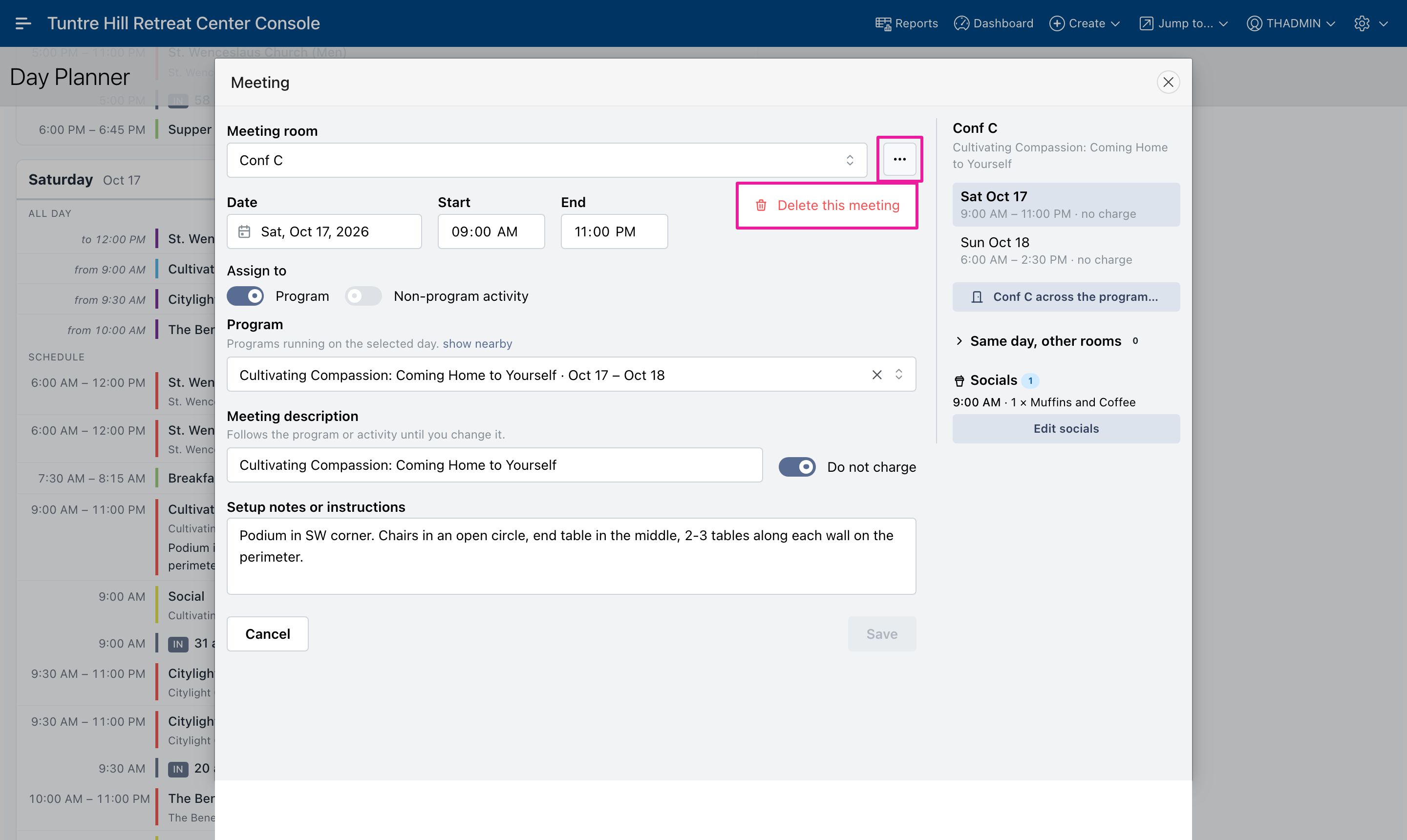
Section titled “Remove it”Click the three dots next to the room and choose ‘Delete this meeting’. Confirm in the strip that appears. Deleting a meeting also removes its socials and equipment. To remove the room from several days, use ‘Release selected’ in A Room Across the Program.
Meetings that span several days
Section titled “Meetings that span several days”An older booking that covers more than one day opens with ‘From’ and ‘To’ instead of a date. Edit it as it is, or click ‘Split into days’ to turn it into one meeting per day, which is how new meetings are always booked.