
Opening Meal Planning
The meal pages — ‘Meals (live)’, ‘Meals’, and ‘Meal Summary’ — live in two places in Retreat Portal, and both show the same thing. The office usually opens them inside Retreat Portal itself; the kitchen usually opens the Kitchen app, which is the same pages on their own, with nothing else in the way. Pick whichever suits the device in your hand, and the rest of the Meal Planning tutorials read the same either way.
From the main menu
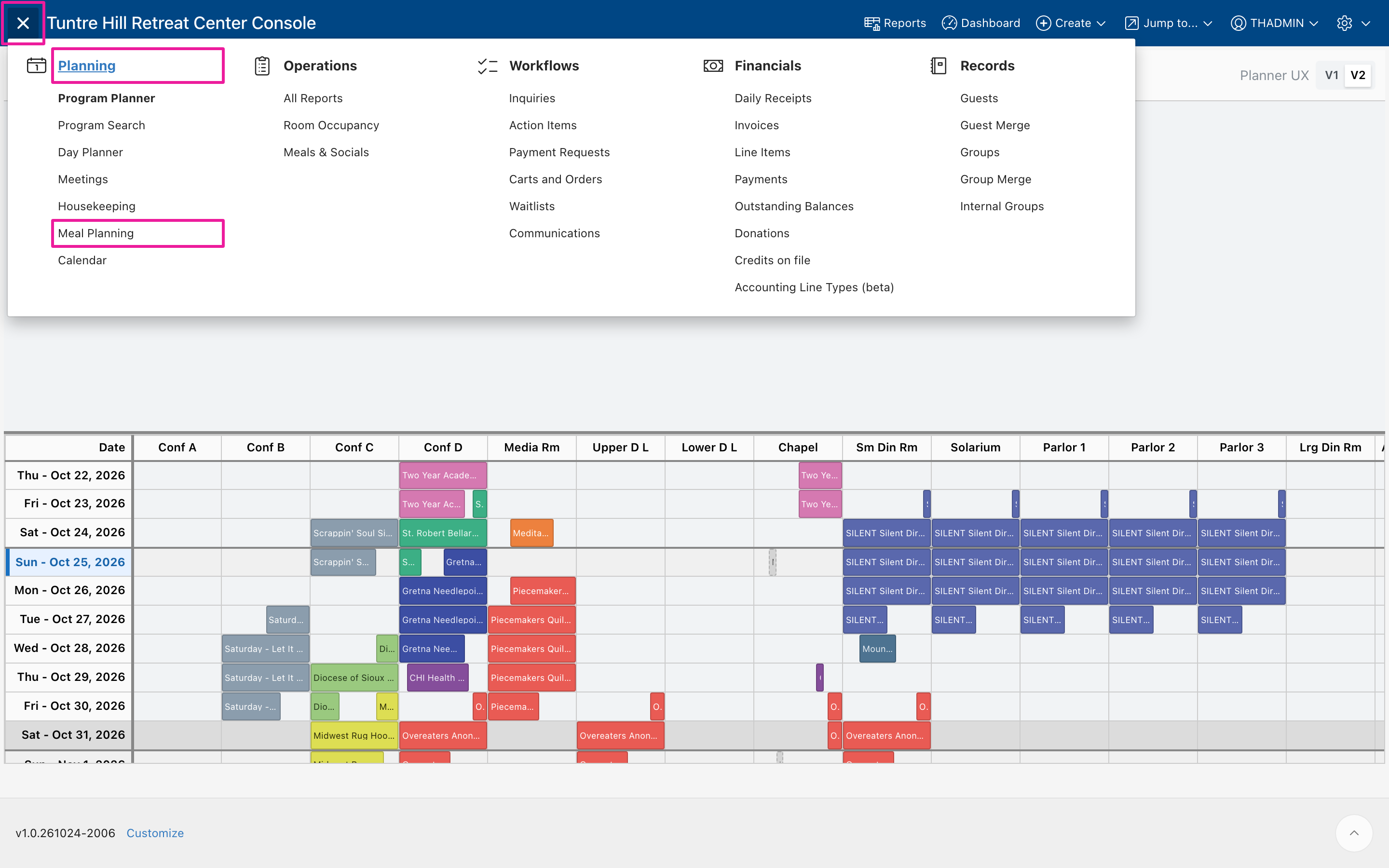
Section titled “From the main menu”Click the menu icon on the top-left and select ‘Planning’ > ‘Meal Planning’.
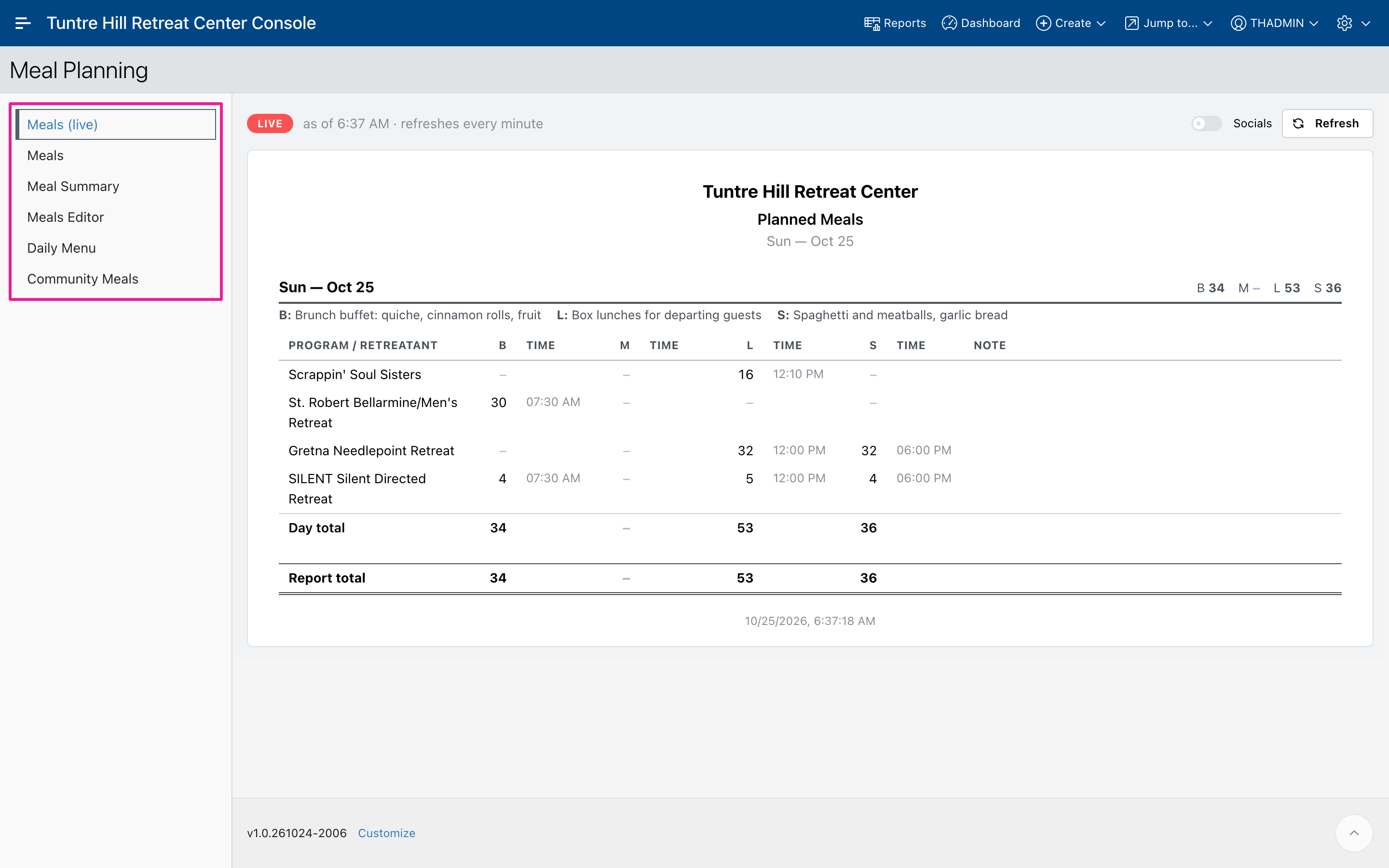
The Meal Planning page opens with the list on the left: ‘Meals (live)’, ‘Meals’, ‘Meal Summary’, ‘Meals Editor’, ‘Daily Menu’, and ‘Community Meals’. Click one to switch. This is the path the other tutorials describe.
From the Kitchen app
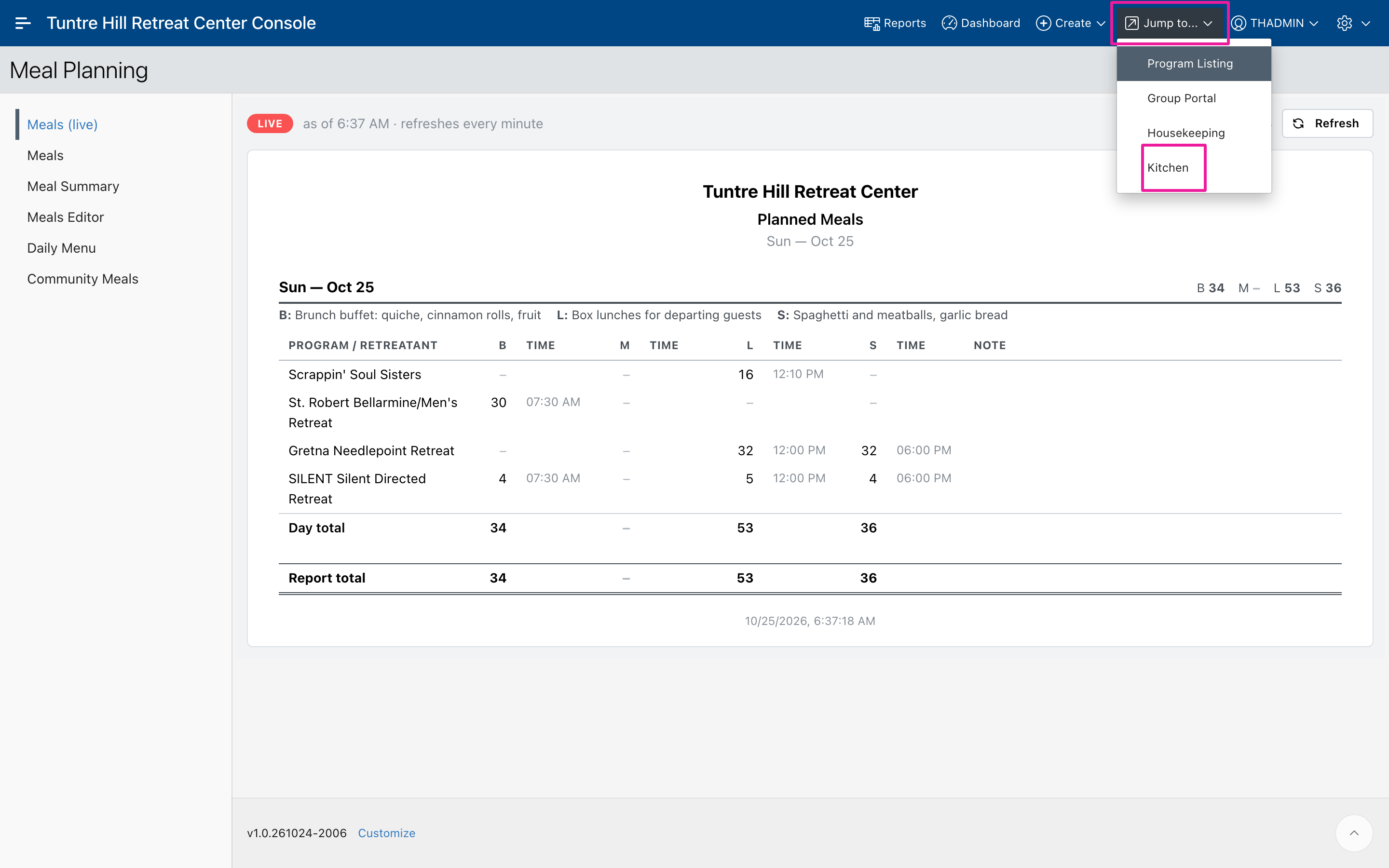
Section titled “From the Kitchen app”Click ‘Jump to…’ on the top bar and select ‘Kitchen’. The Kitchen app opens in a new tab, so Retreat Portal stays where it was.
In the Kitchen app, the same pages are the buttons across the top: ‘Meals (live)’, ‘Meals’, and ‘Meal Summary’. Use those buttons. The menu down the left side of the app is the older set of kitchen pages and is not what these tutorials describe; you can leave it closed. ‘Meals Editor’, ‘Daily Menu’, and ‘Community Meals’ are inside Retreat Portal only, but what you enter there shows on the Kitchen app’s sheets all the same.
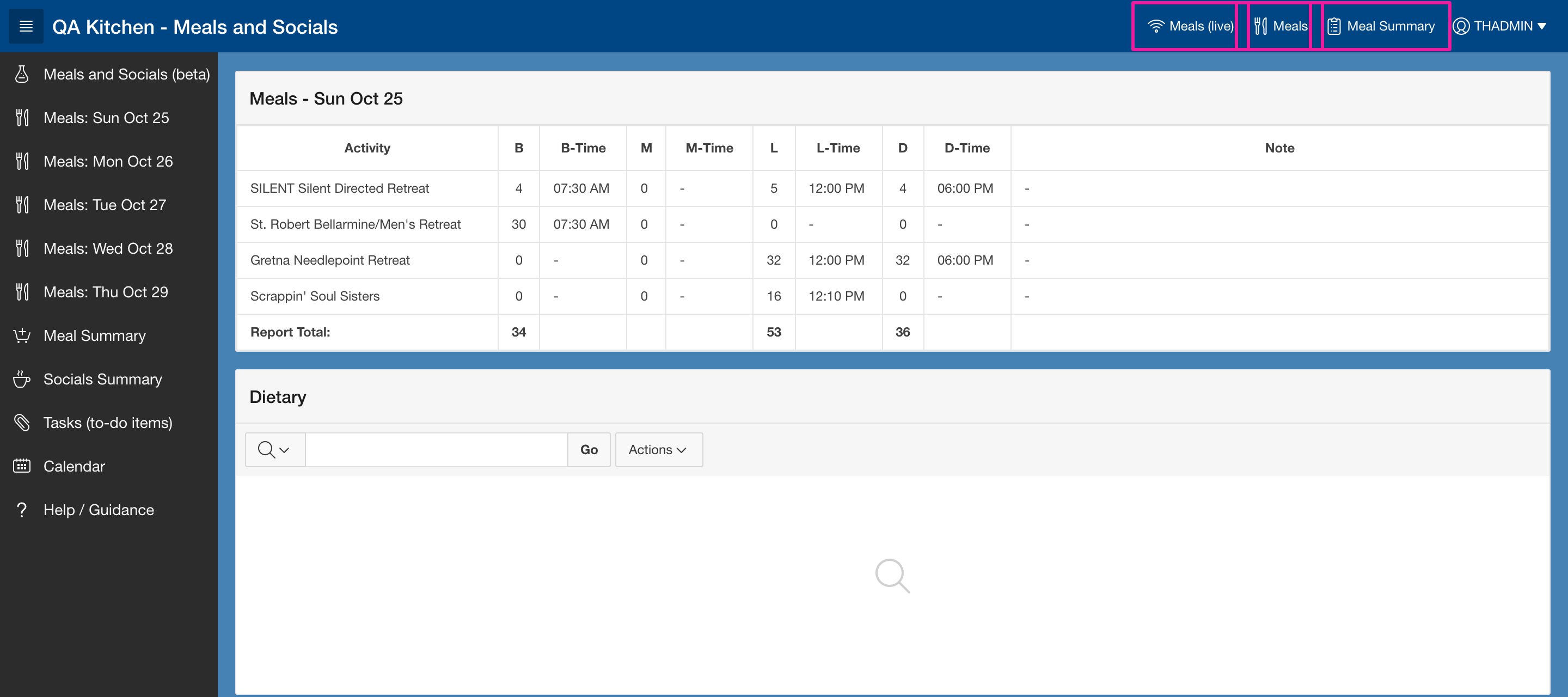
The Kitchen app is the one to leave open on a screen in the kitchen: open it, click ‘Meals (live)’, and it keeps itself current through the day.