
Move a Program
Move Program in Retreat Portal gives a program new dates and takes everything booked for it along: its reservations and their nights, meetings, socials, equipment, meal times and notes, and the cutoff dates on its listing. Use it when a group changes weekends, arrives a day later, or adds or drops a night. Retreat Portal works out the whole change and checks it against everyone else’s bookings before anything is saved.
A program that is part of a series, or is cancelled, can’t be moved. A program that is already underway or over can still be moved, for example to correct dates entered when you first set it up; the plan shows a yellow note saying the program has started, and billing isn’t changed, so re-run it afterwards.
Open the program
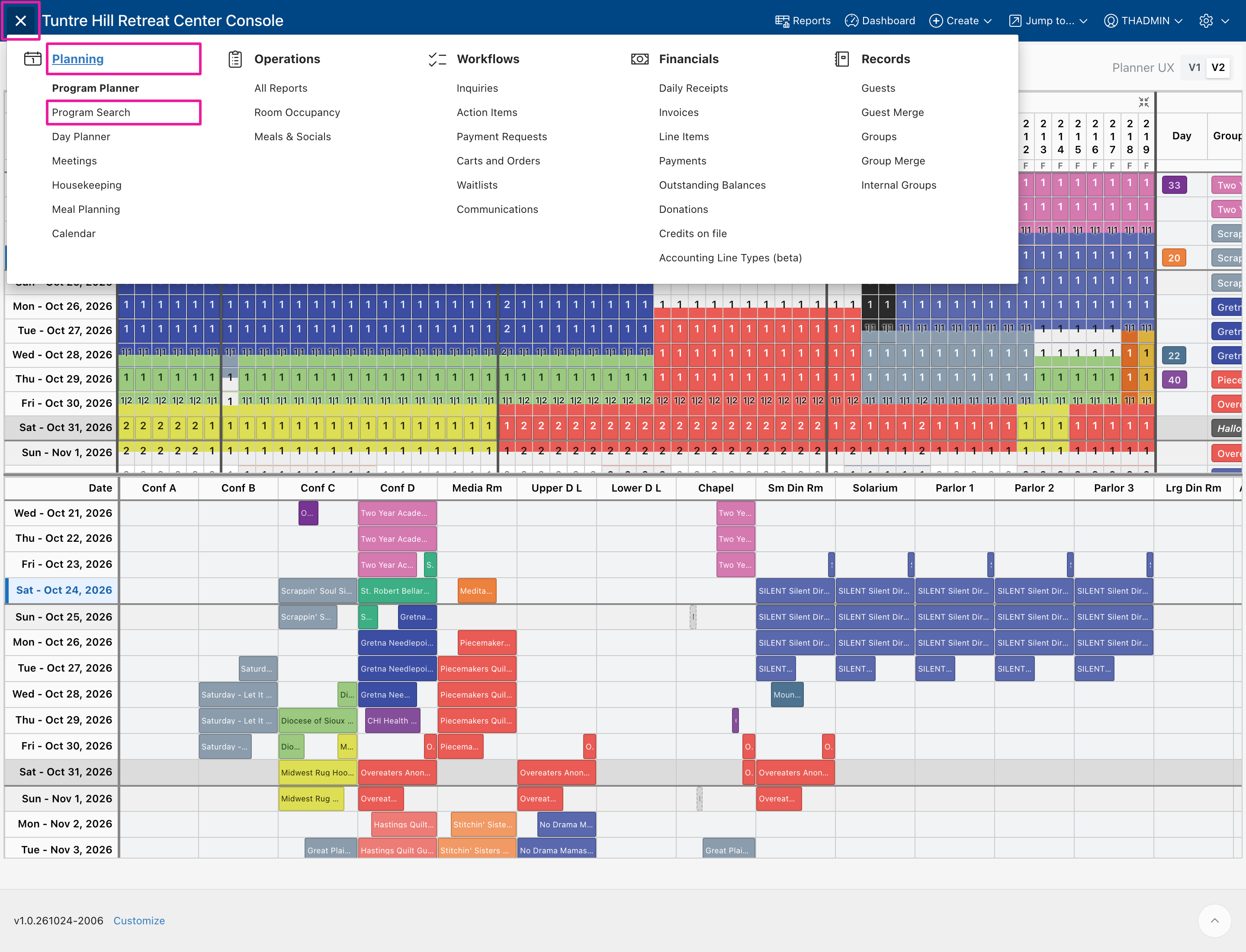
Section titled “Open the program”Click the menu icon on the top-left and choose ‘Planning’ > ‘Program Search’.
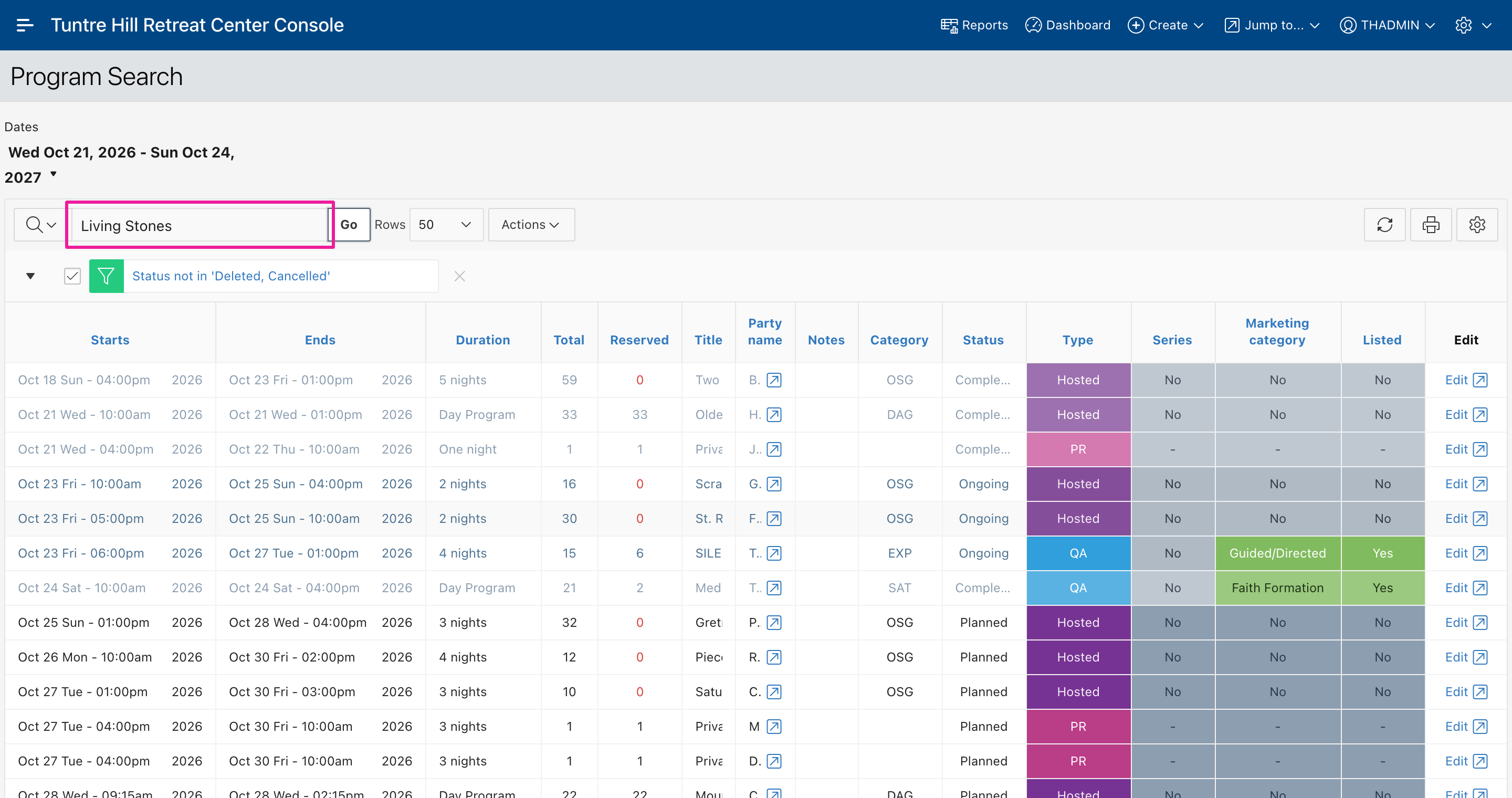
Type part of the program’s name in the search box and click ‘Go’, then click ‘Edit’ on the program’s row. The program opens in a new tab.
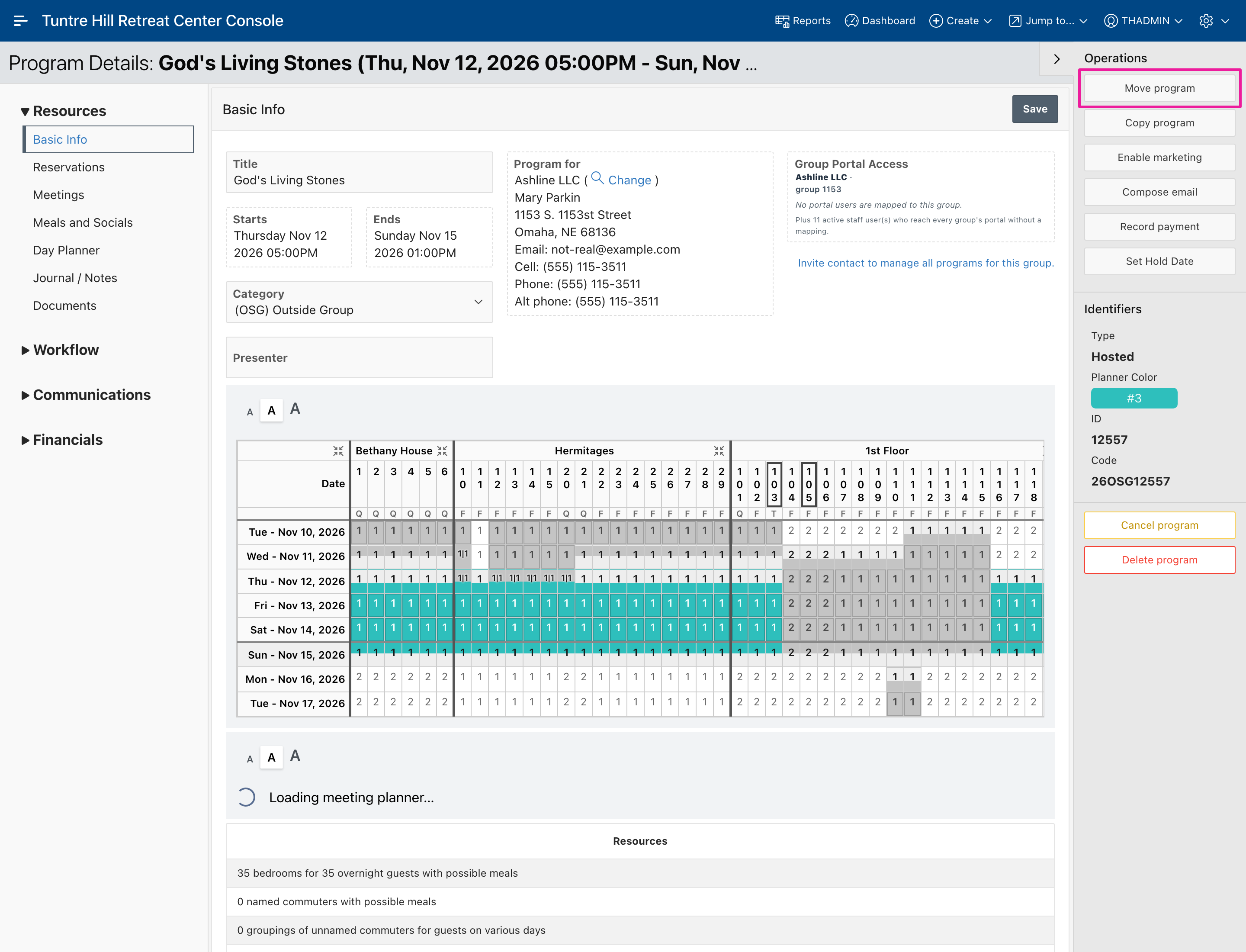
Click ‘Move program’ under ‘Operations’ on the right.
Choose the new dates
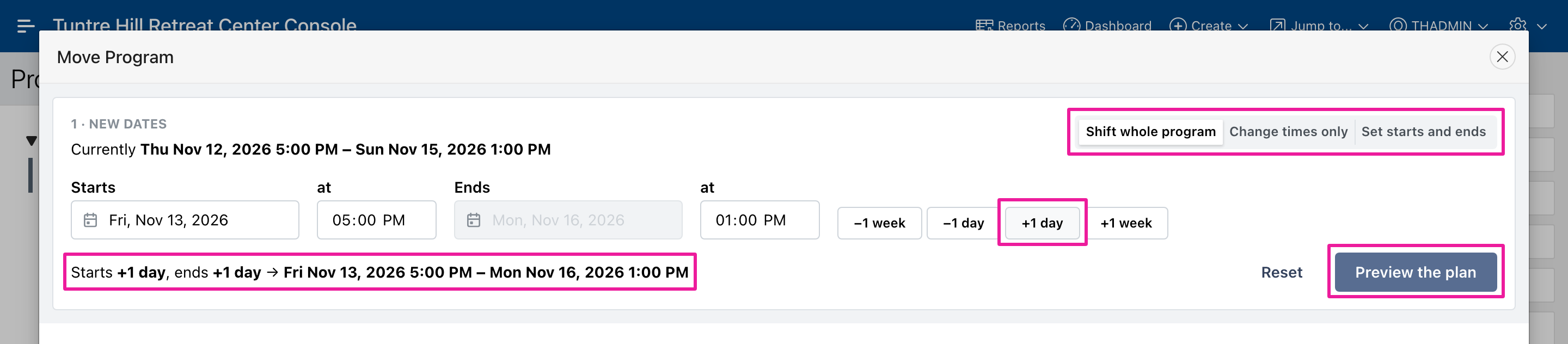
Section titled “Choose the new dates”The window that opens shows the program’s current dates. Pick how you want to change them:
- ‘Shift whole program’ keeps the length and moves both ends together. The ‘−1 week’, ‘−1 day’, ‘+1 day’ and ‘+1 week’ buttons are the quick way to do it.
- ‘Change times only’ keeps the days and changes the start or end time.
- ‘Set starts and ends’ lets you set each end on its own, to add or drop nights.
The line under the dates says what changes, for example “Starts +1 day, ends +1 day”. Click ‘Preview the plan’.
Review the plan
Section titled “Review the plan”Nothing has changed yet. The plan counts the rows that are fine (‘ok’), the ones with something worth knowing (‘notes’, such as a new date that falls on a holiday), and the two kinds that stop the move: ‘conflicts’ and ‘decisions’. Below the counts, ‘Before / after by room’ draws each room and meeting room with the program’s current dates as a dashed outline and the new dates in blue.
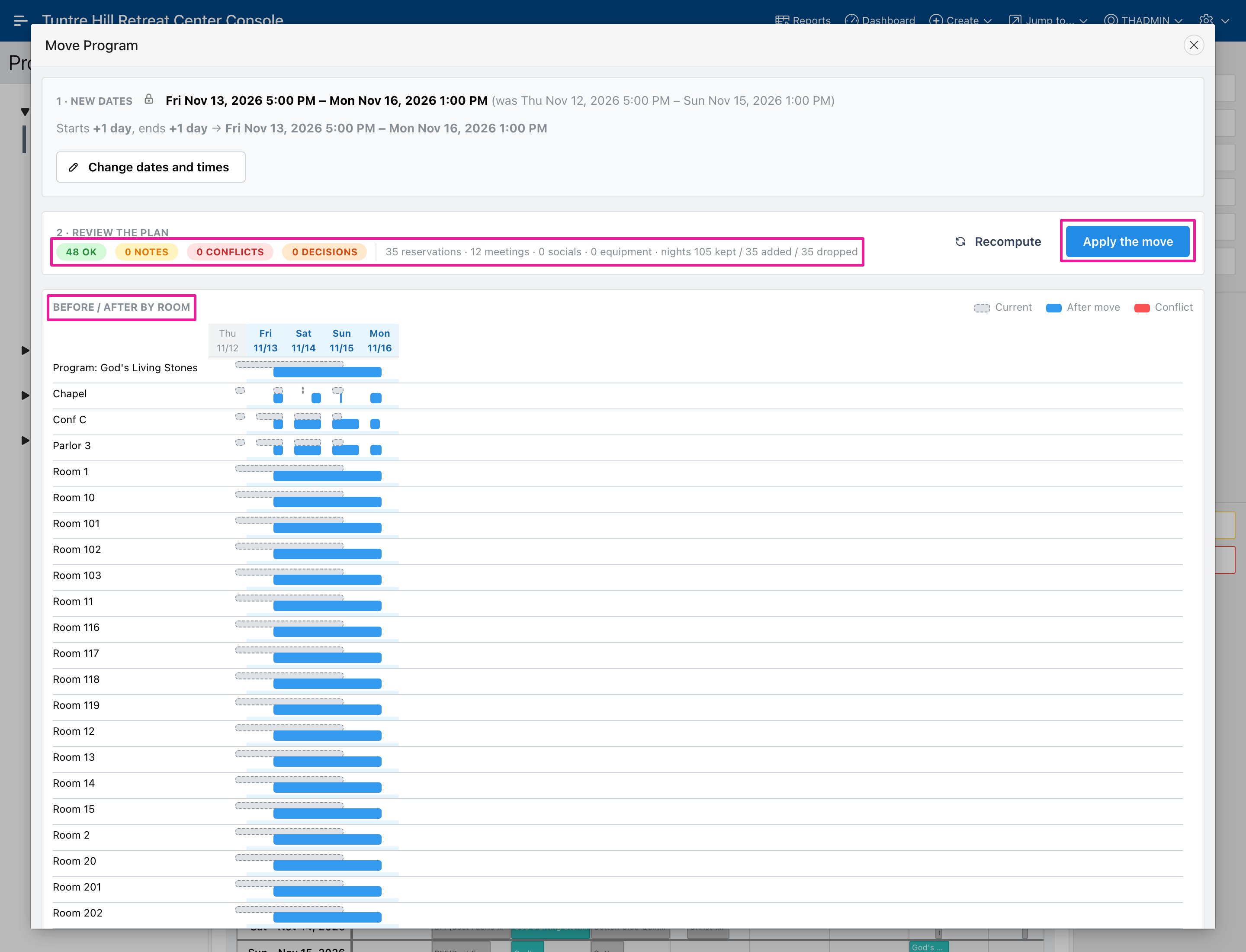
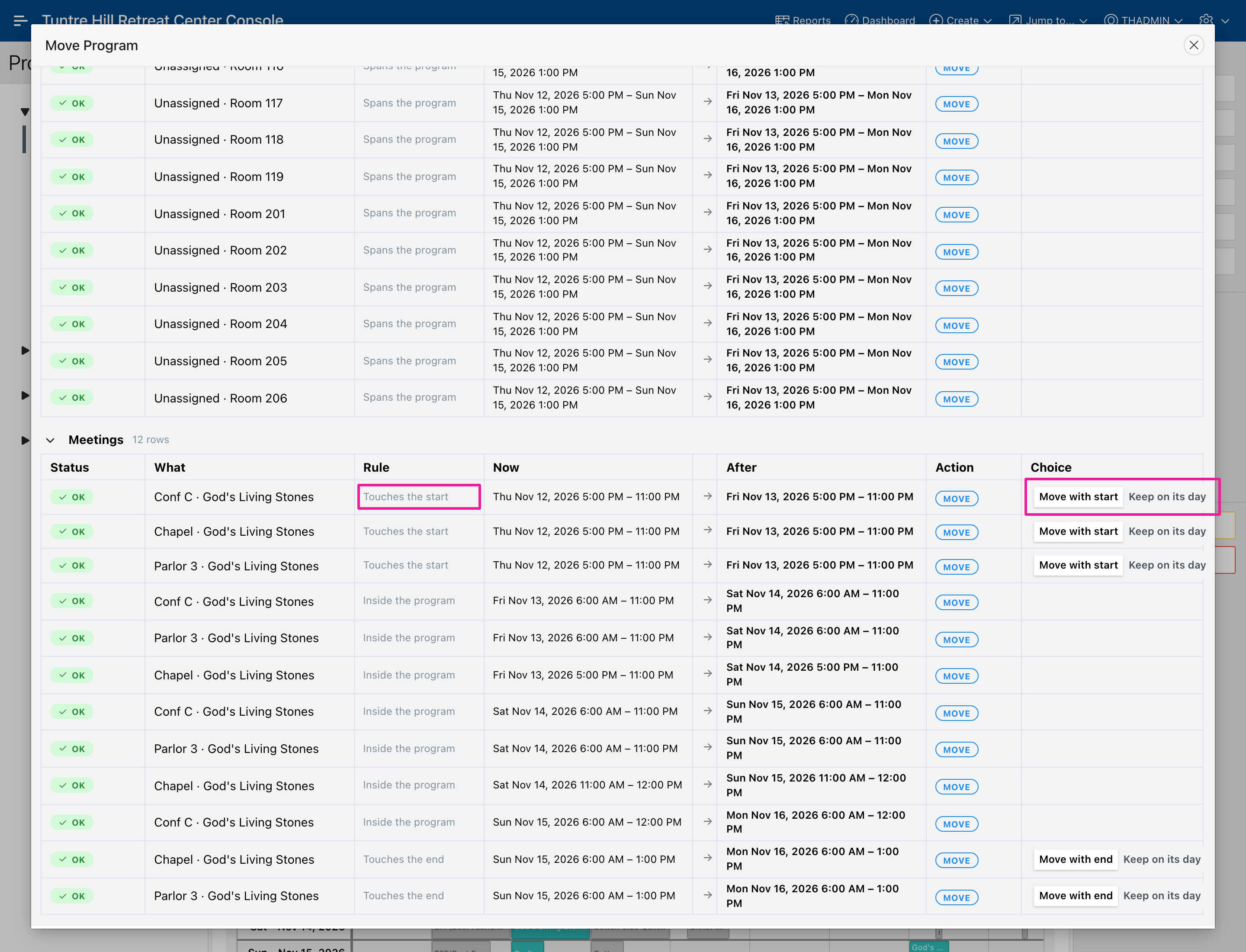
Further down, every reservation, meeting, and listing date is a row showing its dates now and after the move. A meeting on the program’s first or last day offers a choice: ‘Move with start’ (or ‘Move with end’) carries it to the new first or last day, and ‘Keep on its day’ leaves it where it is. The plan picks the likely answer for you — a meeting that starts or ends with the program moves with it, one merely on the day stays put — and the choice is yours either way. A stay tied to one end of the program offers ‘Pin length’, which moves it and keeps its length, or ‘Stretch’, which makes it reach the other end too.
Clear conflicts and decisions
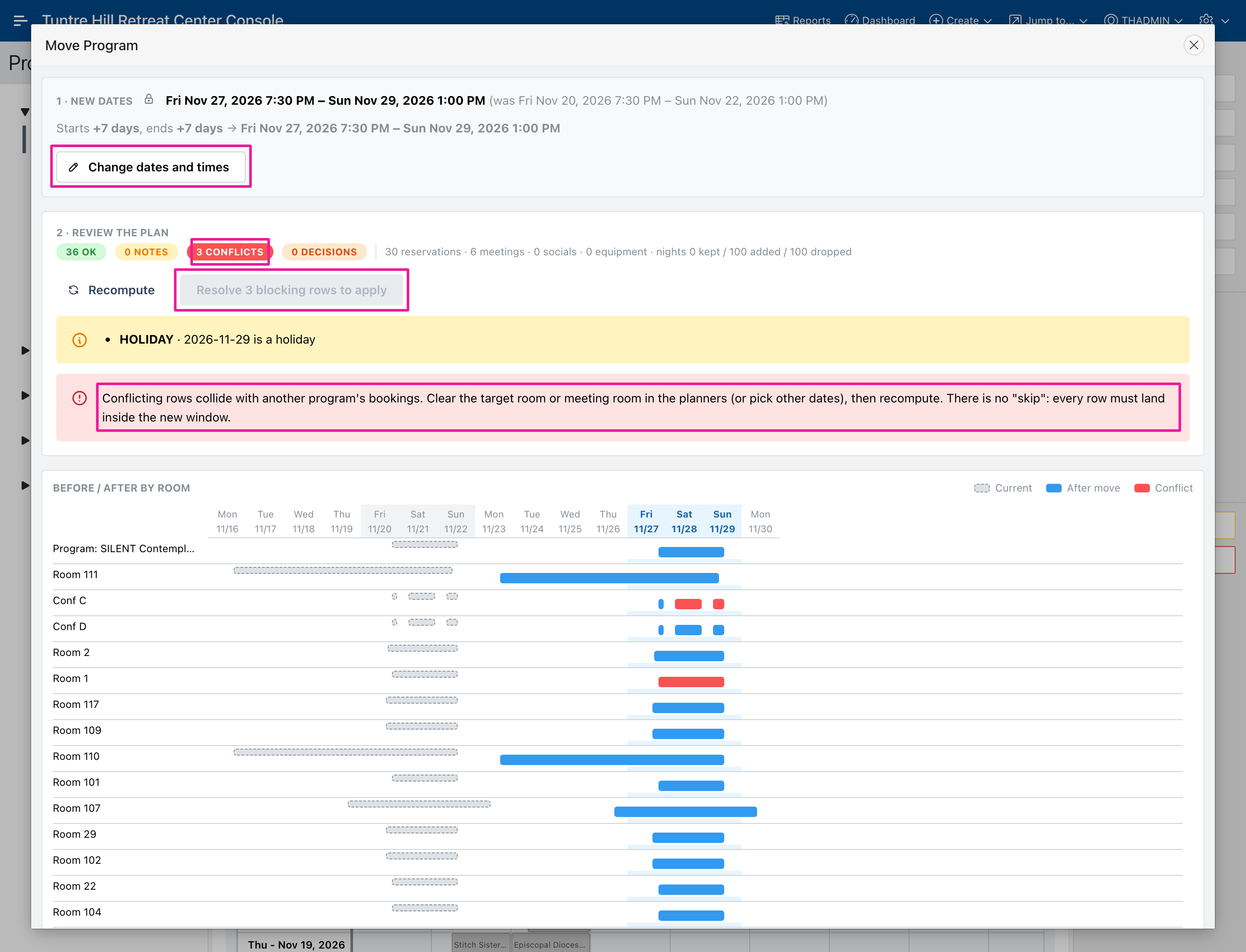
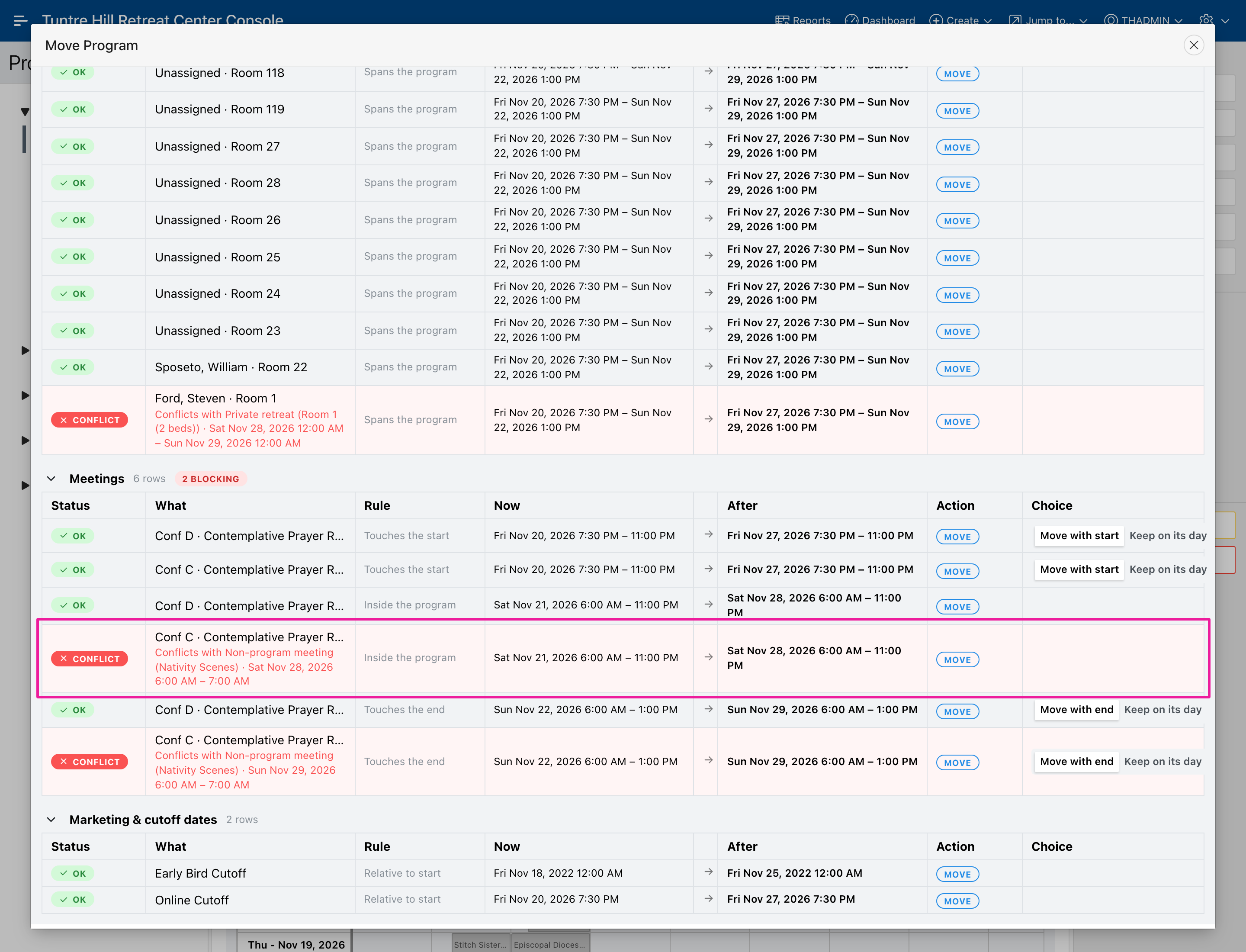
Section titled “Clear conflicts and decisions”A conflict means another booking already holds a room or meeting room on the new dates. The plan marks it in red, names what it collides with, and the button reads ‘Resolve N blocking rows to apply’. There is no skipping a row, so either free the room in the Program Planner and click ‘Recompute’, or click ‘Change dates and times’ and try other dates.
A decision appears when you shorten a program and a guest’s whole stay falls outside the new dates. Click ‘Cancel reservation’ on that row to accept it. An unassigned seat in the same spot is removed unless you click ‘Keep (clamp into window)’. Meetings that fall outside the new dates are removed along with their socials and equipment, and the plan lists them before you apply.
Apply the move
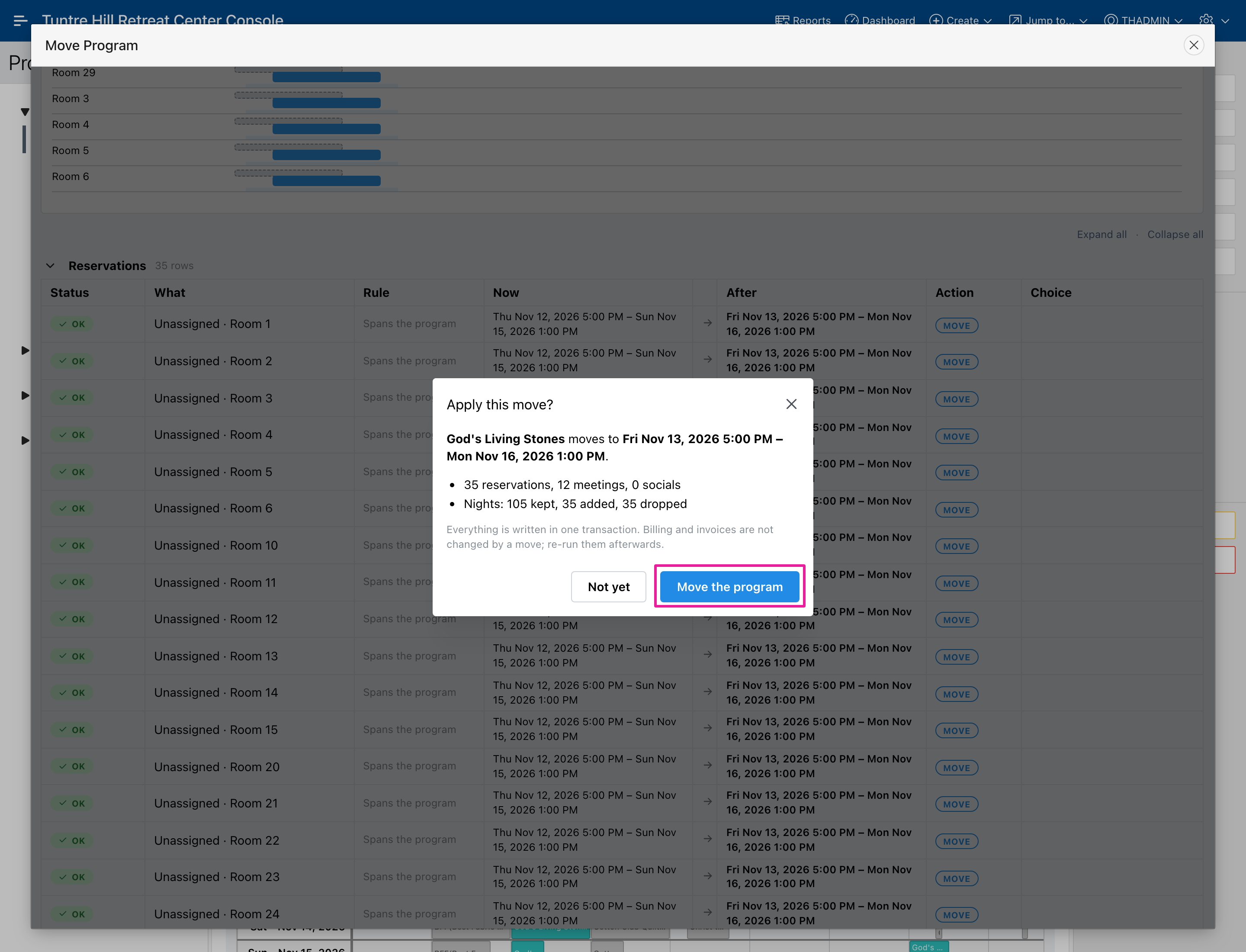
Section titled “Apply the move”When the plan has no conflicts or decisions left, click ‘Apply the move’. The window that opens sums it up. Click ‘Move the program’ to save everything in one go, or ‘Not yet’ to keep reviewing.
The result lists what moved and a ‘Still to do’ list. A move never changes billing or invoices, so re-run them afterwards and let the group know. A note is added to the program’s journal. Click ‘Back to program’ to see the program with its new dates.