
Change Meal Times and Kitchen Notes with the Meals Editor
The Meals Editor is the meal sheet for a range of days with the times and notes made clickable. Use it when a program asks to eat later, or when the kitchen needs a heads-up for one day. You can change a program’s serve time for one day or for every day of the program, leave the kitchen a note, and add the day’s menu, all without leaving the sheet.
Open it
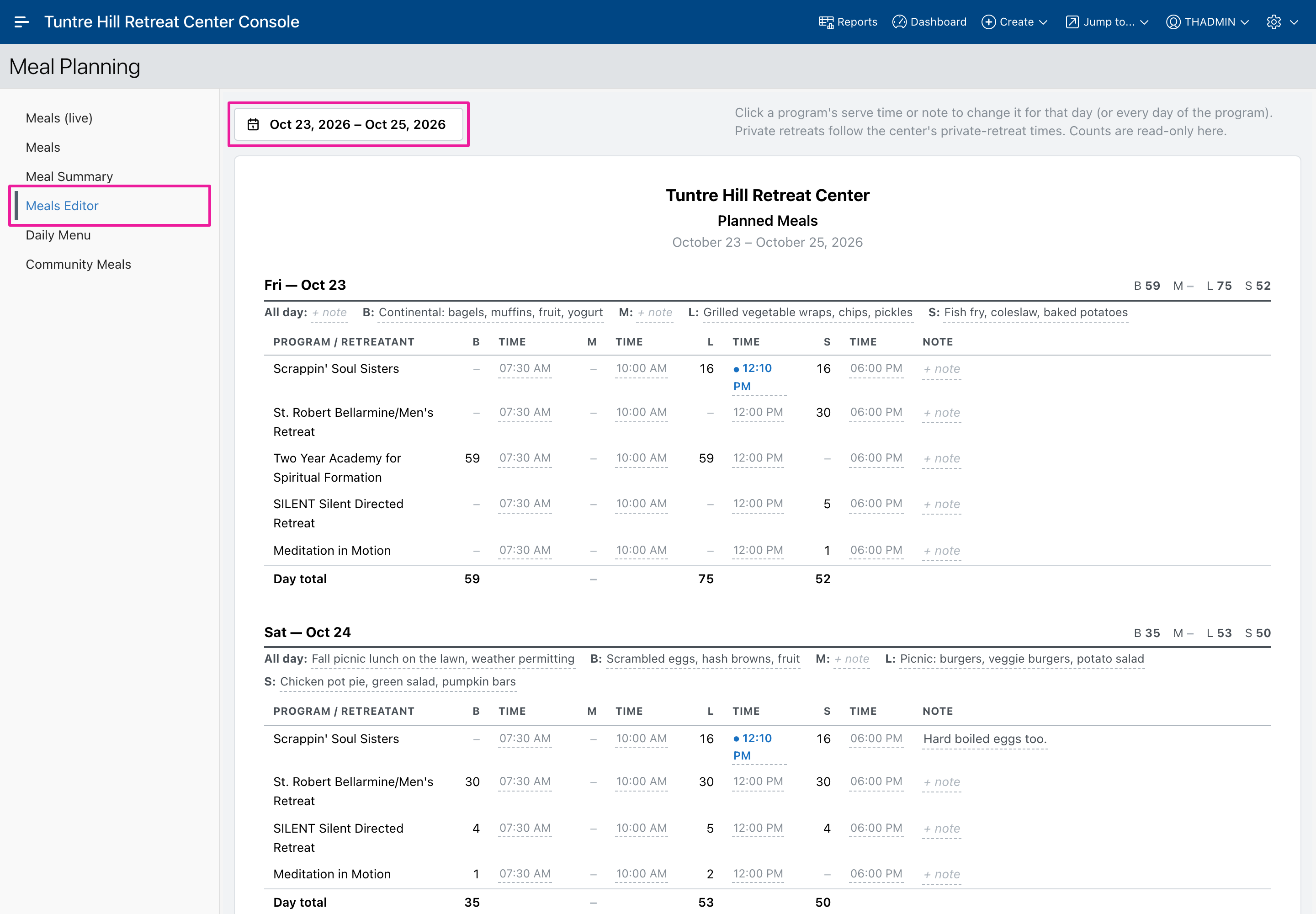
Section titled “Open it”Click the menu icon on the top-left and select ‘Planning’ > ‘Meal Planning’, then click ‘Meals Editor’ on the left. It opens on the next two weeks; click the date button at the top to pick other dates.
Read what’s set
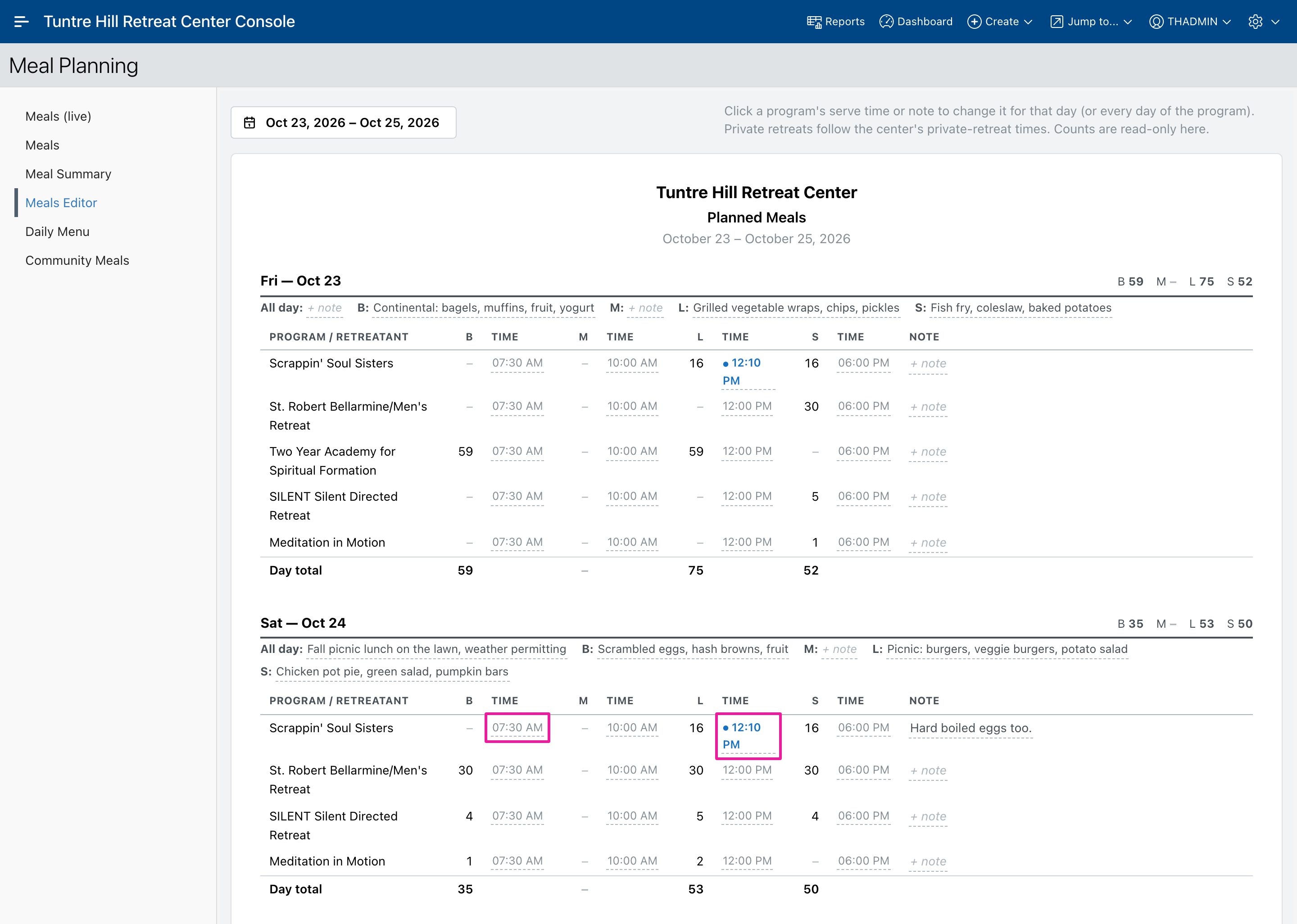
Section titled “Read what’s set”Every day is shown in full: each program and private retreatant, their counts, serve times, and note. A time in blue with a dot has been set for that program on that day. A plain grey time is your center’s usual time for that meal. An empty note shows ‘+ note’.
Change a serve time
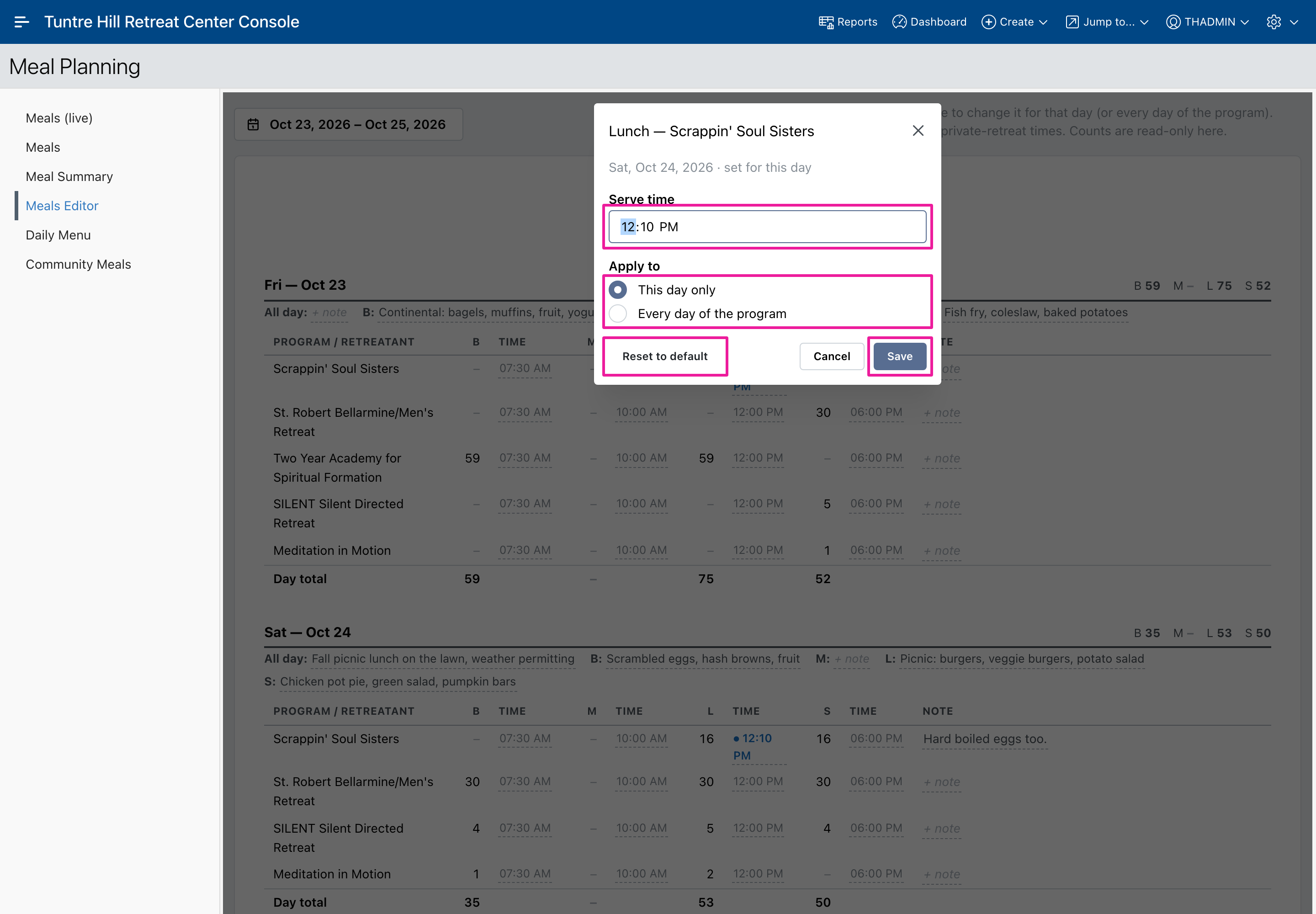
Section titled “Change a serve time”Click the time you want to change. In the window that opens, type the new time under ‘Serve time’. Under ‘Apply to’, choose ‘This day only’ or ‘Every day of the program’, then click ‘Save’. The sheet refreshes with the new time, and the kitchen pages show it straight away.
To go back to your center’s usual time, open the same time and click ‘Reset to default’. It’s only available on a time that has been changed.
Leave the kitchen a note
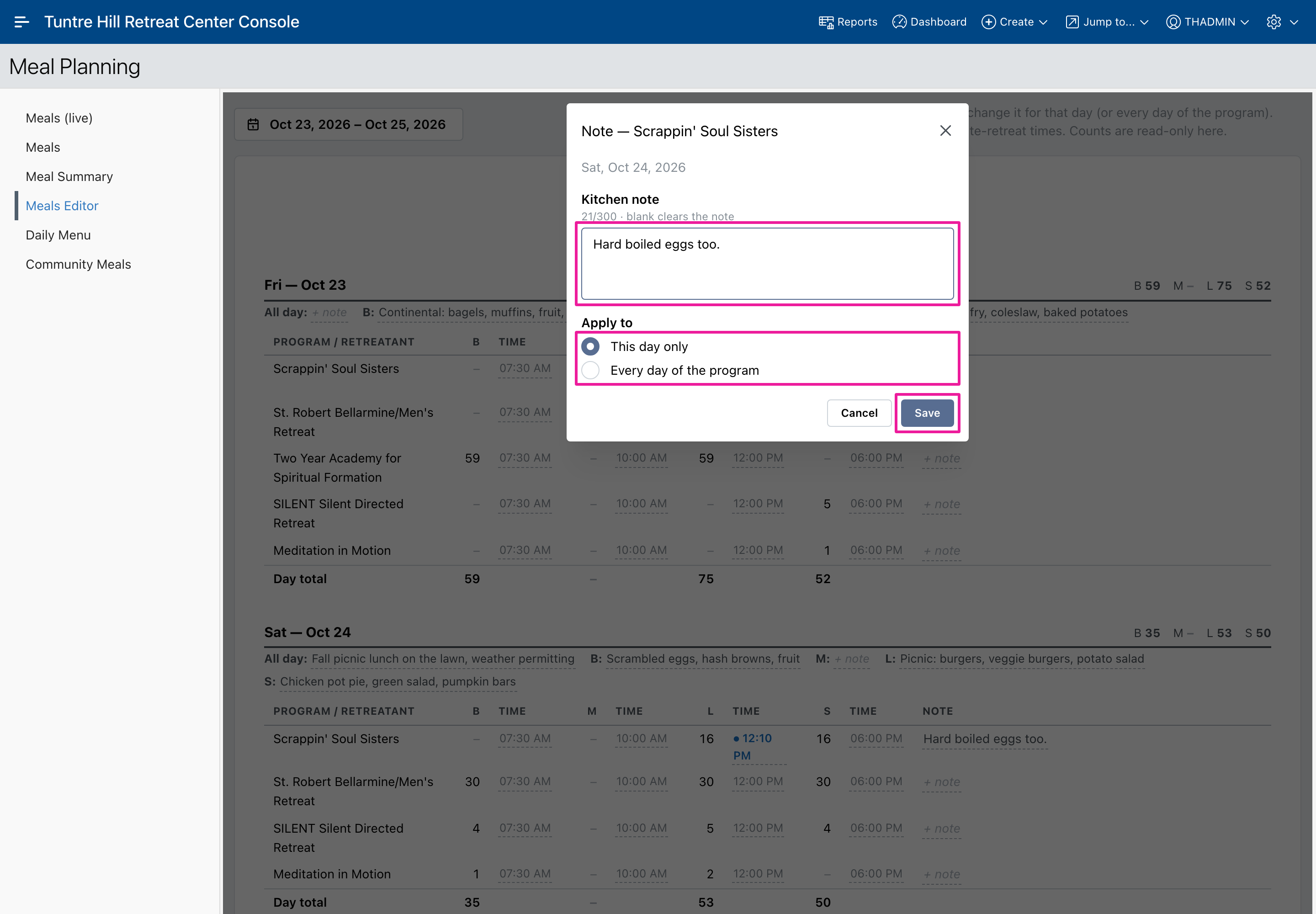
Section titled “Leave the kitchen a note”Click a program’s note, or ‘+ note’ where there isn’t one. Type the note under ‘Kitchen note’ (up to 300 characters), choose ‘This day only’ or ‘Every day of the program’, and click ‘Save’. To remove a note, clear the text and save. The note shows in the ‘Note’ column on every meal sheet for that day.
Add the day’s menu
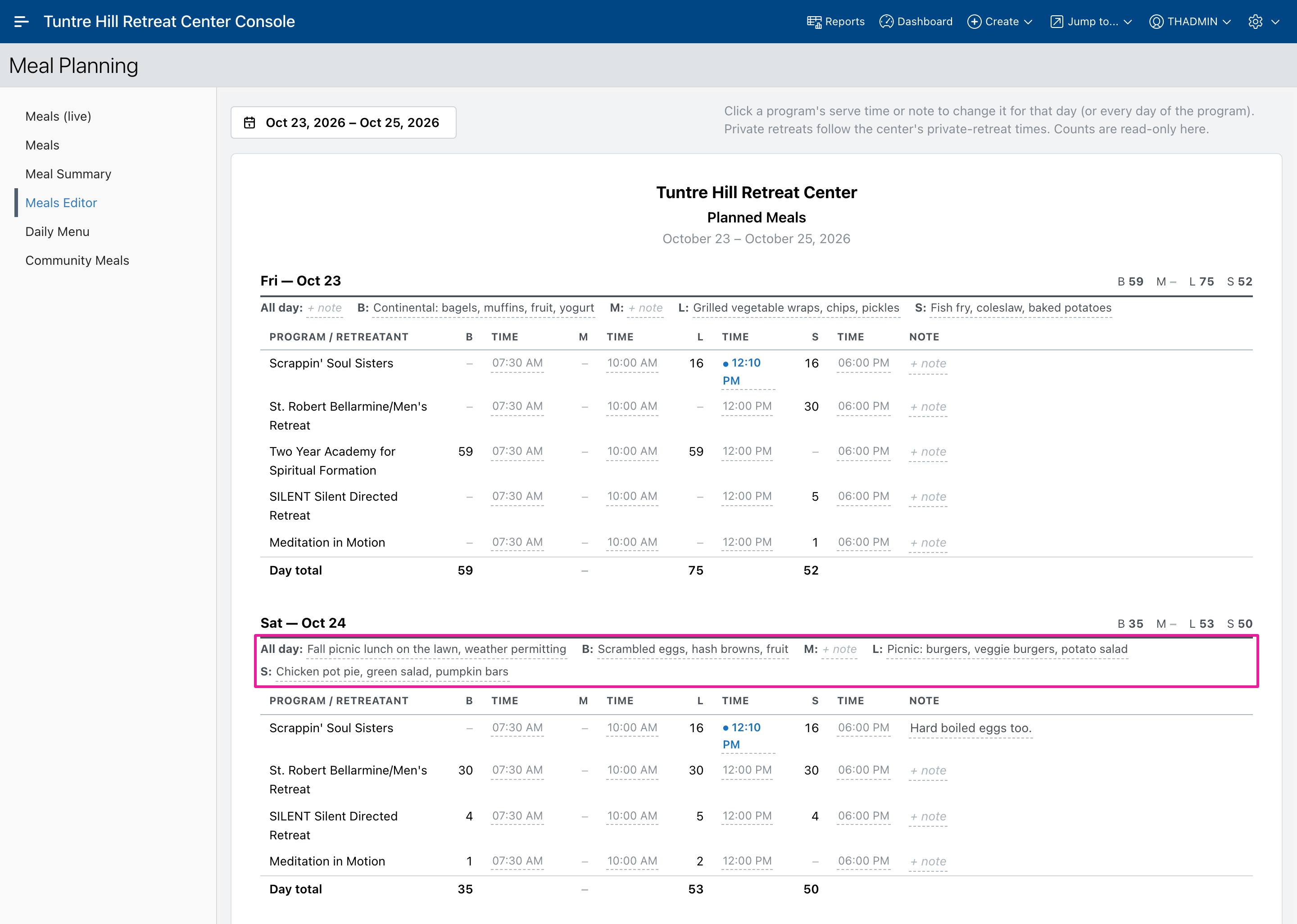
Section titled “Add the day’s menu”The line under each day’s heading holds notes for the whole center rather than one program: ‘All day’, then one slot per meal (‘B’, ‘L’, and so on). Click a slot to write in it. These notes print under the day’s heading on every meal sheet. They’re the same notes as the Daily Menu, which is quicker for filling in a whole week.
The Community Meals line
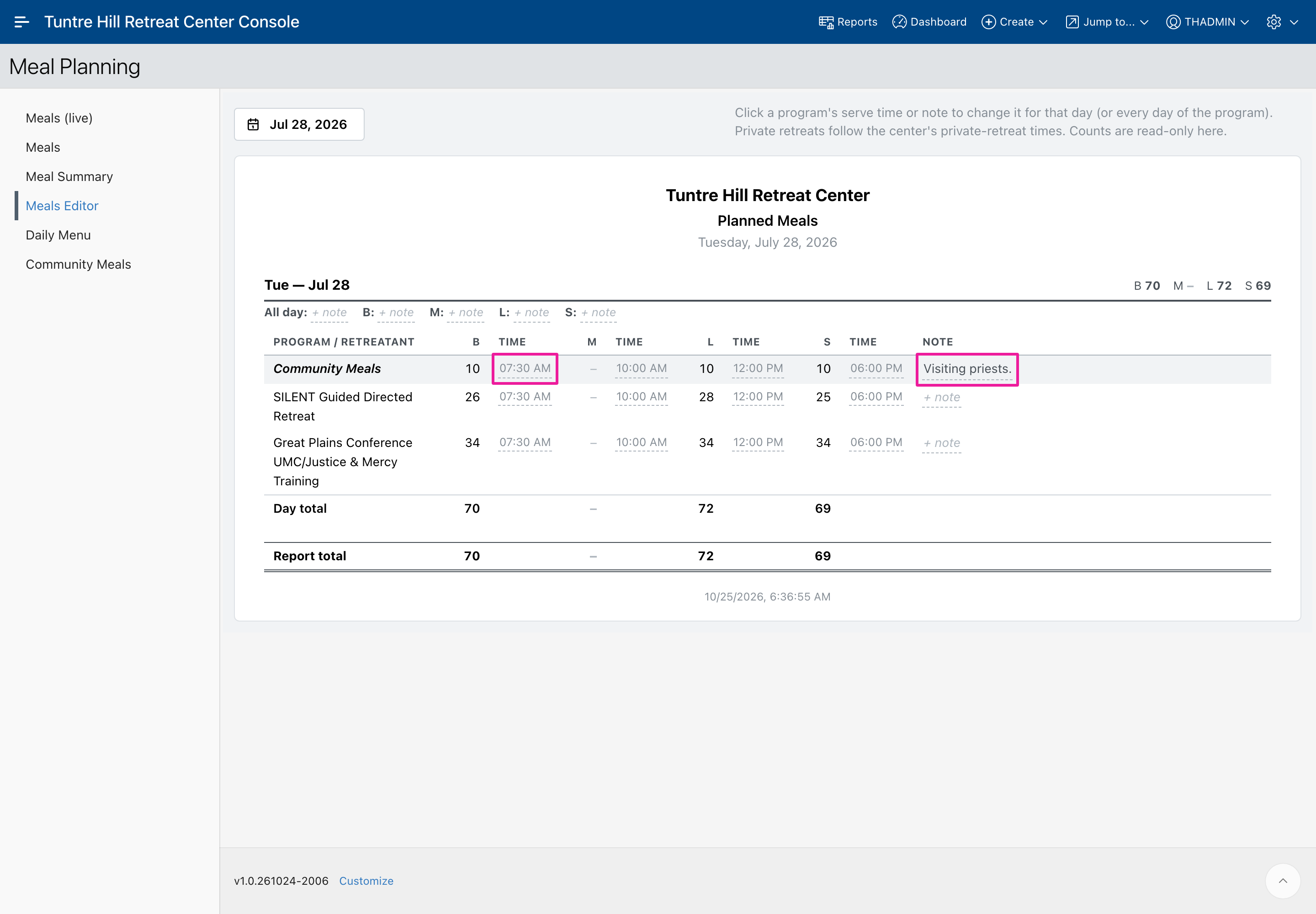
Section titled “The Community Meals line”The ‘Community Meals’ line can be edited like a program. Click one of its times to change it for that day, or click its note to change the note. There’s no ‘Every day of the program’ choice, since it isn’t a program. Its counts are entered on the Community Meals page.
What you can’t change here
Section titled “What you can’t change here”Counts are read-only on this page. They come from the reservations. A private retreatant created in Retreat Manager cannot have its times changed. They always follow your center’s private-retreat meal times, so those rows can’t be clicked.