
The Image Library
The Image Library in Retreat Portal holds your center’s pictures: the logo, presenter photos, program images, and anything else you’ve uploaded to use on the website or in documents. Come here to find an image, look at it, or copy its link.
Open the library
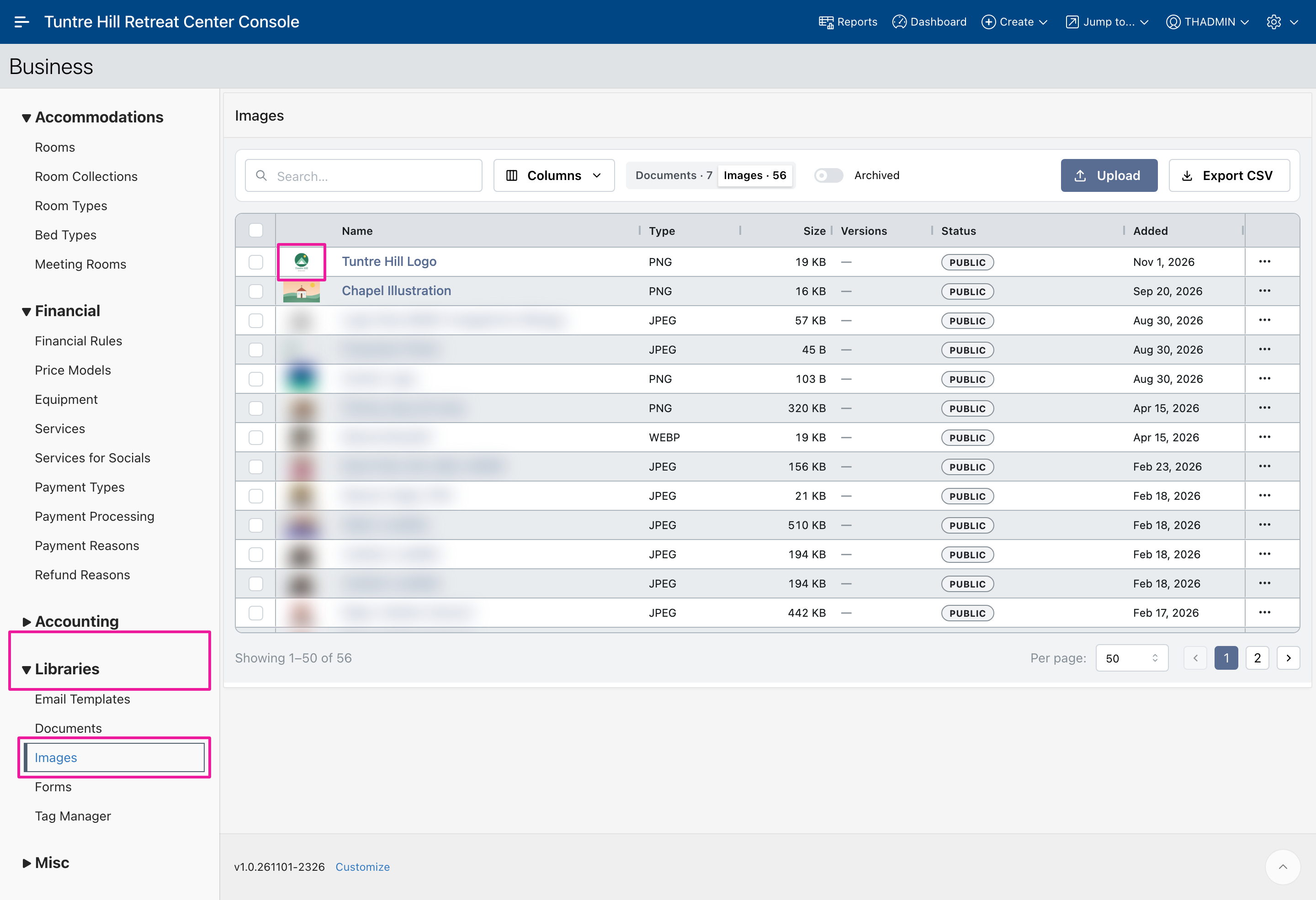
Section titled “Open the library”Click the gear icon on the top-right and select ‘Business’. On the left, expand ‘Libraries’ and click ‘Images’. Each row shows a small thumbnail; type in the search box to find an image by name.
Look at an image
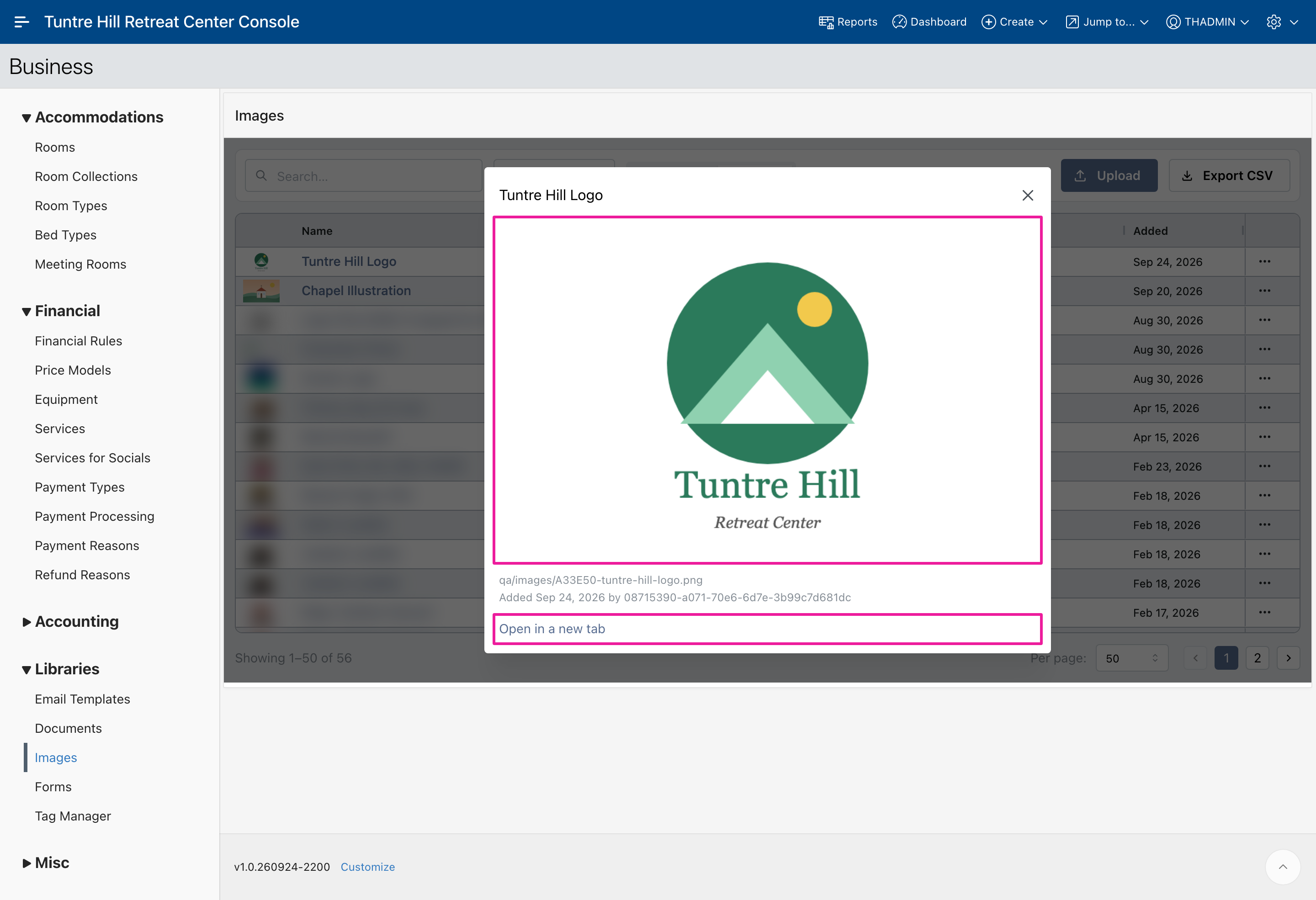
Section titled “Look at an image”Click an image’s name, or its thumbnail, to see it full size along with when it was added. ‘Open in a new tab’ shows the image on its own.
Use an image elsewhere
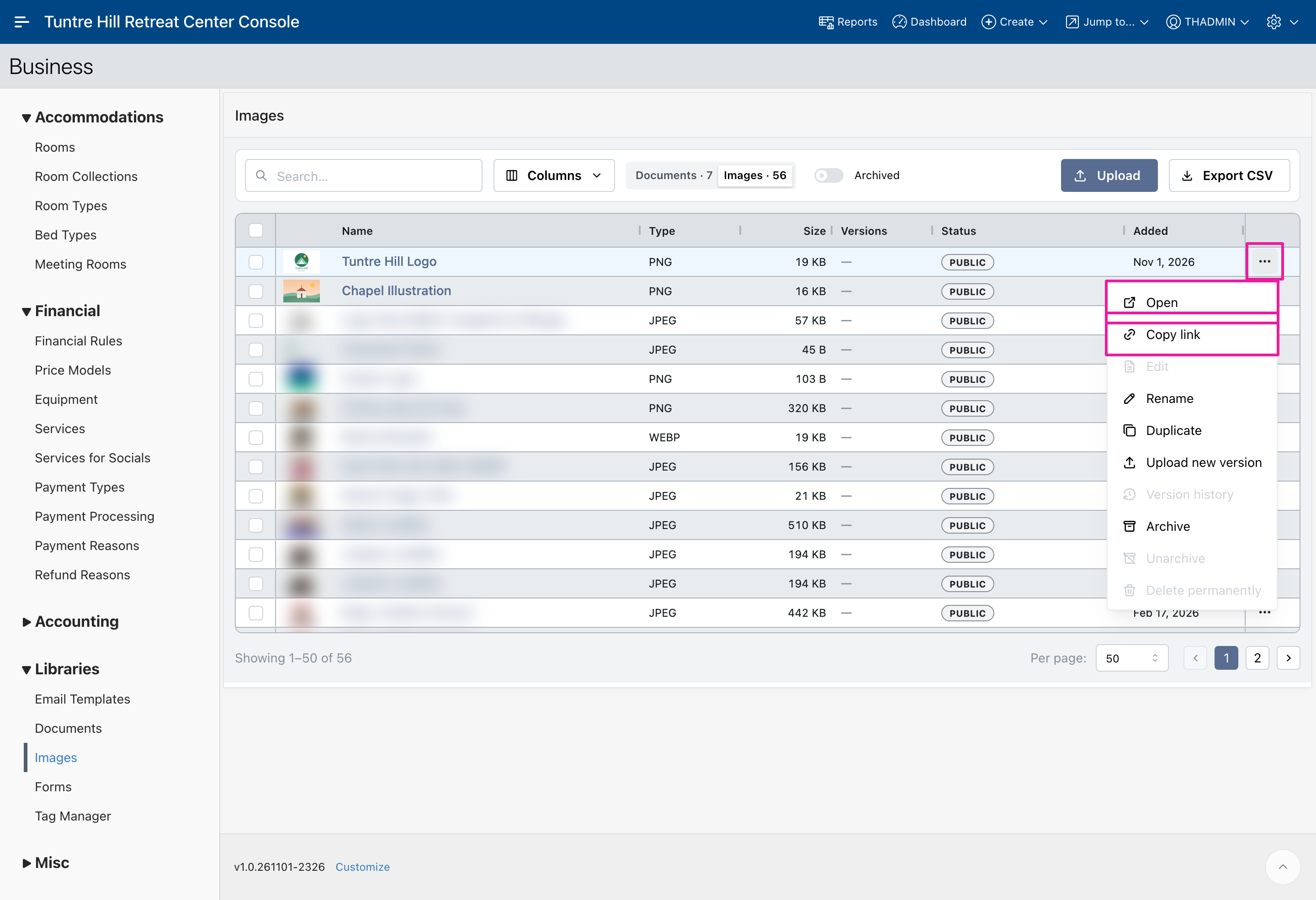
Section titled “Use an image elsewhere”Click the three dots on the far right of a row. ‘Open’ shows the image in a new browser tab. ‘Copy link’ puts the image’s address on your clipboard, ready to paste wherever a picture is needed.
The checkboxes at the left of the rows work the same as in the Document Library: tick several images and the action bar above the list archives, unarchives, or permanently deletes them together.