Daily Receipts
The Daily Receipts report in Retreat Portal lists every payment you took over a date range, grouped by payment method with a total for each. Despite the name it works for any period — run it for a day, a week, or a whole month when it’s time to close the books or match your records against a bank deposit.
Open Daily Receipts
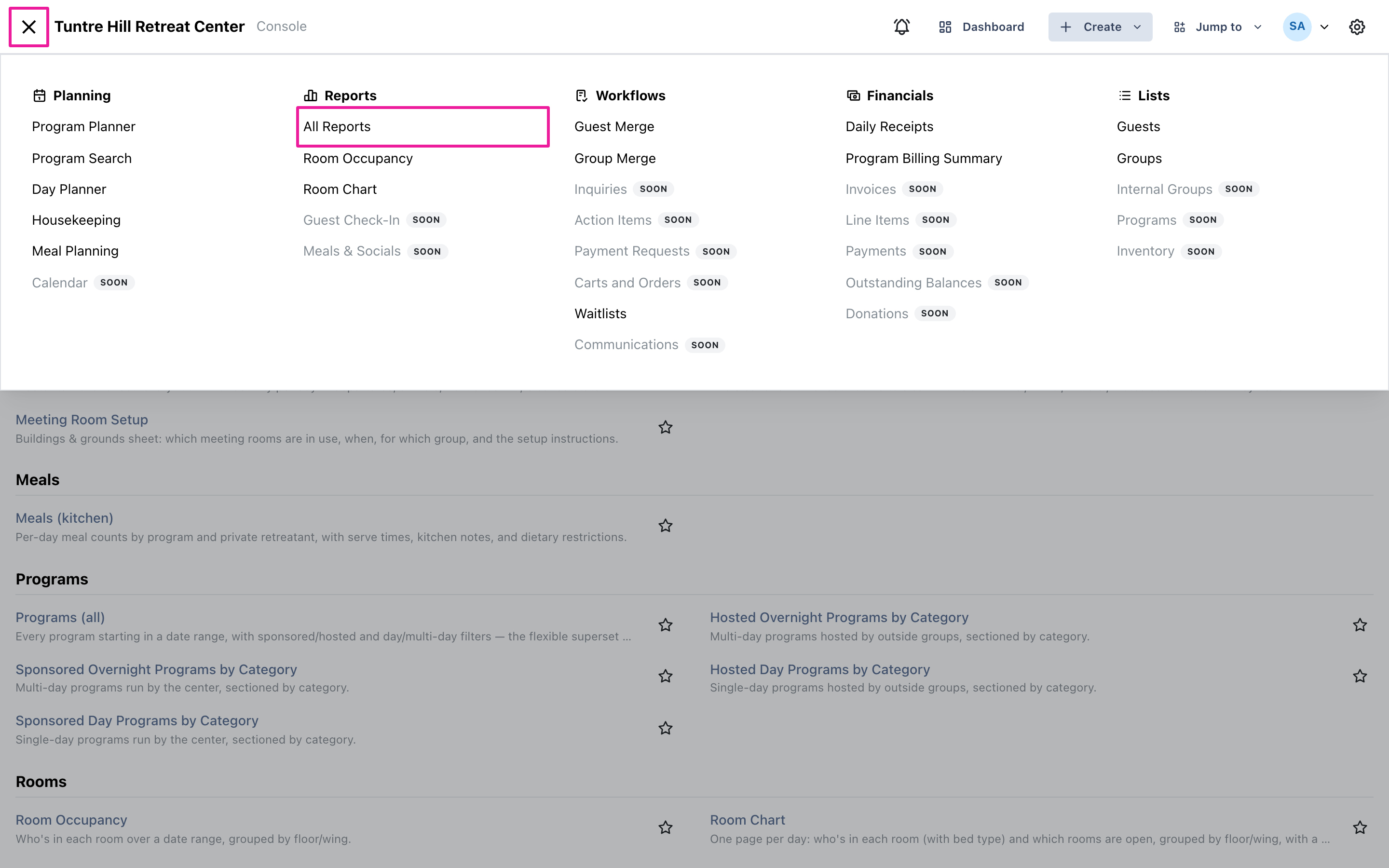
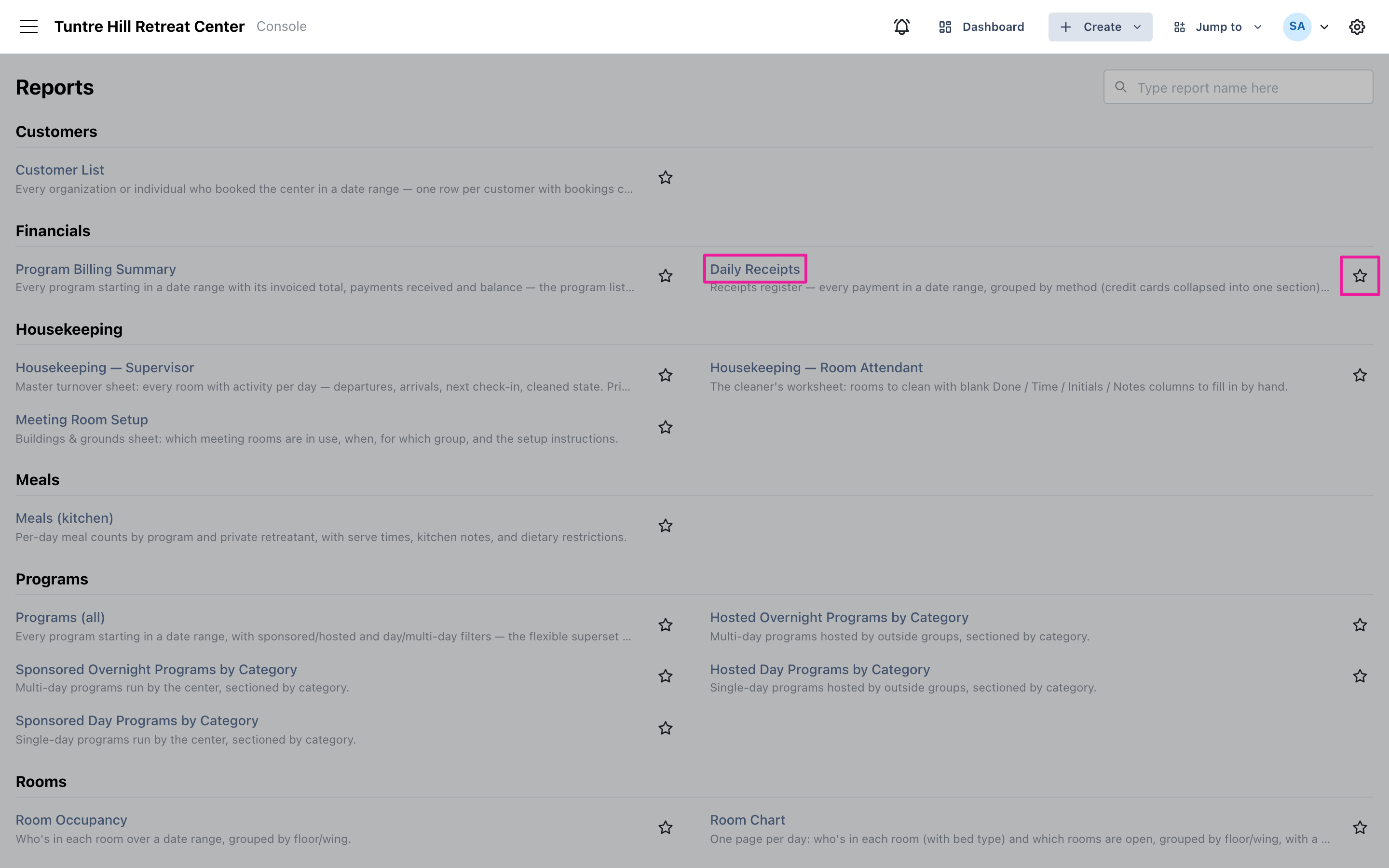
Section titled “Open Daily Receipts”Click the menu icon on the top-left and select ‘Financials’ > ‘Daily Receipts’. You can also reach it from ‘Reports’ > ‘All Reports’, where it sits in the Financials section — click the star next to it to pin it to your Favorites.
Pick the dates
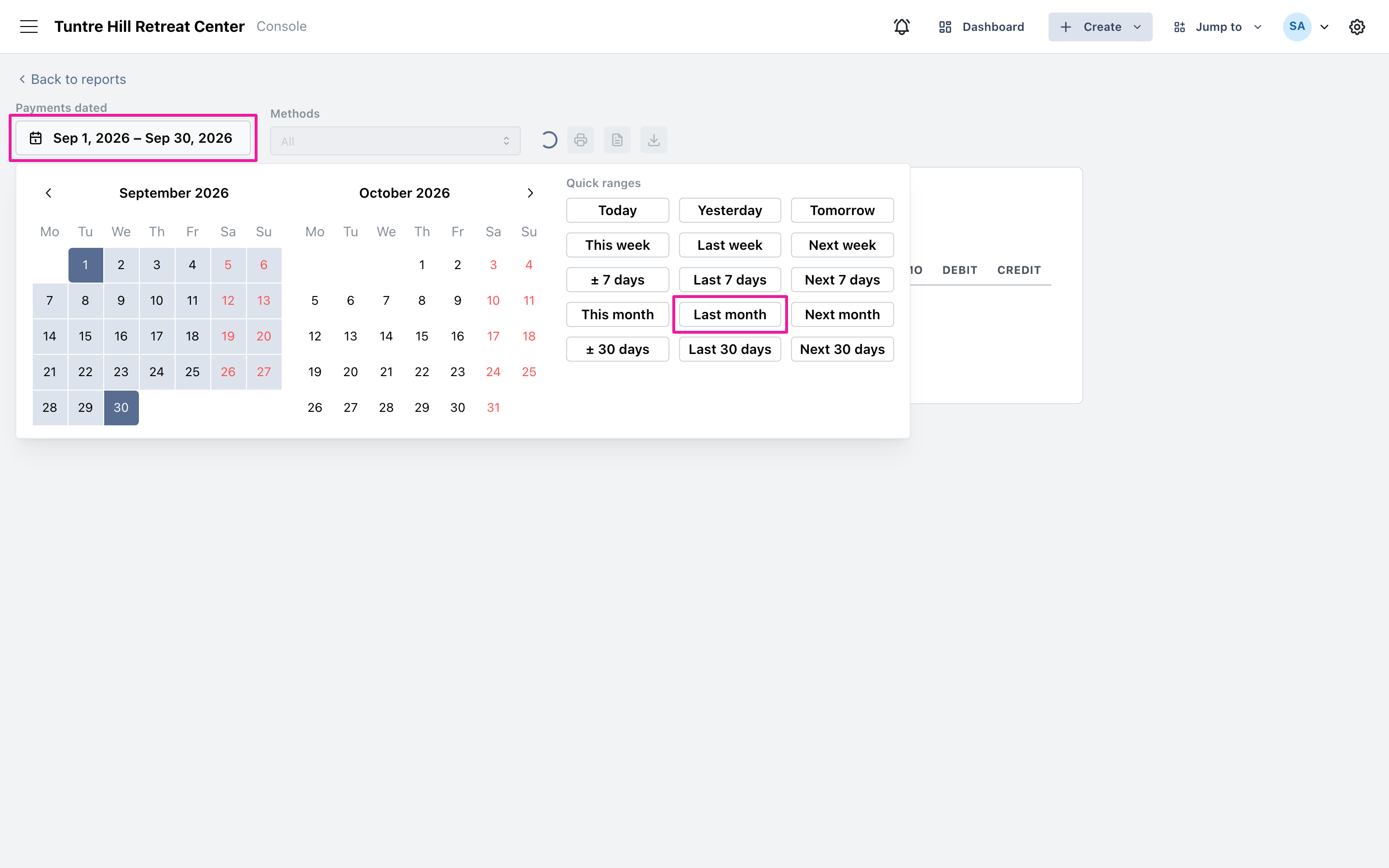
Section titled “Pick the dates”The report opens on the current month. To change it, click the date range button and pick a quick range like ‘Last month’, or select any start and end day on the calendar. To limit the report to one tender, pick it under ‘Methods’.
Read the register
Section titled “Read the register”Payments are grouped by method — Cash, Check, and so on, with every card brand together under ‘Credit Card’. Each line shows who paid, what the payment was for, the program or retreat with its start date, and the reference number and memo. Money in lands in the ‘Credit’ column; refunds land in ‘Debit’ and subtract from that method’s total, so each group’s total is the net for the period. The ‘Begins’ date helps tell apart programs that share a name.
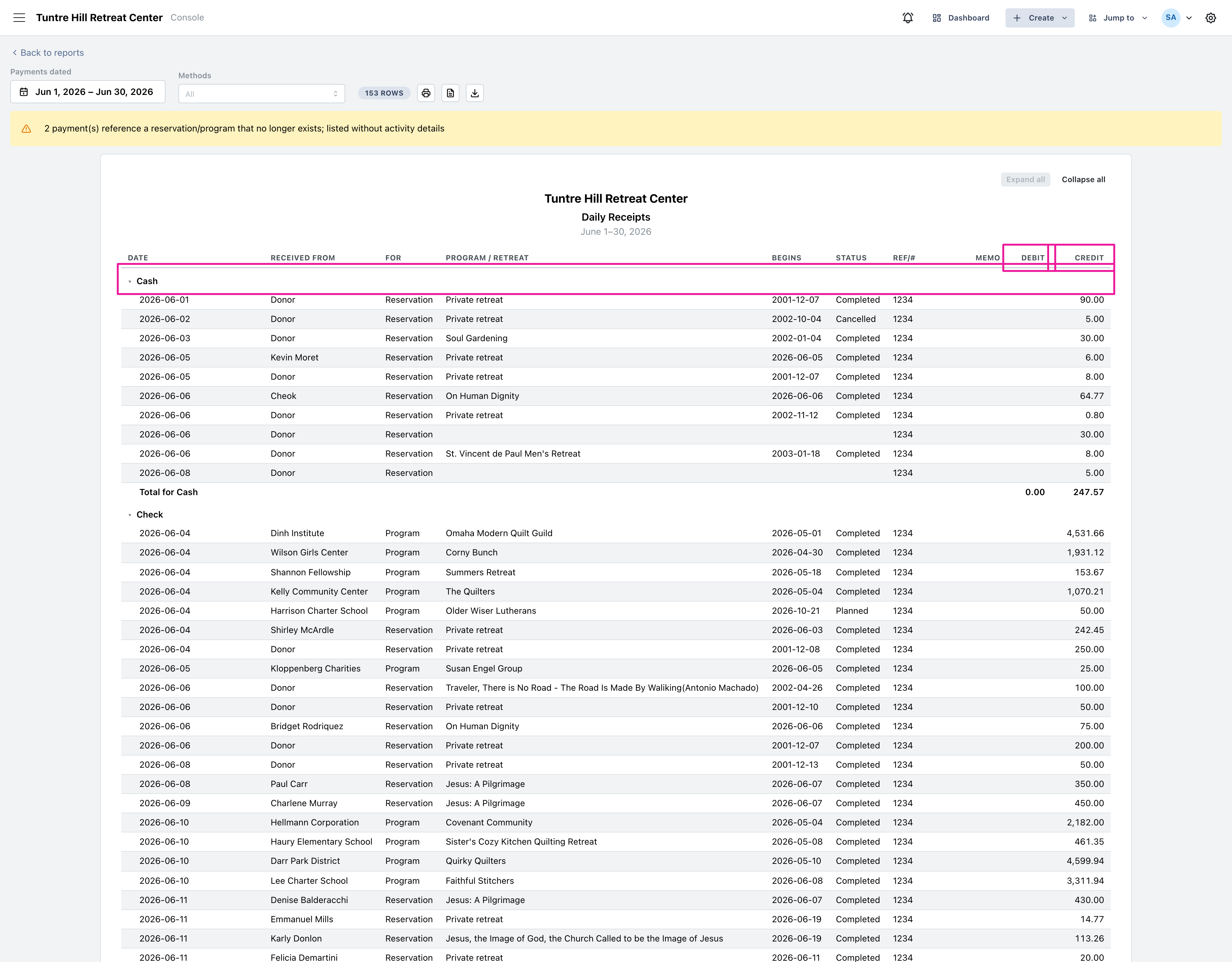
Collapse to a deposit summary
Section titled “Collapse to a deposit summary”Click any method’s header row to collapse it down to its totals, or click ‘Collapse all’ to reduce the whole register to one line per method — the totals to check off against your bank deposit. ‘Expand all’ brings the detail back.
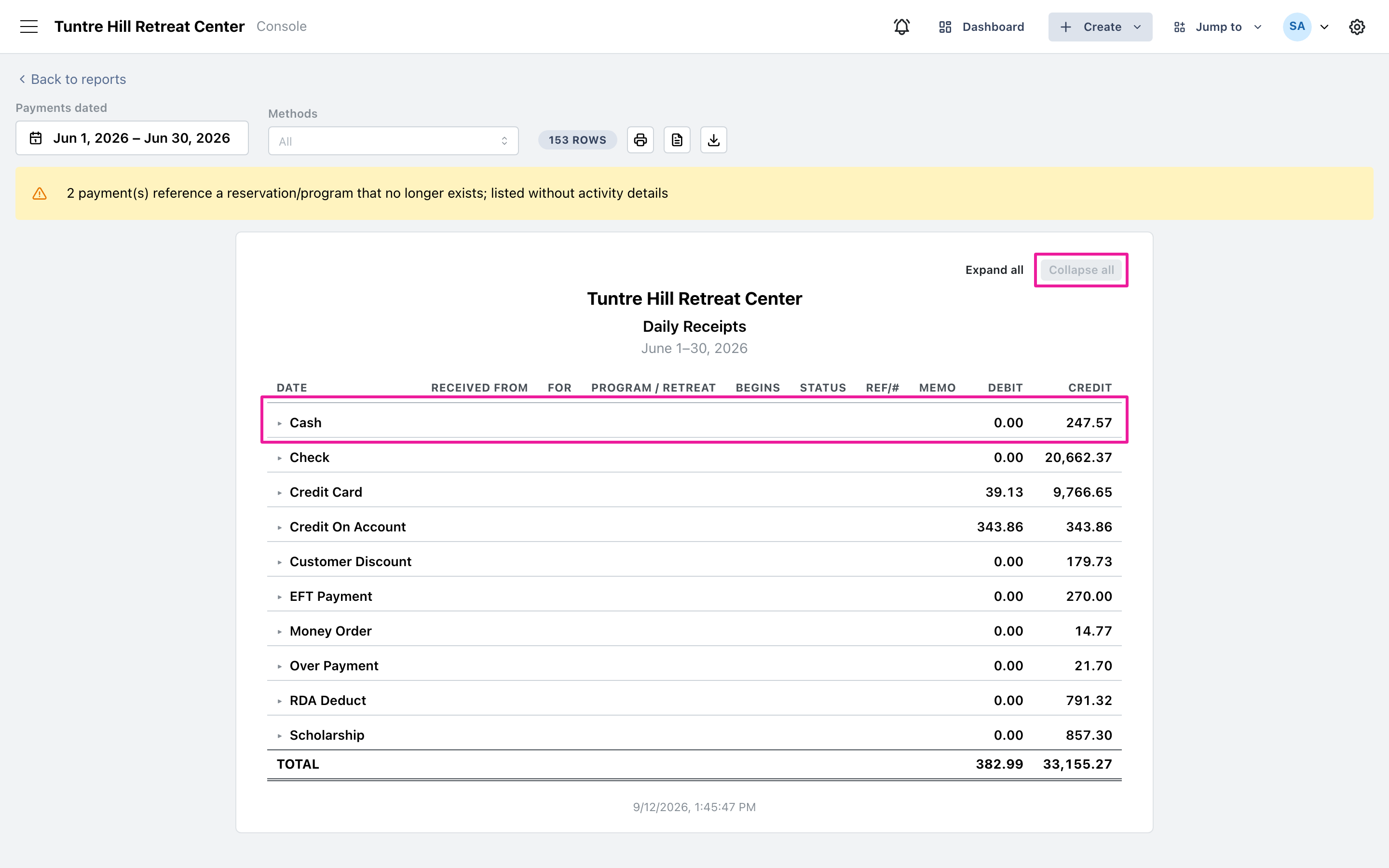
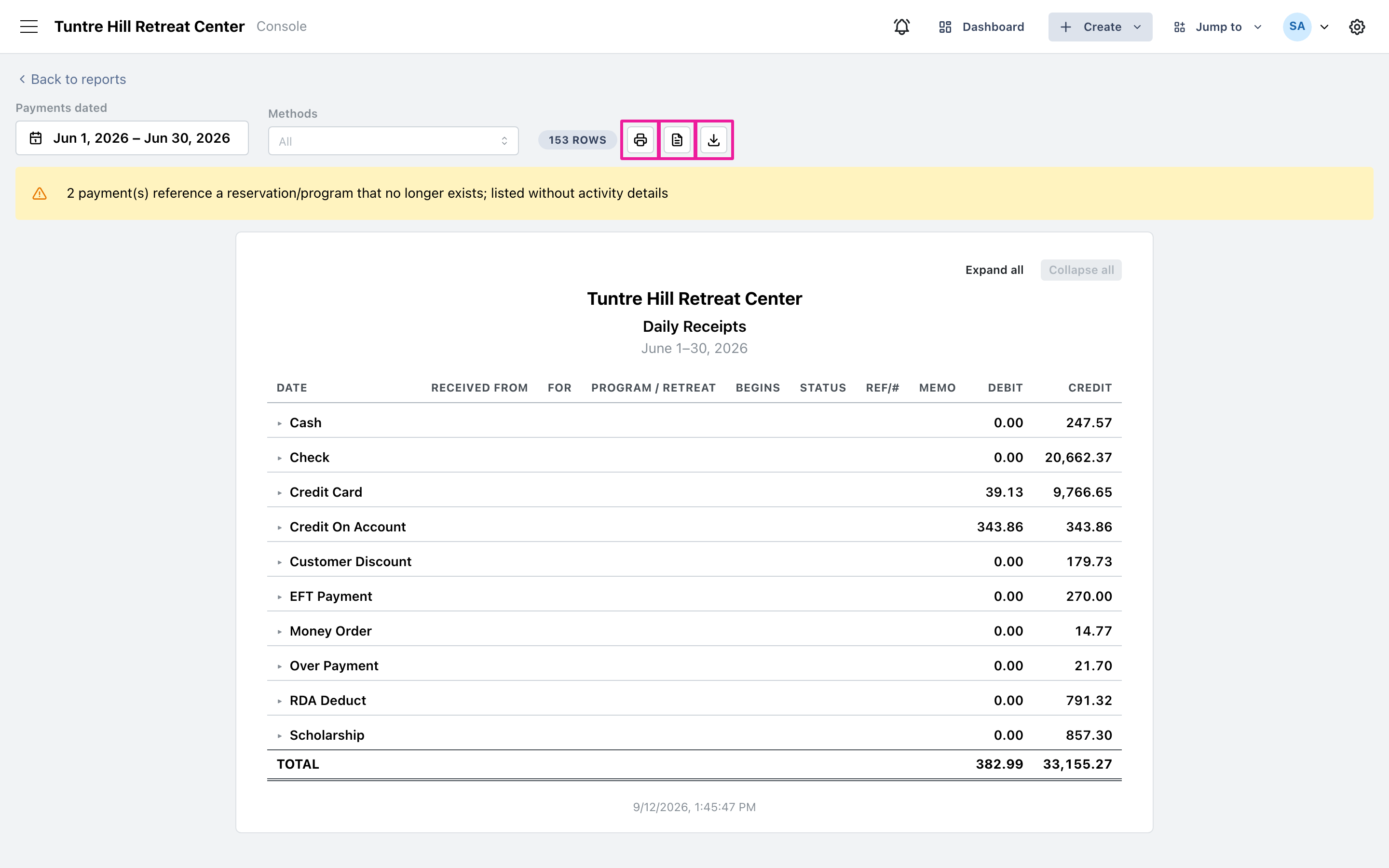
Print or export
Section titled “Print or export”Use the printer icon at the top to print the report — it prints exactly what’s on screen, so a collapsed register comes out as a one-page deposit summary. The two icons beside it export the report as a Word document or a CSV file.