The Meetings List
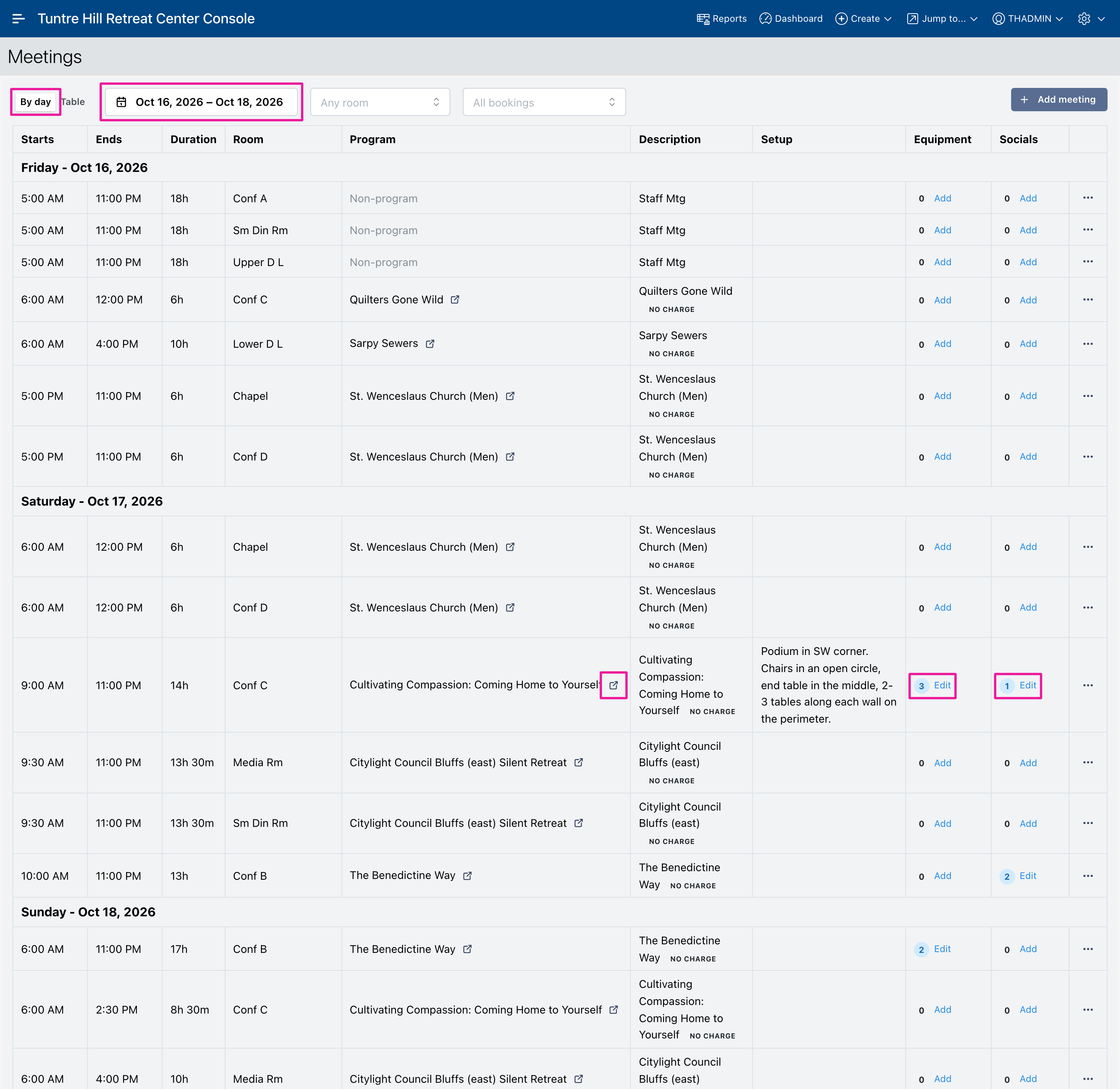
The Meetings list is every booked meeting for a stretch of days, grouped by day — the place to check a week at a glance, add a meeting, and manage each one’s equipment and socials. A program’s page carries the same list for that program alone.
Open it
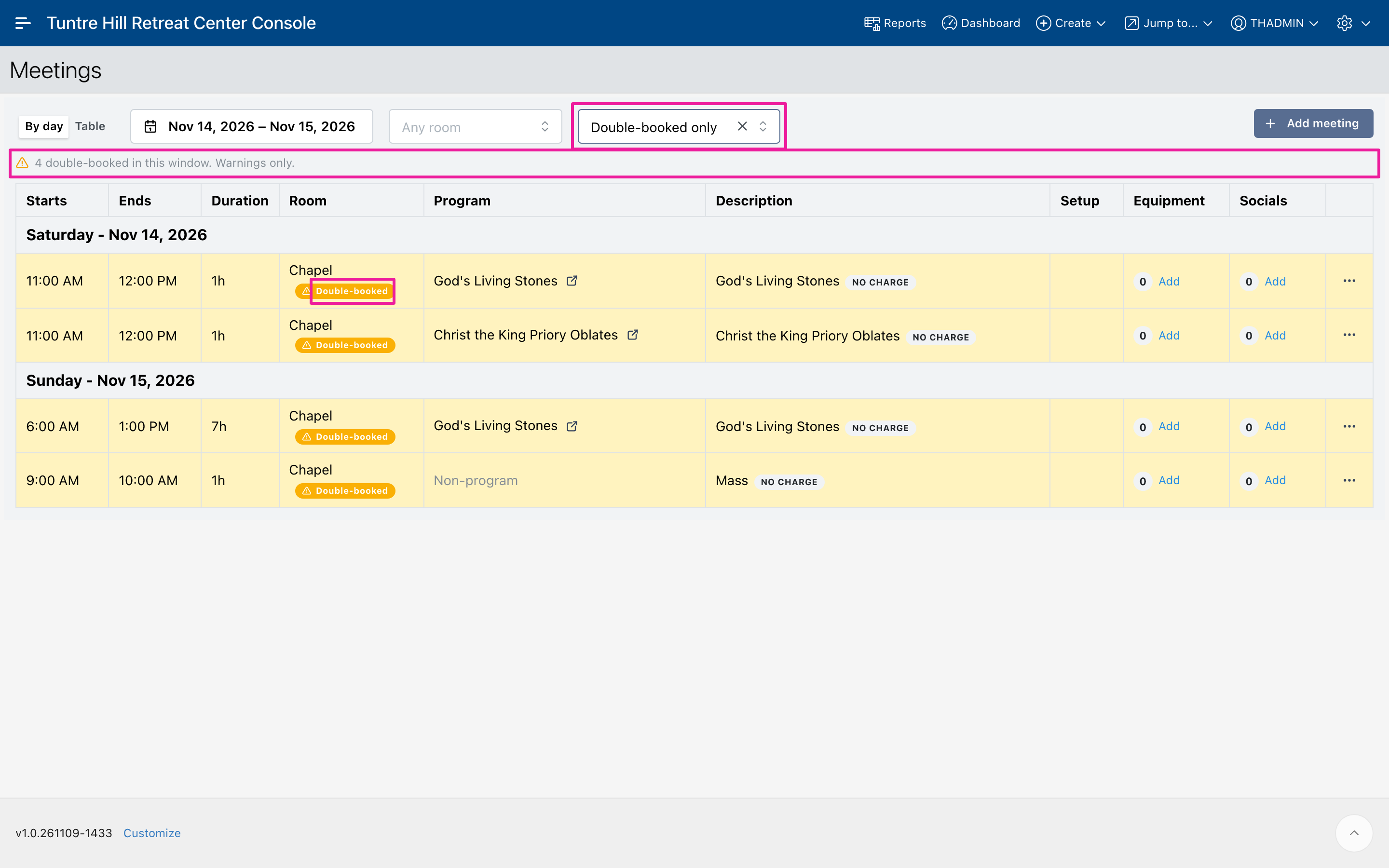
Section titled “Open it”Click the menu icon on the top-left and choose ‘Planning’ > ‘Meetings’. Pick the days with the date range button, and a single room under ‘Any room’ if you only want one. To see just the meetings that need attention, open ‘All bookings’ and choose ‘Double-booked only’ (two different bookings in one room at the same time), ‘Duplicates only’ (the same program booked twice in a room), or ‘Any warning’. Clear it to see every meeting again.
Read it
Section titled “Read it”‘By day’ puts a header on each day and lists its meetings in time order: the start and end, the room, the program, the description, the setup notes, a ‘NO CHARGE’ mark on rooms the program is not billed for, and the ‘Equipment’ and ‘Socials’ counts. The small arrow beside a program’s name opens that program’s page in a new tab, so you can check the booking without leaving the list. The three dots at the end of a row hold ‘Edit this meeting’, the room’s ‘across the program…’ item (for example ‘Conf B across the program…’), and ‘Delete this meeting’.
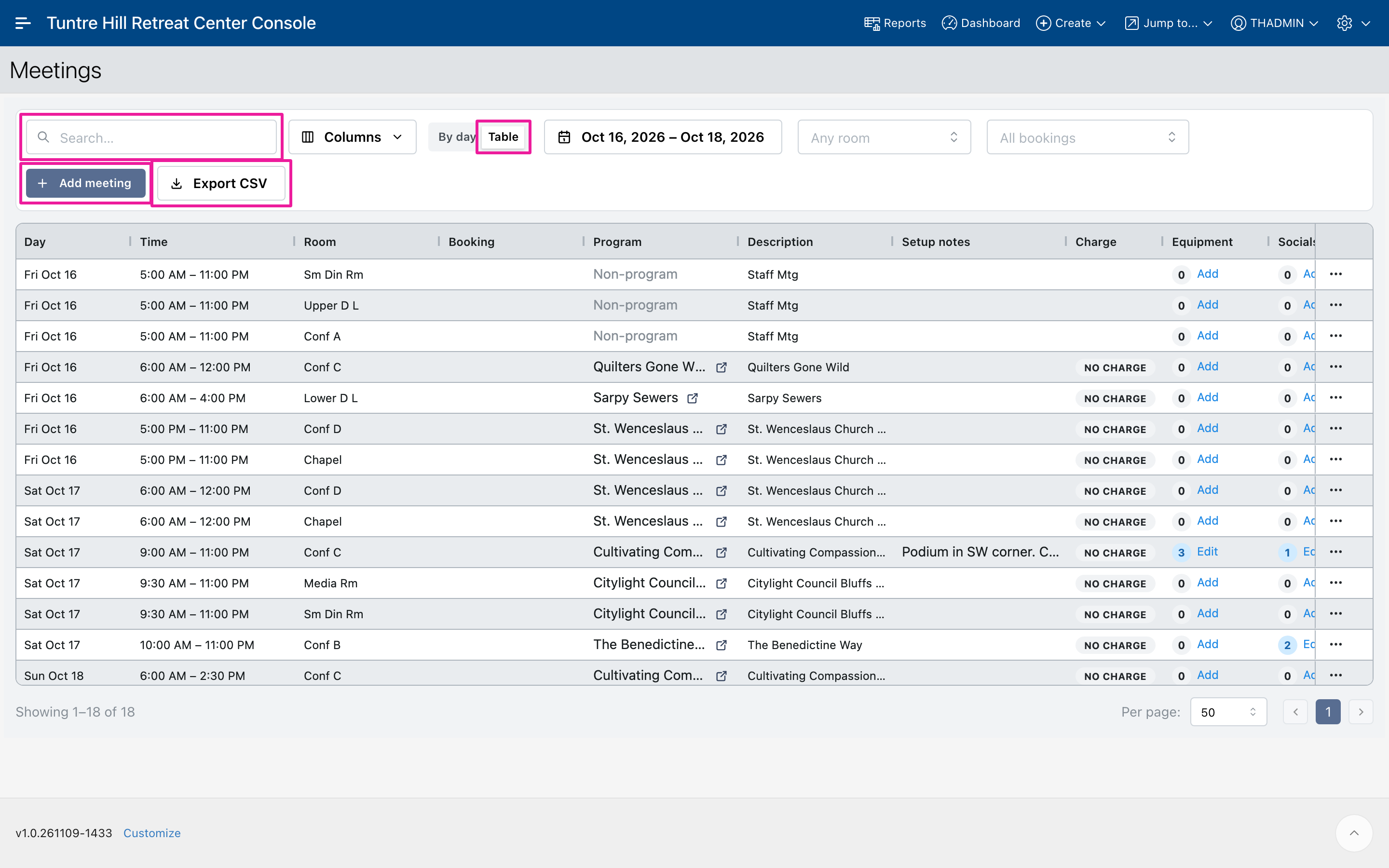
Switch to ‘Table’ for one flat list with ‘Search…’, sortable columns, paging, and ‘Export CSV’.
Overbooked rooms are flagged
Section titled “Overbooked rooms are flagged”A meeting whose room is booked twice at that time carries a yellow badge on its row: ‘Double-booked’ when the other booking belongs to another program or a non-program activity, ‘Duplicate’ when the same program holds the room twice — usually a booking entered twice. Hold the pointer on a badge to see the other booking and its times, and the line above the list counts the window’s flags. They are warnings only; nothing stops the booking. The Overbooked Meeting Rooms report prints the same pairs for any date range.
Add, edit, delete
Section titled “Add, edit, delete”‘Add meeting’ opens the ‘New meeting’ window with the room you filtered to already chosen; see The ‘New meeting’ Window. ‘Edit this meeting’ on a row opens the same window on that meeting, and ‘Delete this meeting’ removes it along with its socials and equipment; see Change or Cancel a Meeting. The room’s ‘across the program…’ item opens that room for every day of the program; see A Room Across the Program.
Equipment and socials
Section titled “Equipment and socials”The two counts are buttons. ‘Add’ or ‘Edit’ under ‘Equipment’ opens the equipment list for that meeting; under ‘Socials’ it opens the meeting’s socials. See Request Equipment for a Meeting and Plan a Social for a Meeting.
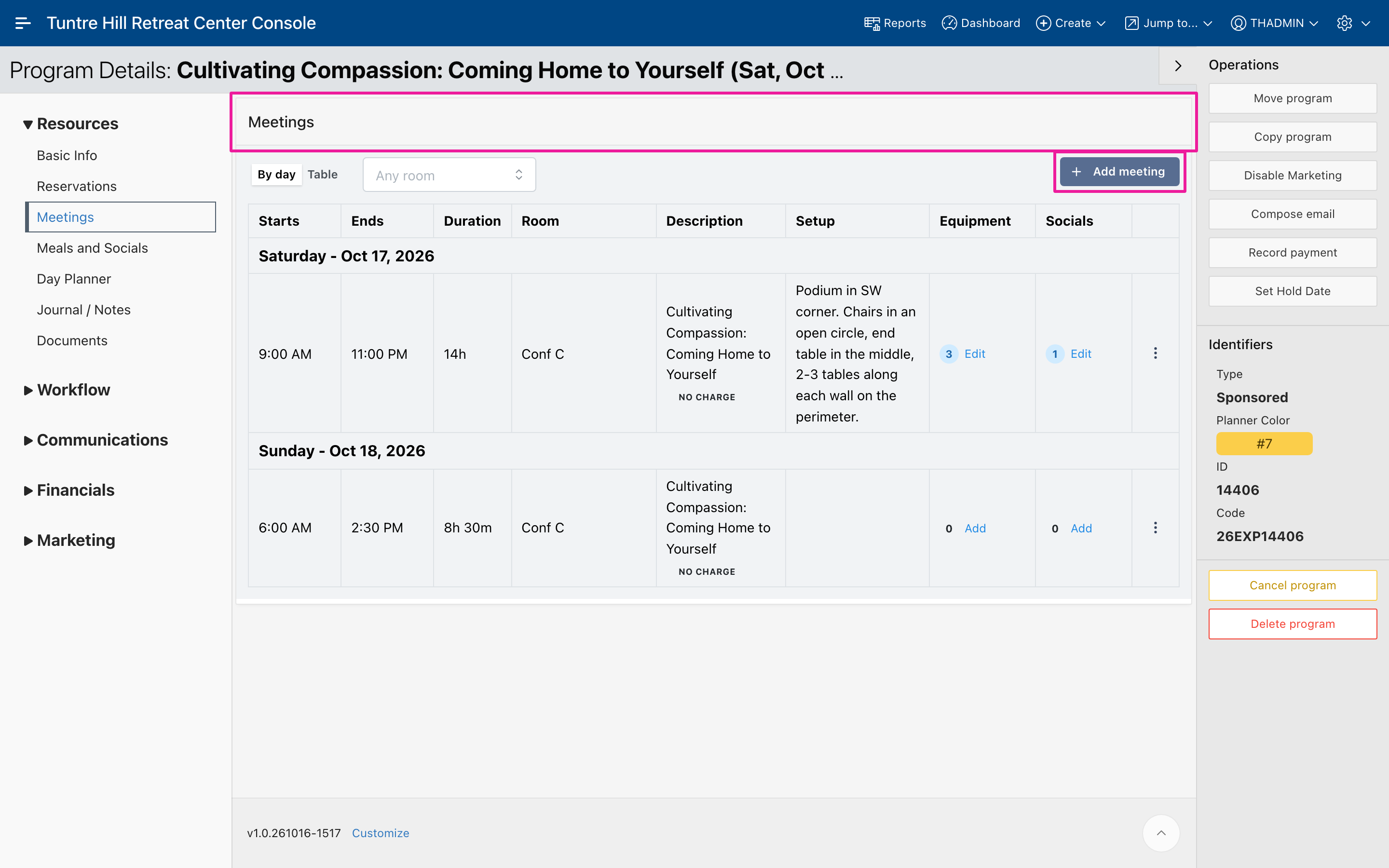
A program’s own list
Section titled “A program’s own list”Open the program and click ‘Meetings’ under Resources on the left. It is the same list scoped to that program, with the program’s own ‘Add meeting’.