Group Portal Access
Group Portal Access decides which of your users can administer a group in the Group Portal, the site where a group’s own contact looks after the programs they run with you. Reach for it when a new contact takes over a group, when one person needs to cover several groups, or when someone moves on and their access has to come off.
Open Group Portal access
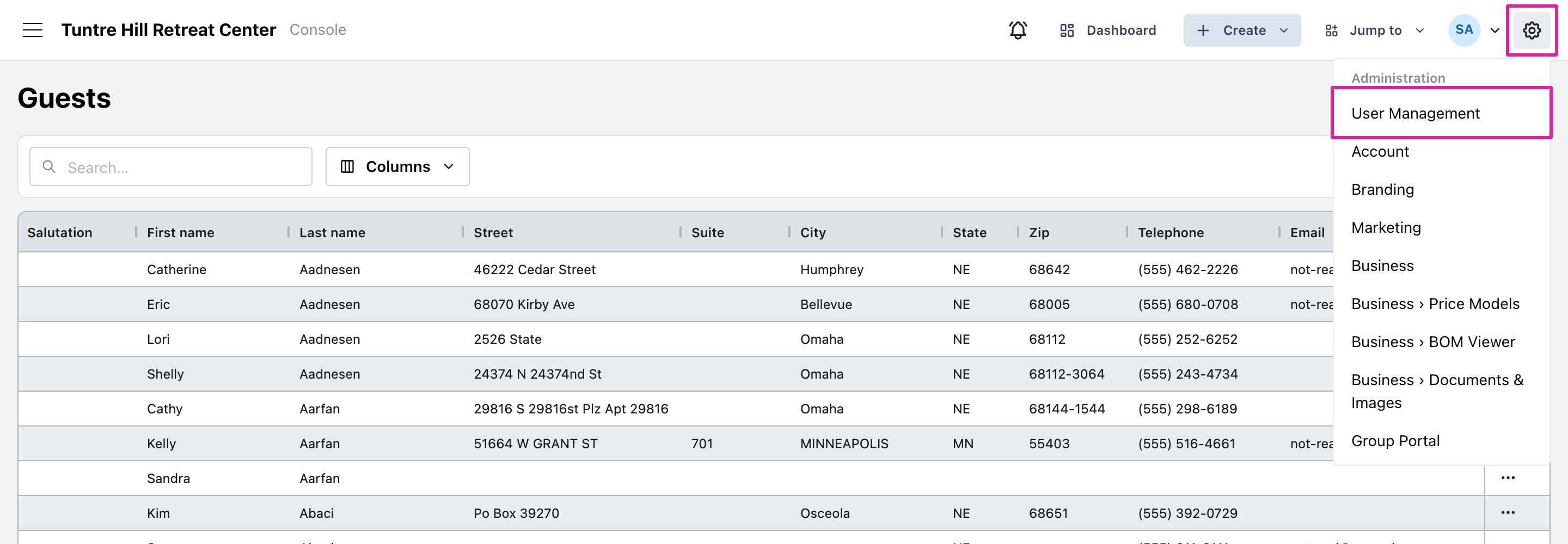
Section titled “Open Group Portal access”Click the top-right gear icon and select ‘User Management’.
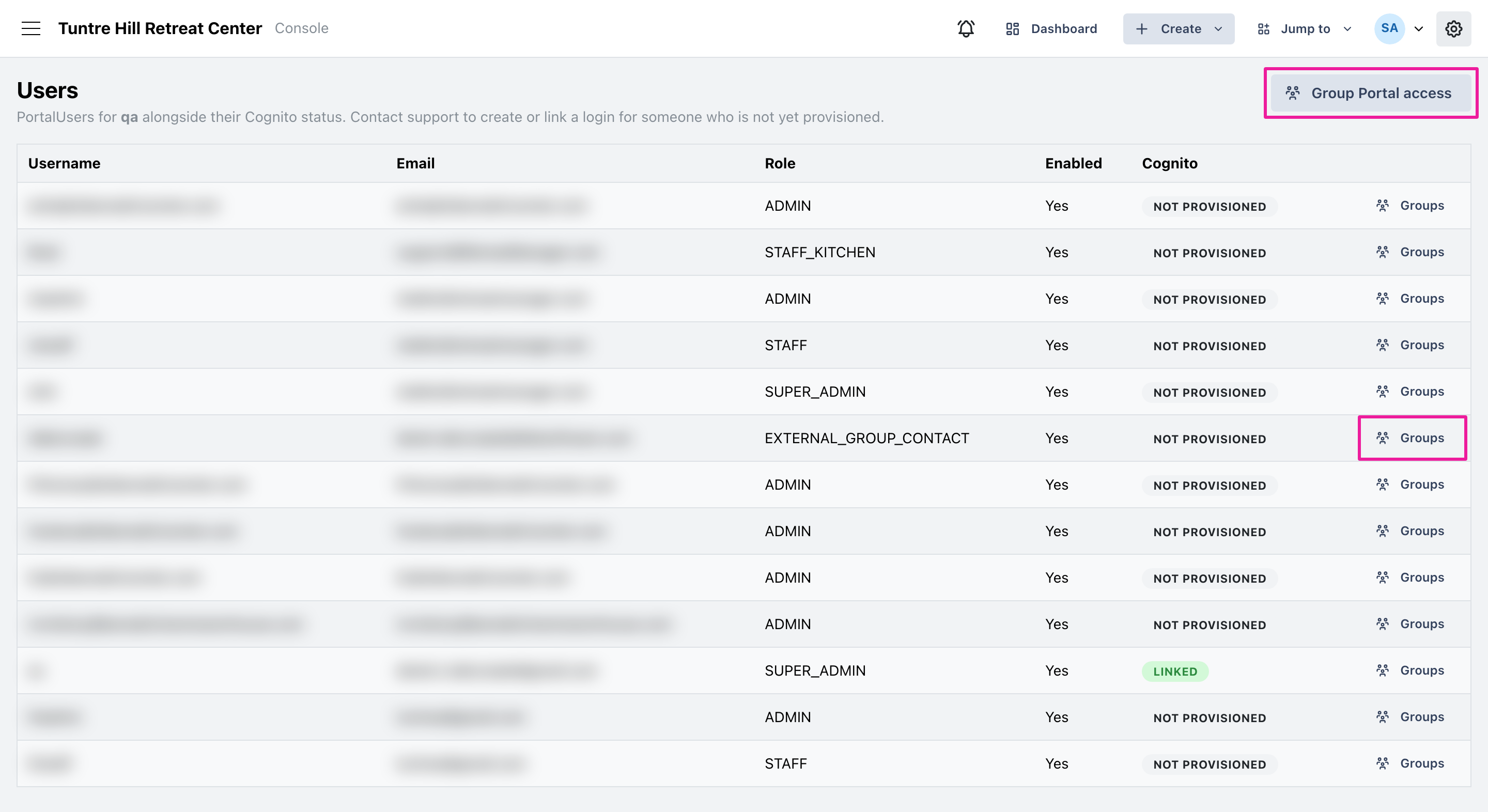
From there you have two ways in. Click the ‘Group Portal access’ button on the top right to open the tool on everyone, with every user and every group to hand so you can work from either direction. Or click ‘Groups’ on one person’s row to open it already pointed at them, their groups listed and ready to change. Either way the same tool opens over the page, and closing it puts you back on your list.
Give a contact access to a group
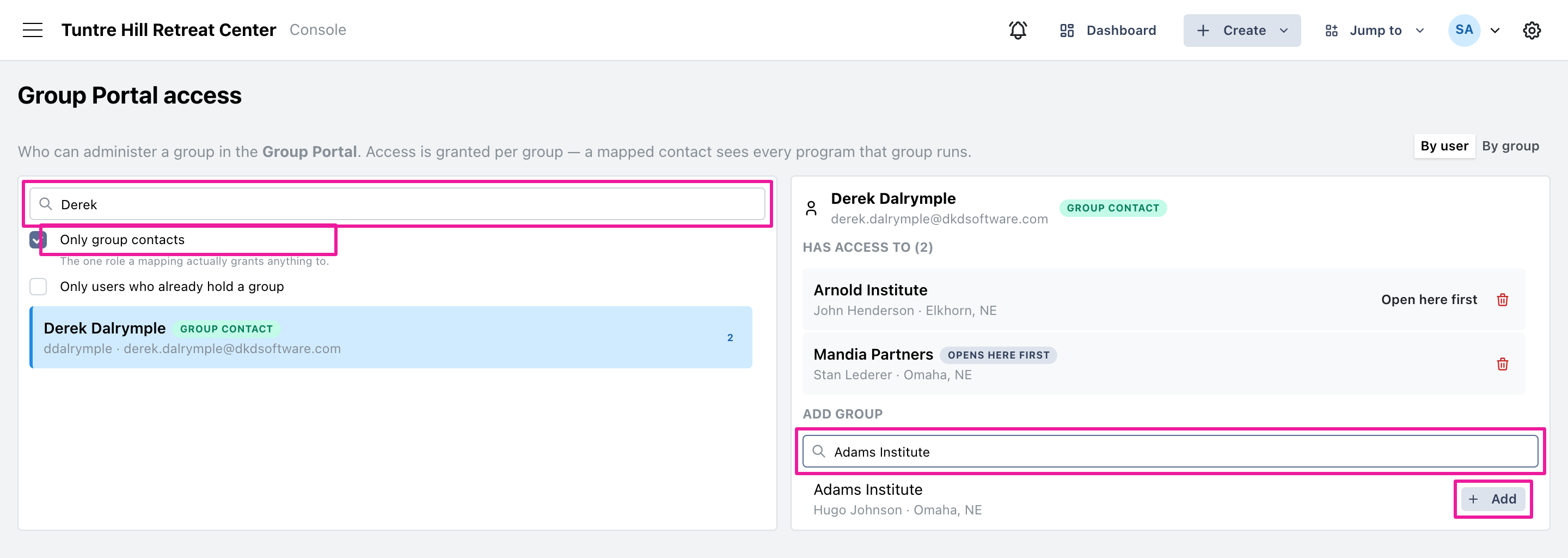
Section titled “Give a contact access to a group”The tool opens on the ‘By user’ side. Type a name, login, or email into the search box on the left and click the person you want. ‘Only group contacts’ is ticked to start with, because that is the one role access to a group actually grants anything to — untick it to search everyone. Their groups appear on the right under ‘Has access to’. Under ‘Add group’, type the group’s name and click ‘Add’ beside it.
Access is granted per group, and a contact sees every program that group runs. If you pick someone who isn’t a group contact, Retreat Portal says so and holds off until you click ‘Add a group anyway’. The tool never creates people, only grants to those who already exist, so add a brand-new contact on the ‘User Management’ page first.
Set the group they open on
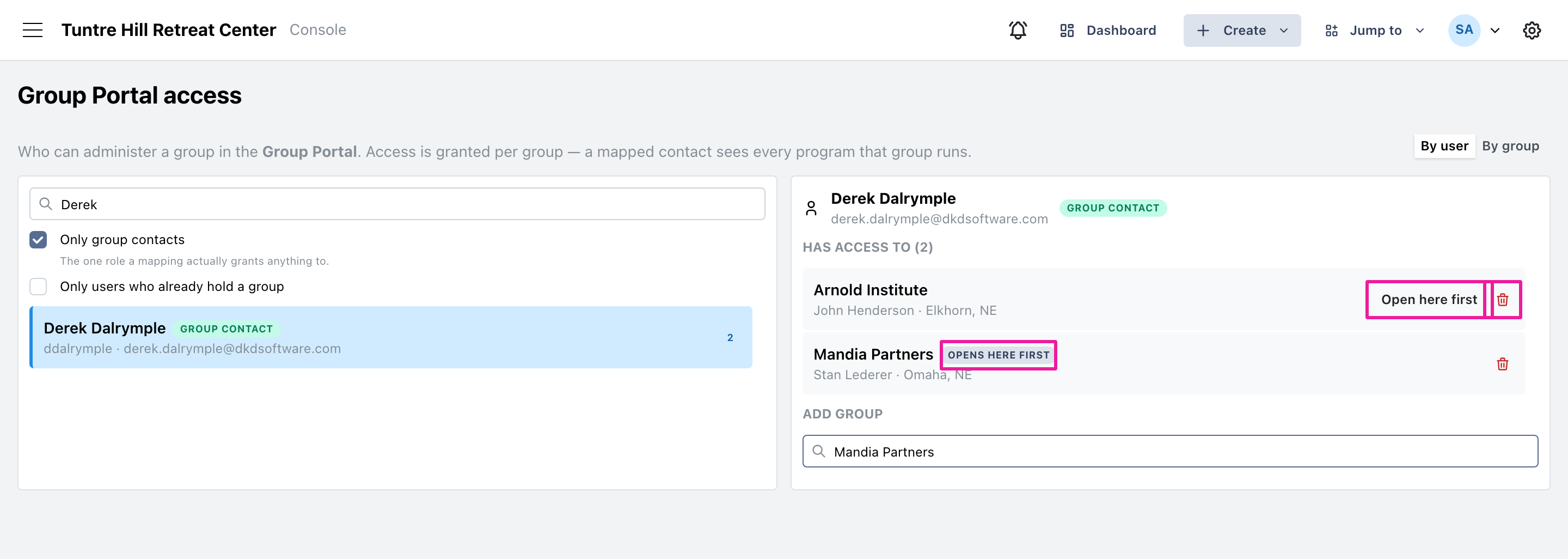
Section titled “Set the group they open on”Someone who administers more than one group lands on one of them when they sign in, and that group is marked ‘opens here first’. To move it, click ‘Open here first’ on the group you’d rather they started with.
Take access away
Section titled “Take access away”Click the bin icon on the right of a group to take it back. The person keeps their sign-in and any other groups they hold — only that one group goes.
See who can administer a group
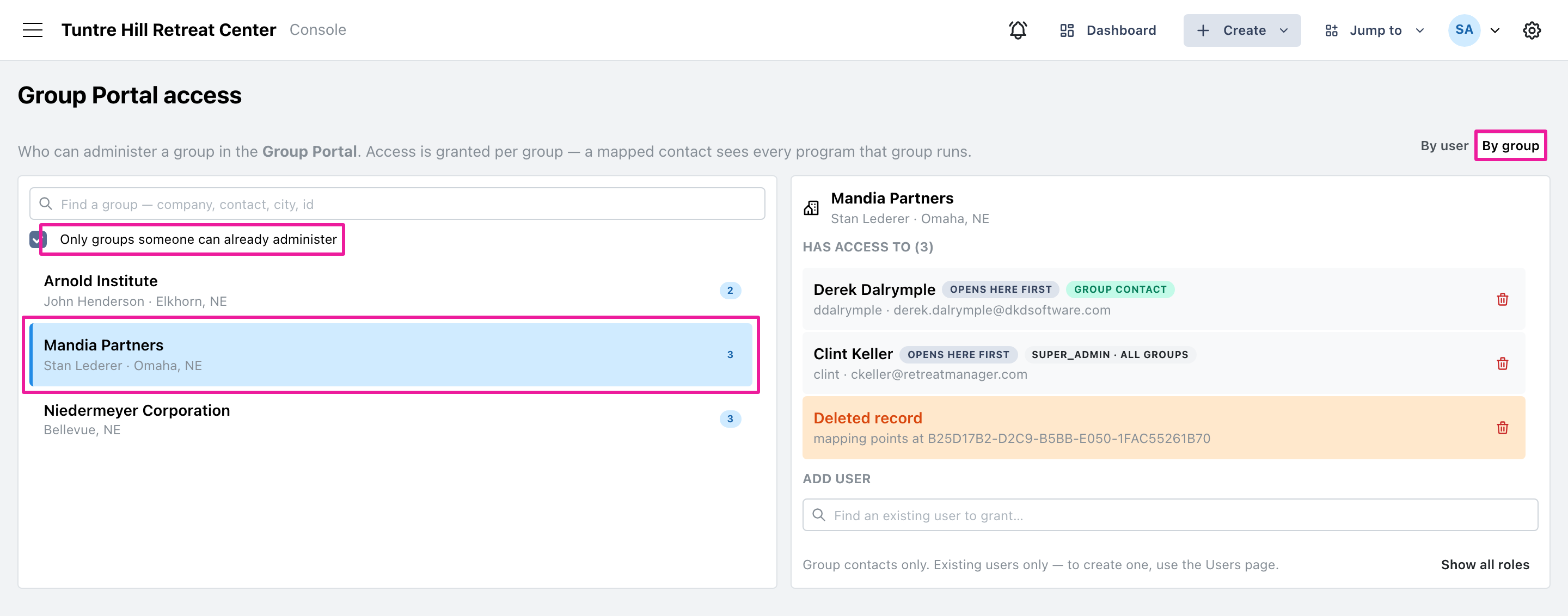
Section titled “See who can administer a group”Click ‘By group’ to work from the other direction. Tick ‘Only groups someone can already administer’ to skip past the groups nobody has been given yet, then click a group to see everyone who can administer it.
The labels beside each name are worth a glance. ‘group contact’ is someone who is there because you put them there. A label such as ‘super_admin · all groups’ marks one of your own staff, who reaches every group’s portal regardless, so removing the row changes nothing for them. An orange ‘Deleted record’ row is left over from a user or group that has since been removed; click its bin icon to clear it out.