
Request Several Balances at Once
Outstanding Balances lists every invoice with money still owed. Tick the ones you want to collect and Retreat Portal creates a payment request for each in one step: handy before a retreat, when several registrants still owe their balance, or for a monthly sweep of unpaid stays.
Tick the invoices
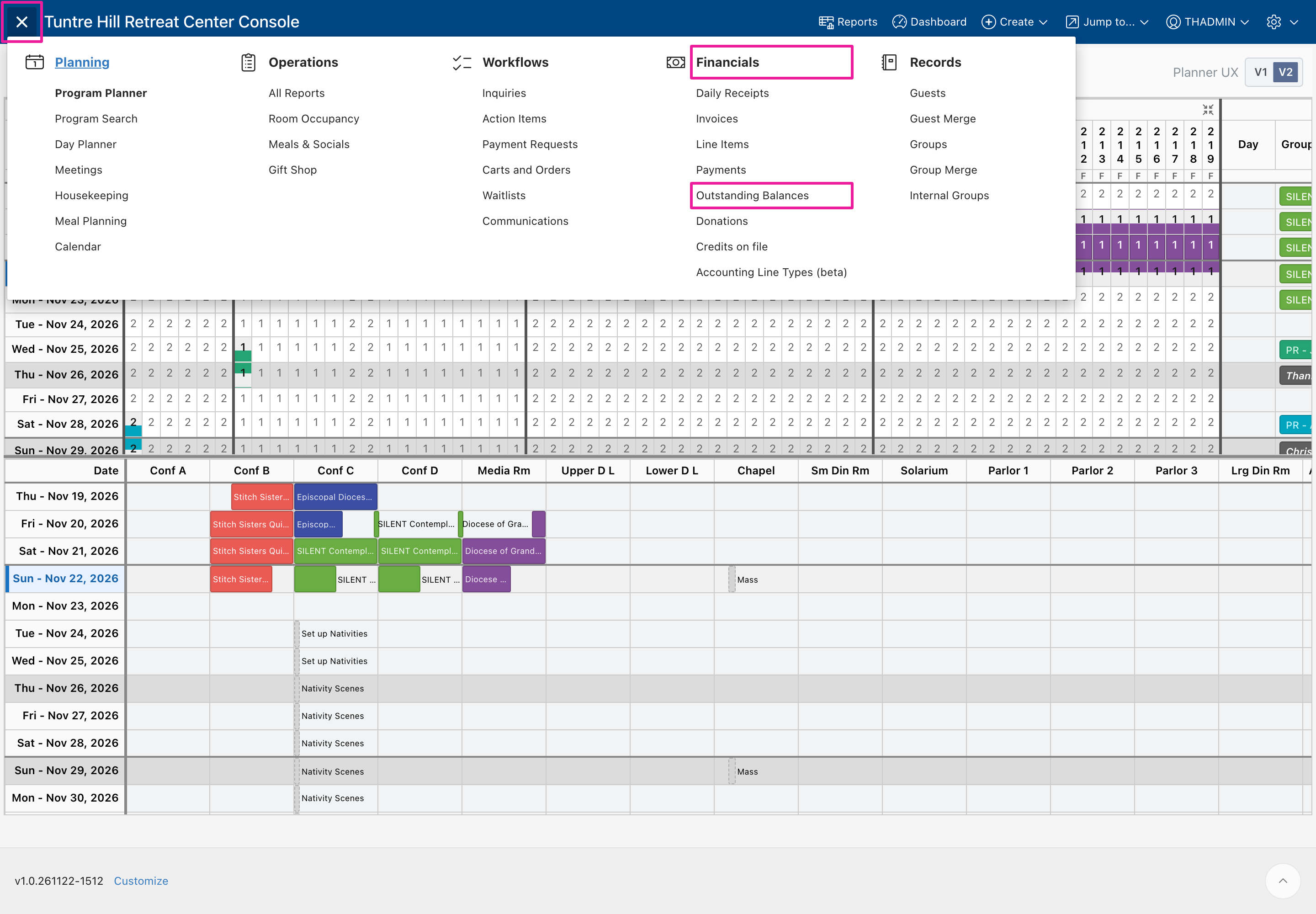
Section titled “Tick the invoices”Click the menu icon on the top-left and select ‘Financials’ > ‘Outstanding Balances’.
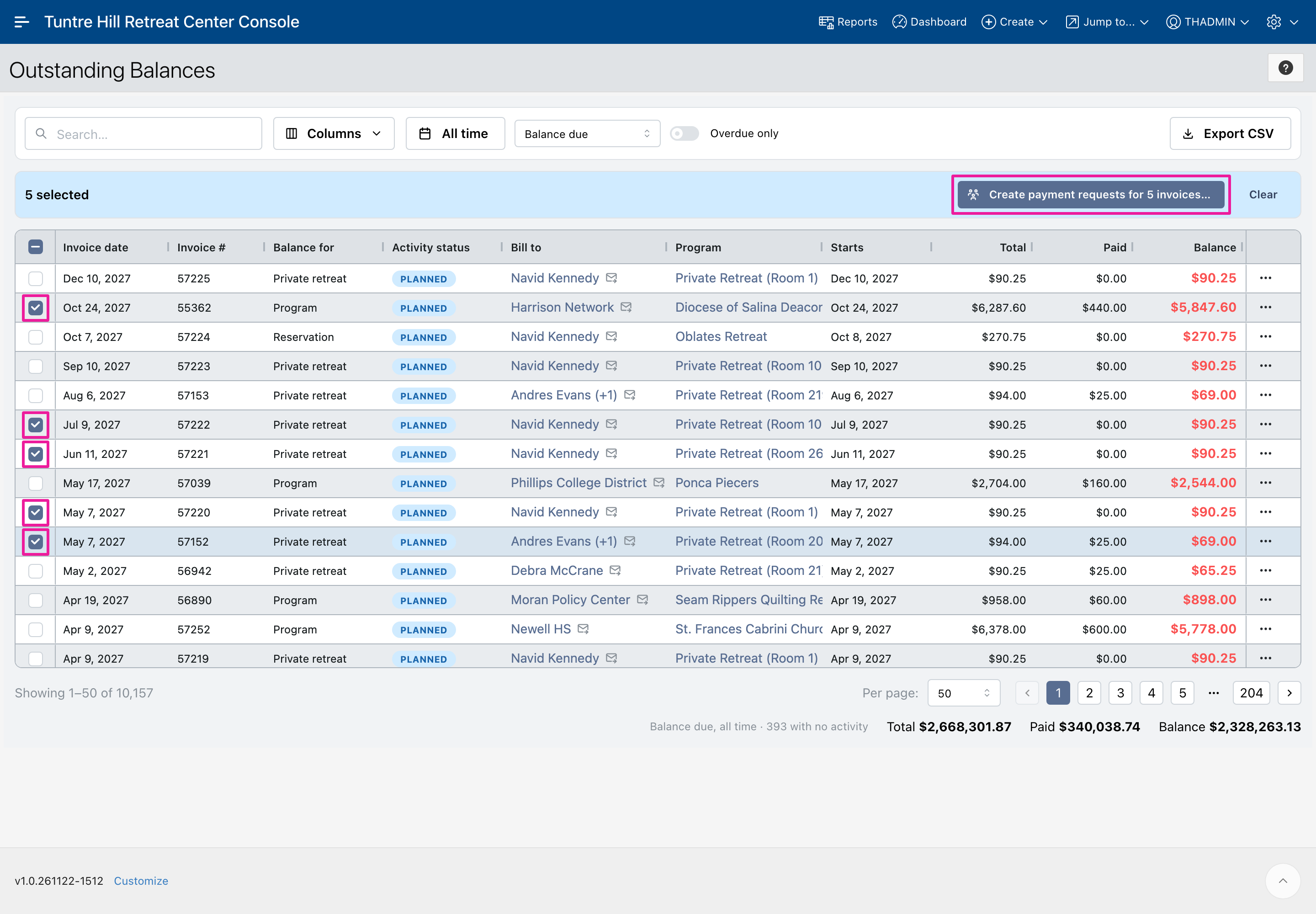
Use the search box or the date range to narrow the list, then tick the box on the left of each invoice you want to ask on. Click ‘Create payment requests for 5 invoices…’ in the bar that appears above the list.
Check who is asked
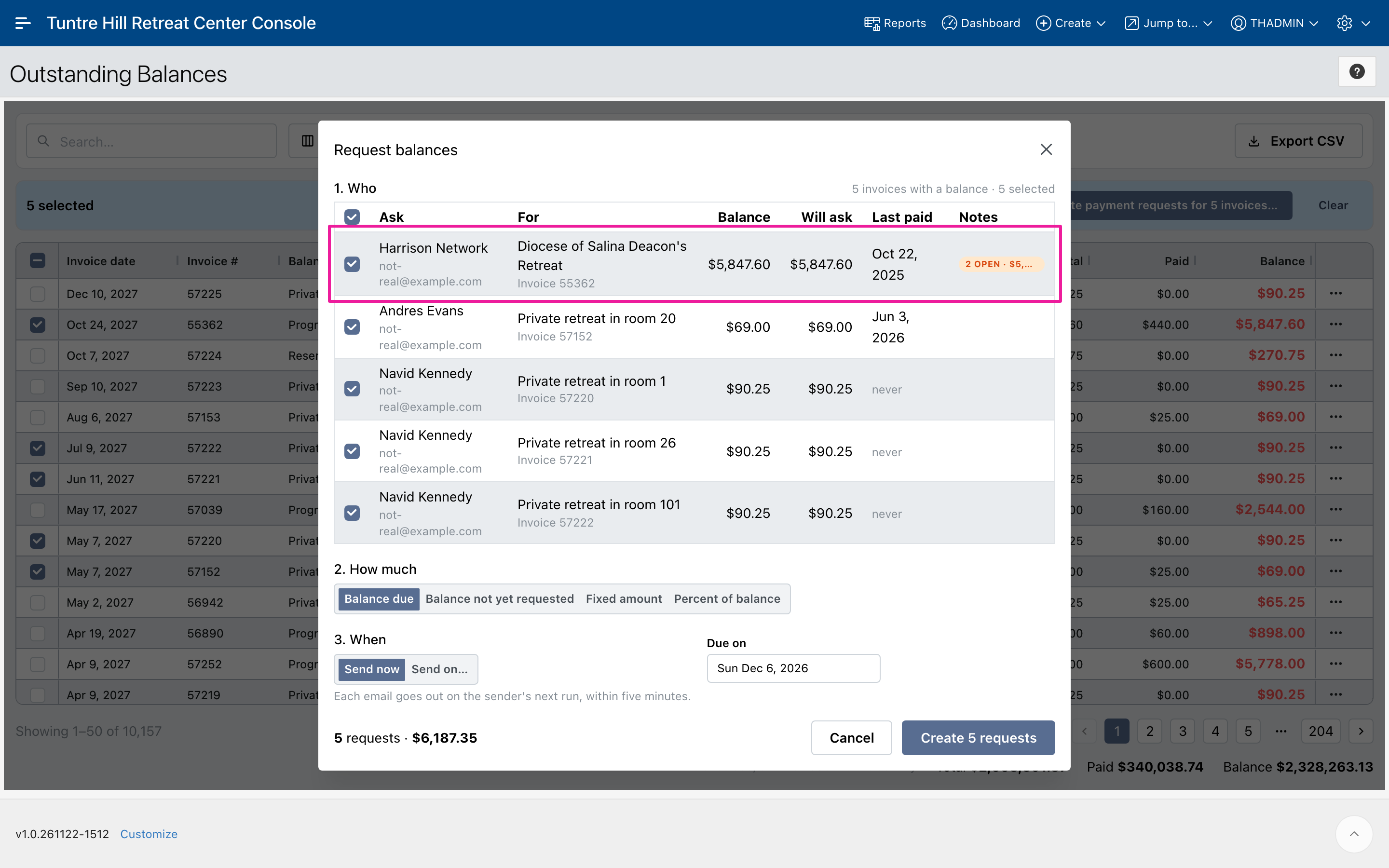
Section titled “Check who is asked”The ‘Request balances’ window lists the invoices you ticked: who is asked and at what email address, what the invoice is for, its balance, the amount the request will ask for, and when they last paid.
Read the ‘Notes’ column before going on. An invoice that already has a request waiting to be paid shows an orange note such as ‘2 open’ with the amount already asked. Untick it unless you mean to ask again. A red envelope beside a name means there is no email address on file, so that request cannot be sent until one is added.
Choose how much and when
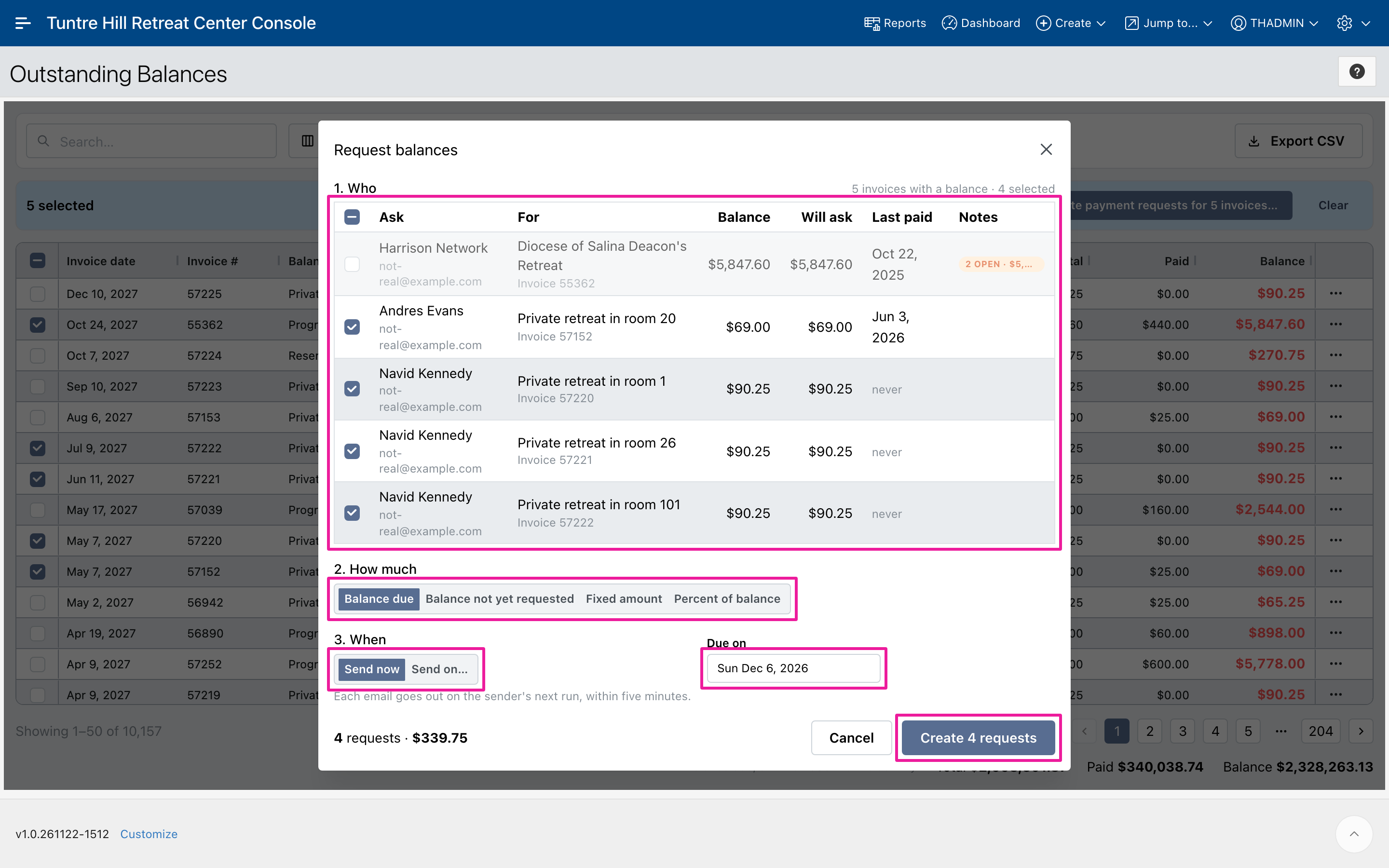
Section titled “Choose how much and when”Under ‘How much’, pick one rule for every ticked invoice:
- ‘Balance due’ asks for the whole balance.
- ‘Balance not yet requested’ asks for the balance less what earlier requests already asked for.
- ‘Fixed amount’ asks everyone for the same amount.
- ‘Percent of balance’ asks for a share of each balance, for example a 50% deposit.
The ‘Will ask’ column updates as you choose. An invoice with nothing left to ask drops out.
Under ‘When’, leave ‘Send now’ to send the emails within five minutes, or click ‘Send on…’ and pick a date and time. Set ‘Due on’ to the date you want payment by; it appears in the email and on the pay page.
Create the requests
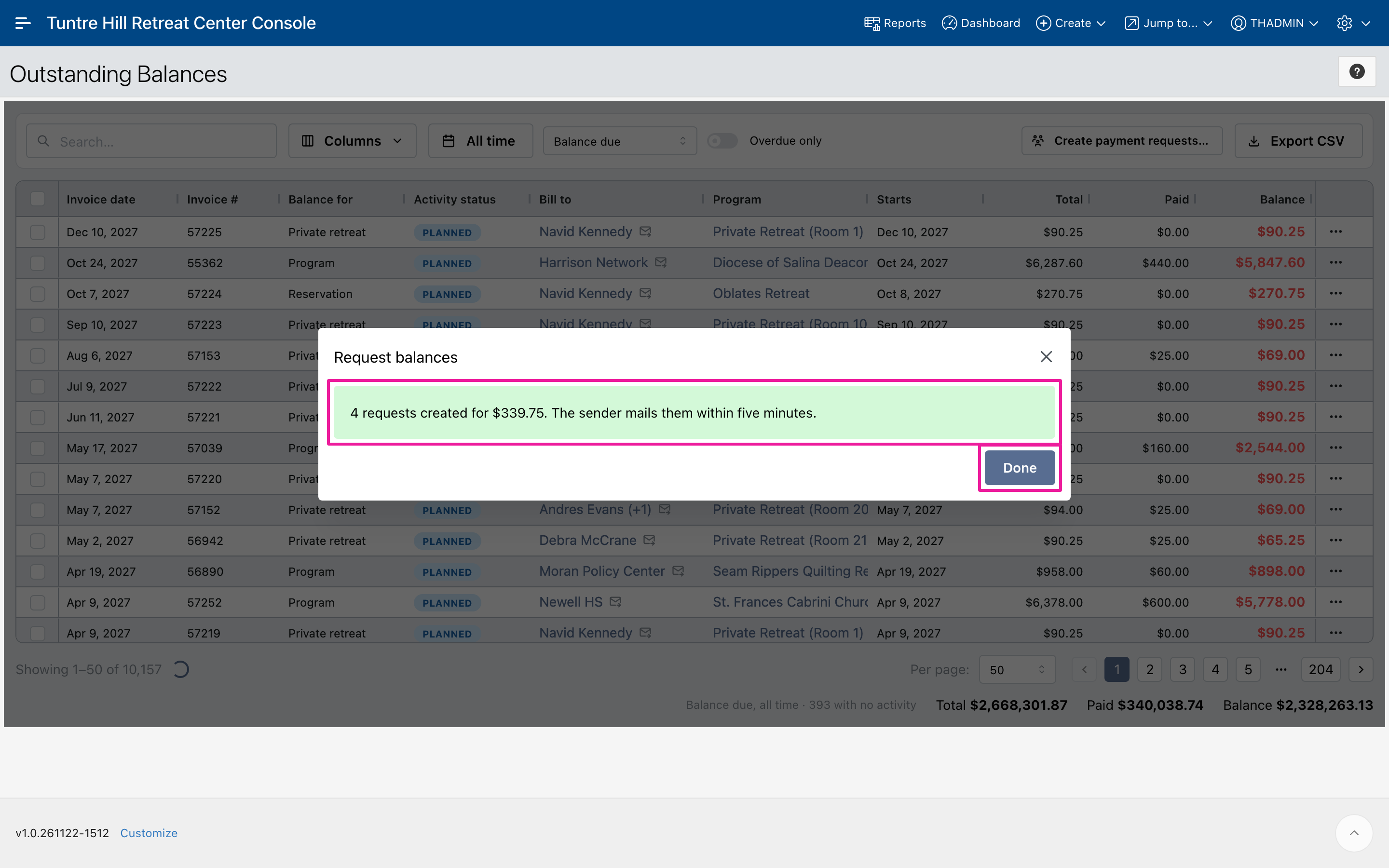
Section titled “Create the requests”Click ‘Create 4 requests’. The window confirms how many were created and for how much, and lists any it skipped with the reason. Click ‘Done’.
The new requests are on the Payment Requests list, where you can follow each one: Track, Resend, and Void a Request.
The Payment Requests list has its own ‘Request balances…’ button, which opens the same window for one program: pick the program and every invoice of its with a balance is listed for you.