Running Reports
The Reports section of Retreat Portal gathers every printable report in one place — programs, rooms, meals, and financials. This tutorial covers how to find a report, keep your favorites handy, and run, print, or export any of them.
Open the reports catalog
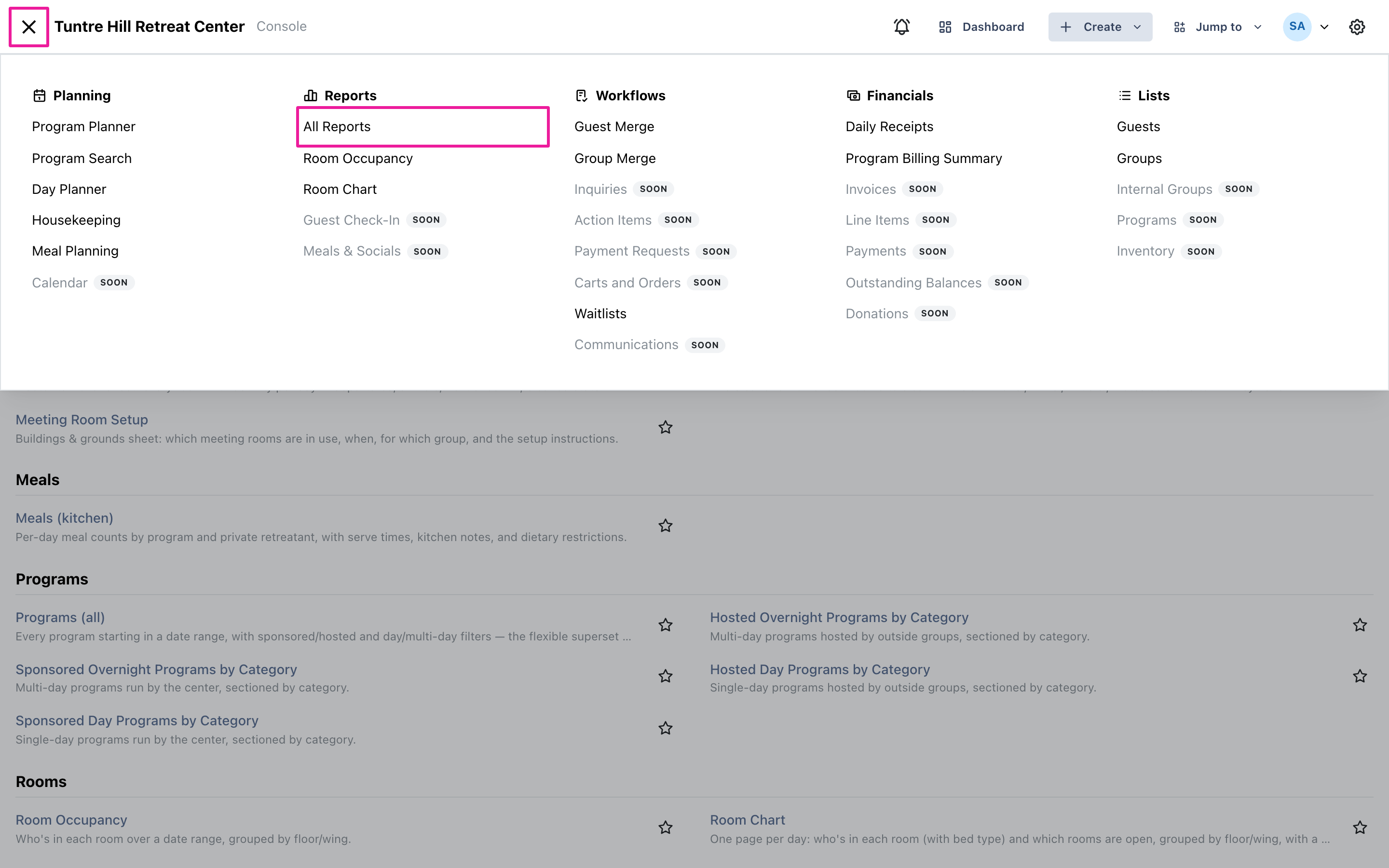
Section titled “Open the reports catalog”Click the menu icon on the top-left and select ‘Reports’ > ‘All Reports’.
Find a report
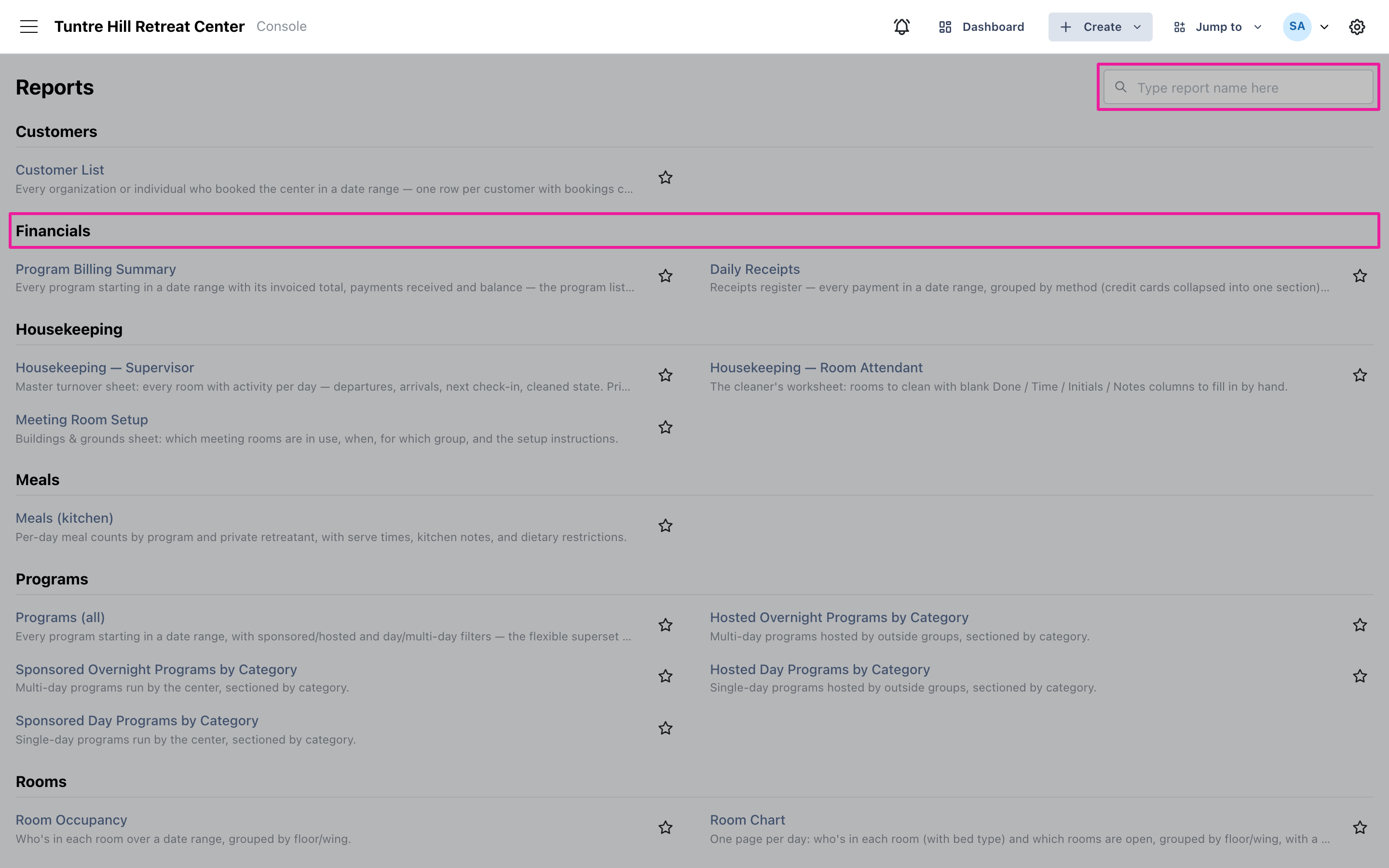
Section titled “Find a report”Reports are listed in sections — Customers, Financials, Housekeeping, Meals, Programs, Rooms, Schedules — with a short description under each name. When you know the name, type it into the search box on the top-right instead of scrolling.
Pin your favorites
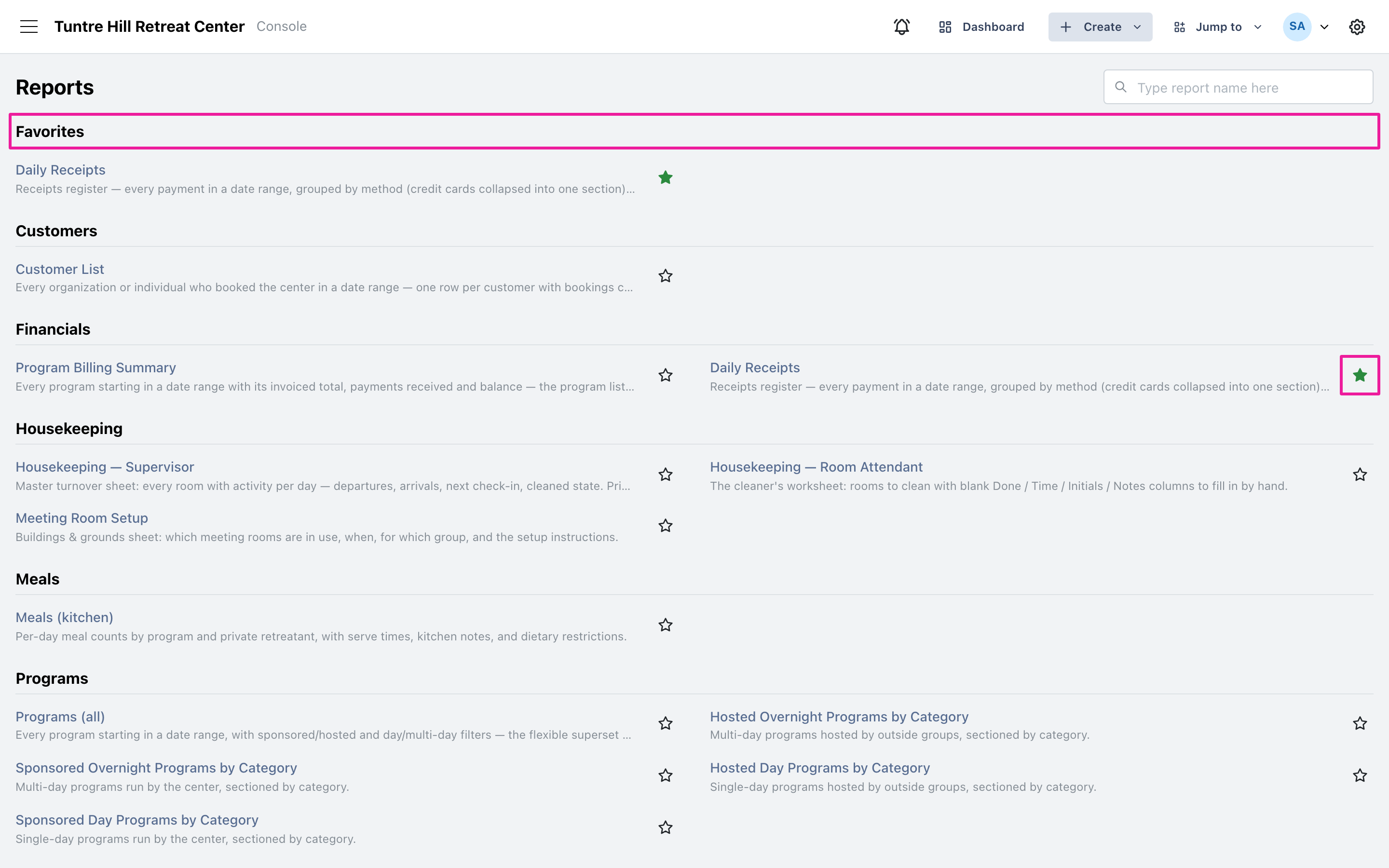
Section titled “Pin your favorites”Click the star next to any report and it’s pinned to a Favorites section at the top of the page. Favorites are yours alone — each person at the center keeps their own list. Click the star again to unpin it.
Run, print, or export
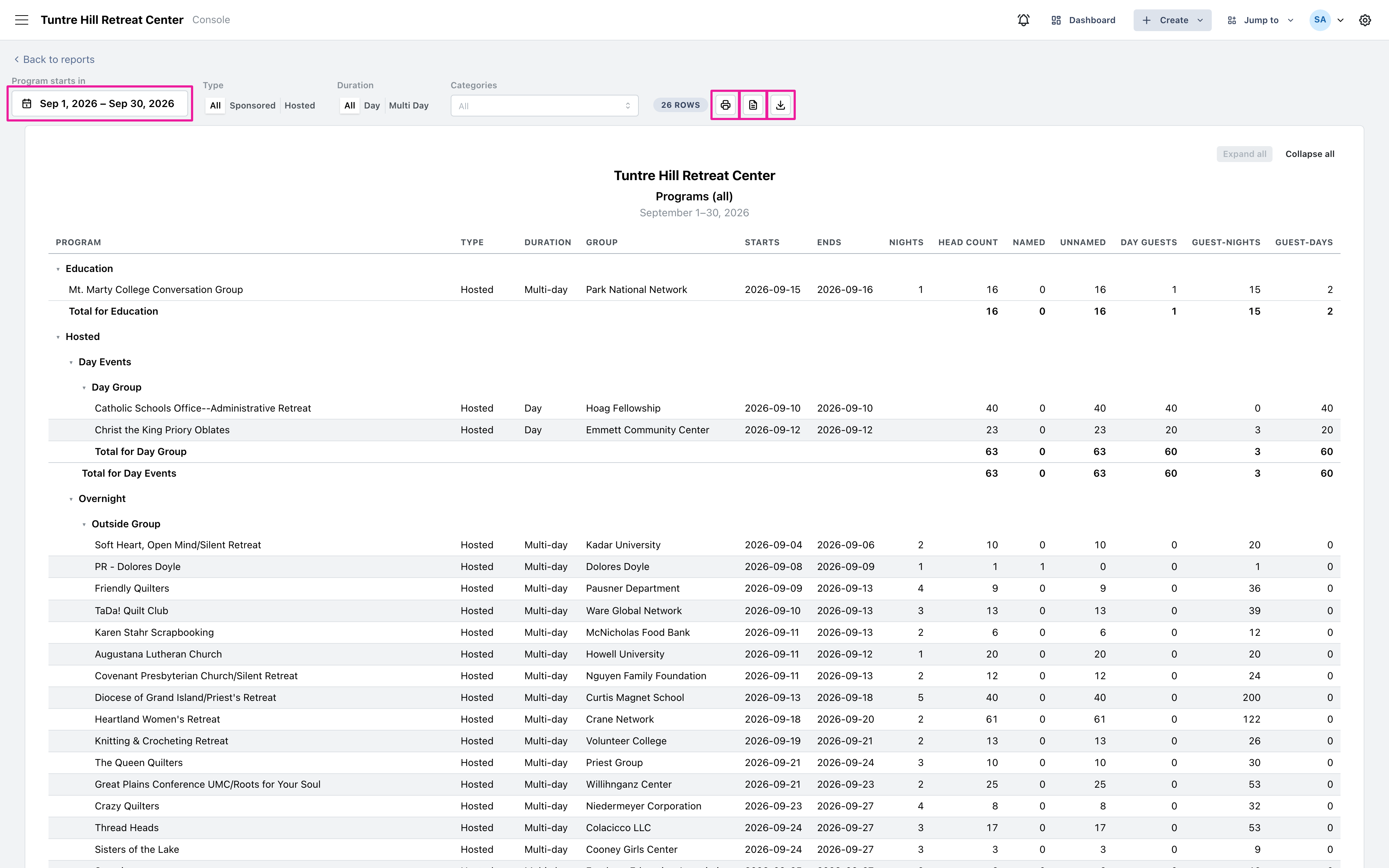
Section titled “Run, print, or export”Click a report’s name to run it — it opens with a sensible date range already applied, and every setting you change re-runs it immediately. The count next to the settings shows how many rows came back. Use the printer icon to print, or the two icons beside it to export a Word document or a CSV file.