Reading the Meal Sheet: What Every Column Means
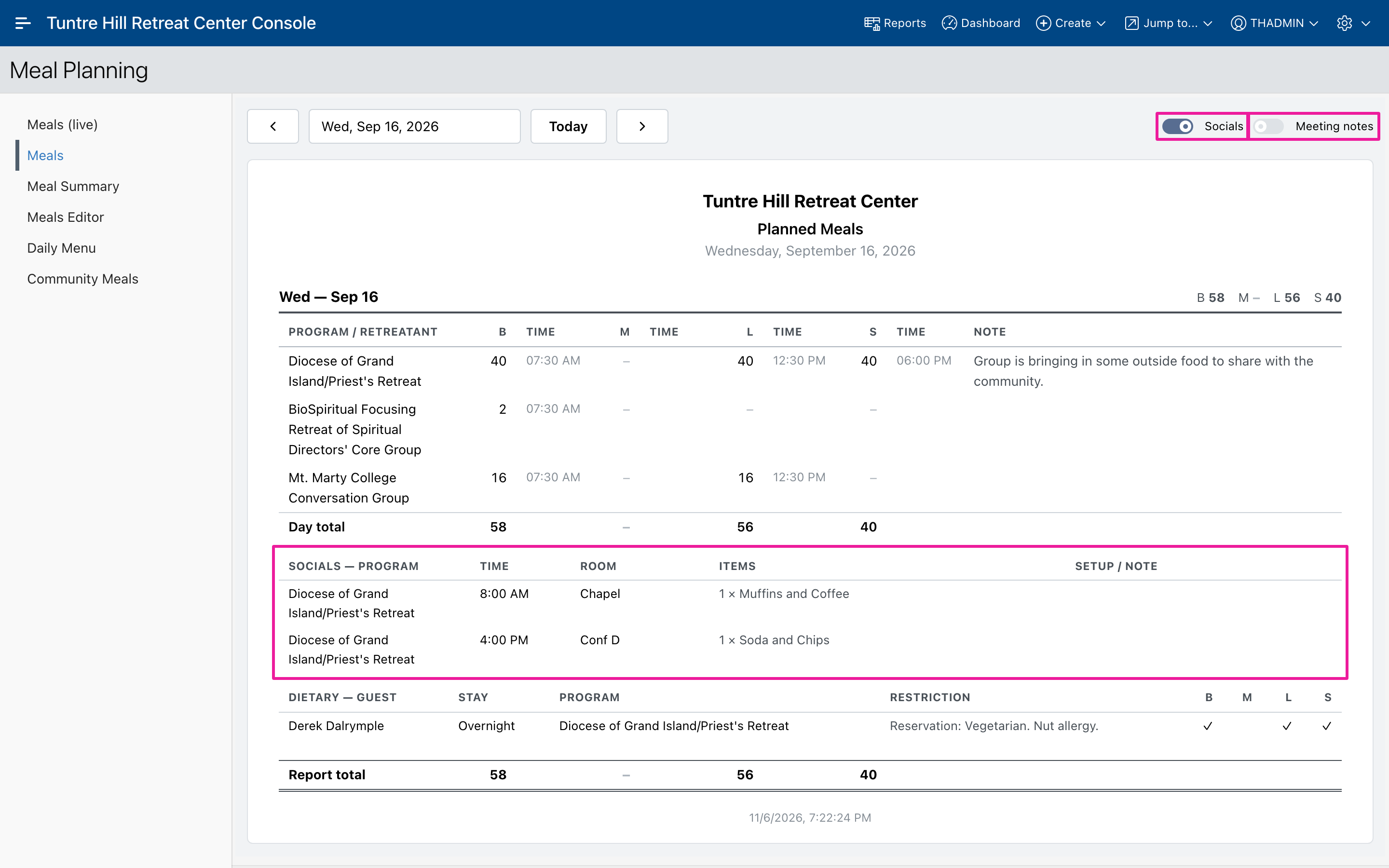
The same meal sheet sits behind ‘Meals (live)’, ‘Meals’, and every day of the ‘Meal Summary’. This page is the reference for its columns, rows, and marks.
The meal columns
Section titled “The meal columns”Each meal your center serves gets a pair of columns: the number of servings and the time it’s served. The headers use your center’s own names and abbreviations — ‘B’, ‘L’, and ‘S’ for a center that calls its evening meal Supper — and the morning, afternoon, and evening teas or snacks appear only when your center has switched them on. A serve time is the program’s own time for that day, so two programs can show lunch at 12:00 and 12:30 on the same sheet; a meal with no servings shows a dash and no time. Times are changed on the Meals Editor.
The day’s menu
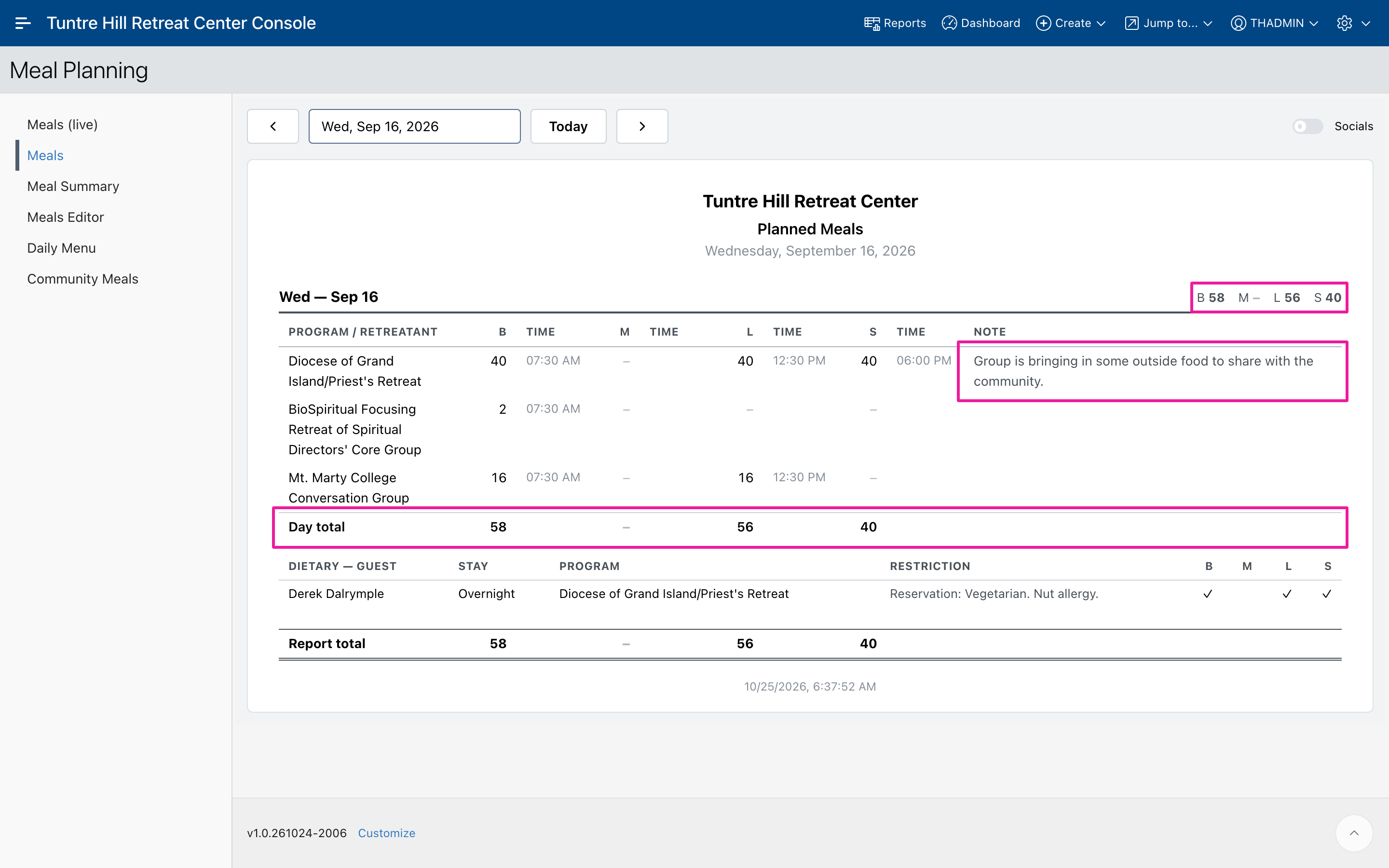
Section titled “The day’s menu”When the kitchen has written a menu for the day, it sits on the line under the day’s heading: the ‘All day’ note first, then one per meal (‘B:’, ‘L:’, and so on). These notes are for the whole center, every program and retreatant alike, and are written on the Daily Menu.
The rows
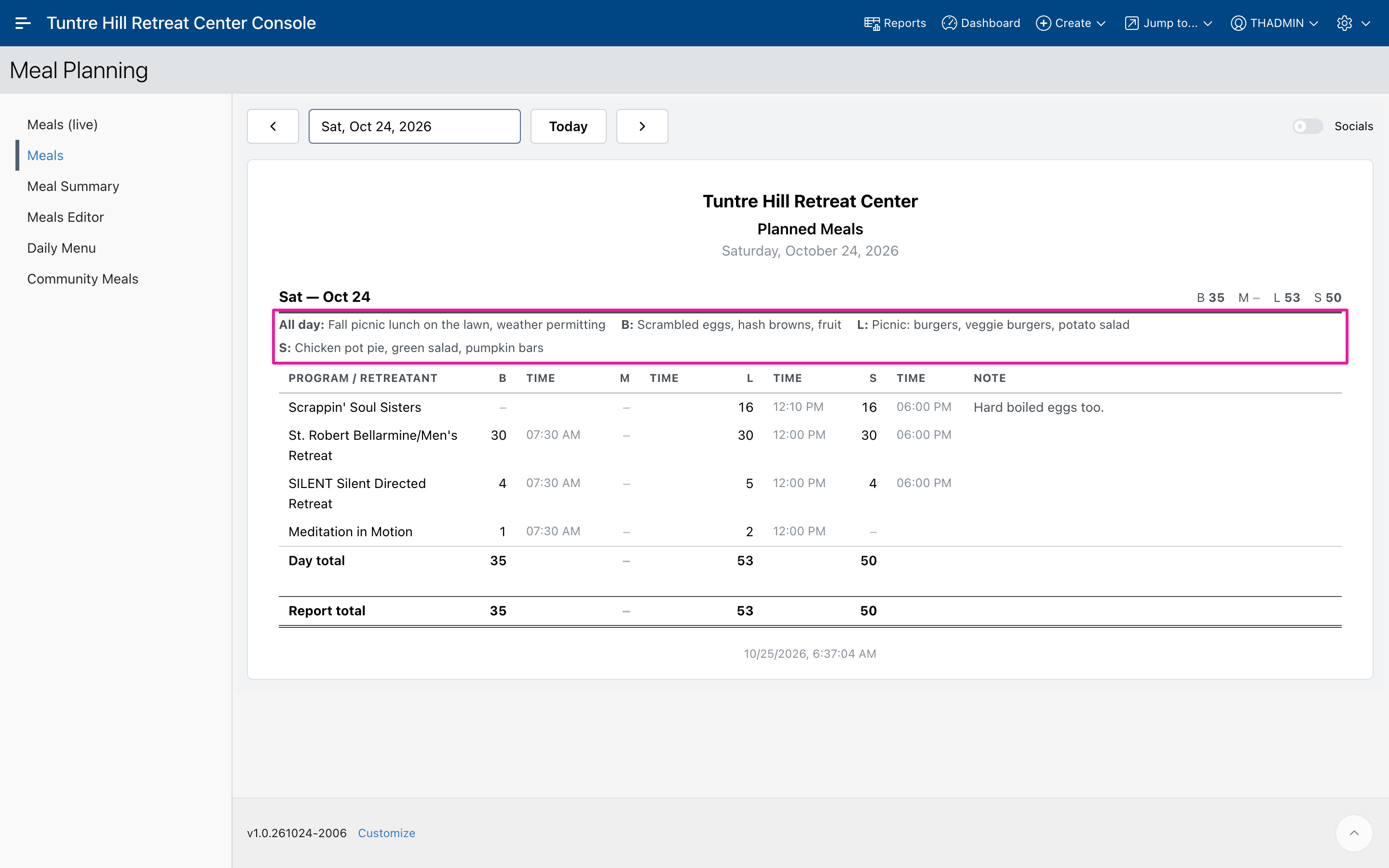
Section titled “The rows”Rows are programs and private retreatants. A private retreatant’s row carries their room number after their name. A private retreatant created in Retreat Manager always follows your center’s private-retreat meal times; its times can’t be changed. Programs come from their reservations’ meal counts; a reservation with no guest assigned yet still counts for a hosted group, and for your own programs only when the program or your settings say to include it.
A ‘Community Meals’ row, in italics, is extra meals the kitchen prepares for the community itself, entered on the Community Meals page rather than on a reservation. It’s served at your center’s usual times unless one has been changed for that day.
On a sheet that covers more than one day, every day of the range gets its section — a day with nothing planned shows as a single row of dashes, so a gap in the calendar is visible instead of silently skipped. (A sheet run for a single empty day still says there are no meals.)
Counts and marks
Section titled “Counts and marks”- A number is servings to prepare.
- A dash means none — the row has no servings of that meal.
- A red number with a minus is servings that were cancelled. They are shown so you know, but they’re never subtracted from the totals: a cancelled meal isn’t negative demand.
- ‘Day total’ adds the day’s rows; ‘Report total’ adds every day in the report.
- The ‘Note’ column carries a program’s meal note for that day, entered by the office on the Meals Editor.
The dietary table
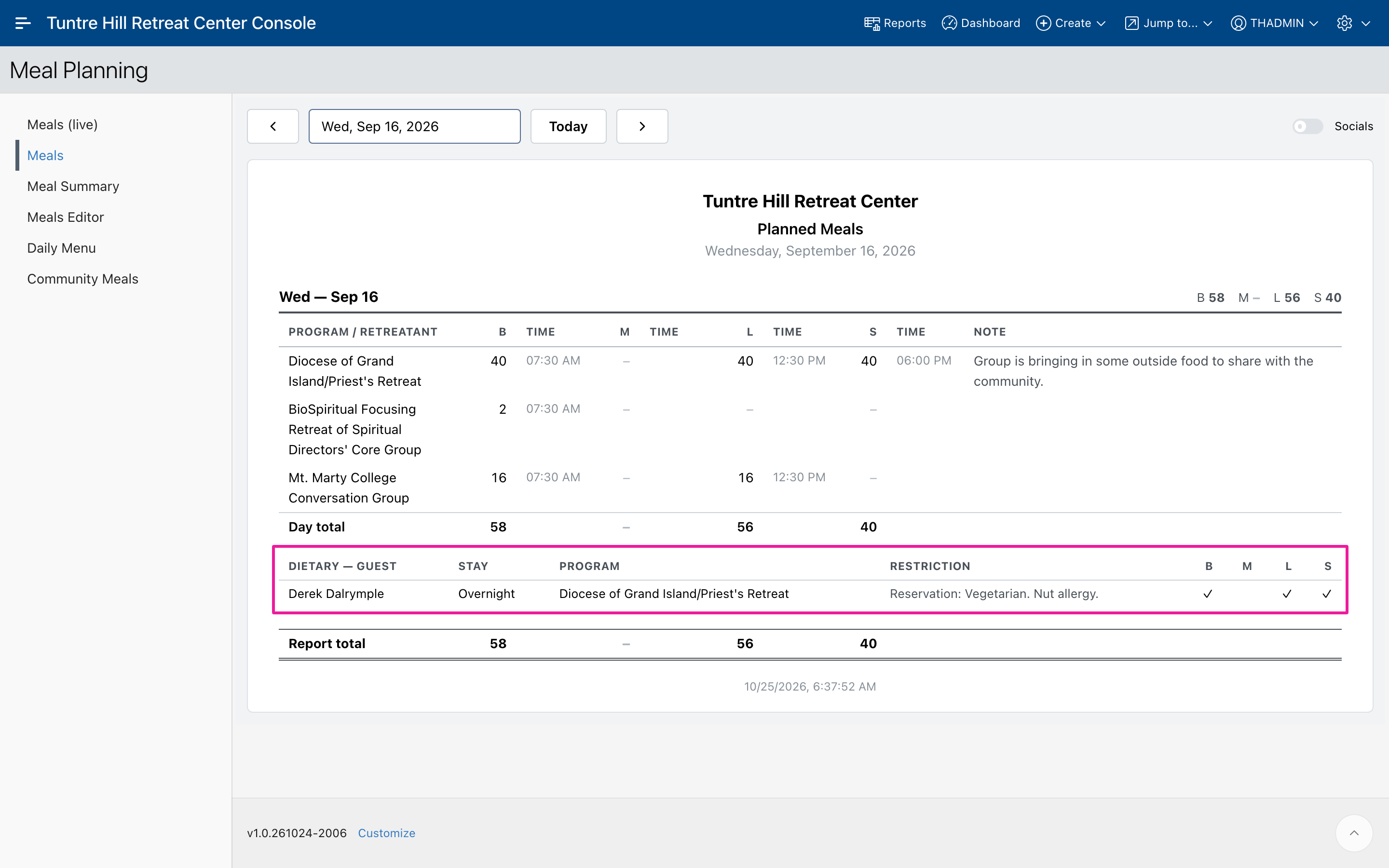
Section titled “The dietary table”Under the meals, a ‘Dietary’ table lists every guest eating that day who has a dietary note: their name, whether they’re overnight, their program, the restriction, and a check under each meal they’re having. A note can come from the reservation or from the guest’s record; when the two differ, both appear, labelled ‘Reservation:’ and ‘Guest:’. A guest with no meal that day isn’t listed, and on the live board a guest drops off once their last meal is served.
The socials table
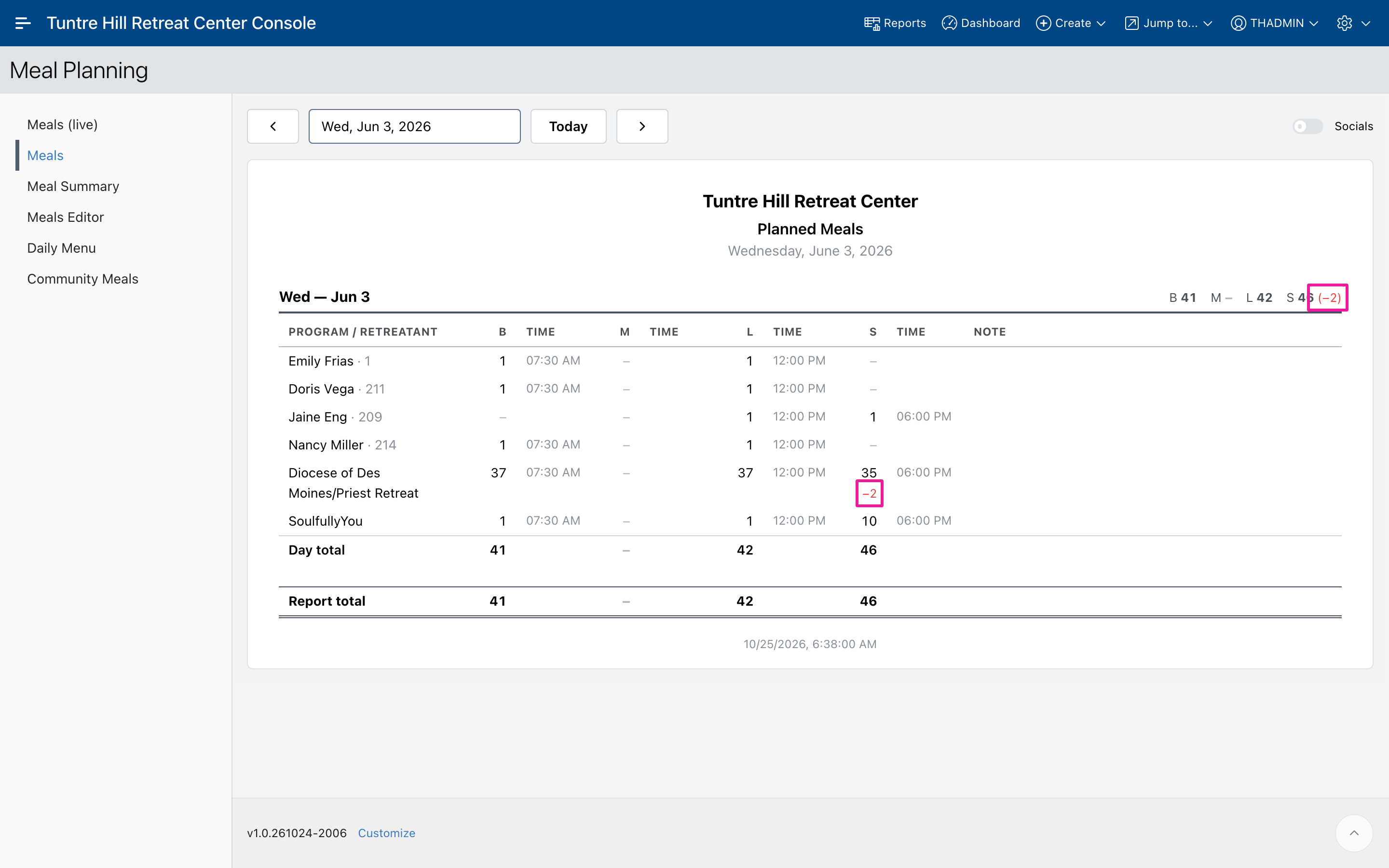
Section titled “The socials table”With ‘Socials’ switched on, a ‘Socials’ table sits between the meals and the dietary table: one row per catered social, in time order, with the program, the time, the room, the items as a count and a description, and the social’s own note under ‘Setup / Note’. The meeting’s setup instruction stays out of that column — it’s direction for the setup crew, not the kitchen — until the ‘Meeting notes’ switch, which every sheet shows once Socials is on, asks it in. Cancelled socials aren’t shown. Socials are orders — trays and pots, not headcounts — so they never change the meal totals.