Room Occupancy
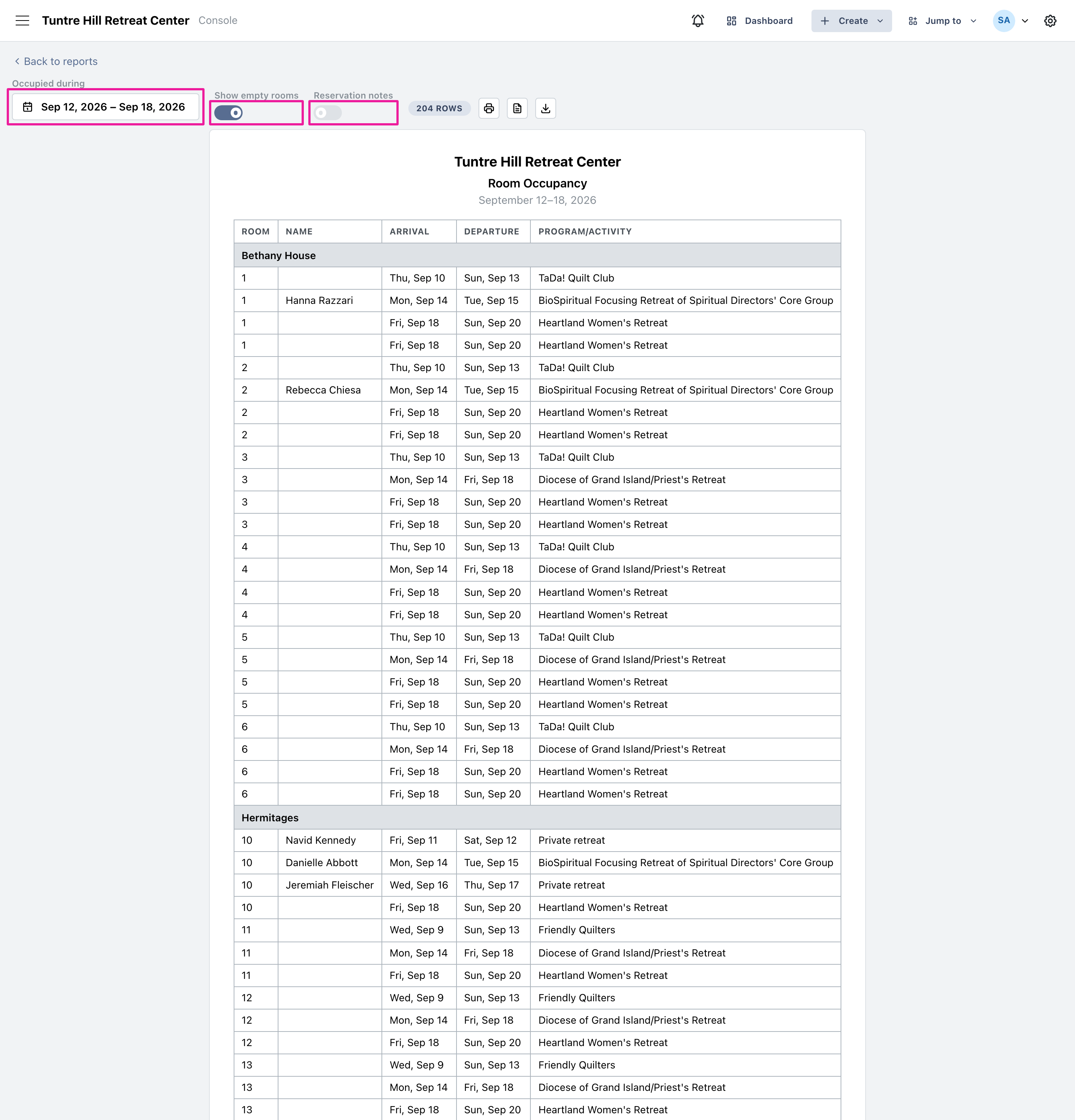
The Room Occupancy report in Retreat Portal lists who is in each room over a date range, grouped by building or floor. It’s the report to print when you want the week’s full picture — every arrival and departure, room by room, with blank lines where rooms sit open.
Open Room Occupancy
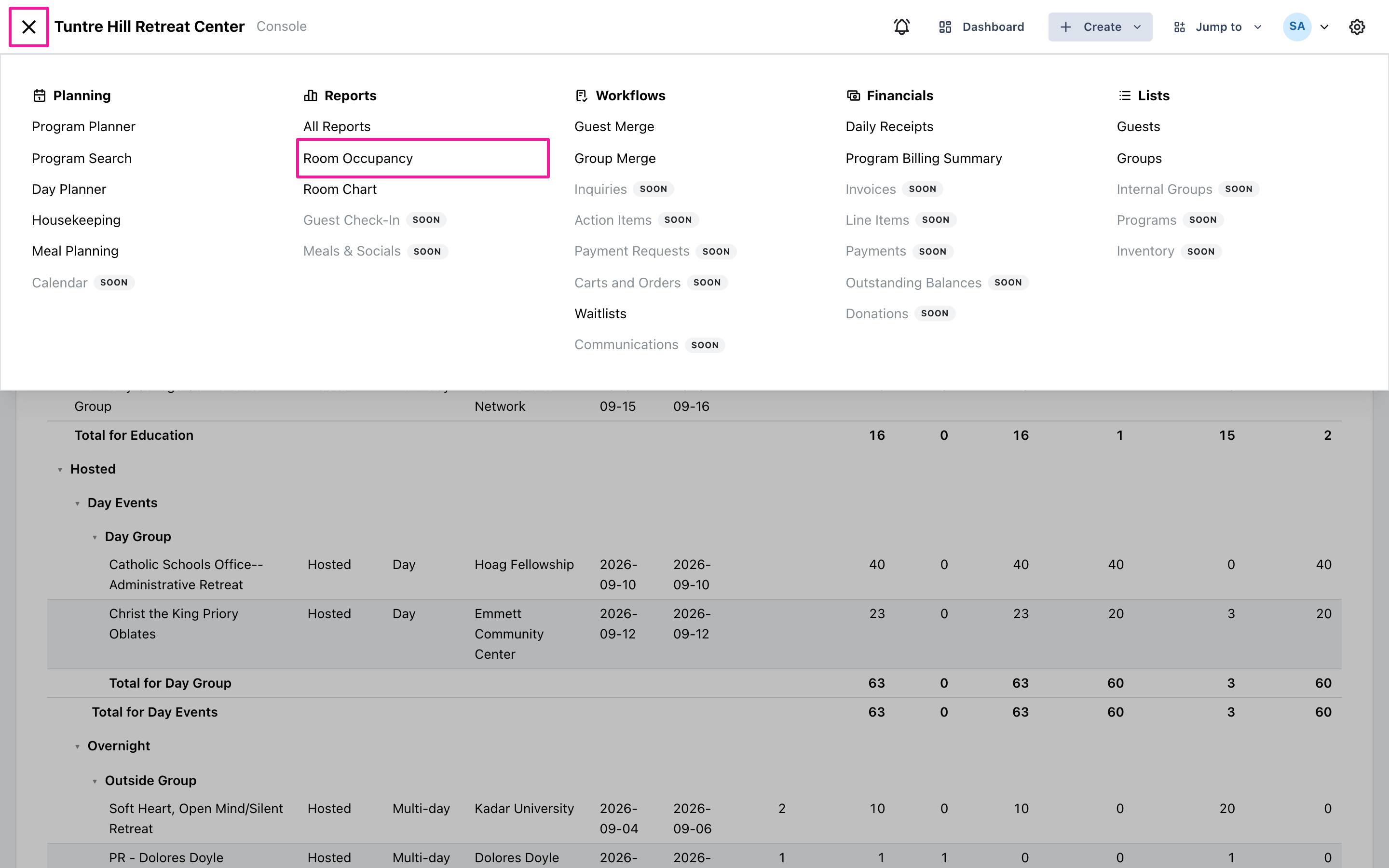
Section titled “Open Room Occupancy”Click the menu icon on the top-left and select ‘Reports’ > ‘Room Occupancy’.
Pick the dates
Section titled “Pick the dates”The report opens on the current week. Click the date range button to run it for any other stretch — a weekend, a week, or longer. The ‘Show empty rooms’ switch is on by default so unoccupied rooms print with a blank line the front desk can hand-write a walk-in onto; turn it off to list only occupied rooms. A second switch, ‘Reservation notes’, is off by default — turn it on when you want a far-right Notes column carrying each reservation’s note, and leave it off for a clean roster.
Read the roster
Section titled “Read the roster”Rooms are grouped by building or wing, in the same order as your room list. Each line shows the room, the guest’s name, their arrival and departure days, and the program or activity that brings them. A line with dates but no name is a room held by a group that hasn’t named its guests yet. The count at the bottom totals the people in rooms and the commuters for the range.