
Payment Processing Settings
Cards are taken in several places: the registration cart, the ordering storefront, the payment window your staff use, the pay-now link on an invoice, an emailed payment request, the public donate page, and the public gift shop page. Payment Processing sets, for each of them, which processor takes the card, whether a service fee is added, and whether a donation is offered alongside. The receipts switch lives on the same page.
Open Payment Processing
Section titled “Open Payment Processing”Click the gear icon on the top-right and select ‘Business’. On the left, under Financial, click ‘Payment Processing’.
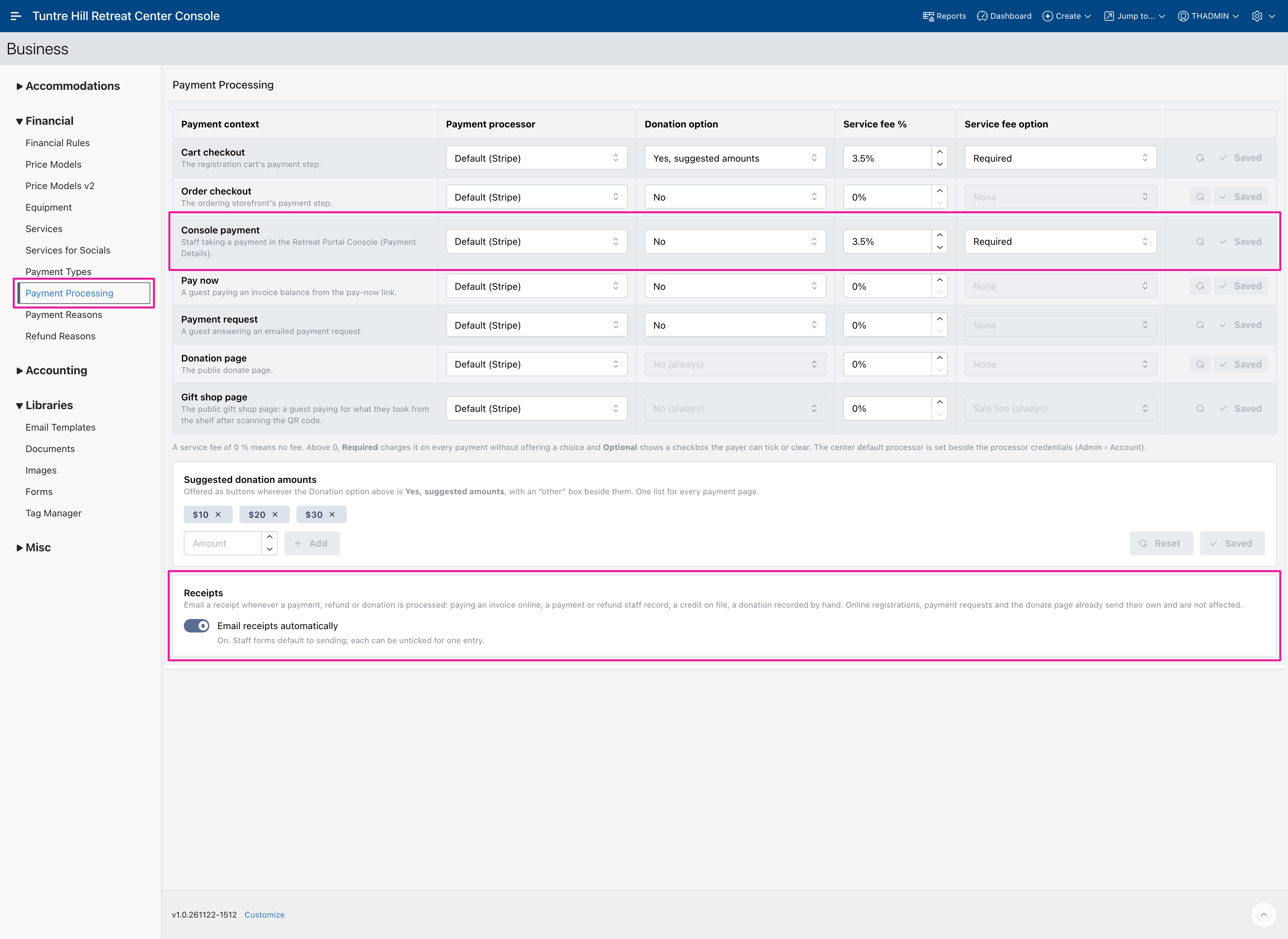
One row per place a card is taken
Section titled “One row per place a card is taken”Each row is a ‘Payment context’. ‘Console payment’ is the one the payment window follows when staff record a card; the others are the online pages your guests use. For each:
- Payment processor — ‘Default’ uses the center’s processor, set beside its credentials under the gear icon > ‘Account’; pick another when that page should use a different account.
- Donation option — whether the page offers a donation on top of the payment: ‘No’, ‘Yes, custom amount’, or ‘Yes, suggested amounts’. The suggested amounts are the list under the table. The payment window your staff use doesn’t use this option; it has ‘Part of this is a donation’ instead.
- Service fee % and Service fee option — a percentage of 0 means no fee. Above 0, ‘Required’ adds the fee to every card payment without offering a choice, and ‘Optional’ shows a box the payer can tick or clear, ticked or clear by default.
Click the row’s save button after a change.
Where the fee goes
Section titled “Where the fee goes”On a payment, the fee is charged to the card with the payment and added to the invoice being paid as a ‘Service fee’ line, so the balance is unchanged by it: Take a Card Payment. On a donation the gift is recorded for the full amount charged, fee included. On a credit held on file by card there is no invoice to carry the fee, so it has no line of its own; see the note under Hold Credit on File.
Receipts
Section titled “Receipts”The ‘Receipts’ card at the bottom holds the one switch for email receipts: on, every payment, refund, and donation your staff record defaults to sending a receipt. See Receipts.