
Write the Daily Menu
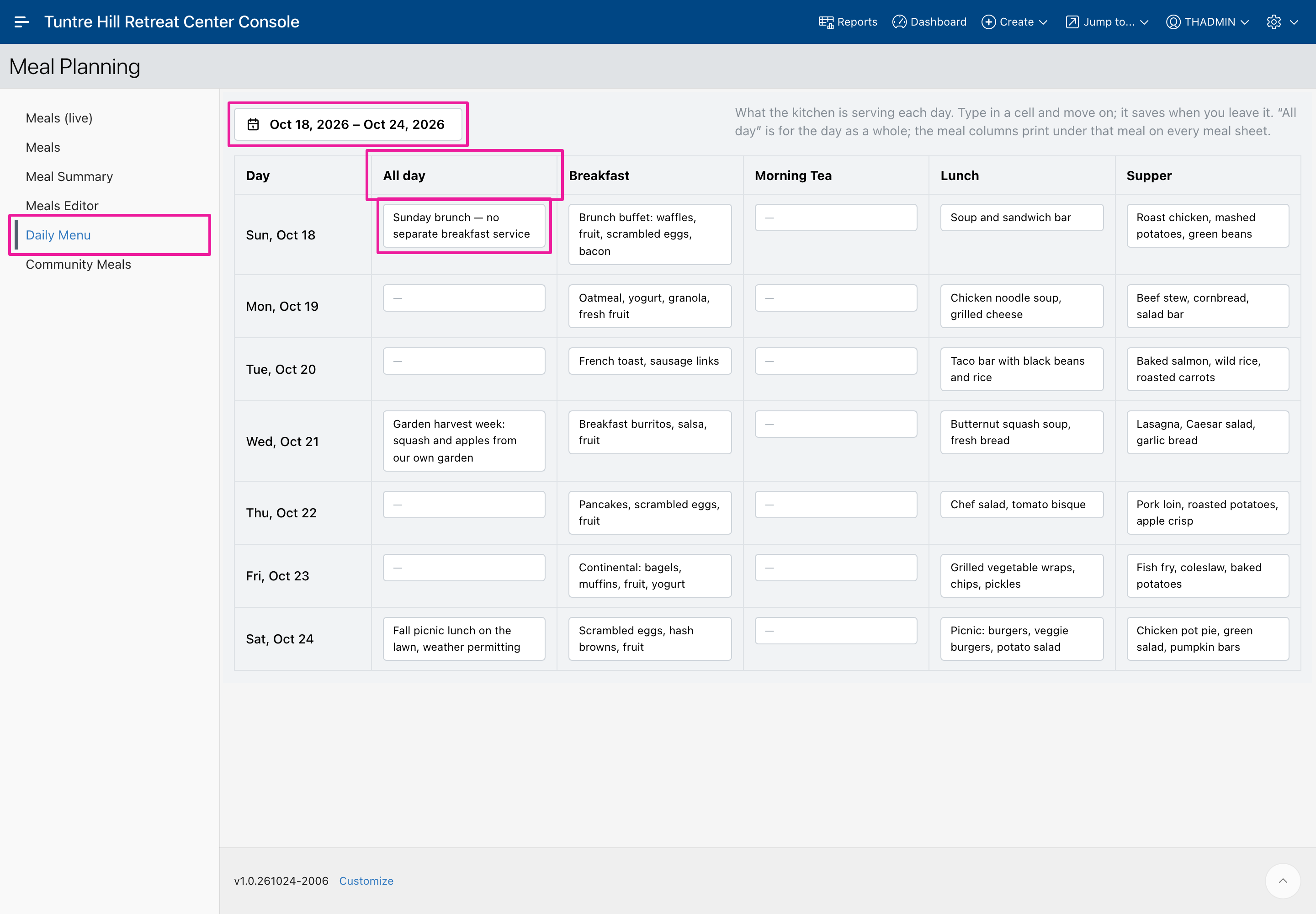
The Daily Menu is where the kitchen writes down what it’s serving: one row per day, a column for the day as a whole, and one for each meal. Fill in the week ahead in one sitting, and every meal sheet prints that day’s menu under its heading, so the office and the kitchen work from the same page.
Open it
Section titled “Open it”Click the menu icon on the top-left and select ‘Planning’ > ‘Meal Planning’, then click ‘Daily Menu’ on the left. It opens on the current week, Sunday to Saturday; click the date button at the top to pick other dates.
Fill it in
Section titled “Fill it in”Click a cell, type, and move on to the next one. Each cell saves as soon as you leave it, and a green check confirms the save. Use ‘All day’ for anything about the day as a whole (“Picnic on the lawn”, “Kitchen closed after lunch”), and the meal columns for that meal’s menu. To clear a cell, delete its text and click away. A cell holds up to 300 characters; a counter appears as you get close.
Where it shows up
Section titled “Where it shows up”The menu prints on the line under each day’s heading on ‘Meals (live)’, ‘Meals’, and the ‘Meal Summary’, with the ‘All day’ note first. Only filled-in slots are shown there.
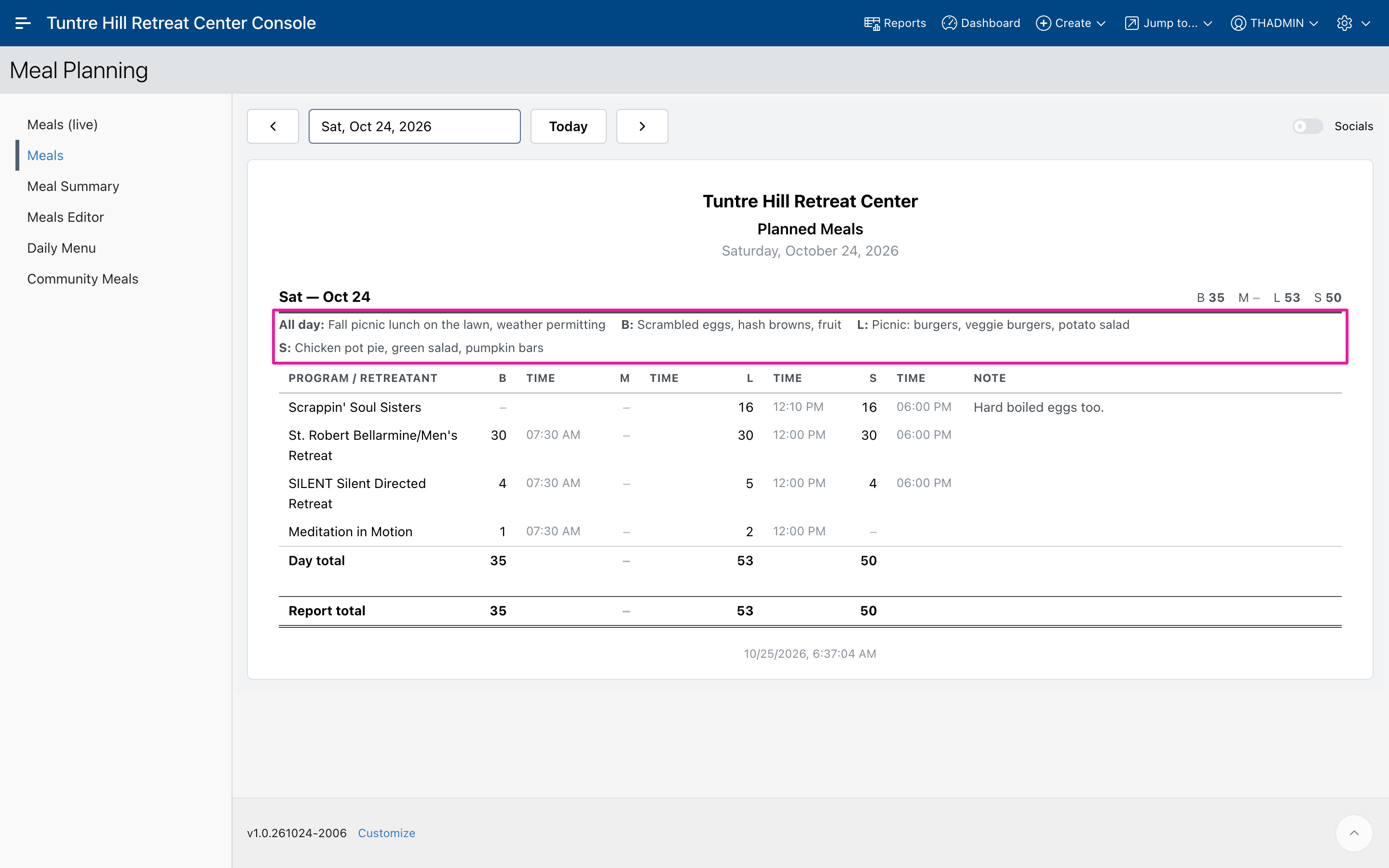
The same notes can be edited one at a time from the Meals Editor, on the line under each day’s heading.