
Plan Ahead with the Meal Summary
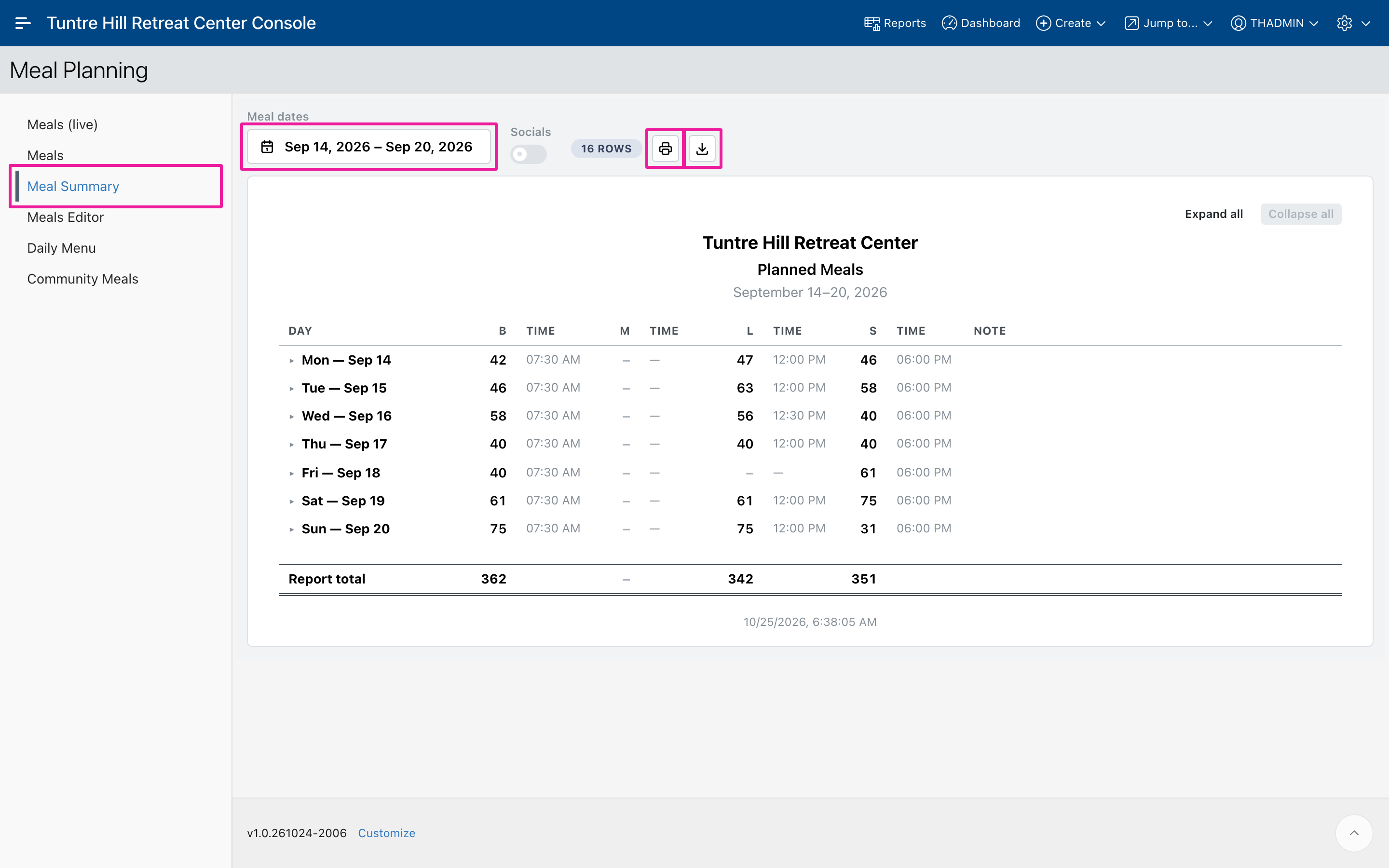
The Meal Summary is the meal sheet for a range of days — the next two weeks by default — condensed to one line per day so you can see the shape of the week before ordering or scheduling staff. Any day opens into its full sheet, and the whole thing prints as you see it.
Open it
Section titled “Open it”Click the menu icon on the top-left and select ‘Planning’ > ‘Meal Planning’, then click ‘Meal Summary’ on the left. In the Kitchen app it’s the ‘Meal Summary’ button across the top.
Pick the dates
Section titled “Pick the dates”The report opens on the next two weeks. Click the date button under ‘Meal dates’ and pick a quick range or select a start and end day on the calendar; the report reruns as soon as you do.
Read the week
Section titled “Read the week”Each day is one line: the total servings for each meal and the time it’s served. When programs eat at different times that day, the time shows the earliest over the latest — a taller row is the sign of a day with more than one sitting. ‘Report total’ at the bottom adds up the whole range.
Open a day
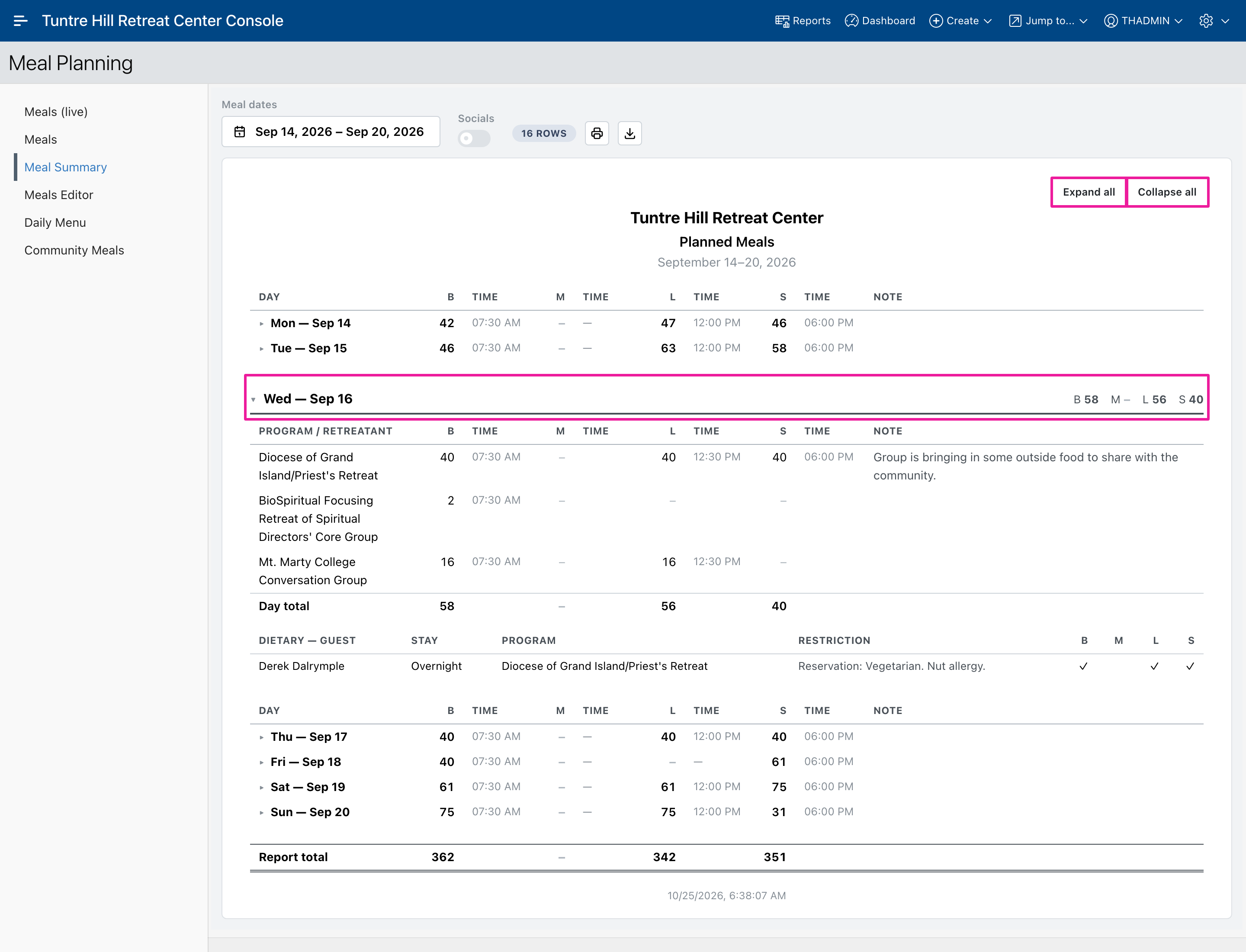
Section titled “Open a day”Click a day to expand it into the full sheet: the day’s menu, every program and retreatant, the day total, and the day’s dietary needs. Click it again to fold it back, or use ‘Expand all’ and ‘Collapse all’ at the top-right for the whole range.
Socials
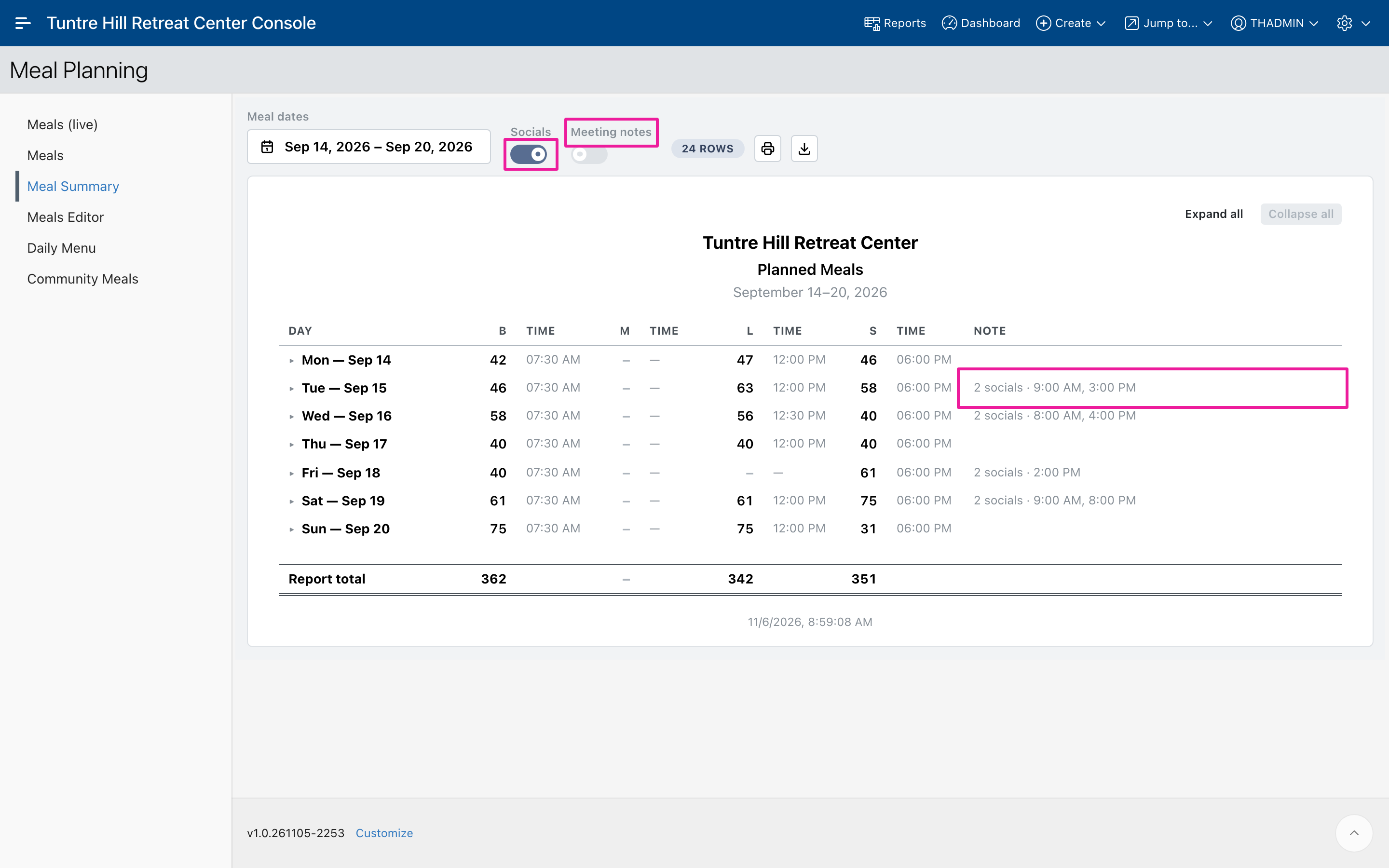
Section titled “Socials”Turn on ‘Socials’ next to the dates to include the catered socials. A collapsed day notes them in its ‘Note’ column — how many and at what times — and an expanded day lists them in full under its meals. A second switch, ‘Meeting notes’, appears once Socials is on: the socials’ ‘Setup / Note’ column normally carries each social’s own note alone, and this adds the meeting’s setup instruction — words for the setup crew rather than the kitchen, so they stay off the sheet until asked.
Print or export
Section titled “Print or export”Use the printer icon to print the summary — it prints exactly what’s on screen, so leave the days collapsed for a one-page week or expand the days you want in detail. The icon beside it exports the report as a CSV file.
To add or change a social, see Plan a Social for a Meeting.