Guest Merge
The Guest Merge tool in Retreat Portal finds guests who were entered more than once and combines their duplicate records into one. This is handy when someone registered twice, or an online sign-up created a second record for a guest you already had, leaving their history split across two entries.
Open Guest Merge
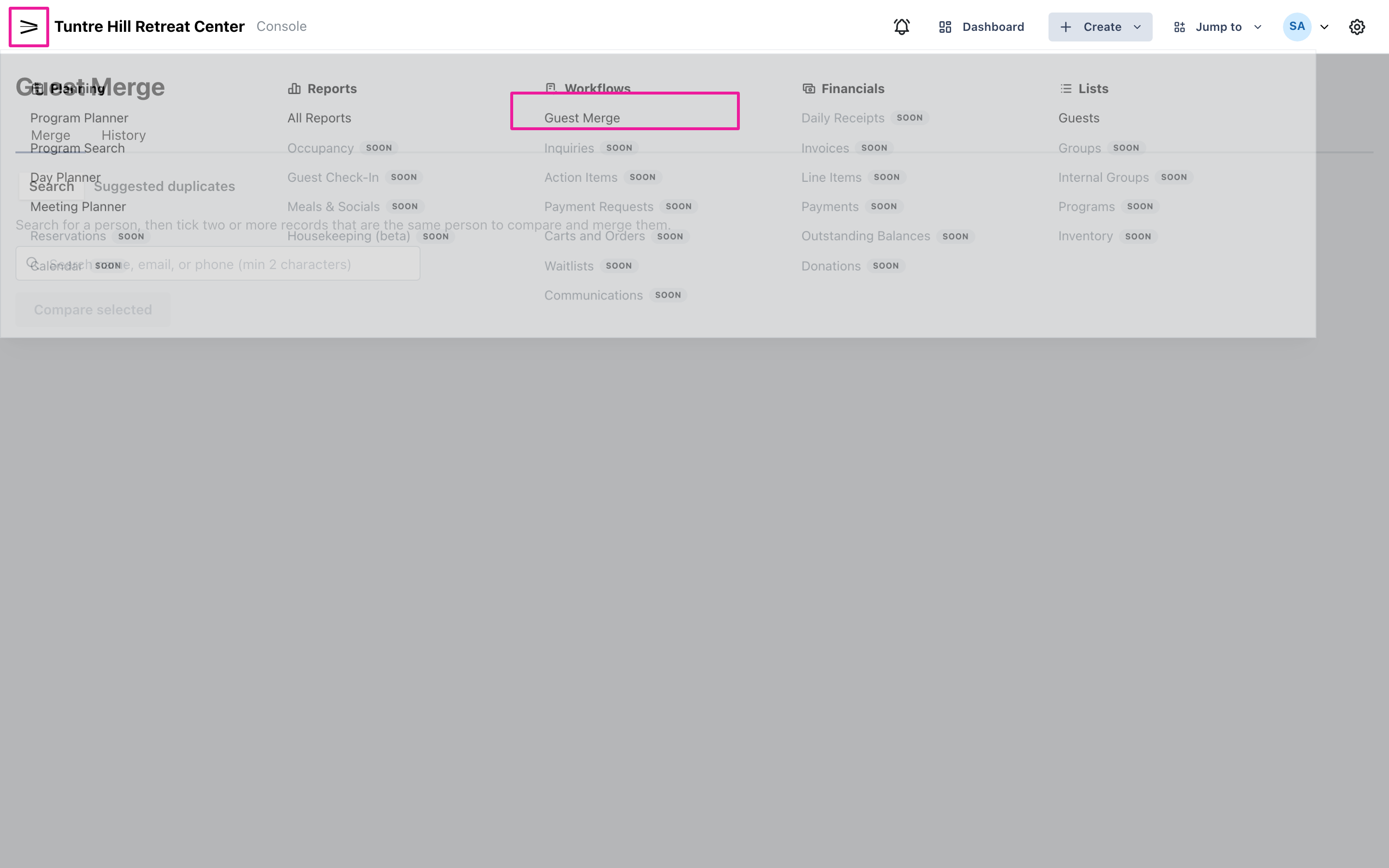
Section titled “Open Guest Merge”To open it, click the menu icon on the top-left and select ‘Workflows’ > ‘Guest Merge’.
Find the duplicates
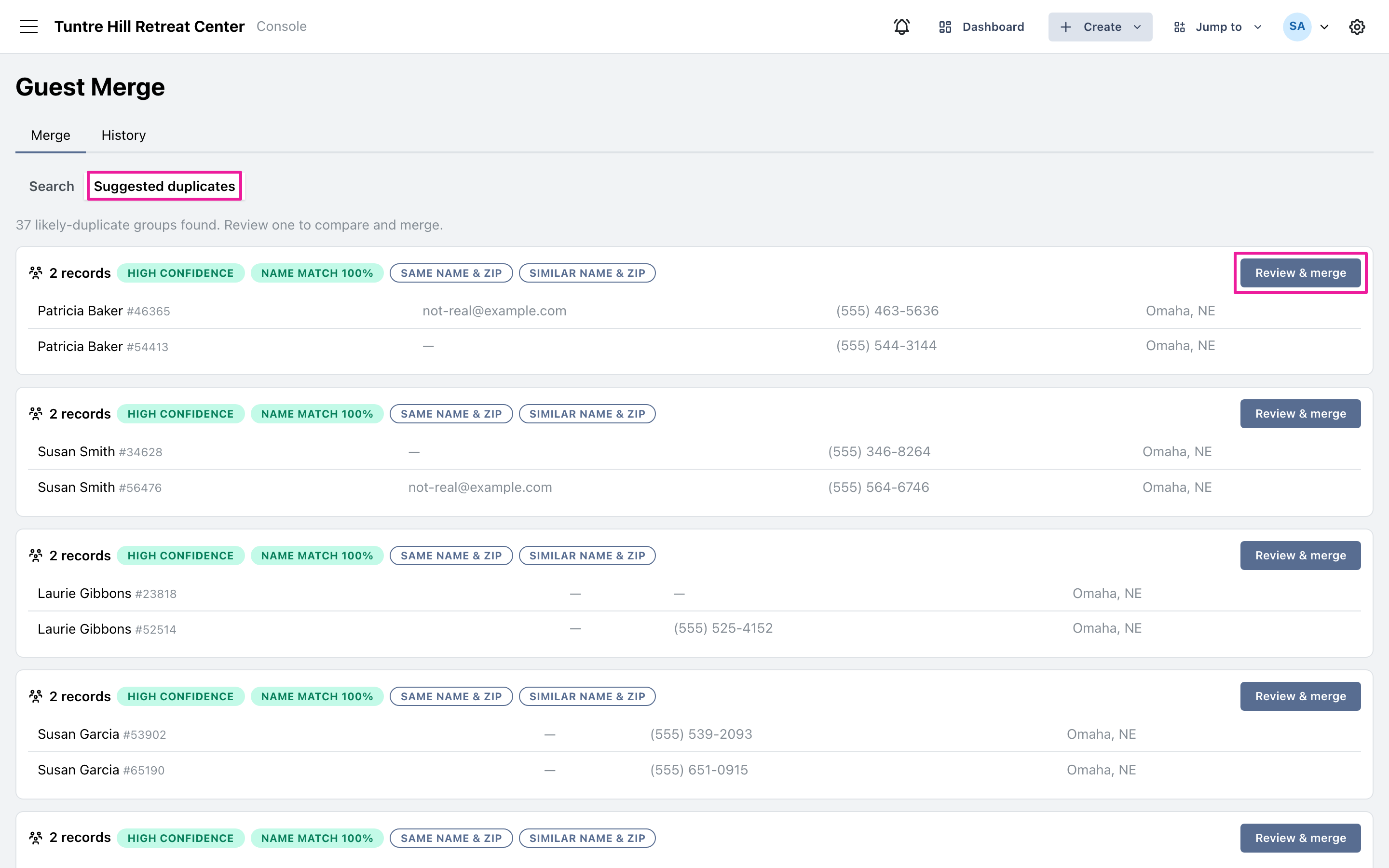
Section titled “Find the duplicates”Click ‘Suggested duplicates’ and Retreat Portal scans your guest list and proposes records that look like the same person, ranked by confidence. Each group shows a ‘name match’ score and what the two records share, such as a matching email or a similar-sounding name. When you spot a pair to combine, click ‘Review & merge’. To track someone down yourself instead, use ‘Search’ and tick the records that match.
Choose what to keep and merge
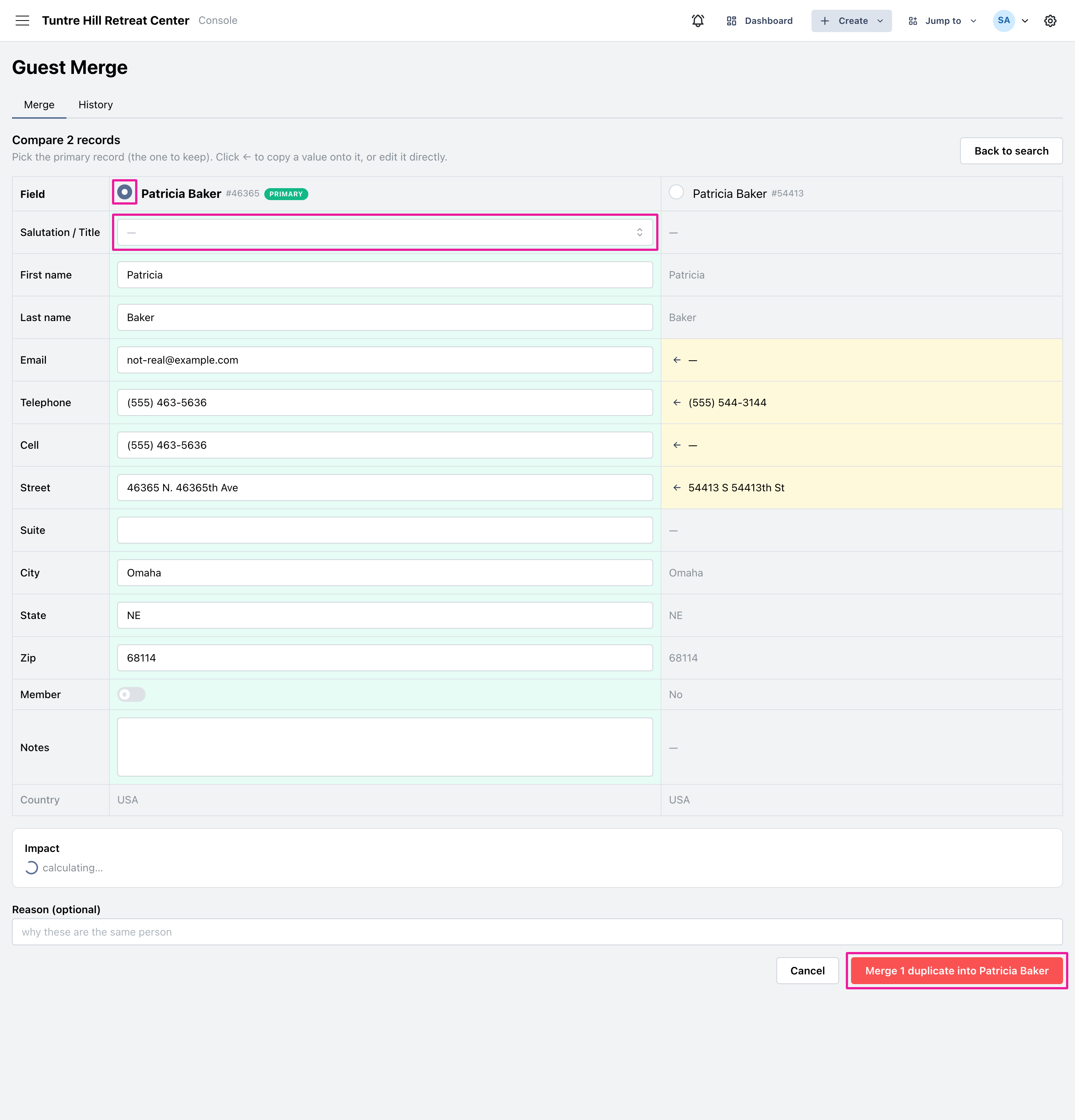
Section titled “Choose what to keep and merge”Choose the record to keep by clicking the circle at the top of its column; it’s marked ‘PRIMARY’. Where the other record has a better value, the field is highlighted, so click the ’←’ arrow to copy it onto the primary, or edit any field directly. ‘Salutation / Title’ is a dropdown of your configured titles. Check the ‘Impact’ panel for how many linked records will move, then click the ‘Merge … into …’ button.
Undo or delete
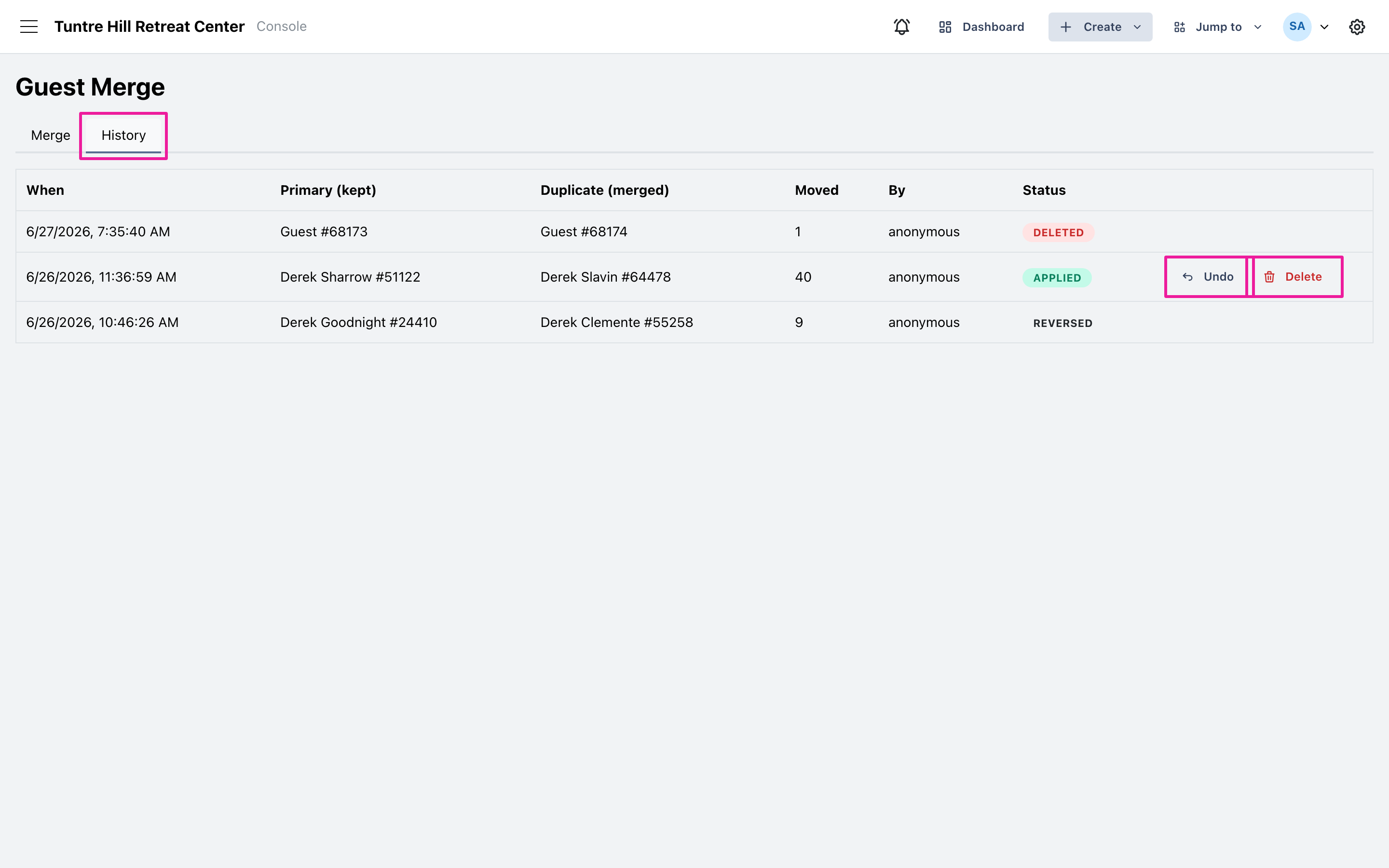
Section titled “Undo or delete”Every merge is listed under the ‘History’ tab. To reverse one, click ‘Undo’ and confirm, and the records split back apart. Once the duplicate’s records have all moved across, click ‘Delete’ to permanently remove the leftover duplicate, which can’t be undone.